If Xbox Game Bar displays “Can’t record now, try again later” on Windows 11, check Microsoft’s documented recording setup. The supplied evidence does not establish one cause or a guaranteed remedy for the message.
Check the documented recording path
- Press Windows+I to open Windows Settings.
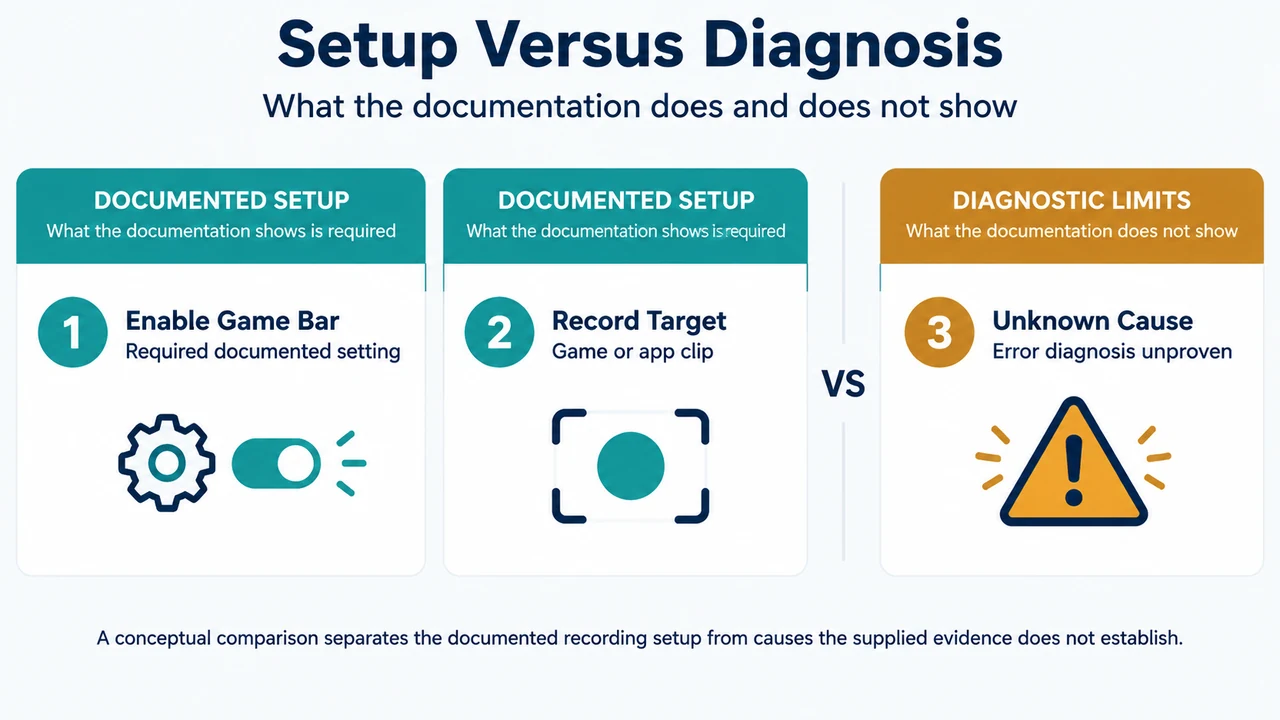
- Search for Xbox and open the setting named Enable Xbox Game Bar. Turn it on.
- Open the game or app you want to record.
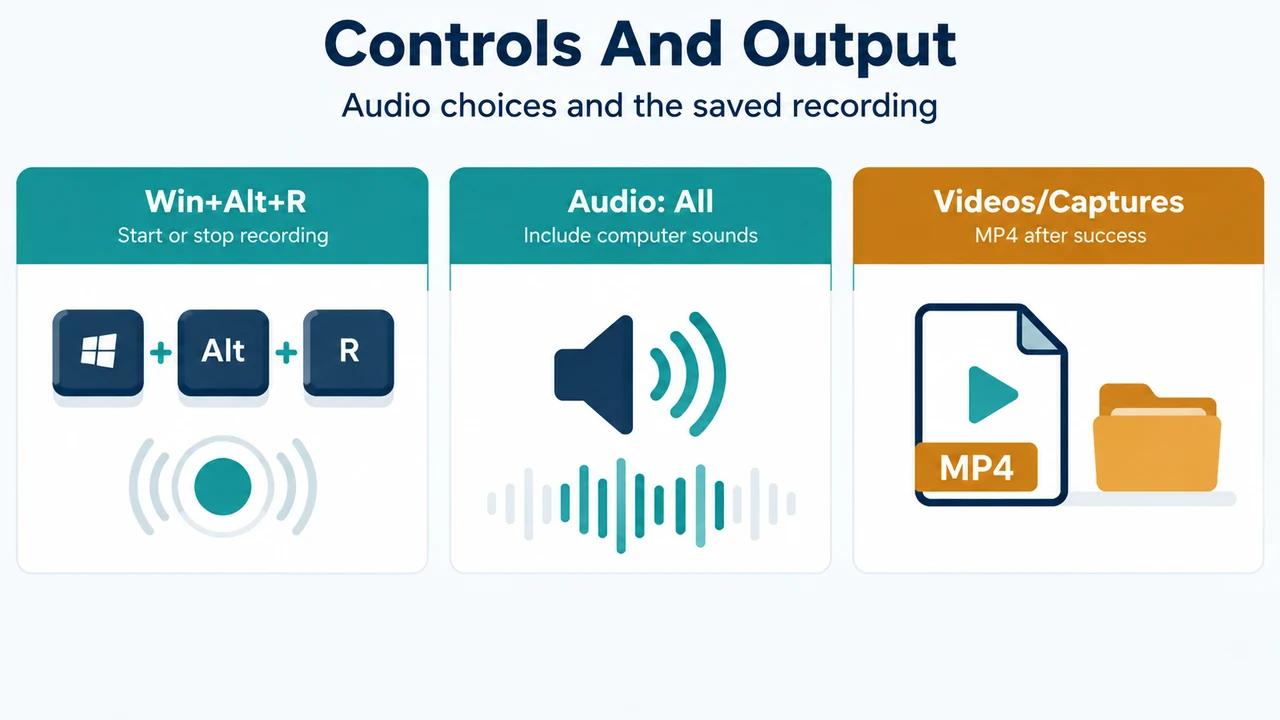
- Press Windows+Alt+R to start recording.
- Press Windows+Alt+R again to stop.
Microsoft’s support instructions describe recording a clip from a game or app. They do not establish that this workflow works for every Windows application or configuration. If the message remains, the supplied evidence does not identify the underlying cause.
Review the audio option
After enabling Xbox Game Bar, press Windows+G to open its controls. Open Settings, go to Capturing, and check the audio setting. Microsoft’s instructions identify an All option for including computer sounds. Select it if it is not already selected.
The microphone has a separate control. During recording, Windows+Alt+M toggles the microphone.
Check the output folder after a successful recording
Microsoft says the recorded video is saved as an MP4 file under Videos, in the Captures folder. The file name includes the game or app name and the recording date and time. This location applies after a recording has started and stopped successfully; it does not explain why the reported error appears.
What the other supplied source shows
A locked Microsoft Q&A discussion contains the same reported message and community reports about repair, reset, registry, policy, command, reinstall, account, and OBS-related actions. Those reports do not establish a universal cause or remedy. This article therefore does not recommend those interventions as fixes.
Research method and limitations
This answer was prepared from the supplied public Microsoft Support and Microsoft Q&A excerpts retrieved on September 19, 2026. The Support excerpt documents the Windows 11 and Windows 10 setup, audio option, shortcuts, microphone control, and MP4 location. The Q&A excerpt documents the reported message and community suggestions, not a verified diagnosis or remedy. No hands-on test, benchmark, complete app-compatibility review, or competing coverage was available in the supplied evidence.
Text version of the diagrams
- Setup Versus Diagnosis: Enable Game Bar — Required documented setting; Record Target — Game or app clip; Unknown Cause — Error diagnosis unproven
- Controls And Output: Win+Alt+R — Start or stop recording; Audio: All — Include computer sounds; Videos/Captures — MP4 after success