On Windows 11 version 25H2 and later, the former For developers settings are surfaced under Settings > System > Advanced. Scroll to For developers and select Developer Mode. Microsoft says enabling it requires administrator access, and an organization may disable the option through policy.
If you only use the PC for ordinary activities such as gaming, web browsing, email, or Office apps, Microsoft says you do not need Developer Mode. It is intended for building, deploying, and testing Windows apps.
Where Developer Mode is located in Windows 11 25H2
Before Windows 11 25H2, these settings appeared on a separate For developers page. In version 25H2 and later, open Settings, search for Advanced or go to System > Advanced, then scroll to For developers. Turn on Developer Mode, read the disclaimer, and select Yes to accept the change.
Microsoft’s Advanced Windows Settings documentation lists Developer Mode in that section and describes the page as the successor to the former For Developers page. The exact layout can change, so use the Settings search for “Advanced” if the section is not immediately visible.
What you need before enabling it
Administrator access
Enabling Developer Mode requires local administrator privileges. If the control is disabled or unavailable on a work or school computer, the device may be managed by an organization whose policies disable Advanced settings toggles. The Microsoft documentation does not provide a universal way around those policies; contact the device administrator.
A supported Windows installation
Microsoft’s Advanced settings guidance says to ensure the device is updated to a supported Windows version when a feature is missing. The material supplied for this article confirms that Windows 11 version 25H2 is a Windows 11 feature update, but it does not provide a complete compatibility list for every Windows edition or build. This guide therefore applies only to the documented Windows 11 version 25H2-and-later scope.
Which related toggles should you enable?
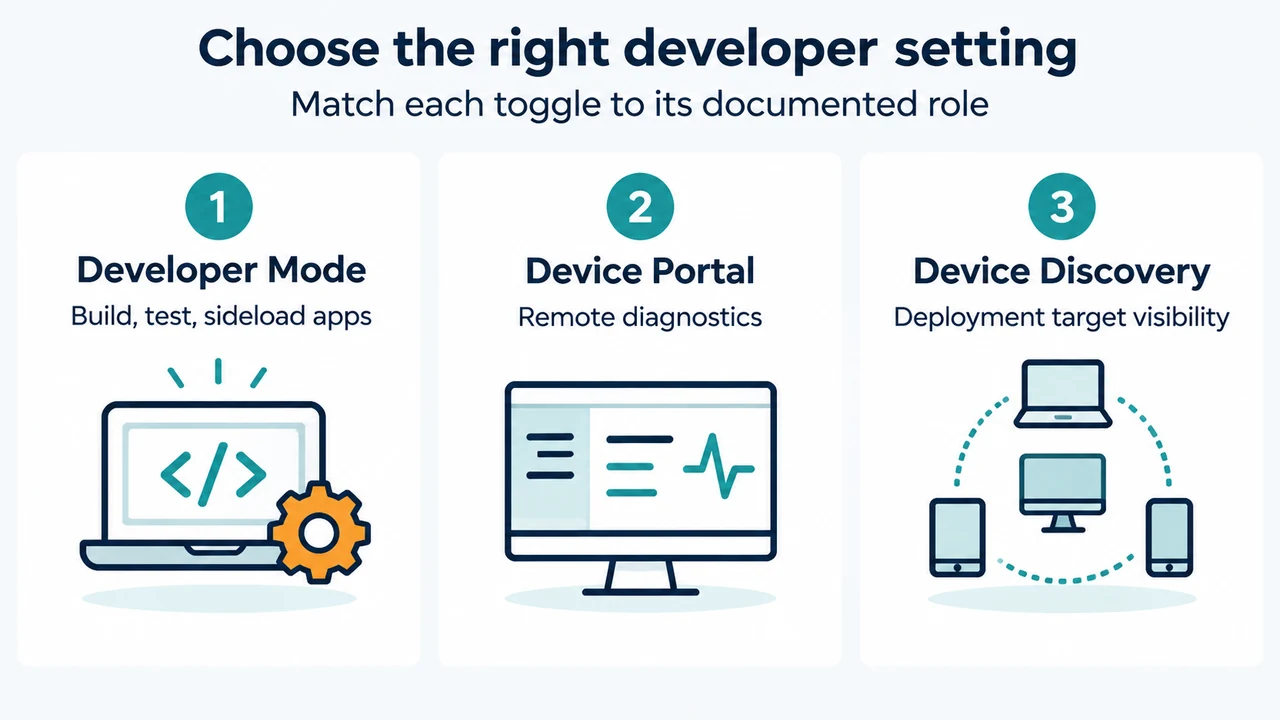
Developer Mode, Device Portal, and Device Discovery have different roles. Enable only the feature your development scenario requires.
| Setting | Documented role | When the supplied documentation says to use it |
|---|---|---|
| Developer Mode | Enables debugging and additional deployment options, including sideloading. | When developing, deploying, or testing Windows apps. |
| Device Portal | Provides remote diagnostics over local network connections. It is enabled, and its firewall rules are configured, when the Device Portal option is turned on. | When you need Device Portal for remote diagnostics or deployment. |
| Device Discovery | Makes the device visible to other devices on the network through mDNS and enables the SSH server used for remote deployment targets. | Only when you intend to make the device a deployment target. |
These settings are not interchangeable. Microsoft specifically says Device Discovery should be enabled only when the device is intended to be a deployment target. It also says Device Discovery turns on SSH services and exposes a Pair control for obtaining the SSH PIN. The supplied documentation does not establish that every development workflow needs Device Portal, Device Discovery, or SSH.
A practical decision for a development PC and test device
If you are writing software with Visual Studio, Microsoft says Developer Mode is needed on both the development PC and devices used to test the code. For a remote deployment example, Microsoft describes developing on one machine and deploying to another machine, such as deploying to a tablet to test a touch-optimized interface.
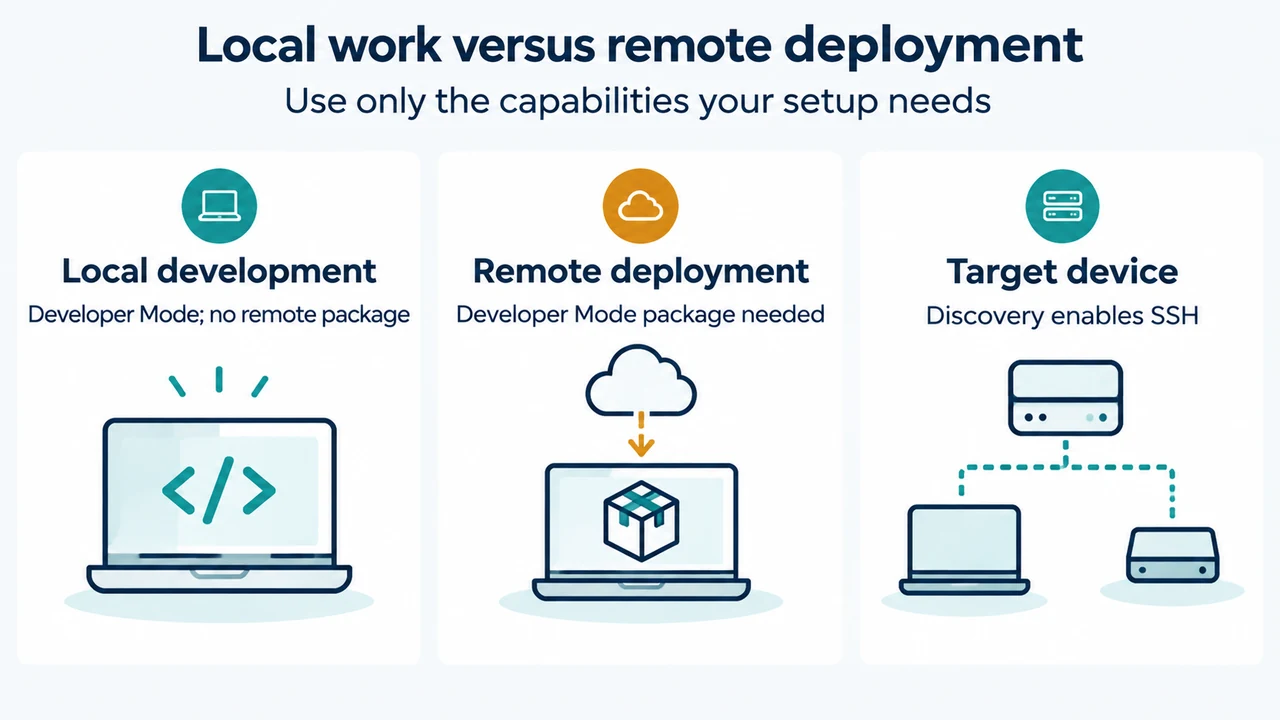
In that example, Device Discovery is needed on the tablet that will receive the deployment, but not on the development PC. Device Portal may be used for deployment or remote diagnostics when its option is enabled. Do not treat this example as a requirement for every Visual Studio project; the supplied evidence only establishes the roles and conditions described above.
Security and network implications
Device Portal configures firewall rules when it is enabled. Device Discovery makes the device visible to other devices on the network through mDNS and enables SSH services for remote deployment. Those documented effects are why Microsoft limits its recommendation for Device Discovery to devices intended as deployment targets.
If your goal is only local development, Microsoft says the Developer Mode package is not required for local development when remote deployment is not needed. Visual Studio can still deploy an app locally, or from one device to another device, in the circumstances described in the documentation. The supplied excerpts do not define a broader security rating or guarantee that disabling one toggle removes every related exposure, so this guide makes no such claim.
If Developer Mode will not install
Microsoft says the Developer Mode package is required for remote deployment, but not for local development. If installation fails, the documented conditions include a network connectivity problem, enterprise settings, or a missing package. On domain-joined computers, Microsoft advises speaking with the network administrator.
The same documentation says the package is blocked by default in WSUS 2.1 and identifies KBs that must be allowed to unblock it: 4016509, 3180030, and 3197985. It also directs readers to check for Windows updates and to look for the package under Settings > System > Optional features > Add a feature. If it is missing there, Microsoft says Windows cannot find the correct package for the computer.
For a failed installation, Microsoft recommends submitting a Developer Mode report through Feedback Hub under the Developer Platform and Developer Mode categories. The supplied excerpt is truncated elsewhere, so this article does not add any registry, PowerShell, or policy workaround.
Research method and limits
This article was prepared from the supplied public Microsoft documentation excerpts retrieved on September 19, 2026, plus one supplied competitor excerpt used only to compare coverage. The Microsoft Developer Mode passage is truncated and one Microsoft 25H2 passage is also truncated, so the article uses only the visible statements. No hands-on testing, lab measurement, benchmark, or comprehensive review was performed. Microsoft page access was reported as authorization-limited in the supplied material, and the competitor coverage was also excerpted rather than independently reviewed in full.
Text version of the diagrams
- Choose the right developer setting: Developer Mode — Build, test, sideload apps; Device Portal — Remote diagnostics; Device Discovery — Deployment target visibility
- Local work versus remote deployment: Local development — Developer Mode; no remote package; Remote deployment — Developer Mode package needed; Target device — Discovery enables SSH