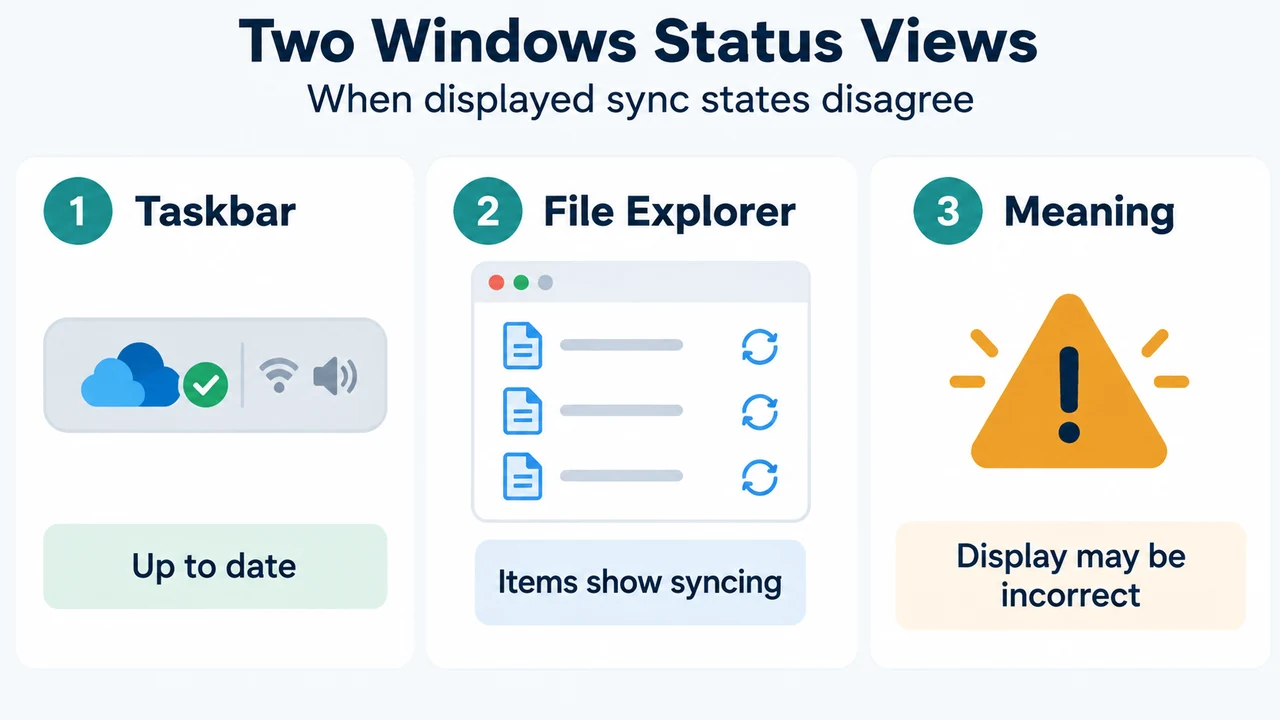
Microsoft documents a Windows OneDrive case in which the taskbar shows “Up to date” while some or all items in the OneDrive folder still show “syncing” in File Explorer. The documented causes are hidden or temporary files, an incorrect cached Windows Search status, and, when every item shows “syncing,” a policy conflict with OneDrive Files On-Demand.
This guide covers that documented File Explorer display case. It does not establish a universal fix for other OneDrive problems.
Start with the two displayed statuses
Check the OneDrive icon in the Windows taskbar notification area and the status shown for items in File Explorer. If the taskbar says “Up to date” but some or all File Explorer items say “syncing,” Microsoft identifies this as a potentially incorrect display, not proof that those items are still uploading.
If every file and folder shows “syncing,” use the Files On-Demand policy check below. If you cannot see a OneDrive icon, Microsoft says OneDrive may not be running or the icon may have moved.
Check hidden and temporary files
Microsoft says hidden and temporary files in the OneDrive folder display “syncing” by default, but OneDrive does not sync them. They therefore do not affect the OneDrive “Up to date” status.
In File Explorer, show hidden files and folders, then inspect the OneDrive folder. Remove hidden files and folders only when they are not associated with files you are currently editing.
For temporary Office files, close open Office files and clear the Office document cache. If temporary files remain, Microsoft says manual deletion may be possible but warns that deleting an Office document incorrectly can cause data loss. Do not delete an item unless you have confirmed that it is safe to remove.
If an item cannot be removed, or you cannot determine whether it is safe, Microsoft suggests moving it out of the OneDrive folder to see whether the status changes. Move only an item whose identity and safe handling you understand.
Test the Windows Search index
If hidden and temporary files do not explain the display, Microsoft documents this test for an incorrect cached Windows Search status:
- Open Start, enter Services, and open the Services application.
- Open Windows Search.
- Set Startup type to Disabled, then select Stop under Service status.
- Select OK and refresh the File Explorer window.
If the OneDrive folder no longer shows “syncing,” Microsoft says the cached search index caused the incorrect status. Restore Windows Search by setting its startup type to Automatic (Delayed Start). Then open Indexing Options, choose Advanced, and select Rebuild.
Microsoft notes that rebuilding can take some time and may run faster when the computer is not in use. If the problem remains, Microsoft points to a possible issue in the indexing layer and its Windows Search troubleshooting guidance.
If every item says “syncing,” check the Files On-Demand policy
Microsoft documents a separate cause when all files and folders show “syncing”: the UseFindFirstFileEnumeration Windows policy may be set to True. The policy is designed for legacy file systems and is not compatible with OneDrive Files On-Demand. In that configuration, File Explorer cannot read the reparse tag on files and folders, so items receive the default “syncing” status.
The documented resolution is to remove the UseFindFirstFileEnumeration registry value or change it to 0, then restart File Explorer. Microsoft warns that incorrect registry changes can cause serious problems and recommends backing up the registry first. If you are not responsible for the Windows device, ask your organization’s IT helpdesk or administrator before changing this policy.
Limits of this evidence
The supplied Microsoft Support excerpt lists storage overage as a condition that prevents uploading, editing, or syncing new files, and it points to guided troubleshooting or unlinking and relinking if issues continue. It does not provide a full diagnostic sequence for those cases, so this article does not present them as explanations for the File Explorer display covered here.
This answer was prepared from the supplied public excerpts from Microsoft Support and Microsoft Learn, retrieved September 19, 2026. The Microsoft Learn material was last updated July 14, 2025. The excerpts do not provide complete coverage of every account, Windows version, OneDrive version, or competing solution. The competing passage was truncated and was used only to compare coverage, not to support technical claims. No hands-on test or claim about unseen text is included.
Sources
- Microsoft Learn: The OneDrive sync status icon incorrectly shows “syncing” in File Explorer.
- Microsoft Support: Fix OneDrive sync problems.
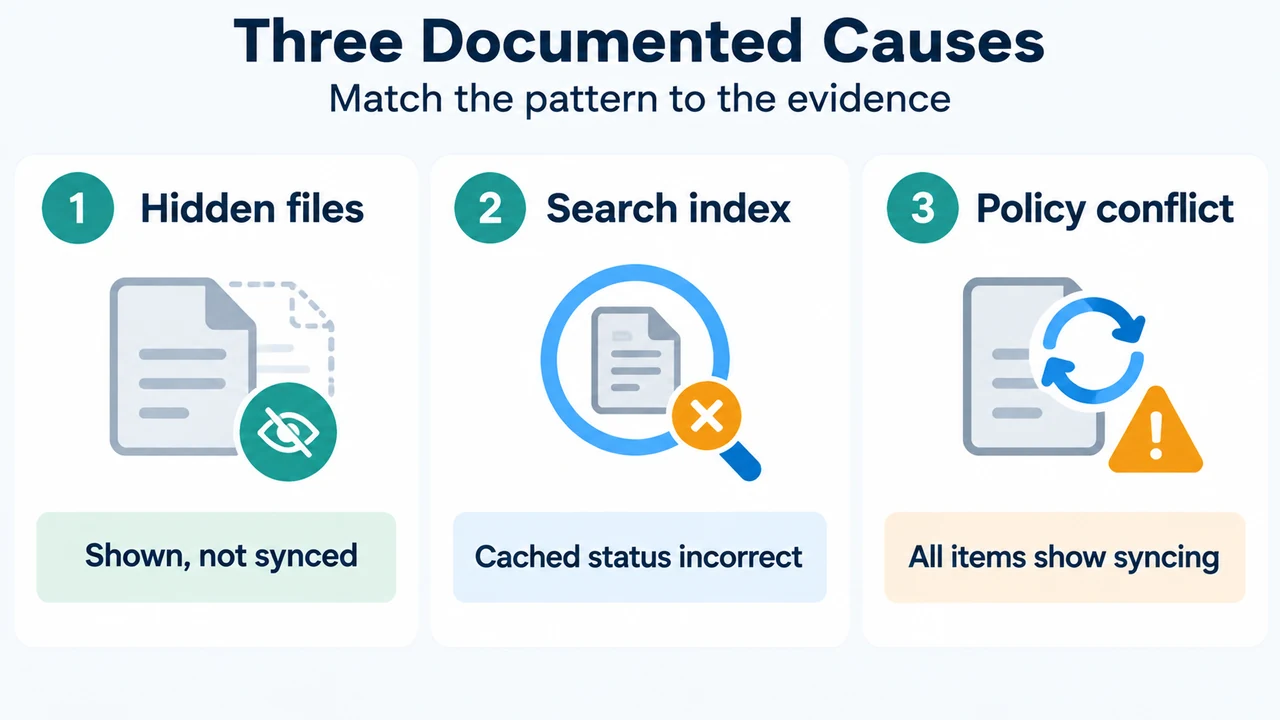
Text version of the diagrams
- Two Windows Status Views: Taskbar — Up to date; File Explorer — Items show syncing; Meaning — Display may be incorrect
- Three Documented Causes: Hidden files — Shown, not synced; Search index — Cached status incorrect; Policy conflict — All items show syncing