Why Windows 11 Prompts for a BitLocker Recovery Key
A BitLocker recovery key is required when Windows cannot automatically unlock an encrypted drive. According to Microsoft’s official documentation, this prompt typically appears during startup because of a detected security risk or a hardware change. A prompt can also appear on external or data drives if you forget the unlock password.
The recovery key is a 48-digit numerical code used to regain access to your drive. Microsoft Support cannot retrieve, provide, or recreate a lost BitLocker recovery key. To unlock the encrypted volume, you must retrieve the key from your backup location or, if the device is managed by an organization, request it from your IT department.
Step 1: Record the Recovery Key ID
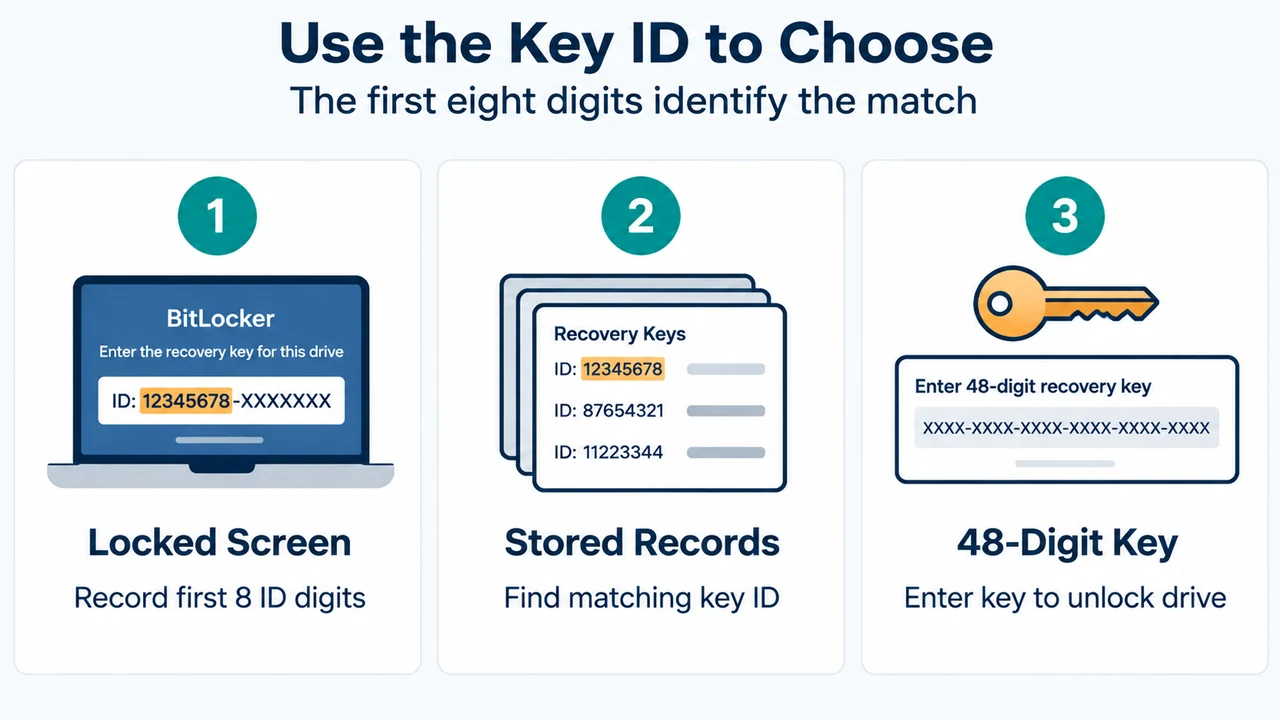
When the BitLocker prompt appears, note the first 8 digits of the Recovery Key ID shown on screen. The Recovery Key ID helps identify which recovery key to use if you have more than one.
Starting in Windows 11, version 24H2, the BitLocker recovery screen displays a hint indicating the Microsoft account associated with the recovery key.
Step 2: Check Documented Backup Locations
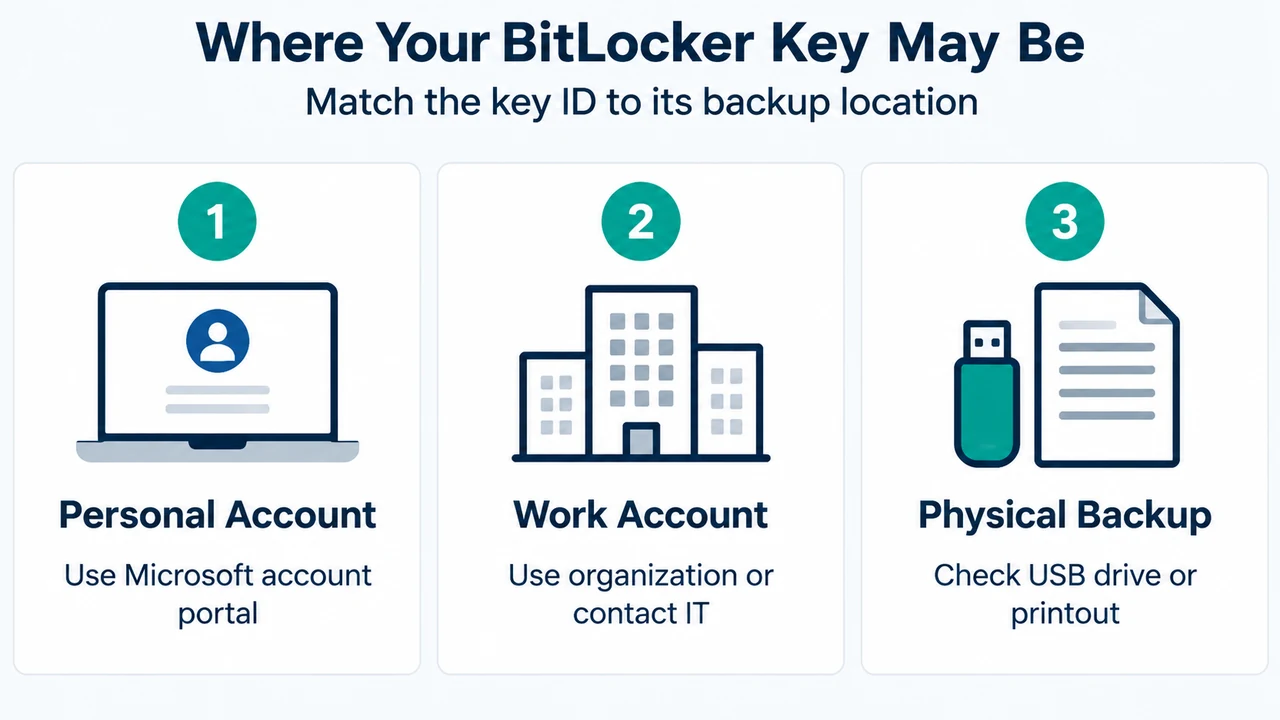
Depending on the choice made when BitLocker was activated, the 48-digit recovery key may be stored in one of several places.
1. Personal Microsoft Account
If the BitLocker recovery key was backed up to a personal Microsoft account:
- From another working device, open a web browser and go to https://aka.ms/myrecoverykey.
- Sign in with your Microsoft account credentials. If someone else set up the device or turned on BitLocker, sign in with their Microsoft account instead.
- Locate the Key ID matching the first 8 digits recorded from the prompt.
- Enter the corresponding 48-digit recovery key on the locked Windows 11 computer to unlock the drive.
2. Work or School Account
If the device was ever signed into an organization using a work or school account, the key may be stored in that organization’s account:
- From another device, open a web browser and navigate to https://aka.ms/aadrecoverykey.
- Sign in with your work or school account.
- Select Devices and expand the entry for your device.
- Select View BitLocker Keys, match the Key ID, and use the key to unlock the drive. If you cannot access it directly, contact your organization’s IT department.
3. USB Flash Drive or Printout
If the key was saved to a removable drive or printed:
- USB Flash Drive: Plug the USB flash drive into your locked device and follow the instructions. If the key was saved as a text file on the flash drive, plug the drive into another device to read the file.
- Printout: Check where you keep important papers related to your device. Review the document to match the Key ID and retrieve the corresponding 48-digit recovery key.
Overview of Recovery Key Locations
| Storage Location | Access Requirement | Key Verification |
|---|---|---|
| Personal Microsoft Account | Web portal (aka.ms/myrecoverykey) | Matches first 8 digits of Recovery Key ID |
| Work or School Account | Portal (aka.ms/aadrecoverykey) or organizational IT department | Matches device record and Key ID |
| USB Flash Drive | Removable flash storage plugged into locked PC or secondary PC | Follows on-screen instructions or matches text file record |
| Paper Printout | Physical paper storage | Matches printed Key ID field |
What to Do If the Recovery Key Cannot Be Found
If your device is managed by an organization, check with your IT department to retrieve the recovery key. If you cannot find the BitLocker recovery key and are unable to undo the changes that caused the prompt, you must reset the device using one of the Windows recovery options. Resetting your device is destructive and will remove all of your files rather than unlocking or preserving the encrypted volume.
Text version of the diagrams
- Where Your BitLocker Key May Be: Personal Account — Use Microsoft account portal; Work Account — Use organization or contact IT; Physical Backup — Check USB drive or printout
- Use the Key ID to Choose: Locked Screen — Record first 8 ID digits; Stored Records — Find matching key ID; 48-Digit Key — Enter key to unlock drive
Research Method and Limitations
This troubleshooting guide was synthesized entirely from official public documentation provided by Microsoft (support.microsoft.com) retrieved on 2026-09-18. It does not include firsthand lab benchmarks, hardware tests, or evaluations of competing coverage, as no external competitor pages were supplied. Guidance is strictly limited to standard BitLocker recovery mechanisms documented for Windows 11 (including account hints in version 24H2) and Windows 10.