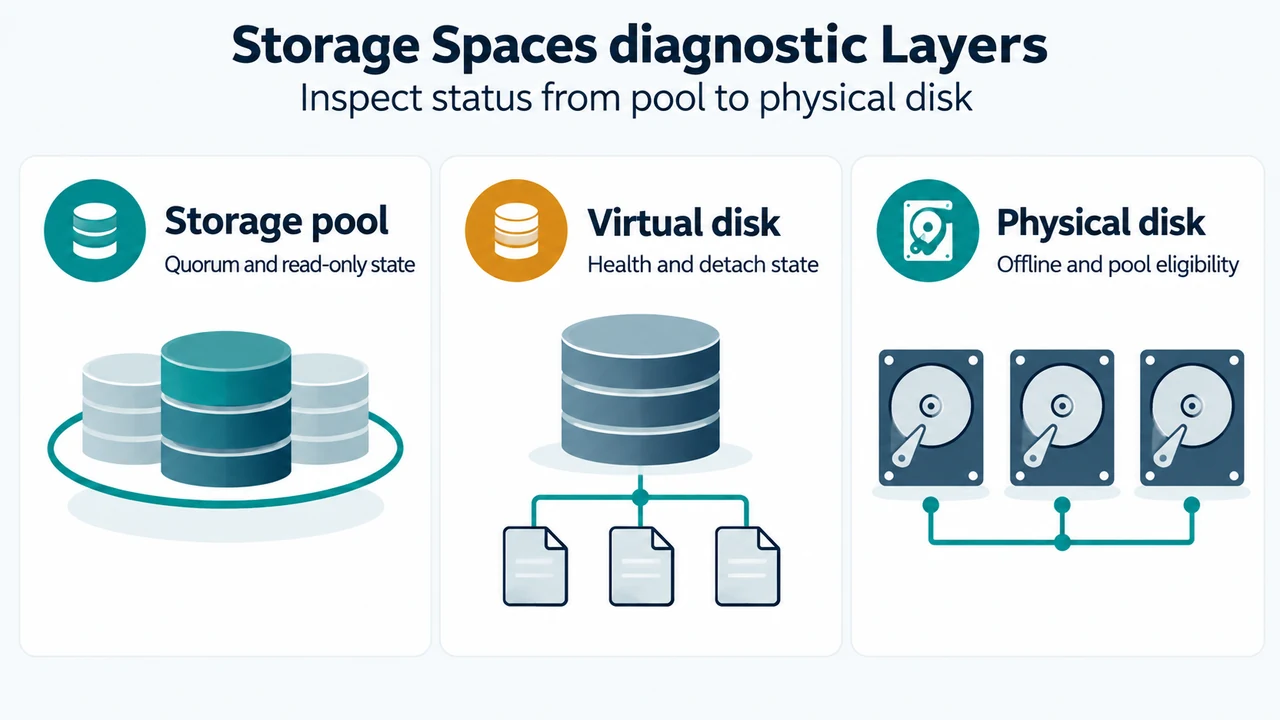
When Windows Storage Spaces reports that a storage pool is read-only or incomplete after drives disconnect, diagnostic inspection across the pool, virtual disk, and physical disk layers helps identify why access changed. Microsoft documentation notes that a storage pool enters an Unknown or Unhealthy health state with a Read-only operational status and an Incomplete read-only reason when the pool loses its quorum, which occurs when most drives in the pool have failed or are offline. In that condition, Storage Spaces sets the pool configuration to read-only until enough drives become available again.
Scope note: Microsoft Support documents Storage Spaces concepts for Windows 10 and Windows 11, while the detailed health status and operational state references originate from Windows Server and Storage Spaces Direct documentation. Commands and state definitions below reflect those Microsoft documentation sources.
Inspect storage pool status
To inspect pool health and confirm whether a pool is read-only, run the following PowerShell command in an elevated console:
Get-StoragePool -IsPrimordial $False | Select-Object HealthStatus, OperationalStatus, ReadOnlyReasonWhen a pool is in the Unknown or Unhealthy health state with an operational status of Read-only and read-only reason of Incomplete, Microsoft documents that the pool cannot be modified until it returns to the Warning or OK health state. This happens when the pool loses quorum because drives failed or are offline.
Inspect virtual disk health and reattach detached disks
Virtual disks (storage spaces) carved out of the pool may also show altered states when drives go missing. To view their current conditions, run:
Get-VirtualDisk | Select-Object FriendlyName, HealthStatus, OperationalStatus, DetachedReasonMicrosoft documents several operational conditions and actions for virtual disks:
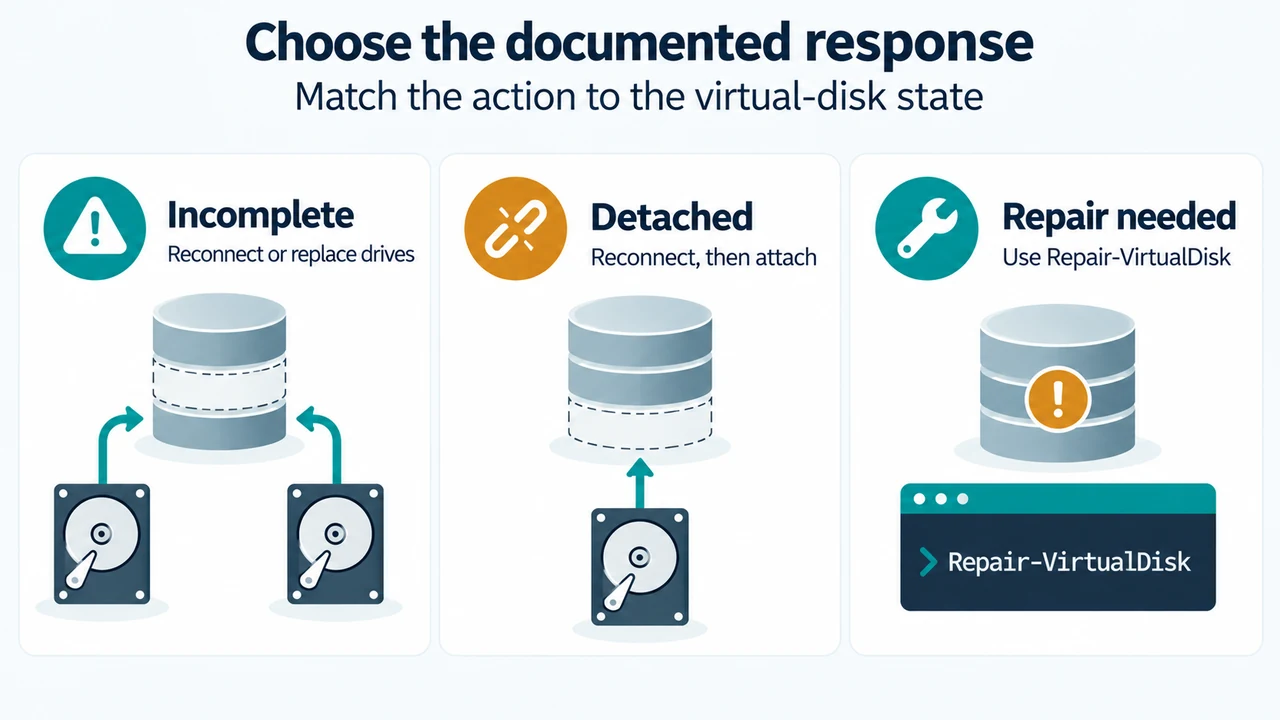
- Incomplete (Warning health status): Resilience is reduced because one or more drives failed or are missing, but the missing drives contain up-to-date data copies. Documented action: reconnect missing drives, replace failed drives, and bring online any offline servers if using Storage Spaces Direct.
- Majority Disks Unhealthy (Detached): Too many drives used by the virtual disk failed, are missing, or have stale data. Documented action: reconnect missing drives (and bring servers online if using Storage Spaces Direct), then replace failed drives after all drives are online. For non-Storage Spaces Direct environments, Microsoft documents repairing the virtual disk with
Repair-VirtualDisk. If more disks failed than available data copies without repair between failures, data is permanently lost. - Detached state: To bring a detached virtual disk back online in a non-clustered environment, Microsoft documents:
Get-VirtualDisk | Where-Object -Filter { $_.OperationalStatus -eq "Detached" } | Connect-VirtualDiskMicrosoft also notes that running Get-VirtualDisk | Set-VirtualDisk -ismanualattach $false configures non-clustered virtual disks to attach automatically after Windows restarts.
Inspect physical disks and manage offline or read-only disks
To inspect physical drives, check whether they can be pooled, and view exclusion reasons, run:
Get-PhysicalDisk | Format-Table FriendlyName, MediaType, Size, CanPool, CannotPoolReasonMicrosoft lists multiple reasons why a drive cannot be pooled, including In a pool (drives belong to only one pool at a time) and Offline. When drives are offline or marked read-only, Microsoft provides commands to bring them online and clear read-only flags:
Get-Disk | Where-Object -Property OperationalStatus -EQ "Offline" | Set-Disk -IsOffline $false
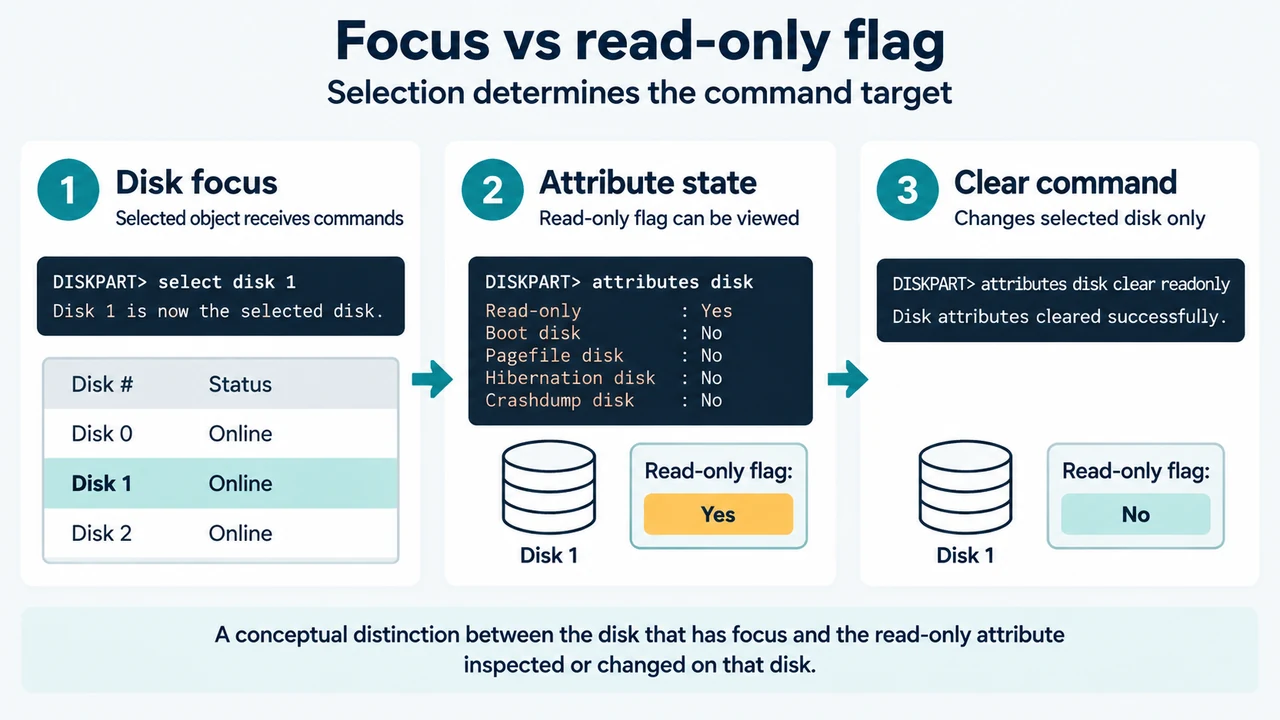
Get-Disk | Where-Object -Property IsReadOnly -EQ $true | Set-Disk -IsReadOnly $false
Target-selection caution: Running these pipelined commands across Get-Disk modifies every offline or read-only disk detected by the operating system, including unrelated external, backup, or system disks. Verify disk identities first using disk numbers or specific identifiers before clearing flags.
Reconnect missing drives and repair status
When physical drives are disconnected or missing, reconnecting them allows Windows to detect them. Once enough drives are available, quorum requirements can be satisfied so the pool configuration can transition out of the read-only state back to Warning or OK.
During recovery, virtual disks may display an In service operational state, which indicates that Windows is repairing the virtual disk (such as after adding or removing a drive). Microsoft notes that Storage Spaces Direct automatically starts a repair if needed after reconnecting or replacing a drive, whereas standalone environments use Repair-VirtualDisk when indicated.
Research method and limitations
This article was prepared directly from public Microsoft Learn and Microsoft Support excerpts. The Microsoft Learn states excerpt is truncated, omitting subsequent action steps for pool read-only states and syntax details for repair cmdlets. Additionally, no independent competing coverage was available for comparison. Because detailed state and cmdlet documentation originates in Windows Server/Storage Spaces Direct materials, feature behaviors may differ on Windows 10 and Windows 11 client editions. This guide does not represent hands-on recovery lab testing or guarantee volume restoration.
Text version of the diagrams
- Storage Spaces diagnostic layers: Storage pool — Quorum and read-only state; Virtual disk — Health and detach state; Physical disk — Offline and pool eligibility
- Choose the documented response: Incomplete — Reconnect or replace drives; Detached — Reconnect, then attach; Repair needed — Use Repair-VirtualDisk