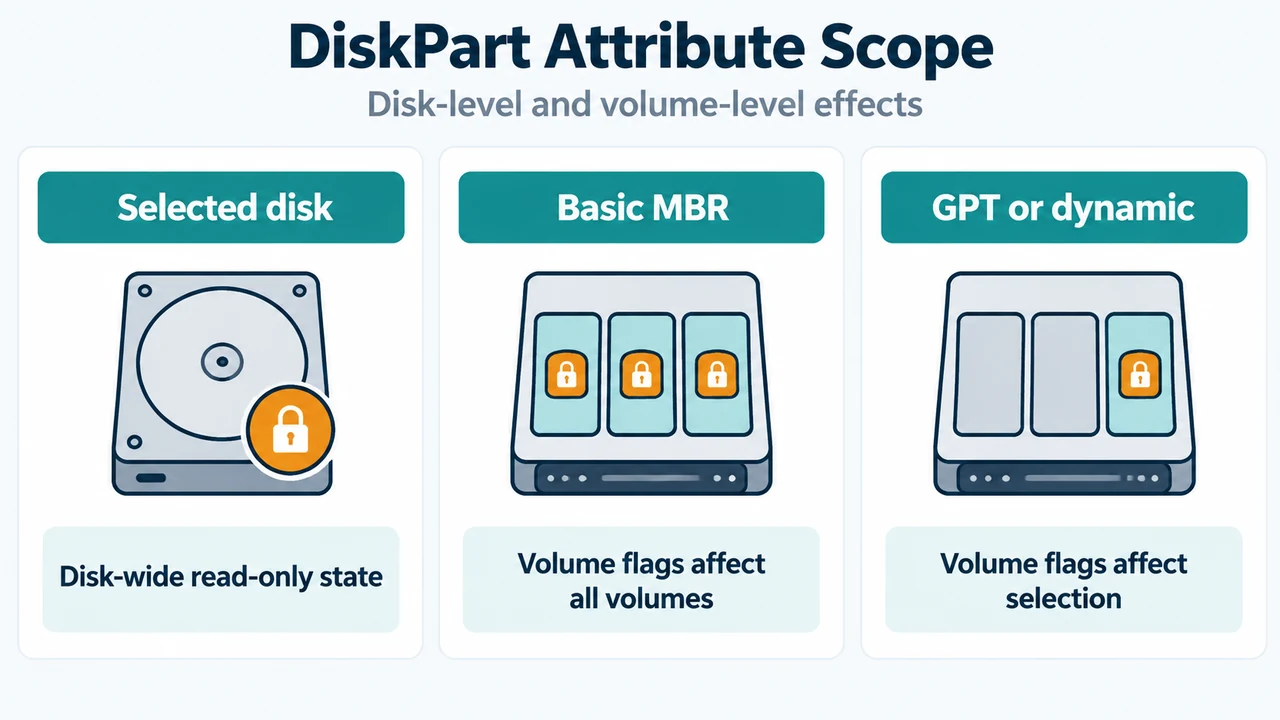
When Windows displays a write-protection error on a drive, the storage device may have an active read-only software attribute. In Windows 10, Windows 11, and supported Windows Server releases, you can view and modify disk flags using the built-in diskpart command interpreter and the attributes disk command.
Prerequisites and Administrator Rights
To run DiskPart, you must be a member of the local Administrators group or hold equivalent permissions on your Windows system. Launching the tool without administrative elevation prevents managing drive objects.
To start, open Command Prompt or your terminal with administrator privileges and launch the command interpreter:
diskpartUnderstanding Object Focus in DiskPart
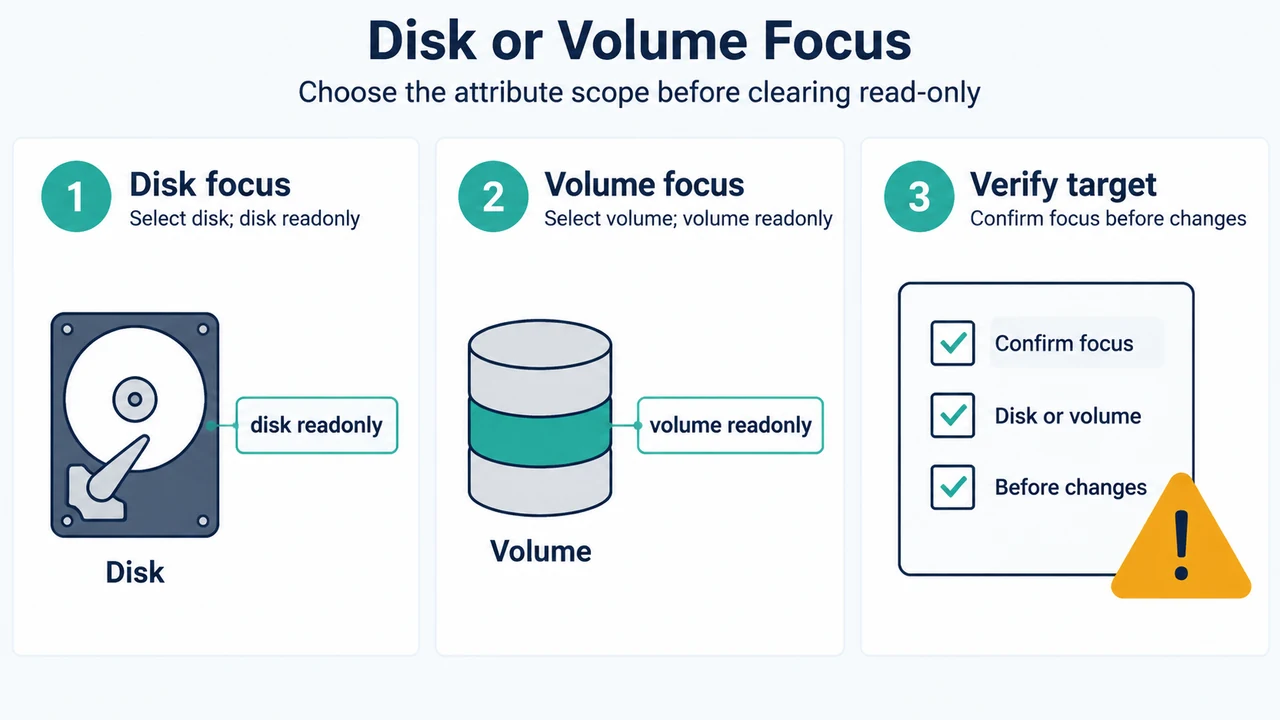
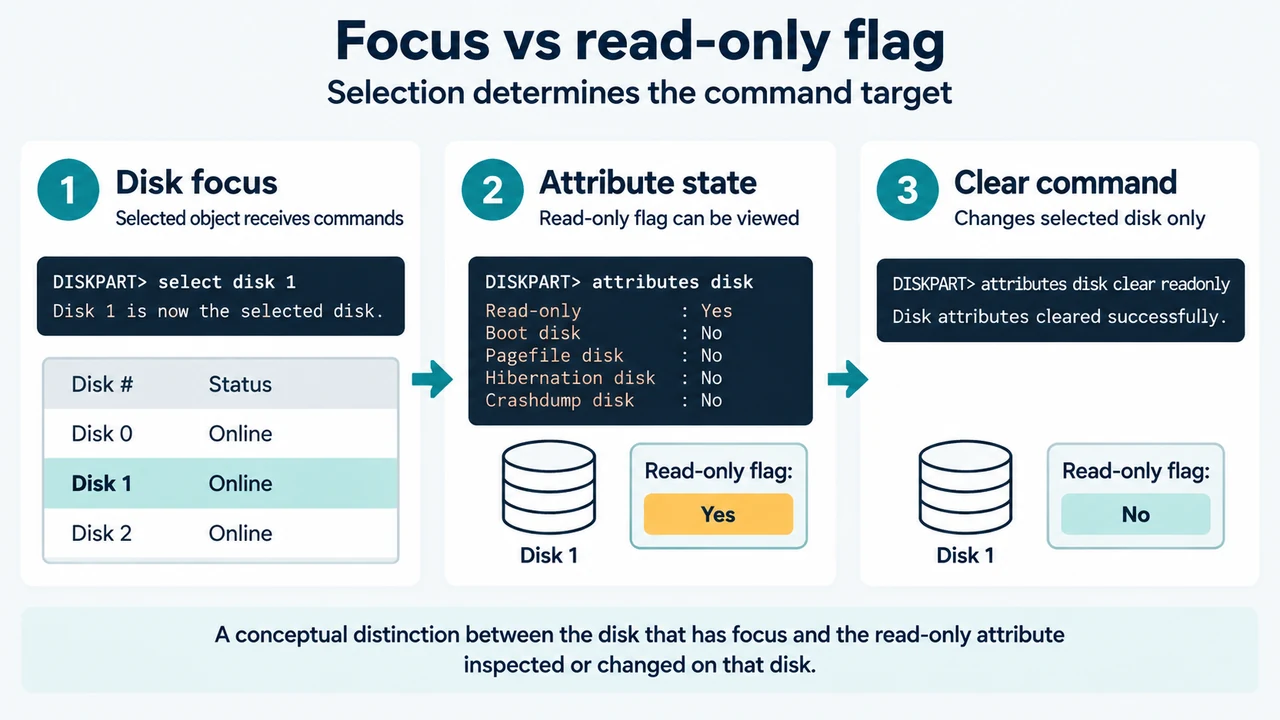
DiskPart operates around the concept of focus. Before any command can inspect or change a drive, you must first list and select the target object. When focus is assigned to an object, subsequent commands apply specifically to it until you select a different target.
When you run the list disk command, DiskPart displays all detected disks, marking the object that currently holds focus with an asterisk (*).
Step-by-Step: Inspecting and Clearing the Read-Only Attribute
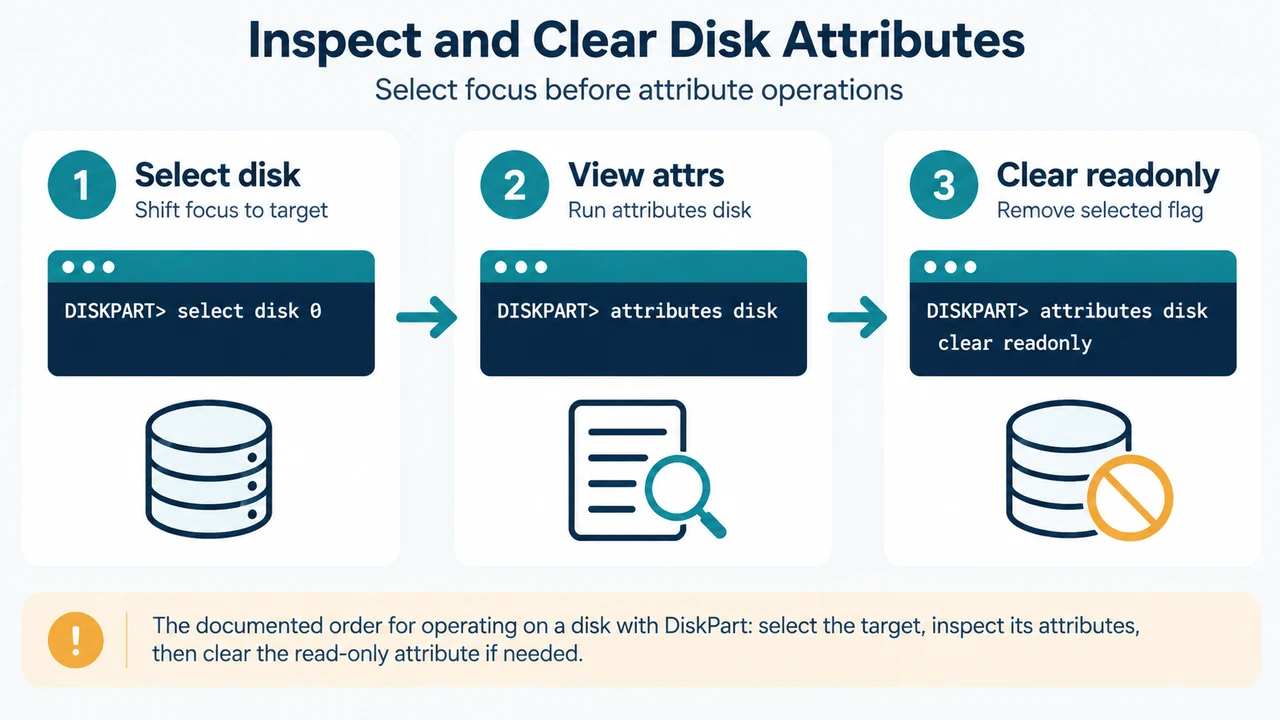
Follow these exact steps to select a drive and safely clear a software read-only attribute:
1. Identify the Disk Number
At the DISKPART> prompt, list the available storage drives on your computer:
list diskLocate the drive number that corresponds to the write-protected storage device.
2. Shift Focus to the Target Disk
Shift focus to the target drive using the select disk command, replacing <n> with your disk number (for example, select disk 1):
select disk <n>A disk must be selected for disk attribute commands to succeed.
3. View Current Disk Attributes
Before modifying any settings, inspect the current state of the selected disk:
attributes diskThis displays the disk flags. If the disk has the read-only attribute enabled, DiskPart reports its read-only status here.
4. Clear the Read-Only Attribute
To remove the software read-only setting from the disk with focus, enter:
attributes disk clear readonlyDiskPart processes the command and clears the read-only flag from the drive.
5. Verify and Exit
Run attributes disk once more to confirm that the read-only attribute is no longer active:
attributes diskOnce verified, exit the DiskPart interpreter to return to your standard command prompt:
exitDiskPart Command Reference for Disk Attributes
The attributes disk syntax supports specific flags for inspecting and adjusting disk-level attributes:
| Parameter | Description |
|---|---|
attributes disk |
Displays the current attributes of the disk currently in focus. |
set readonly |
Sets the specified disk as read-only. |
clear readonly |
Clears the read-only attribute from the disk with focus. |
noerr |
Scripting parameter; allows DiskPart to continue processing commands if an error occurs. |
Important Safety Warnings and Destructive Commands
DiskPart includes commands capable of removing partitions and deleting data. Always verify which disk has focus before issuing management commands:
- Do not run
cleanorformatunless you explicitly intend to erase partitions or format the filesystem. Thecleancommand removes all partition or volume formatting from the disk in focus. - Ensure you have selected the correct disk number with
select diskbefore clearing attributes, avoiding unintentional modifications to system or secondary drives.
Text version of the diagrams
- Focus vs read-only flag: Disk focus — Selected object receives commands; Attribute state — Read-only flag can be viewed; Clear command — Changes selected disk only
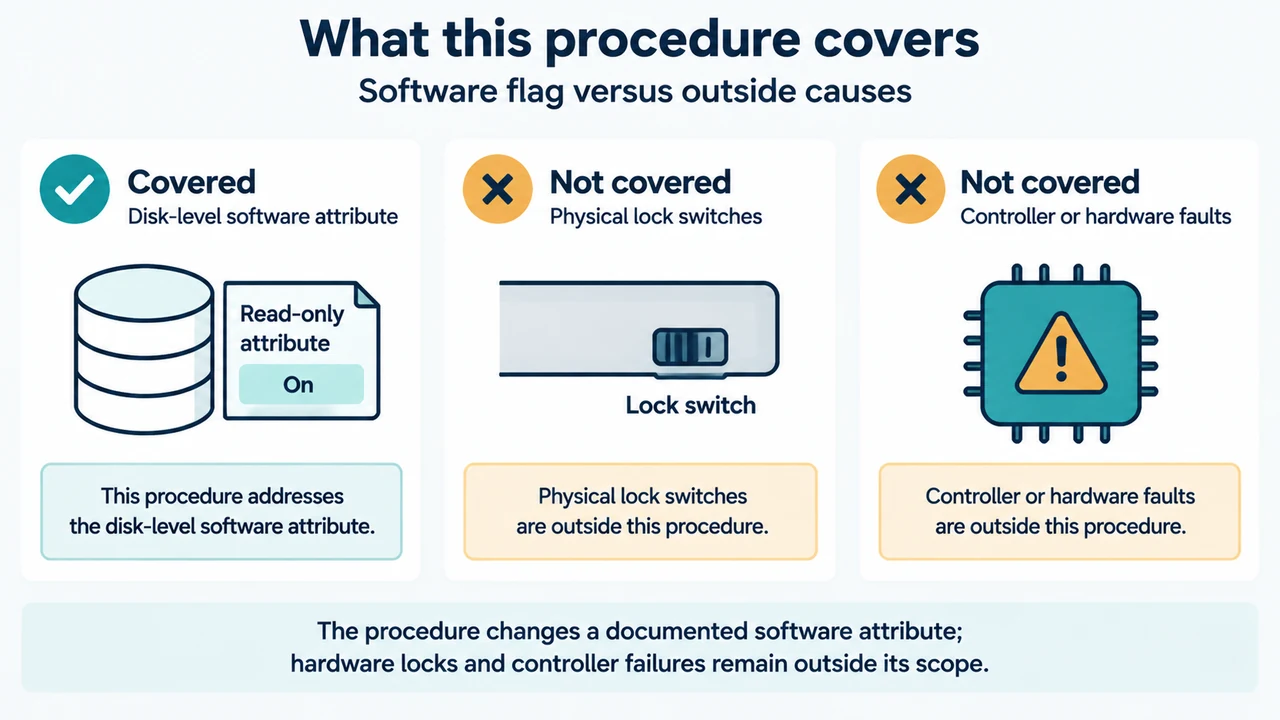
- What this procedure covers: Covered — Disk-level software attribute; Not covered — Physical lock switches; Not covered — Controller or hardware faults
Research Method and Limitations
This troubleshooting guide was compiled exclusively from public Microsoft Learn documentation for the diskpart command interpreter and the attributes disk command. No hands-on lab experiments, hardware tests, or competitive SERP benchmarks were performed. No external search engine competitor pages were available for retrieval. This guide covers software disk-level attribute management in Windows 10, Windows 11, and supported Windows Server versions; it does not evaluate hardware physical lock switches or hardware controller failures beyond documented command-line attributes.