DiskPart includes commands to display, set, or clear software attributes for disks and volumes in Windows 11. Attributes can exist at the disk level or the volume level, and changing volume attributes behaves differently depending on the partition style of the disk.
Disk-Level and Volume-Level Attributes
According to Microsoft documentation for attributes disk and attributes volume, attribute states can apply to a disk or to a specific volume:
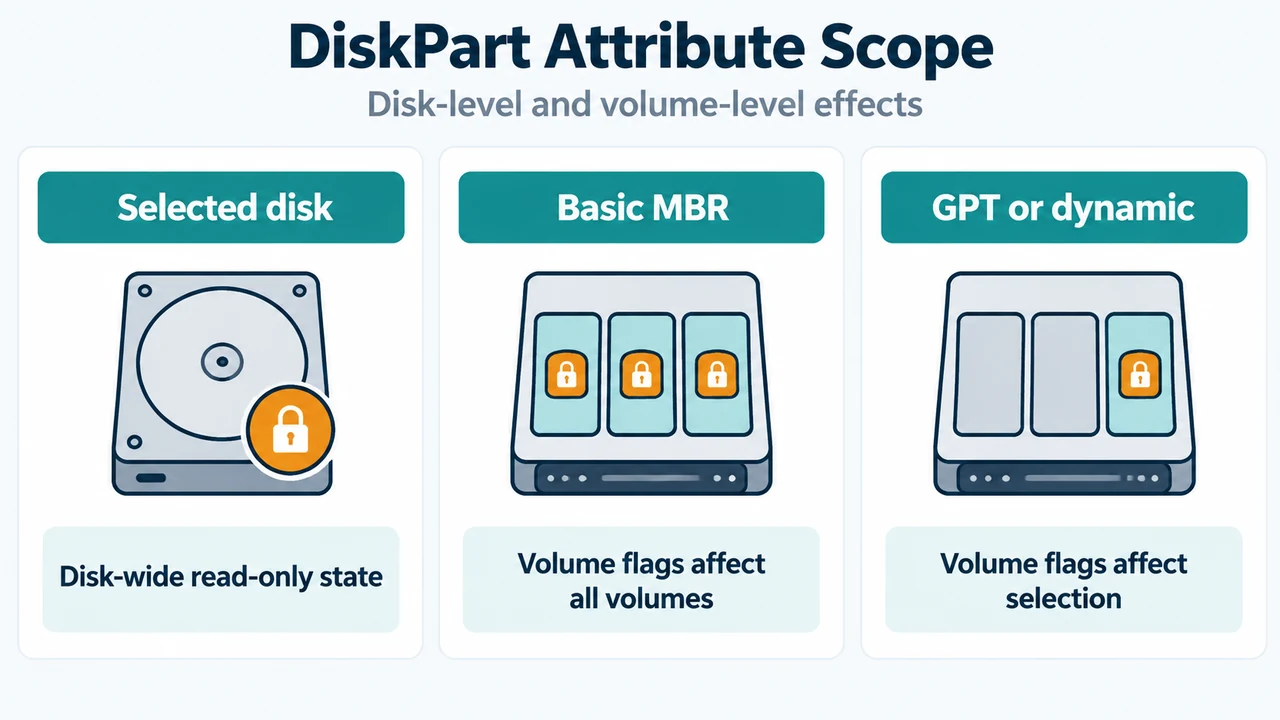
- Basic MBR Disks: On basic master boot record (MBR) disks, the
hidden,readonly, andnodefaultdriveletterparameters apply to all volumes on the disk. - Basic GPT and Dynamic Disks: On basic GUID partition table (GPT) disks, and on dynamic MBR and GPT disks, the
hidden,readonly, andnodefaultdriveletterparameters apply only to the selected volume.
Checking and Modifying Disk Attributes
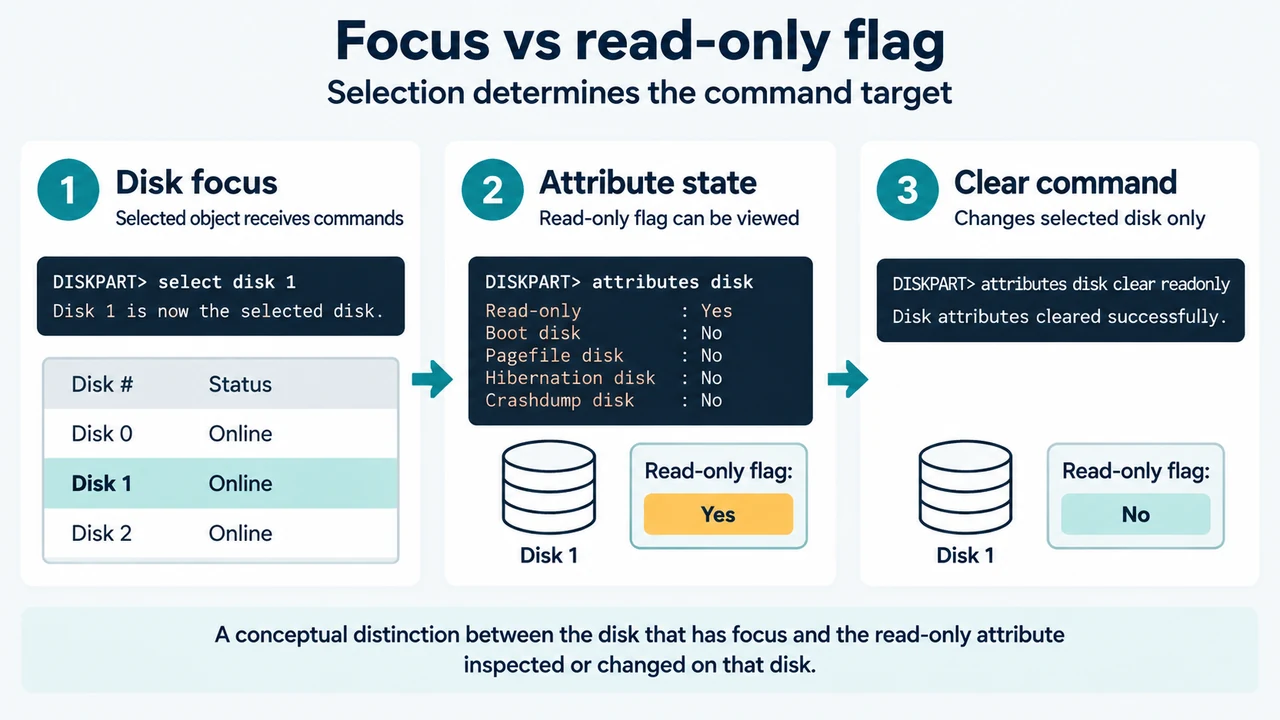
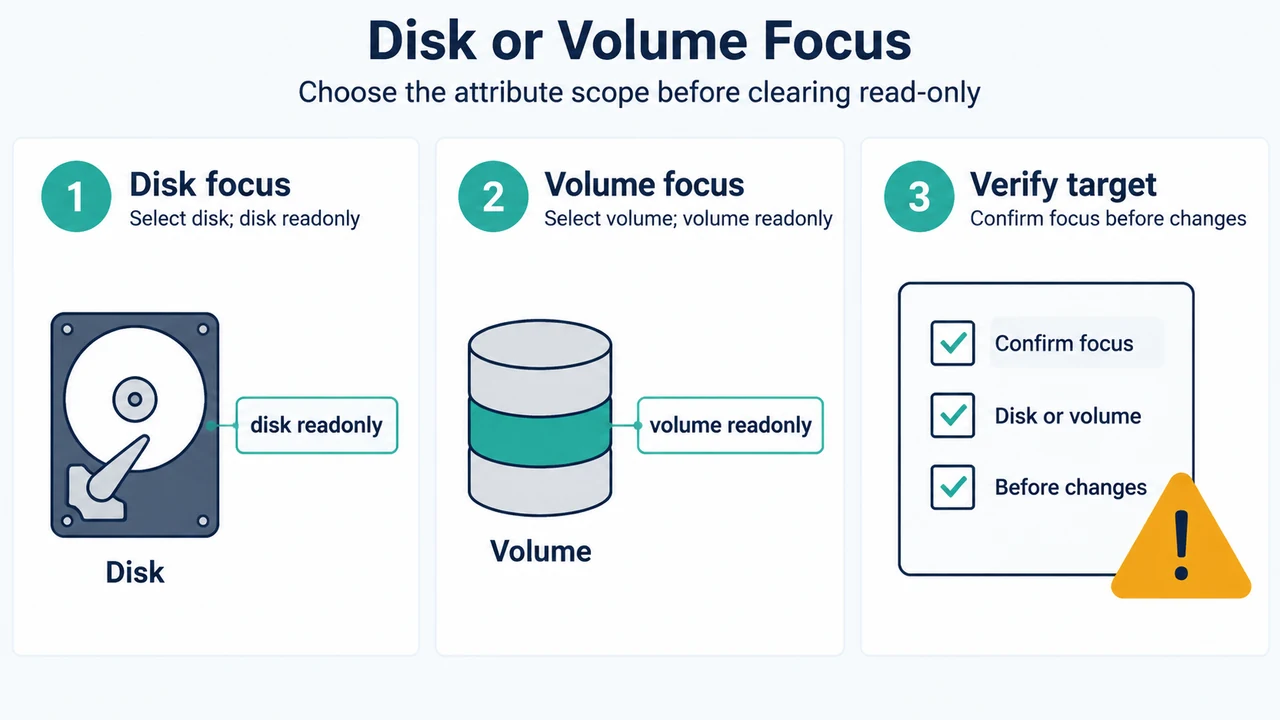
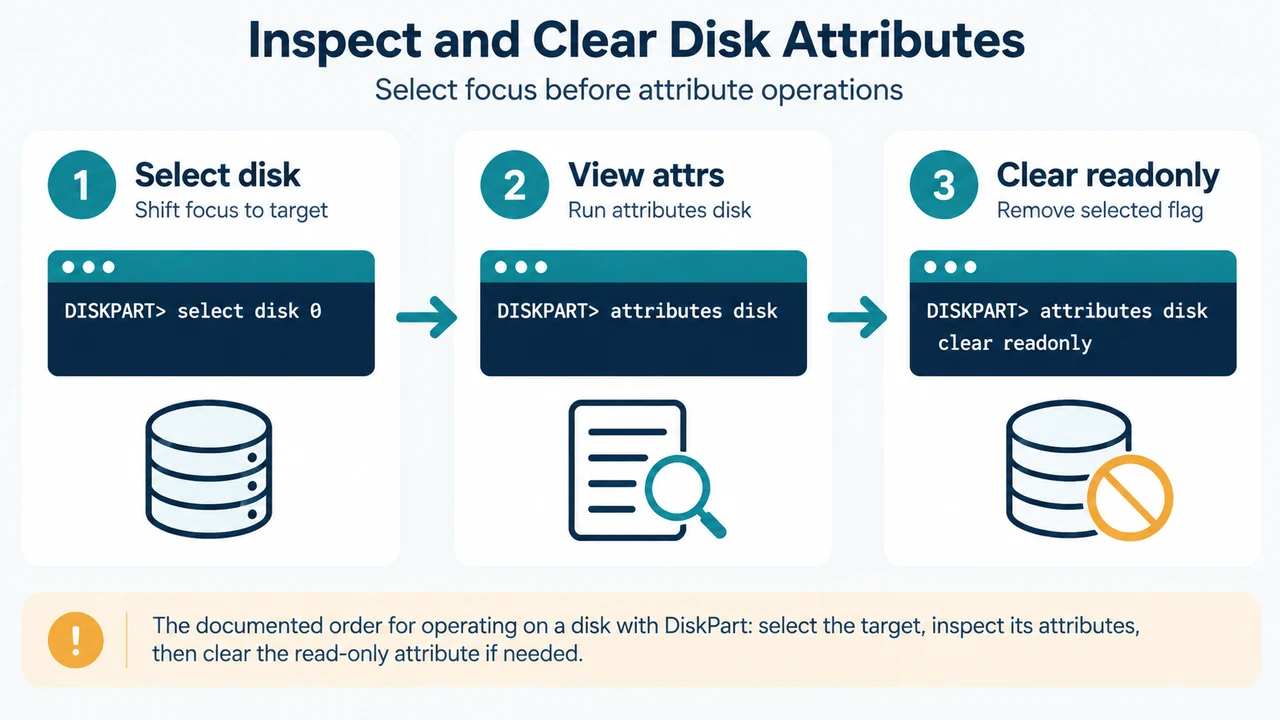
A disk must be selected for the attributes disk command to succeed. Use the select disk command to select a disk and shift focus to it.
Display Current Disk Attributes
To view the attributes of the selected disk, run:
attributes diskWhen used to display the current attributes of a disk, the startup disk attribute denotes the disk used to start the computer. For a dynamic mirror, it displays the disk that contains the boot plex of the boot volume.
Set or Clear Disk Read-Only State
To set the selected disk as read-only:
attributes disk set readonlyTo clear the read-only attribute on the selected disk:
attributes disk clear readonlyChecking and Modifying Volume Attributes
A volume must be selected for the attributes volume command to succeed. Use the select volume command to select a volume and shift focus to it.
Display Current Volume Attributes
To display the current attributes on the selected volume, run:
attributes volumeSet or Clear Volume Attributes
To set the selected volume as hidden and read-only:
attributes volume set hidden readonlyTo remove the hidden and read-only attributes on the selected volume:
attributes volume clear hidden readonlyTo clear only the read-only flag on the selected volume:
attributes volume clear readonlyScripting Parameter
Both attributes disk and attributes volume support the optional noerr parameter for scripting only. When an error is encountered with noerr, DiskPart continues to process commands as if the error did not occur. Without this parameter, an error causes DiskPart to exit with an error code.
Research Method and Limitations
This technical summary was prepared directly from public Microsoft Learn documentation excerpts for the attributes disk and attributes volume commands. No competing coverage or external guides were reviewed. The available excerpts document command syntax, parameter definitions, focus prerequisites, and partition style behavior, but they do not document commands for listing or identifying which disk or volume number to select, nor do they specify administrator privilege requirements.
Text version of the diagrams
- DiskPart Attribute Scope: Selected disk — Disk-wide read-only state; Basic MBR — Volume flags affect all volumes; GPT or dynamic — Volume flags affect selection
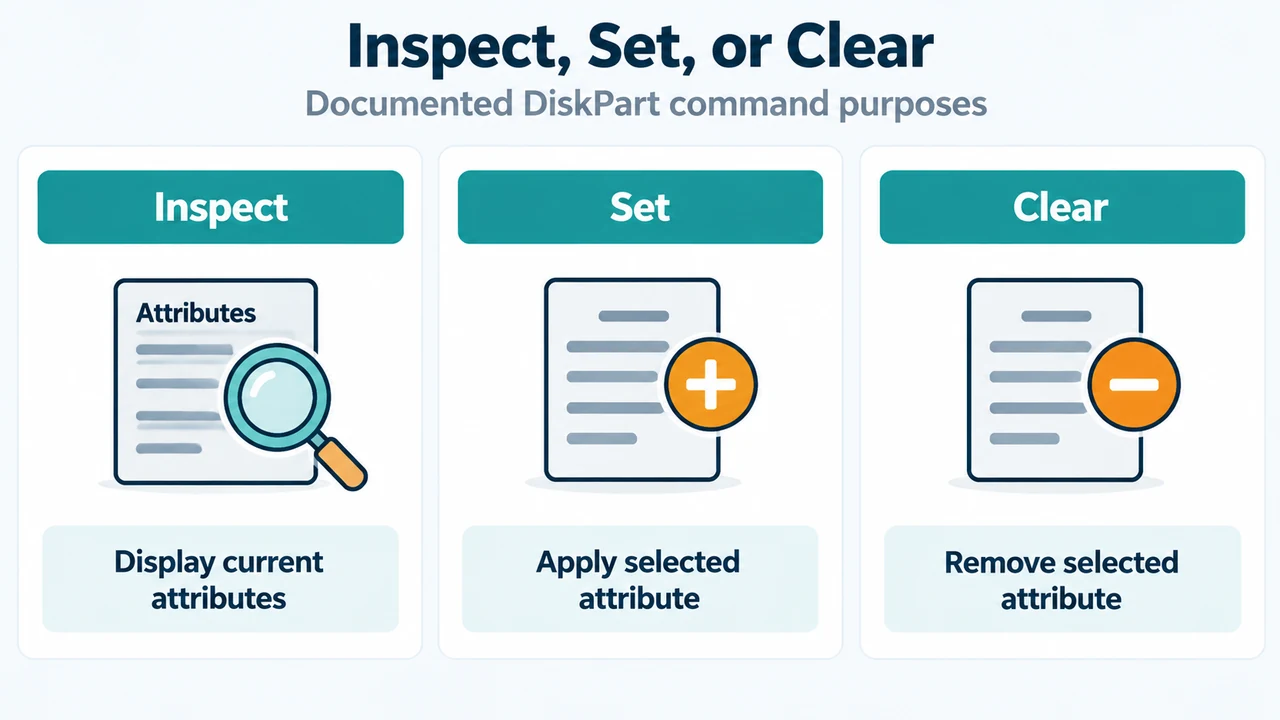
- Inspect, Set, or Clear: Inspect — Display current attributes; Set — Apply selected attribute; Clear — Remove selected attribute