When an application cannot capture sound in Windows 11, configuring operating system privacy settings can restore access for supported apps. Windows 11 manages microphone permissions through system-level controls, individual toggles for Microsoft Store applications, and a group setting for desktop applications. This guidance addresses only documented privacy permission controls and does not cover broader causes of microphone failure, such as hardware faults or audio drivers.
Configuring Microphone Privacy Settings in Windows 11
To configure microphone permissions in Windows 11 Settings:
- Select Start > Settings > Privacy & security > Microphone.
- Ensure that Microphone access is turned on.
- Ensure that Let apps access your microphone is turned on.
- Ensure that the individual toggle for the specific Microsoft Store app you wish to use is turned on.
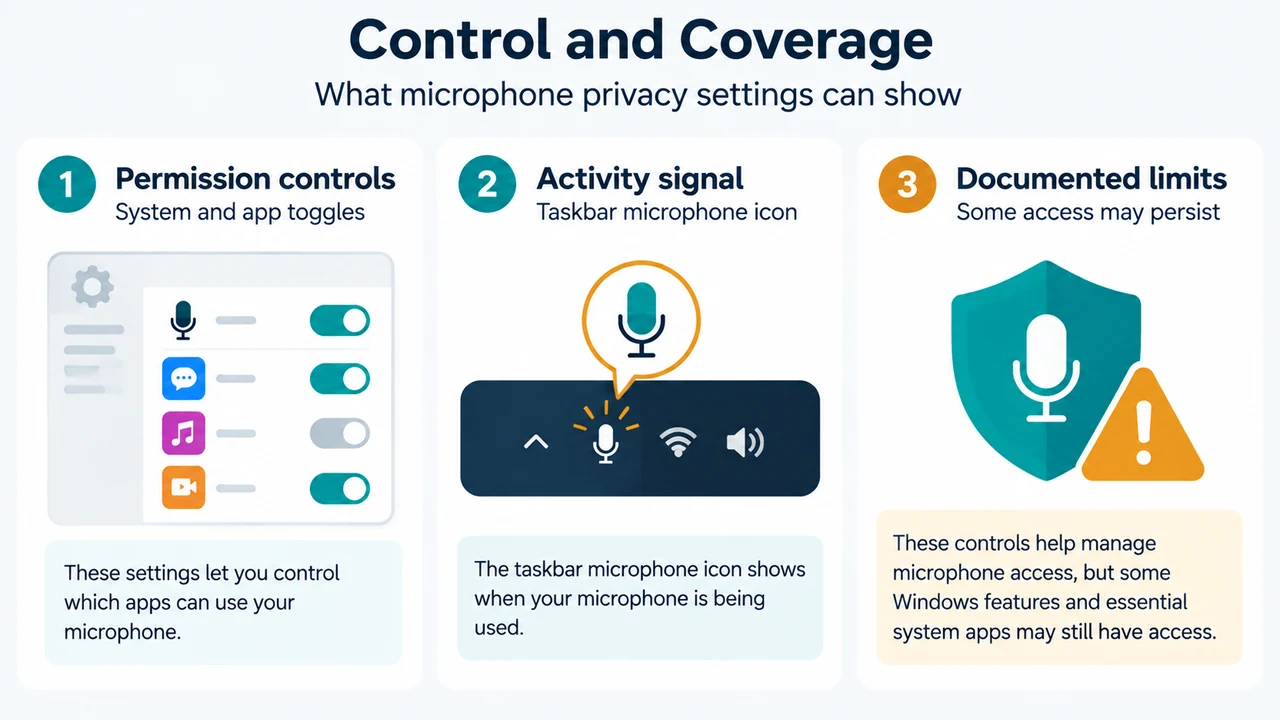
When an application is using the microphone, a microphone icon appears in the notification area of the taskbar.
Managing Store Apps vs. Desktop Apps
Windows 11 distinguishes between Microsoft Store applications and desktop applications on the Microphone settings page:
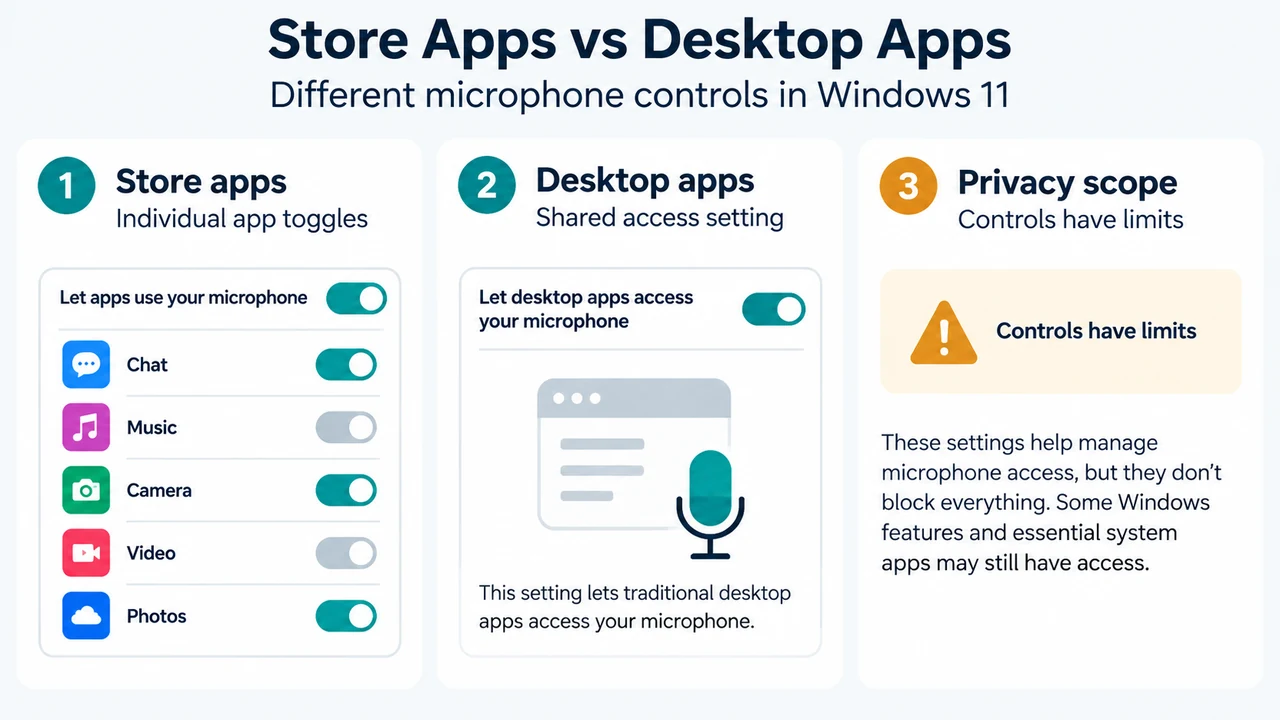
- Microsoft Store Apps: Store apps are listed individually under Let apps access your microphone, and each app has an individual toggle that can be set to on or off.
- Desktop Apps: If an application does not appear in the primary list, it is likely a desktop application. Desktop apps cannot be toggled individually; their access is controlled collectively by turning on Let desktop apps access your microphone.
Turning off Let desktop apps access your microphone impacts all apps listed under that setting.
Detected Desktop Apps and Privacy Limits
Under the desktop apps section, Windows lists desktop apps it has detected interacting with the microphone. Selecting any listed app shows details about the specific file on the device that accessed the microphone. If an application or Windows feature uses the microphone indirectly through a Windows component, that component appears instead. For example, interacting with Cortana displays Speech Runtime Executable.
Microsoft identifies specific limitations regarding desktop applications and privacy settings:
- The desktop setting provides limited control only over desktop apps that access the microphone using supported methods.
- Desktop apps may not always appear in the list on the Microphone settings page.
- Desktop apps might still be able to access the microphone even when these privacy settings are turned off.
Reviewing Site Permissions in Microsoft Edge
You can review website permissions for the microphone in Microsoft Edge:
- Select Privacy, search, and services on the left side, and then select Site Permissions > All sites.
- Select the website and select Block from the dropdown for Microphone if you wish to prevent access.
Some websites, such as video conference services, might not work if you choose to block them from accessing your microphone.
Research Method and Limitations
This answer was prepared from the supplied public source excerpts from Microsoft Support covering camera, microphone, and privacy settings in Windows. Material limitations include reliance on truncated documentation passages, an absence of competing coverage excerpts to compare relative scope or depth, and the absence of visible text explaining why certain desktop applications bypass settings or fail to appear in the detected app list. Furthermore, the visible text only documents blocking microphone access in Microsoft Edge site settings rather than approving it, and this guide addresses only operating system and browser privacy toggles rather than hardware or driver issues.
Text version of the diagrams
- Store Apps vs Desktop Apps: Store apps — Individual app toggles; Desktop apps — Shared access setting; Privacy scope — Controls have limits
- Control and Coverage: Permission controls — System and app toggles; Activity signal — Taskbar microphone icon; Documented limits — Some access may persist