When Windows 11 or Windows 10 repeatedly checks a disk on startup, the volume has typically been marked with an active dirty bit or scheduled for boot-time verification. Built-in Windows utilities—chkntfs and fsutil dirty—allow you to query volume dirty status, configure startup scan exclusions, adjust the startup countdown timer, or restore default startup checking behavior.
Supported Operating Systems and Privileges
According to the supplied Microsoft documentation, both chkntfs and fsutil dirty apply to Windows 11, Windows 10, Windows Server (2016, 2019, 2022, 2025), and Azure Local 2311.2 and later.
To run chkntfs, you must be a member of the Administrators group. The supplied documentation for fsutil dirty does not state account privilege requirements.
Why Automatic Startup Scans Run
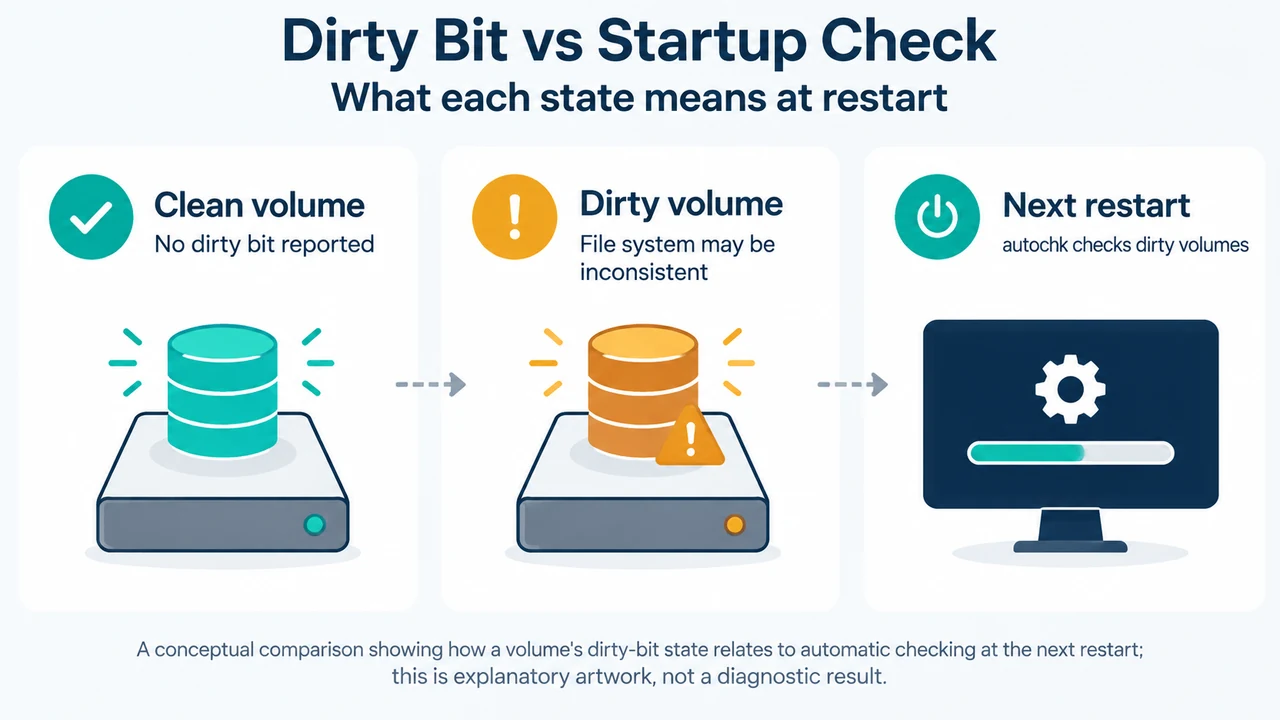
Windows uses autochk to inspect volumes at startup. When a volume’s dirty bit is set, autochk automatically checks the volume for errors the next time the computer restarts. If the dirty bit is set at restart, chkdsk runs to verify file system integrity and attempt to fix issues on the volume.
The dirty bit indicates that the file system may be in an inconsistent state. According to Microsoft documentation, the dirty bit can be set because:
- The volume is online and has outstanding changes.
- Changes were made to the volume and the computer was shut down before the changes were committed to the disk.
- Corruption was detected on the volume.
Checking Volume Status with fsutil and chkntfs
Before changing startup verification behavior, inspect the volume’s current state.
Query the Dirty Bit with fsutil
To query whether the dirty bit is set on a volume such as C:, run:
fsutil dirty query c:If the volume is dirty, the command displays:
Volume C: is dirtyIf the volume is not dirty, the command displays:
Volume C: is not dirtyView Scheduled Checking with chkntfs
Running chkntfs without options displays the file system of the specified volume:
chkntfs c:If automatic file checking is scheduled to run, additional output indicates whether the specified volume is dirty or is scheduled to be checked the next time the computer is started.
Excluding Volumes from Startup Checking and Integrity Risks
The /x parameter specifies one or more volumes to exclude from checking when the computer starts, even if the volume is marked as requiring chkdsk:
chkntfs /x d: e:Integrity Risk: Because /x bypasses startup checking even when a volume is marked as requiring chkdsk, using this switch suppresses consistency checks and repair attempts on volumes that may contain uncommitted data or detected corruption.
Exclusion Override Behavior
The /x option is not accumulative. If typed more than once, the most recent command completely overrides the previous entry. To exclude multiple volumes, all target volumes must be listed in a single command, such as chkntfs /x d: e:.
Managing the Autochk Countdown Delay
To display the current Autochk.exe initiation countdown time in seconds, run:
chkntfs /tTo change the countdown delay (for example, to 30 seconds), run:
chkntfs /t:30Setting the initiation countdown time to zero prevents canceling a potentially time-consuming automatic file check during boot.
Restoring Default Startup Settings
By default, all volumes are checked when the computer is started, and chkdsk runs on those that are dirty.
To restore default settings and remove exclusions, run:
chkntfs /dThe /d switch restores all chkntfs default settings, except for any custom countdown time configured with /t.
Scheduling Dirty Volumes with /c
The /c parameter schedules one or more volumes to be checked when the computer starts, running chkdsk on those that are dirty. Unlike /x, the /c option is accumulative; if entered multiple times, each entry remains active.
To schedule automatic file checking on volume D: while ensuring C: and E: are not checked, execute the following commands in order:
chkntfs /d
chkntfs /x c: d: e:
chkntfs /c d:
This sequence resets defaults, excludes the specified volumes, and then schedules automatic file checking specifically for the desired volume.
Manually Setting the Dirty Bit
To manually set a volume’s dirty bit (for example, on drive C:) so that autochk checks the volume at the next restart, run:
fsutil dirty set C:Command Reference
| Command Syntax | Documented Purpose | Key Rule or Output |
|---|---|---|
fsutil dirty query <volumepath> |
Queries the specified volume’s dirty bit. | Displays Volume <drive>: is dirty or Volume <drive>: is not dirty. |
fsutil dirty set <volumepath> |
Sets the specified volume’s dirty bit. | Prompts autochk to check the volume for errors on the next restart. |
chkntfs <volume> [...] |
Displays file system and scheduled check status. | Shows file system; if scheduled, shows if volume is dirty or scheduled for next boot. Requires Administrators group membership. |
chkntfs /x <volume> [...] |
Excludes volumes from startup checking. | Not accumulative (latest entry overrides). Suppresses checks even if volume requires chkdsk. |
chkntfs /c <volume> [...] |
Schedules dirty volume checking at startup. | Accumulative across multiple entries. |
chkntfs /d |
Restores default automatic checking. | Restores defaults so dirty volumes run chkdsk; does not reset countdown time. |
chkntfs /t[:<time>] |
Displays or updates countdown timer. | Displays time if omitted; a value of 0 prevents canceling automatic file checks. |
Text version of the diagrams
- Dirty Bit vs Startup Check: Clean volume — No dirty bit reported; Dirty volume — File system may be inconsistent; Next restart — autochk checks dirty volumes
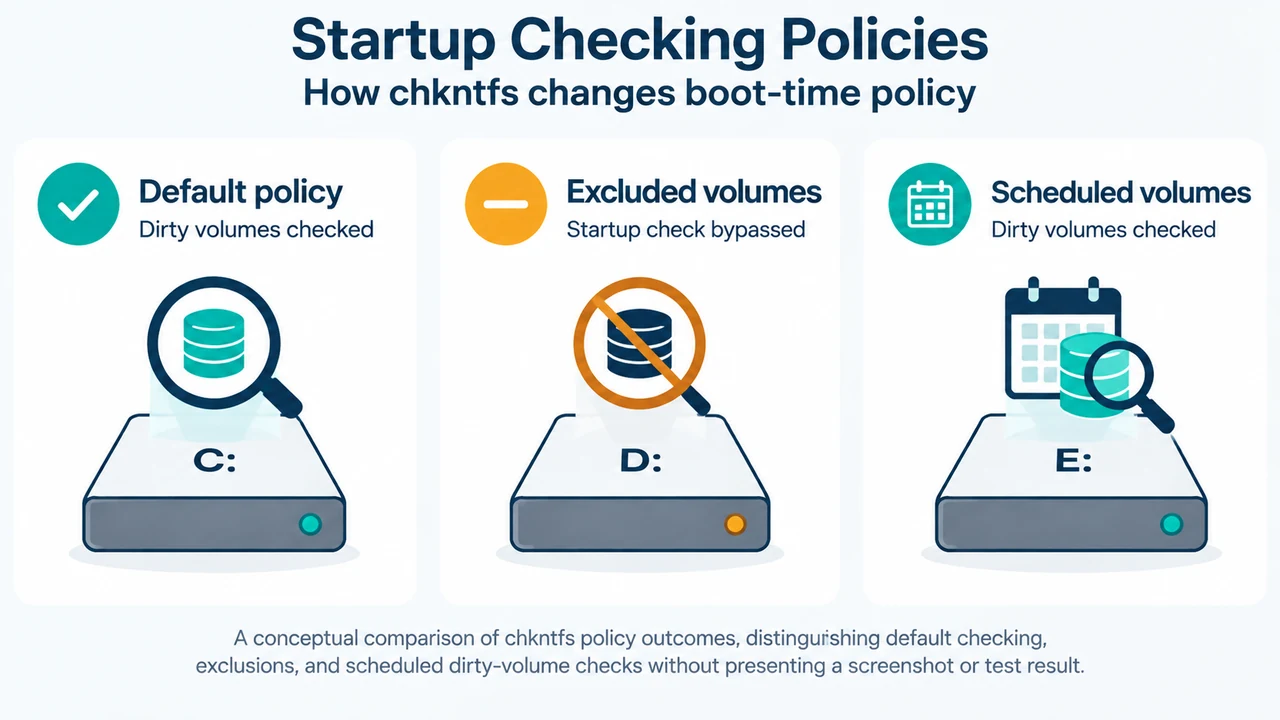
- Startup Checking Policies: Default policy — Dirty volumes checked; Excluded volumes — Startup check bypassed; Scheduled volumes — Dirty volumes checked
Research Method and Limitations
This guide was prepared exclusively from the supplied public Microsoft Learn reference excerpts for chkntfs and fsutil dirty. Material limitations include the absence of competing coverage excerpts and the absence of documented privilege requirements for fsutil dirty within the provided text. No hands-on hardware testing or undocumented file system behaviors are asserted.