When Windows File Explorer blocks renaming, moving, or deleting a file because it is open in another program, you do not need to restart your computer. You can identify and close the specific locking processes directly using the official Microsoft PowerToys utility called File Locksmith.
What Is File Locksmith in Windows?
Microsoft Learn documentation for File Locksmith explains that File Locksmith is a shell extension included with Microsoft PowerToys. It scans running processes to detect which active tasks are holding open handles to specific files or directories in Windows.
Enabling File Locksmith in PowerToys
Before using the shell extension in Windows File Explorer, ensure the utility is active:
- Open the PowerToys settings window on your system.
- Locate File Locksmith in the navigation list.
- Switch the Enable File Locksmith toggle to on.
Diagnosing and Closing Locking Processes
Once enabled, you can inspect and unlock files directly from the context menu in File Explorer:
- Select one or more files or folders in Windows File Explorer. When a directory is selected, File Locksmith scans the directory as well as all of its enclosed files and subdirectories.
- Right-click the selected item, choose Show more options to display the extended context menu, and select Unlock with File Locksmith.
- File Locksmith opens and scans accessible running processes to display which applications are using the selected files.
- Review the list of processes. You can click the expander next to an entry for further details, or select End task to terminate the locking process.
Terminated processes are automatically removed from the results list, whether they were closed inside File Locksmith or through an external program. To re-scan manually at any time, select Reload.
Handling Permissions and Multi-User Limitations
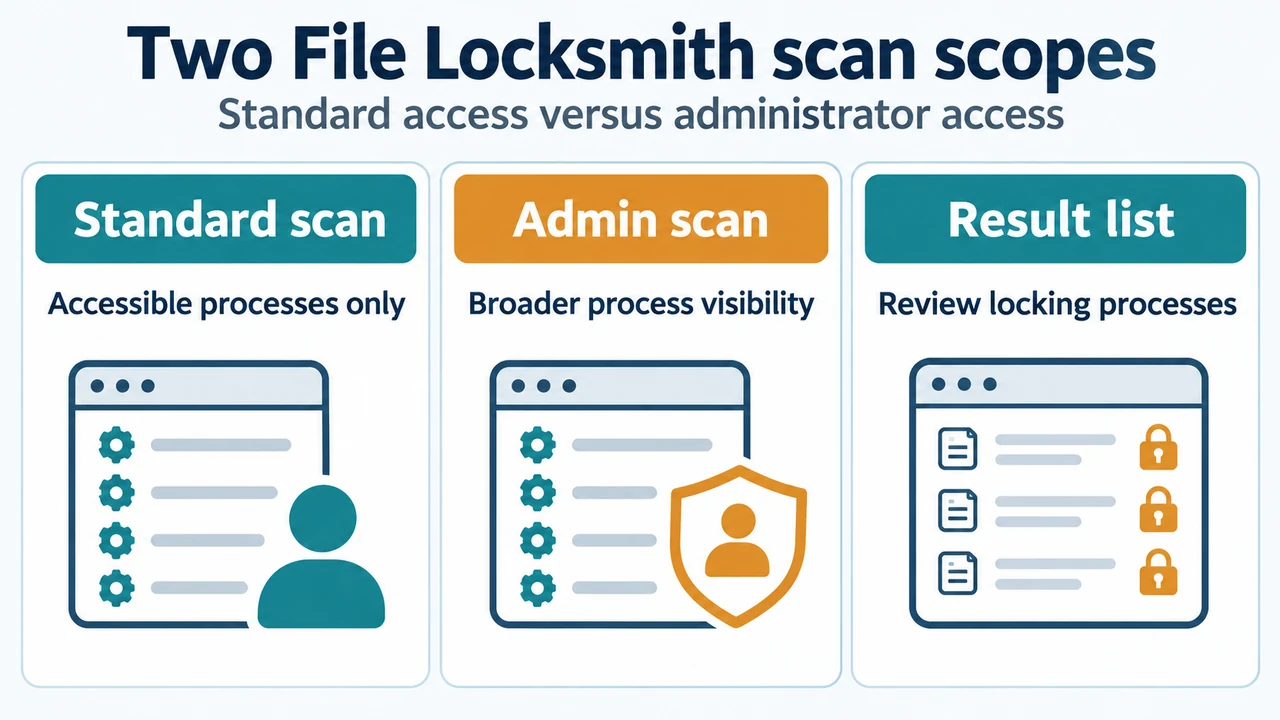
File Locksmith scans the running processes that your current user account has permission to access. If a file is locked by a service or application running under a different user account, it will not appear in a standard scan.
To inspect system-level or other user processes, click Restart as administrator within the File Locksmith interface. This restarts the scanner with elevated privileges so it can inspect all running processes across the operating system.
Using the Command-Line Interface (FileLocksmithCLI.exe)
File Locksmith also provides a command-line tool named FileLocksmithCLI.exe for inspecting or automating file unlock tasks:
FileLocksmithCLI.exe "C:\Users\Docs\report.docx": Scans and reports which processes are currently locking the specified file.FileLocksmithCLI.exe --json "C:\File1.txt" "C:\Folder\File2.dll": Scans multiple file or directory paths and formats output as structured JSON for automation.FileLocksmithCLI.exe --wait "C:\bin\output.exe": Blocks command execution until the designated file is released by locking processes.FileLocksmithCLI.exe --kill "C:\LockedFile.dat": Automatically terminates all processes currently locking the target file.
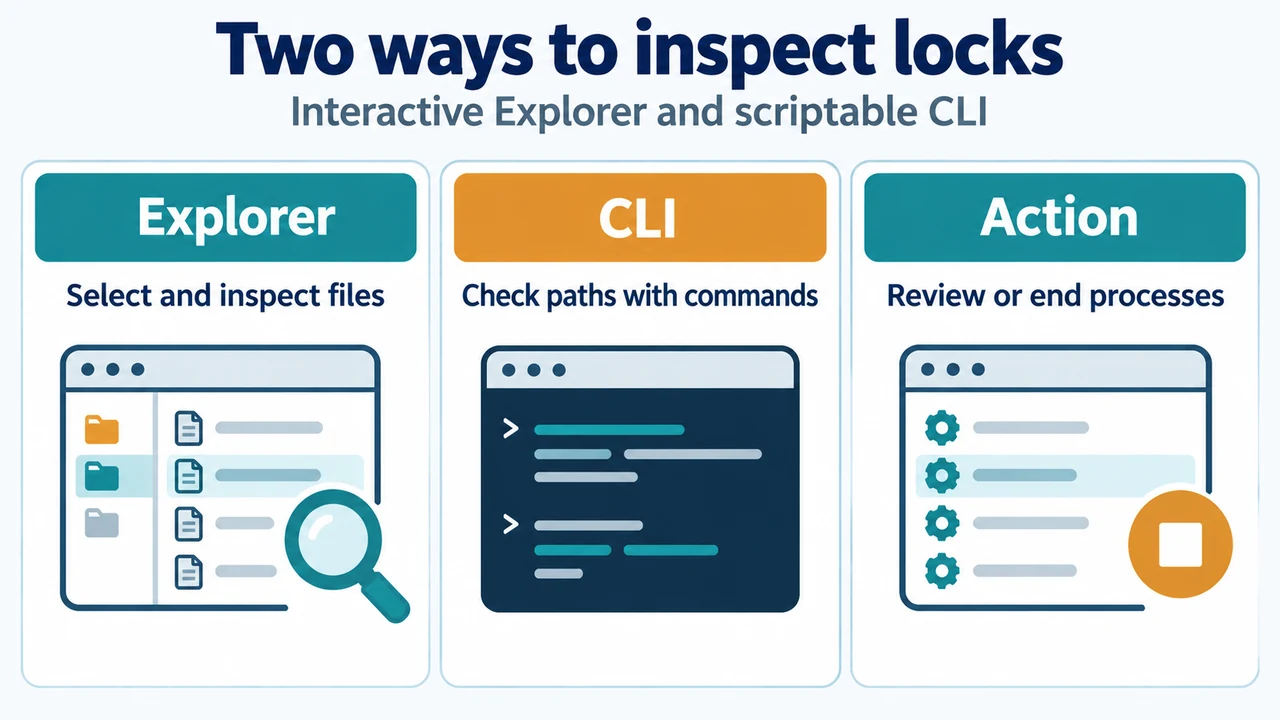
Text version of the diagrams
- Two File Locksmith scan scopes: Standard scan — Accessible processes only; Admin scan — Broader process visibility; Result list — Review locking processes
- Two ways to inspect locks: Explorer — Select and inspect files; CLI — Check paths with commands; Action — Review or end processes
Research Methodology and Limitations
This troubleshooting guide was compiled entirely from public documentation published on Microsoft Learn: File Locksmith utility (retrieved 2026-10-02, last updated 2026-01-20). No competing third-party pages were available for review, and no hands-on lab experiments, speed benchmarks, or custom registry workarounds were conducted. Terminating processes with End task or the --kill switch immediately halts the target application, which may cause unsaved application data in that process to be lost.