Overview and Method Limits
This troubleshooting guide was prepared from public Microsoft support documentation covering Windows audio troubleshooting. The supplied documentation contains separate troubleshooting paths for Windows 11 and Windows 10. Support for Windows 10 ended on October 14, 2025; after this date, Microsoft no longer provides free software updates from Windows Update, technical assistance, or security fixes for Windows 10, though PCs continue to work and Microsoft recommends moving to Windows 11. This guide covers turning off audio enhancements, verifying device properties and default playback devices, and restarting core audio services. Due to truncation in the supplied documentation excerpts, other troubleshooting steps—such as specific legacy Listen tab settings—could not be verified, and no accessible competing coverage was available. If these procedures do not resolve your issue, continue with additional troubleshooting.
Turn Off Audio Enhancements
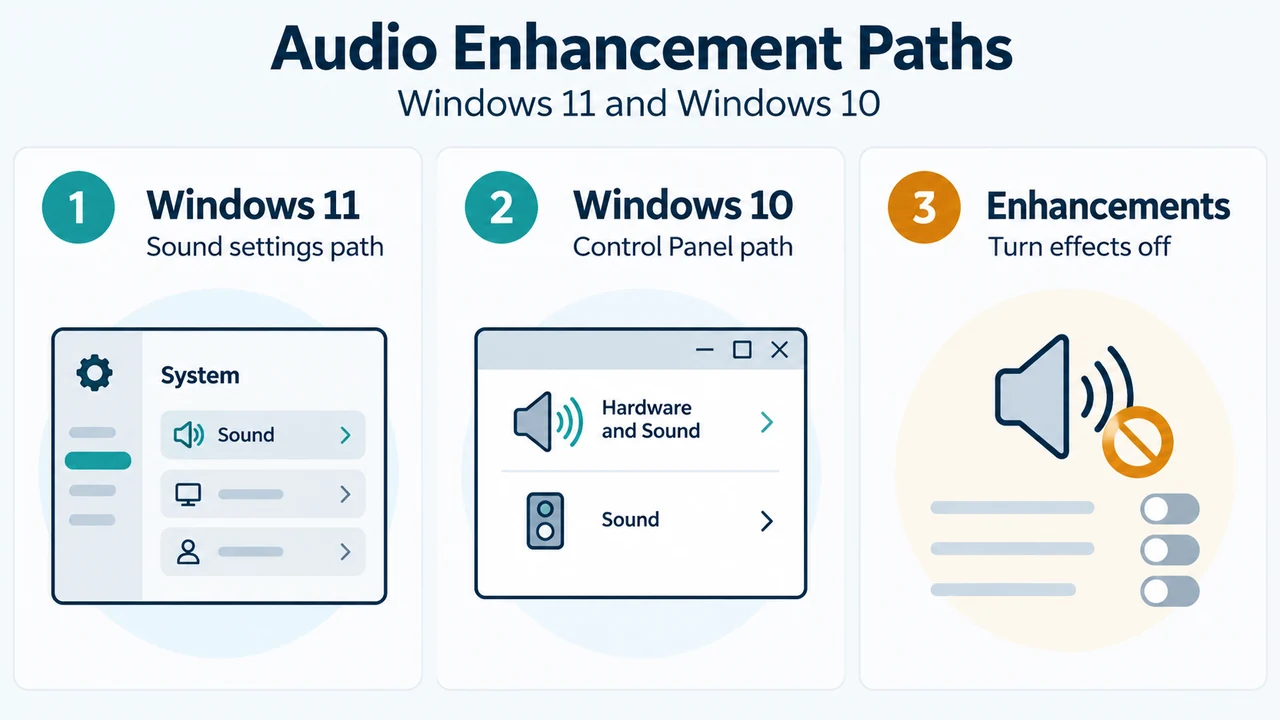
Audio enhancements can sometimes cause audio issues, and disabling them may resolve the problem. The steps differ between Windows 11 and Windows 10:
Windows 11
- Select Start > Settings > Sound.
- In the Output section, select the audio device you are using (such as your speakers or headphones).
- On the page that opens, scroll to Advanced settings, then set Audio enhancements to Off from the dropdown menu.
Windows 10
- In the search box on the taskbar, type
control panel, and then select it from the results. - Select Hardware and Sound from the Control Panel, and then select Sound.
- On the Playback tab, select and hold (or right-click) the Default Device, and then select Properties.
- On the Enhancements tab, select either the Disable all enhancements or the Disable all sound effects check box (depending on which option you see).
- Select OK, and try to play your audio device.
- If that does not work, on the Playback tab, select and hold (or right-click) another default device (if you have one), select Properties, select the same disable check box on the Enhancements tab, select OK, and try to play audio again. Repeat this for each default device.
If turning off audio enhancements does not help, continue with further troubleshooting.
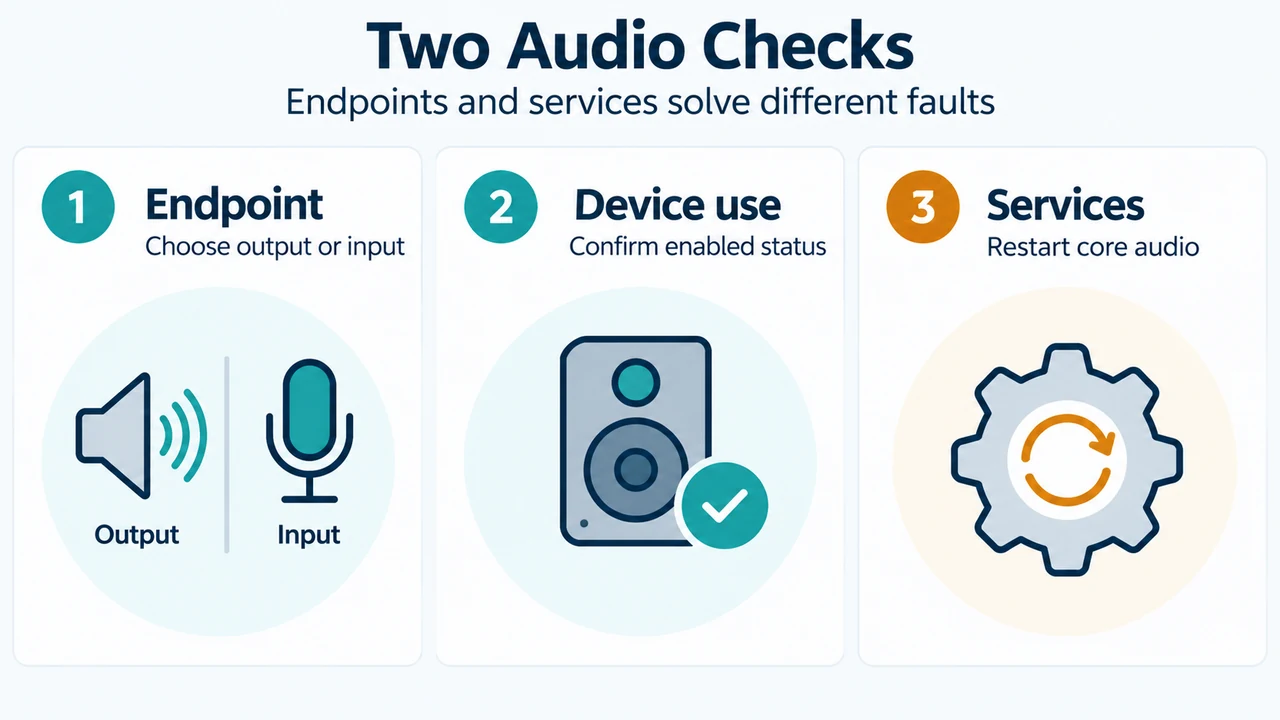
Verify Device Properties and Set Default Playback Device
Checking device properties helps verify that devices have not been disabled by mistake, and selecting your playback device sets the default endpoint:
- Select Start > Settings > System > Sound.
- Under Advanced, select More sound settings.
- Select either the Playback (output) or Recording (input) tab, select your device, and then select Properties.
- Next to Device usage, check that Use this device (enable) is selected from the list for the output and input devices.
- Return to Settings > System > Sound.
- In the Output section, select the device you want to use for playback as your output device. Selecting this device also sets it as the default. (If you use an external monitor without built-in speakers, make sure it is not selected as your default output device).
If checking device properties and setting the default device does not solve the problem, continue to additional troubleshooting.
Restart Windows Audio Services
Restarting core audio services can help restore proper audio functionality:
- In the search box on the taskbar, type
services, and then select it from the results. - Select each of the following services, select and hold (or right-click), and then select Restart:
- Windows Audio
- Windows Audio Endpoint Builder
- Remote Procedure Call (RPC)
Note: Windows 11 instructions specify selecting Yes when prompted during the restart process.
If restarting these services does not resolve your issue, see subsequent troubleshooting steps.
Text version of the diagrams
- Audio Enhancement Paths: Windows 11 — Sound settings path; Windows 10 — Control Panel path; Enhancements — Turn effects off
- Two Audio Checks: Endpoint — Choose output or input; Device use — Confirm enabled status; Services — Restart core audio