If PowerPoint displays “Can’t read file” or “Presentation cannot be opened,” Microsoft says the file may have been blocked by Microsoft 365 for security reasons. This applies to PowerPoint for Microsoft 365, PowerPoint 2024, 2021, 2019 and 2016. The documented first check is the file’s Windows Properties dialog.
First check: does the file have an Unblock option?
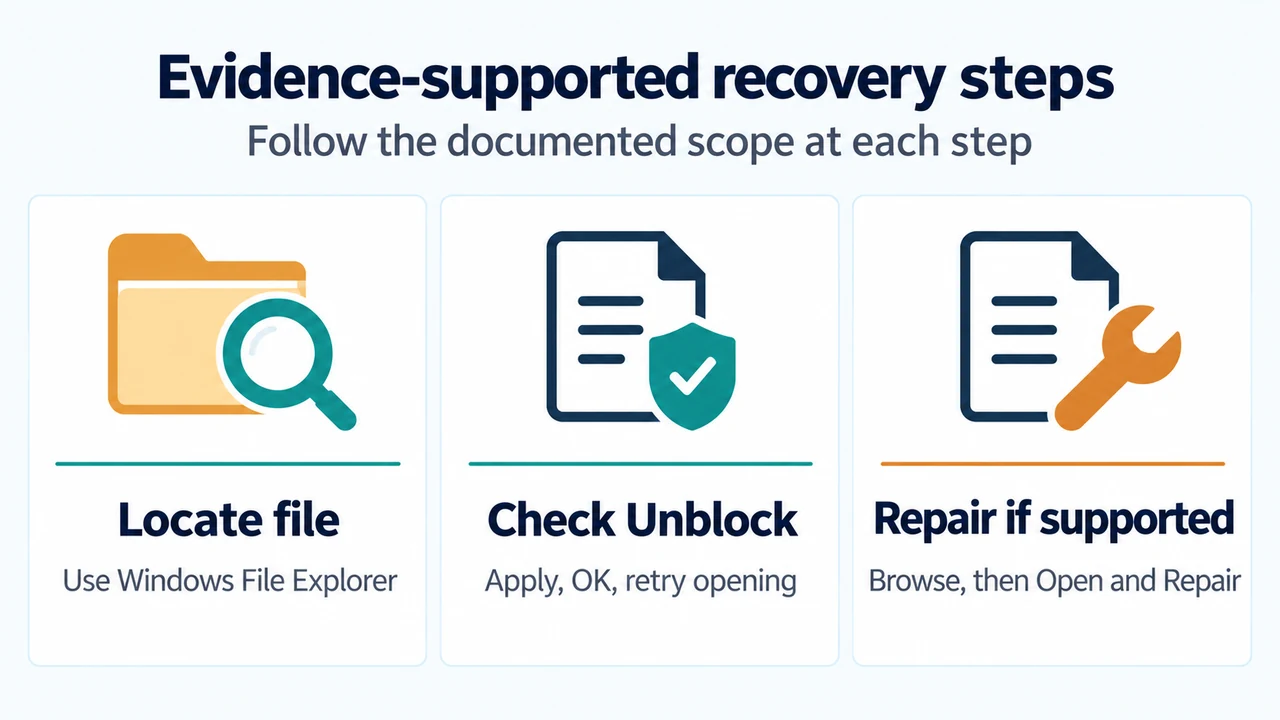
Use File Explorer to locate the presentation on your computer. Right-click it and select Properties. If the dialog contains an Unblock button near the bottom right, select it, choose Apply, and then select OK. Try opening the presentation again by right-clicking the file in File Explorer and selecting Open.
These are Microsoft’s documented steps for the reported error. They change the file’s available Windows property; they do not require changing PowerPoint’s Trust Center settings. Microsoft’s page does not say that every file with this message is blocked, so the Unblock check is a documented first path rather than proof of the file’s cause.
If the file still will not open
Microsoft separately documents Open and Repair for a presentation that may be damaged. The supplied corruption guidance lists PowerPoint for Microsoft 365 and PowerPoint 2016 in its supported scope. It does not establish the same repair workflow for PowerPoint 2024, 2021 or 2019.
For the supported PowerPoint versions, select File > Open > Browse, go to the folder containing the presentation, select the file, and select the arrow beside Open. Then select Open and Repair. Microsoft specifically says not to use the Recent section for this step because it does not open the required Open dialog.
Blocked file or damaged file?
| What you can verify | Documented next step |
|---|---|
| An Unblock button appears in the file’s Properties dialog. | Use Unblock, Apply and OK, then try opening the file from File Explorer. |
| No Unblock workflow resolves the problem, and you use PowerPoint for Microsoft 365 or 2016. | Use File > Open > Browse > Open and Repair. |
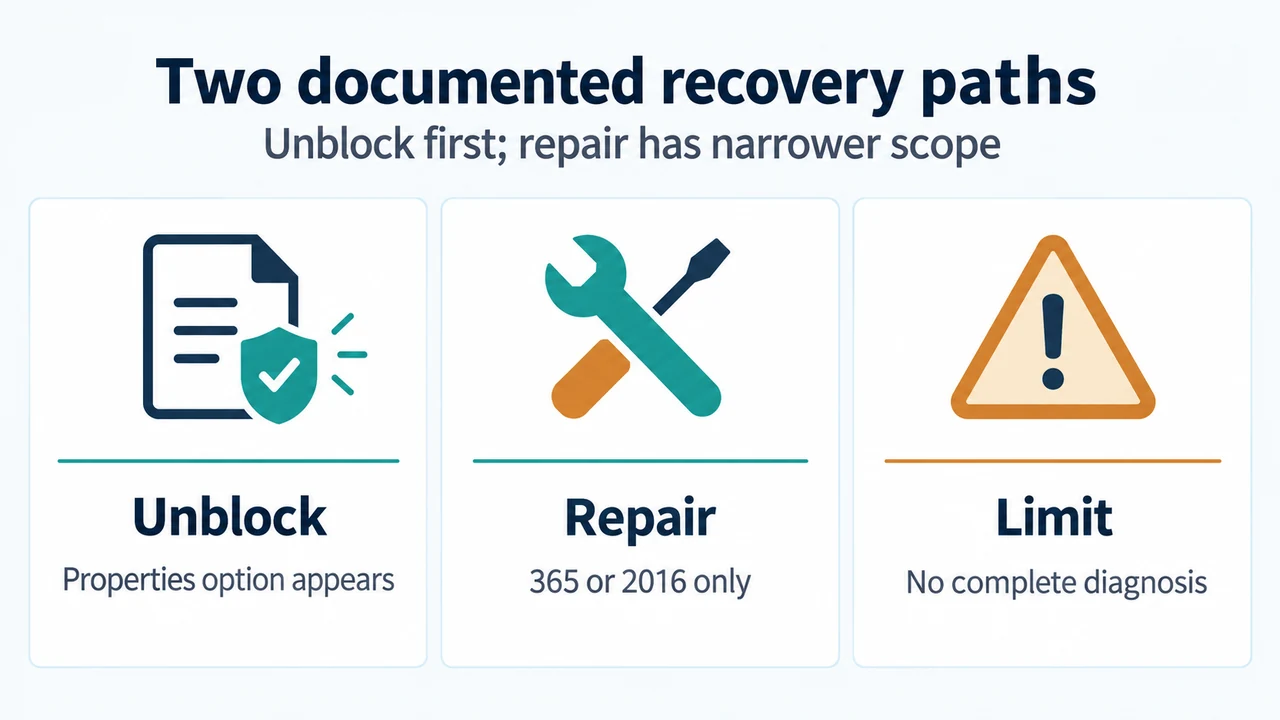
The supplied Microsoft passages do not provide a complete diagnostic test that proves whether a file is blocked or corrupted. They also do not document an Open and Repair scope here for PowerPoint 2024, 2021 or 2019. Treat those version limits as important when choosing the next step.
What this guide does not recommend
Do not overwrite the original presentation while trying recovery. The supplied Microsoft guidance does not instruct readers to weaken Trust Center security, use a destructive reset, or run an unrelated repair utility, so those actions are outside this guide.
Research method and limitations
This article was prepared from two supplied Microsoft Support excerpts retrieved on September 20, 2026: the error article for PowerPoint and the file-corruption article covering Office applications. The excerpts were accessible and marked as complete, but this guide relies only on the visible passages. No hands-on test, lab test, benchmark, or comprehensive review was performed. No competing page was available for review.
Text version of the diagrams
- Two documented recovery paths: Unblock — Properties option appears; Repair — 365 or 2016 only; Limit — No complete diagnosis
- Evidence-supported recovery steps: Locate file — Use Windows File Explorer; Check Unblock — Apply, OK, retry opening; Repair if supported — Browse, then Open and Repair