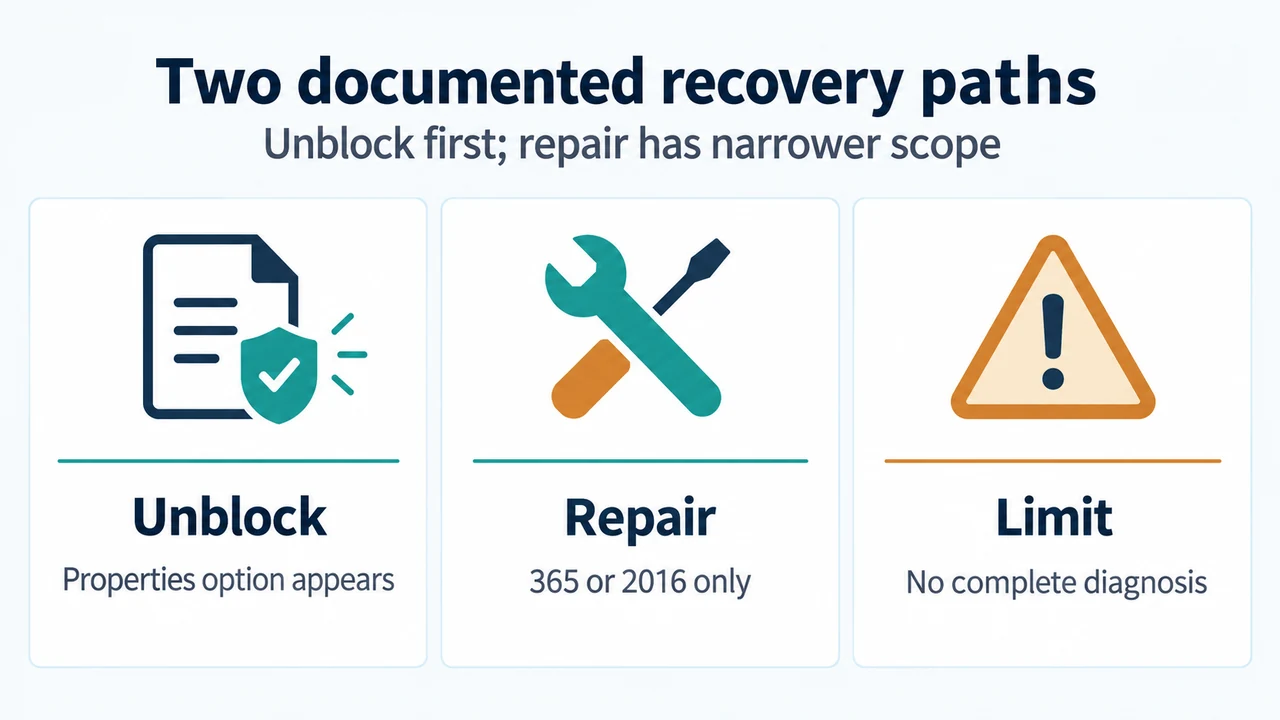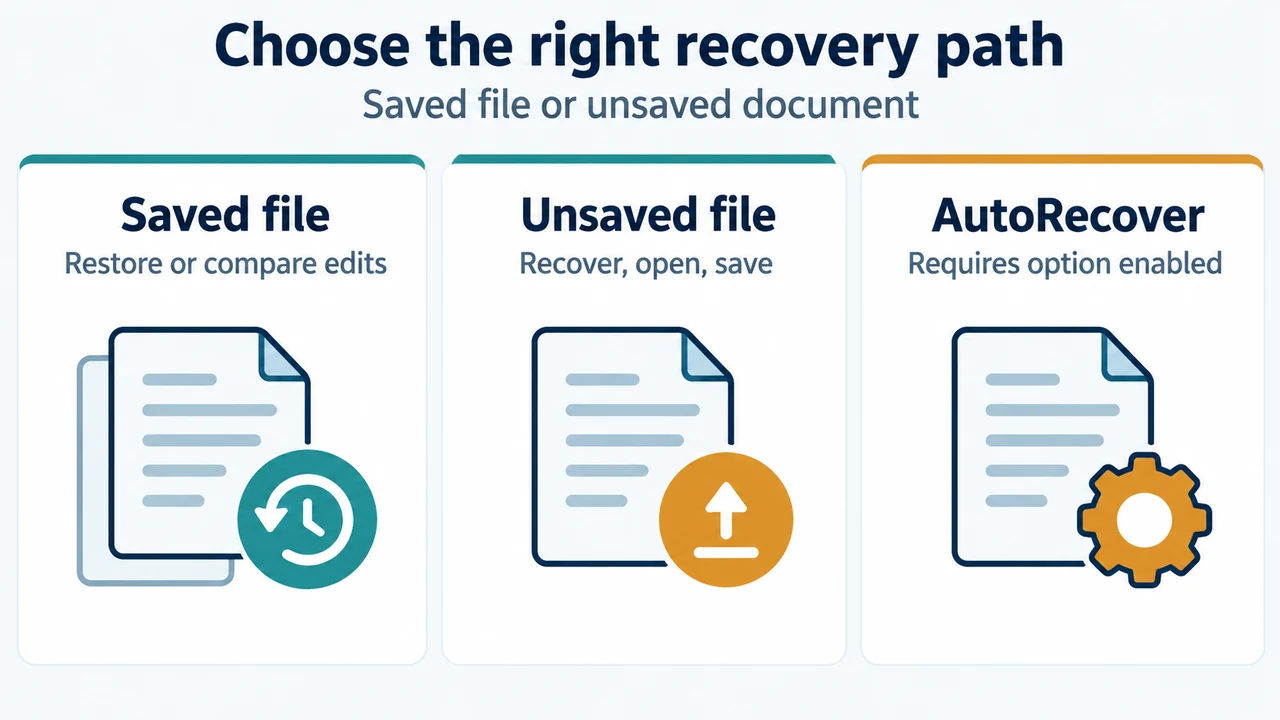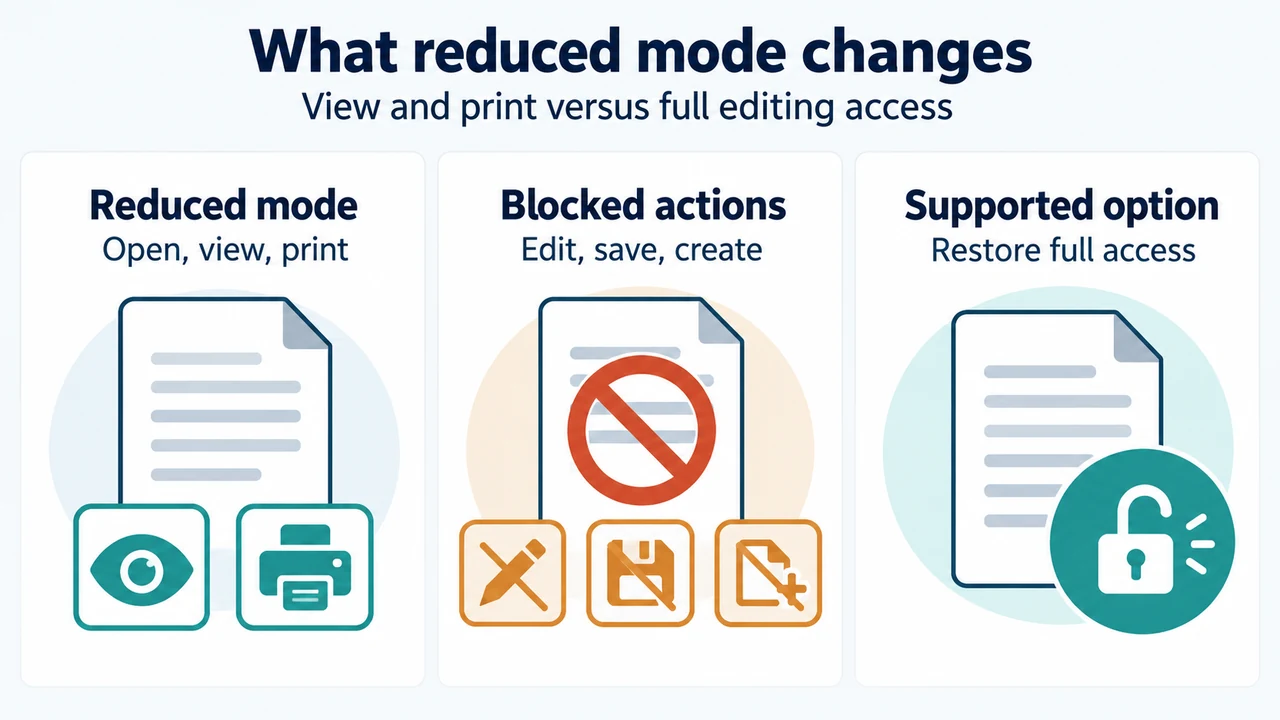
When Microsoft Word displays errors, stops responding, or behaves unexpectedly, the issue may stem from corruption within the document file, damage to its template, or a broader software issue. Official Microsoft documentation outlines systematic troubleshooting steps to isolate whether the fault is in the document itself or the surrounding environment, followed by methods to recover document content.
Step 1: Determine Whether the Issue Is Document Damage or a Software Issue
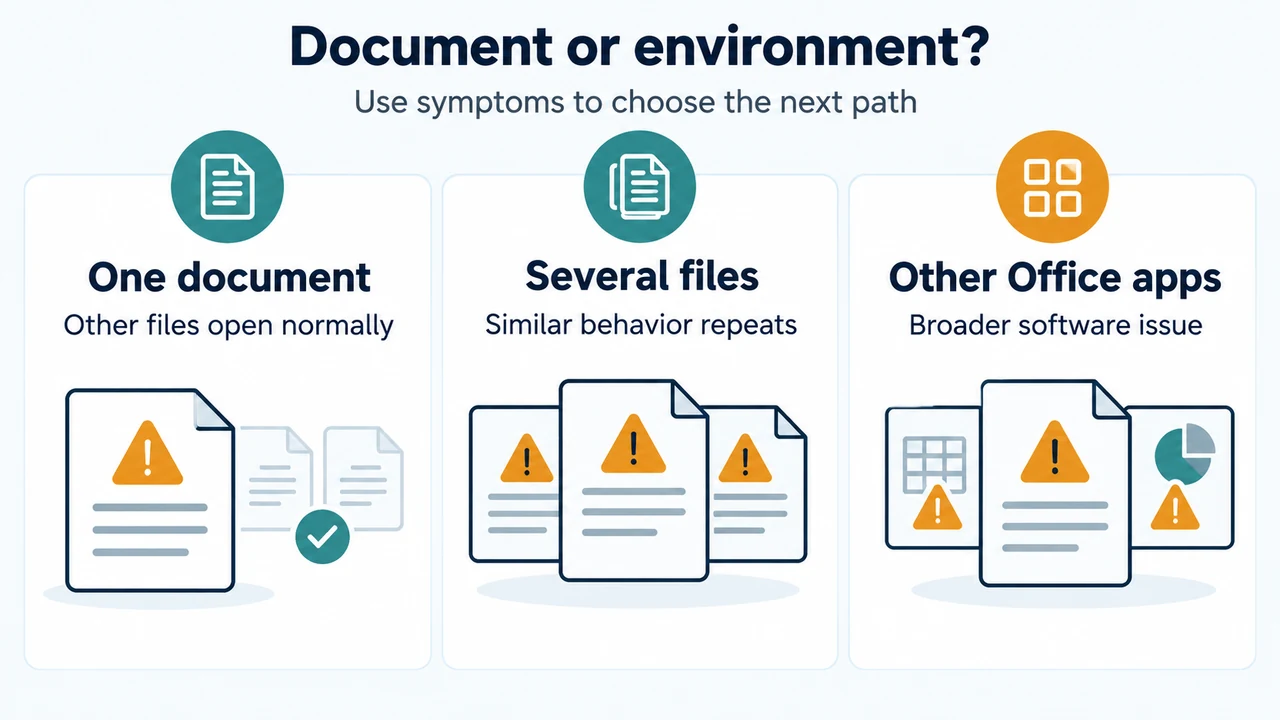
Microsoft documentation notes that updating Microsoft Office and Windows can resolve many software issues. Before attempting file recovery, determine whether the problem affects only one file or points to a broader software issue:
- Look for similar behavior in other documents: Attempt to open other Word documents. If other documents open and function correctly, the problem might be with the specific Word document.
- Look for similar behavior in other Microsoft Office programs: If similar unexpected behavior occurs across other Office applications, the issue might be with another application, the Office suite, or the operating system.
- Troubleshoot the environment if needed: If tests indicate the issue is not in the document itself, troubleshoot Word, the Office suite, or the operating system rather than altering the individual file.
Step 2: Check and Update Document Templates
If you suspect template damage is causing unexpected behavior when opening or working in a document, check which template is assigned to the file before taking action:
- In Word, select File on the Ribbon, and then select Options.
- Select Add-Ins.
- In the Manage box under View and manage Office add-ins, select Templates, and then select Go.
- The Document template box lists the template used by the document:
- If the listed template is Normal: Exit Word. Search your operating system for
normal.dotm(typically located at%userprofile%\appdata\roaming\microsoft\templates). Right-click Normal.dotm, select Rename, typeOldword.old, and press Enter. Note: RenamingNormal.dotmreplaces the global template file and resets global customizations. Next, close File Explorer, start Word, and attempt to open the document. - If a template other than Normal is listed: Open the damaged document, go to File > Options > Add-Ins, set Manage to Templates, and select Go. Select Attach, locate and select Normal.dotm in the Templates folder, and select Open. Select OK to close the dialog box, exit Word, and restart Word to test opening the document.
Step 3: Start Word Using Default Settings (/a Switch)
You can start Word using default settings by launching it with the /a switch. When Word starts with the /a switch, it does not load any add-ins and does not use your existing Normal.dotm template:
- Exit Word completely.
- Select the Start button, search for Run, and open the Run dialog box.
- Type
winword.exe /aand press Enter. - In Word, select File on the Ribbon, select Open, and browse to the document.
If the strange behavior does not occur when starting Word with the /a switch, Word’s default configuration bypassed an active add-in or an existing Normal.dotm template; however, this test does not by itself prove that all internal document content or formatting is intact.
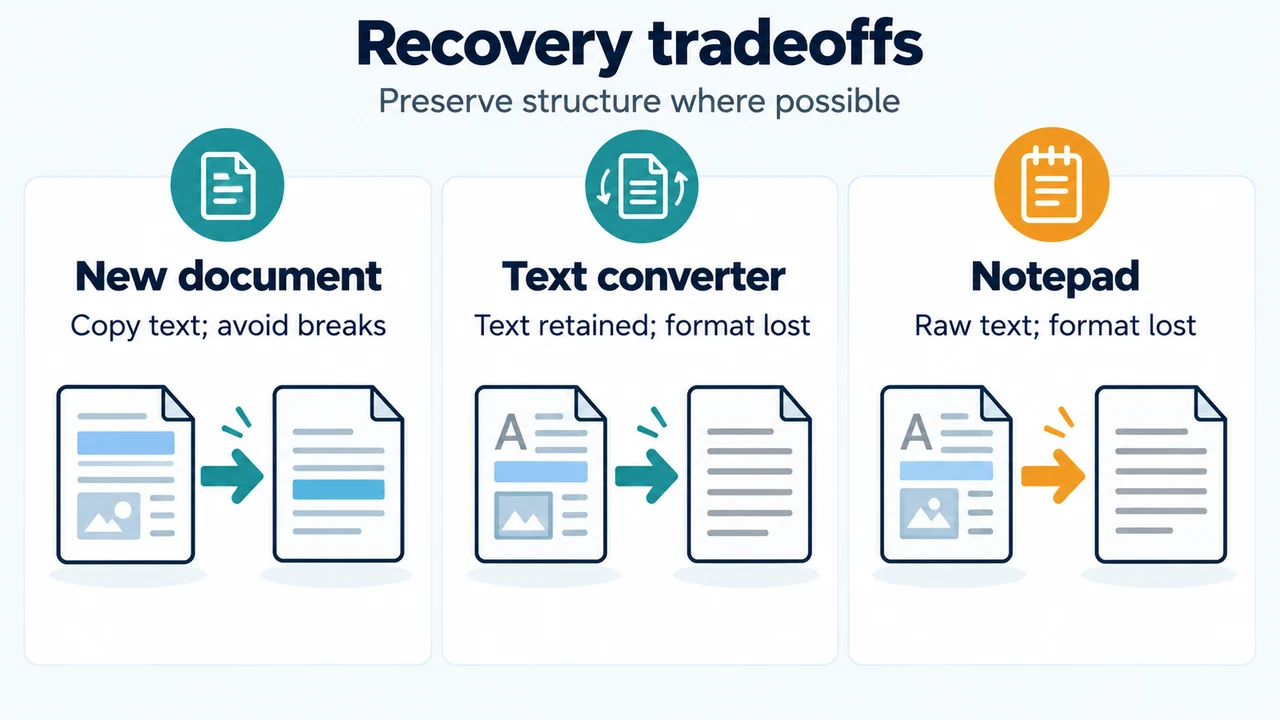
Step 4: Copy Document Content to a New File
If the damaged document can still be opened, copying its content into a clean file can prevent carrying forward corruption:
- In Word, select File > New > Blank document, and select Create.
- Select File > Open, and open the damaged document.
- Switch the damaged document to Draft view to avoid transferring section breaks (on the View tab, select Draft in the Document Views group).
- In the damaged document, press Ctrl + End, then press Ctrl + Shift + Home.
- Important selection rule: If the document contains section breaks, copy only the text between the section breaks—do not copy the section breaks themselves. Additionally, copy everything except the last paragraph mark to avoid transferring damaged document markers into the new document.
- Copy the selected text, paste it into the new blank document, and save the new file.
Step 5: Use the “Recover Text from Any File” Converter
If the document cannot be opened normally, use Word’s built-in text recovery converter:
- In Word, select the File menu, then select Open. (Note: For Word 2007 interfaces lacking a File menu button, choose the Office Button instead.)
- In the Files of type dropdown box, select Recover Text from Any File (*.*).
- Select the damaged document, and then select Open.
- Review the recovered document and delete the binary data text that remains primarily at the beginning and end of the document before saving the file as a Word document.
Converter limitations: Document formatting is lost. Graphics, fields, drawing objects, and any items that are not text are discarded. Field text, headers, footers, footnotes, and endnotes are retained only as simple text.
Step 6: Open the Document with Notepad
If the document is corrupted and earlier methods fail, attempt raw content recovery using Windows Notepad:
- Locate the damaged document using Windows File Explorer.
- Right-click the document, select Open with, and choose Notepad. (You may need to change the file type filter to All Files (*.*)).
- The document opens displaying text surrounded by extra code characters. Delete extra characters to clean the text.
- Select File > Save As, and save the text under a new filename so you do not overwrite the damaged original file.
- Open the newly saved file in Word to inspect the text and manually reapply formatting as needed. All original document formatting is lost.
Research Method and Limitations
This guide was prepared exclusively from the supplied public documentation excerpts from Microsoft Learn regarding damaged Word document troubleshooting. The visible excerpts specifically reference Word 2007 interface differences (Office Button) alongside Ribbon-based File menu steps, but do not provide a complete list of all supported desktop Word version numbers or specific Windows build requirements. The source material also contains truncated sections, omitting certain alternative repair sequences. Competing third-party troubleshooting guides were not accessible in the supplied evidence.
Text version of the diagrams
- Document or environment?: One document — Other files open normally; Several files — Similar behavior repeats; Other Office apps — Broader software issue
- Recovery tradeoffs: New document — Copy text; avoid breaks; Text converter — Text retained; format lost; Notepad — Raw text; format lost