In Microsoft Word, AutoRecover can automatically save file versions while you work on a document if the AutoRecover option is turned on. How you recover those changes depends on whether the file was previously saved or left unsaved.
Scope and Requirements
These documented steps apply to the following versions of Microsoft Word:
- Word for Microsoft 365
- Word 2024
- Word 2021
- Word 2019
- Word 2016
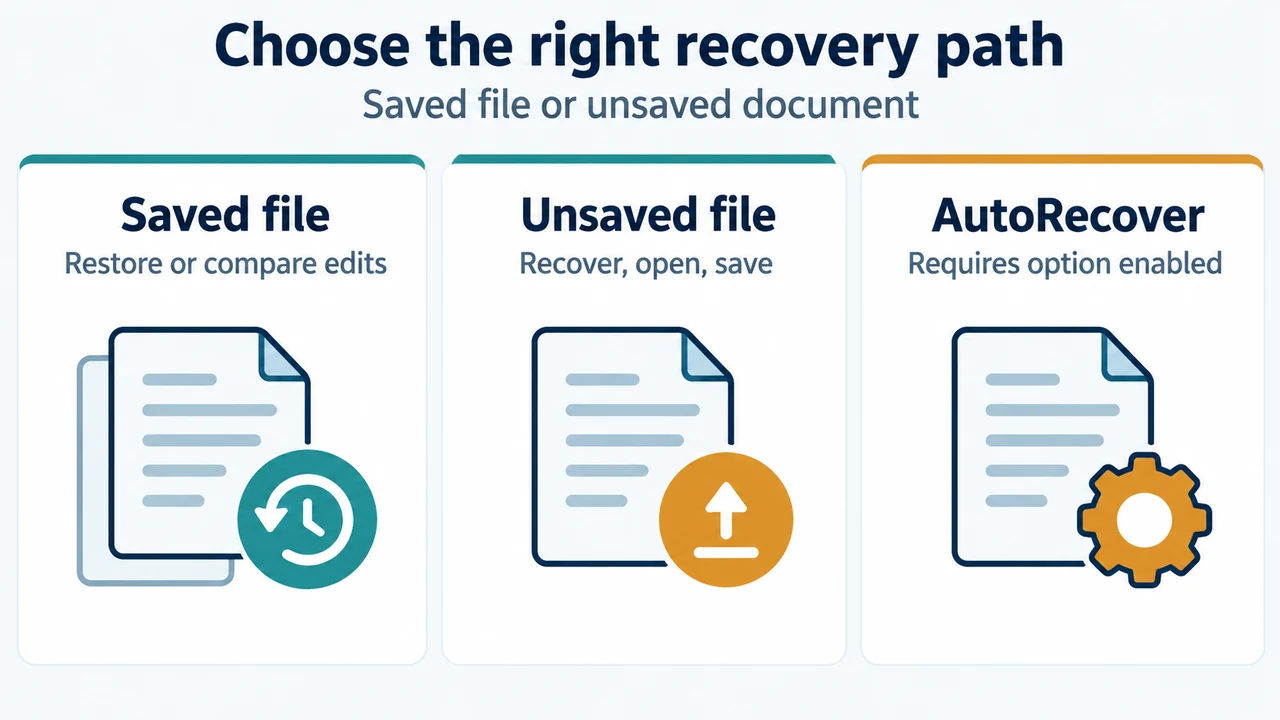
Requirement: The AutoRecover option must be turned on to automatically save versions while working on the file.
Recover AutoRecover Edits on a Saved File
If you previously saved the file, use these steps to retrieve changes saved by AutoRecover:
- Open the file you were working on.
- Select File > Info.
- Under Manage Documents, select the file labeled (when I closed without saving).
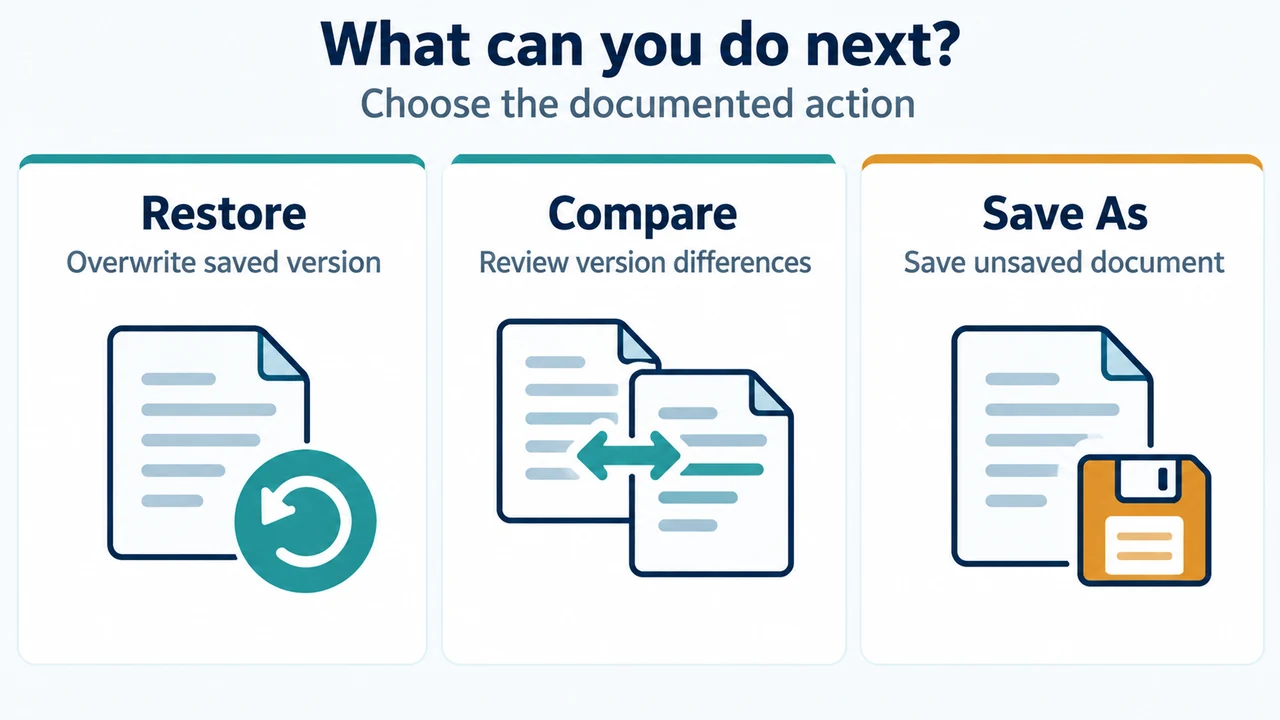
- In the bar at the top of the file, select Restore to overwrite previously saved versions.
You can also compare versions by selecting Compare instead of Restore.
Recover an Unsaved File
If you have not saved the file at all, use Word’s option for unsaved documents:
- Go to File > Info > Manage Document > Recover Unsaved Documents.
- Select the file, and then select Open.
- In the bar at the top of the file, select Save As to save the file.
Research Method and Limitations
This answer was prepared directly from the supplied public Microsoft Support excerpt. Competing coverage was unavailable, so no comparative evaluation was conducted. The supplied evidence details recovering an AutoRecover file labeled (when I closed without saving) and recovering an unsaved document via Manage Document; it does not establish broader historical version history, operating-system-specific requirements, or settings for turning AutoRecover on or off.
Text version of the diagrams
- Choose the right recovery path: Saved file — Restore or compare edits; Unsaved file — Recover, open, save; AutoRecover — Requires option enabled
- What can you do next?: Restore — Overwrite saved version; Compare — Review version differences; Save As — Save unsaved document