If Windows 11 can detect and test your microphone but one desktop app cannot use it, check Windows microphone privacy settings first. Windows has separate controls for microphone access, Microsoft Store apps, and desktop apps. This guide covers those Windows 11 permission settings only; the supplied evidence does not establish steps for selecting an input device inside the affected app.
Check Windows 11 microphone access
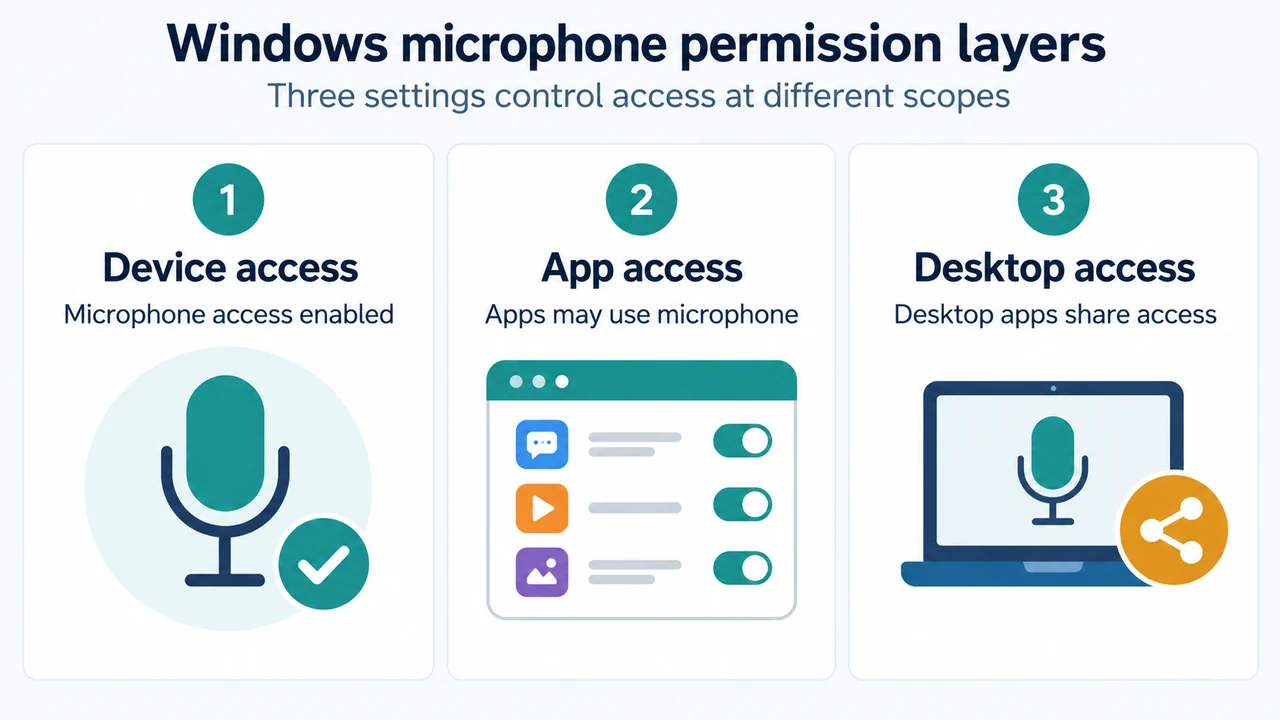
Open Start > Settings > Privacy & security > Microphone. Confirm that Microphone access is turned on and that Let apps access your microphone is turned on.
Microsoft describes these as required permissions for using a microphone with apps on Windows 11. If either setting is off, an app may be unable to access the microphone even when Windows can detect it.
Check the desktop-app permission
In the same Microphone settings area, find Let desktop apps access your microphone and turn it on.
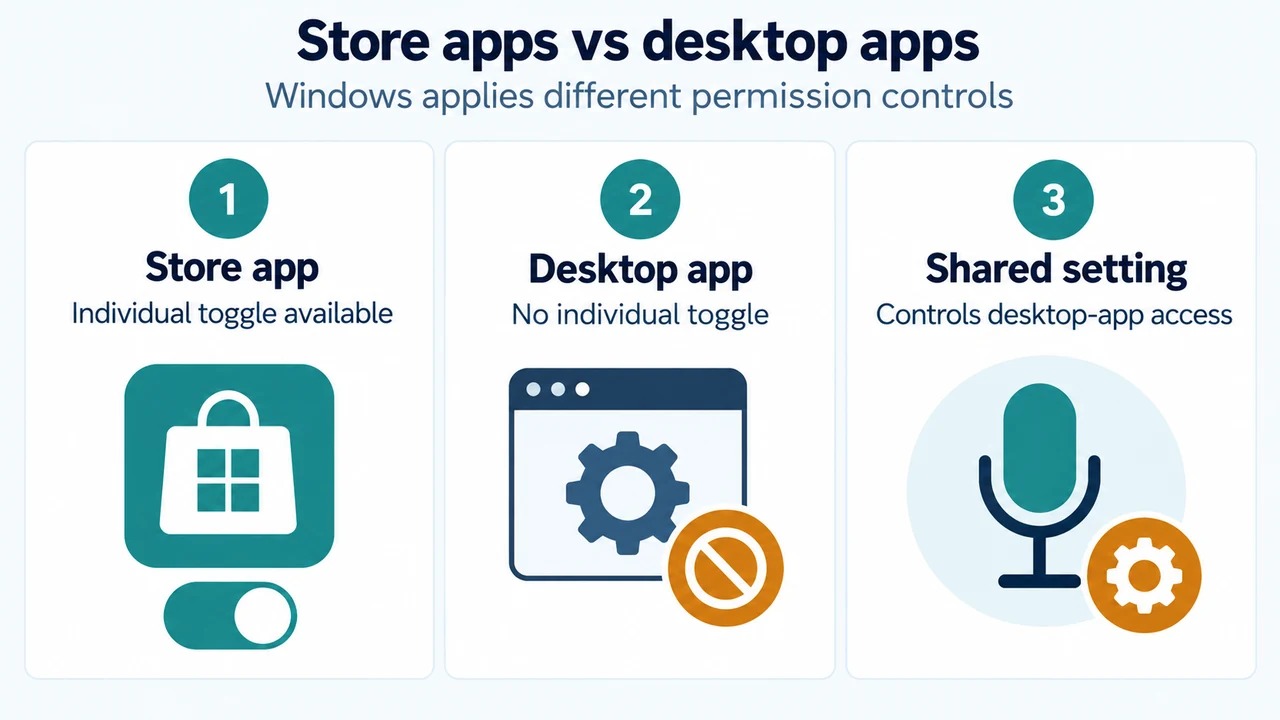
This setting matters when the affected program is a traditional desktop app. Microsoft says desktop apps cannot be individually toggled in the same way as Microsoft Store apps; desktop-app access is controlled by the shared desktop-app setting. Turning it on affects the desktop apps covered by that setting.
Do not confuse Store-app controls with desktop-app access
Windows also provides a list of Microsoft Store apps that can access the microphone. If the affected program appears in that list, check that its individual toggle is on.
If you do not see the program in the app list, Microsoft says it is likely a desktop app. In that case, check Let desktop apps access your microphone rather than assuming that the missing individual toggle means the microphone is unavailable.
Use the microphone indicator as a limited check
When an app is using the microphone, Windows can show a microphone icon in the notification area of the taskbar. This can help indicate whether Windows has detected microphone use, but the supplied Microsoft material does not define it as a complete test of whether the affected app is receiving usable audio.
What this check does—and does not—establish
If the three relevant Windows permissions are enabled, that rules out those documented Windows privacy settings as the immediate cause. It does not prove that every desktop app is configured correctly, and it does not establish that the app is using the intended input device. The supplied primary excerpts do not provide app-specific input-selection instructions, so this article does not add them.
Research method and limitations
This article was prepared from the supplied public Microsoft excerpts retrieved on September 23, 2026, covering Windows 11 microphone privacy settings and general audio troubleshooting. The excerpts support the permission checks above but do not provide a complete workflow for every desktop application. The supplied competing page was reviewed only for coverage comparison and was not used as technical authority. This is research-based guidance, not a hands-on test, lab result, benchmark, or comprehensive review.
Text version of the diagrams
- Windows microphone permission layers: Device access — Microphone access enabled; App access — Apps may use microphone; Desktop access — Desktop apps share access
- Store apps vs desktop apps: Store app — Individual toggle available; Desktop app — No individual toggle; Shared setting — Controls desktop-app access
Sources
- Microsoft: Turn on app permissions for your microphone in Windows — Windows 11 microphone access, app access, Microsoft Store app controls, and desktop-app access.
- Microsoft: Windows camera, microphone, and privacy — Windows 11 microphone privacy controls, desktop-app scope, and the taskbar microphone indicator.
- Microsoft: Fix sound or audio problems in Windows — Windows 11 microphone privacy checks in Microsoft’s audio troubleshooting guidance.