When apps in Windows 11 or Windows 10 cannot access an audio input, checking privacy toggles, audio hardware connections, and Windows audio services can help restore access. Official support for Windows 10 ended on October 14, 2025; while devices continue to work, Microsoft recommends moving to Windows 11 for software updates, technical assistance, and security fixes.
Step 1: Check Physical Connections and Mute Controls
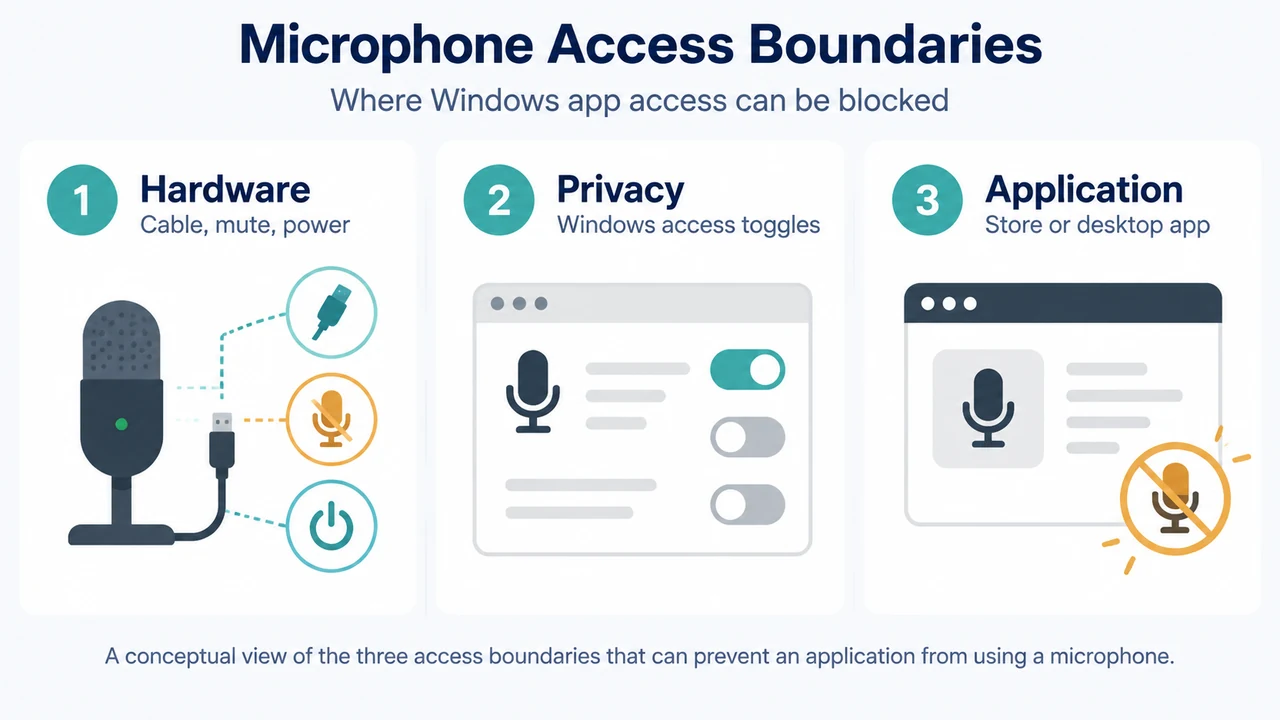
Before adjusting system software settings, check your physical audio hardware:
- Cable connections: Ensure cords and cables are plugged in securely. Some systems use a pink jack for microphone input or label the port “microphone.” If using a USB device, try connecting to a different USB port.
- Hardware mute switches: Make sure external power is on and the mute setting on your microphone or headset is turned off.
- Volume controls: In the taskbar notification area (or under Show hidden icons), right-click or select and hold the Speakers icon. Open Volume mixer and verify that volume controls are not muted. If an item is muted, select the control or the unmute icon to unmute it.
- Microphone indicator: A microphone icon appears in the taskbar notification area when an app is using the microphone.
Step 2: Configure Microphone Privacy Permissions
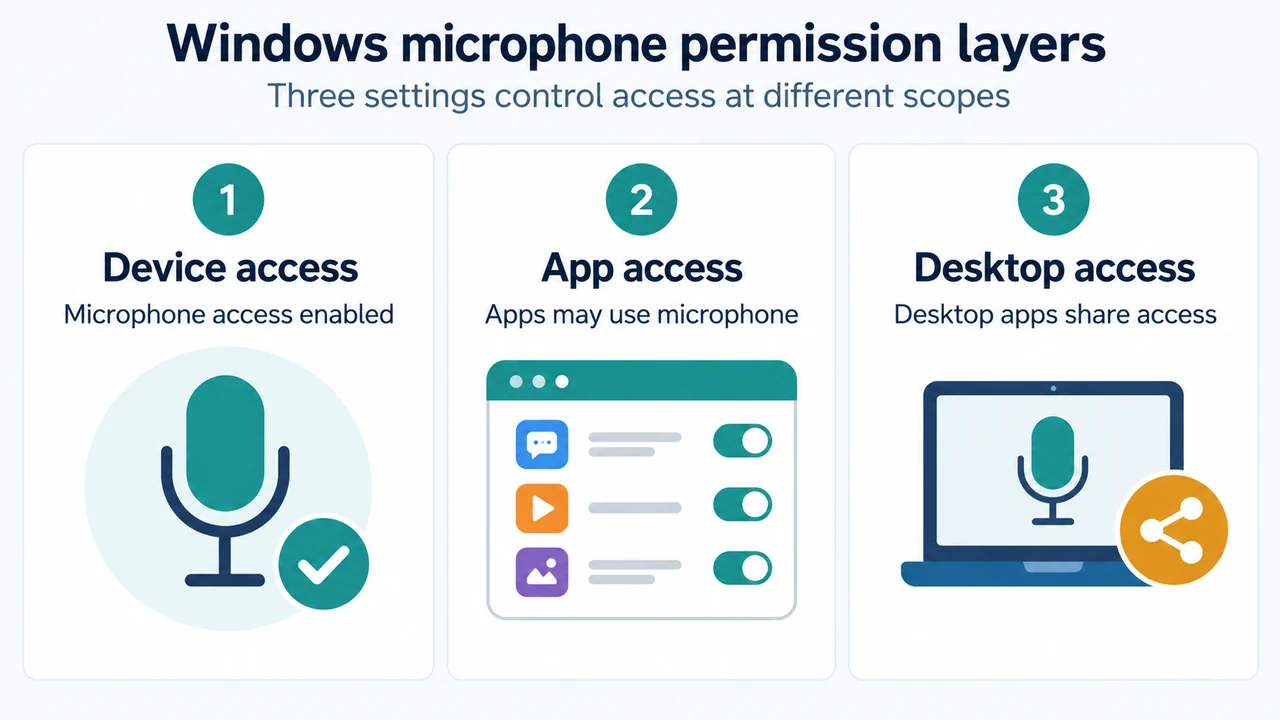
Windows provides controls to choose which apps can access your microphone.
Windows 11
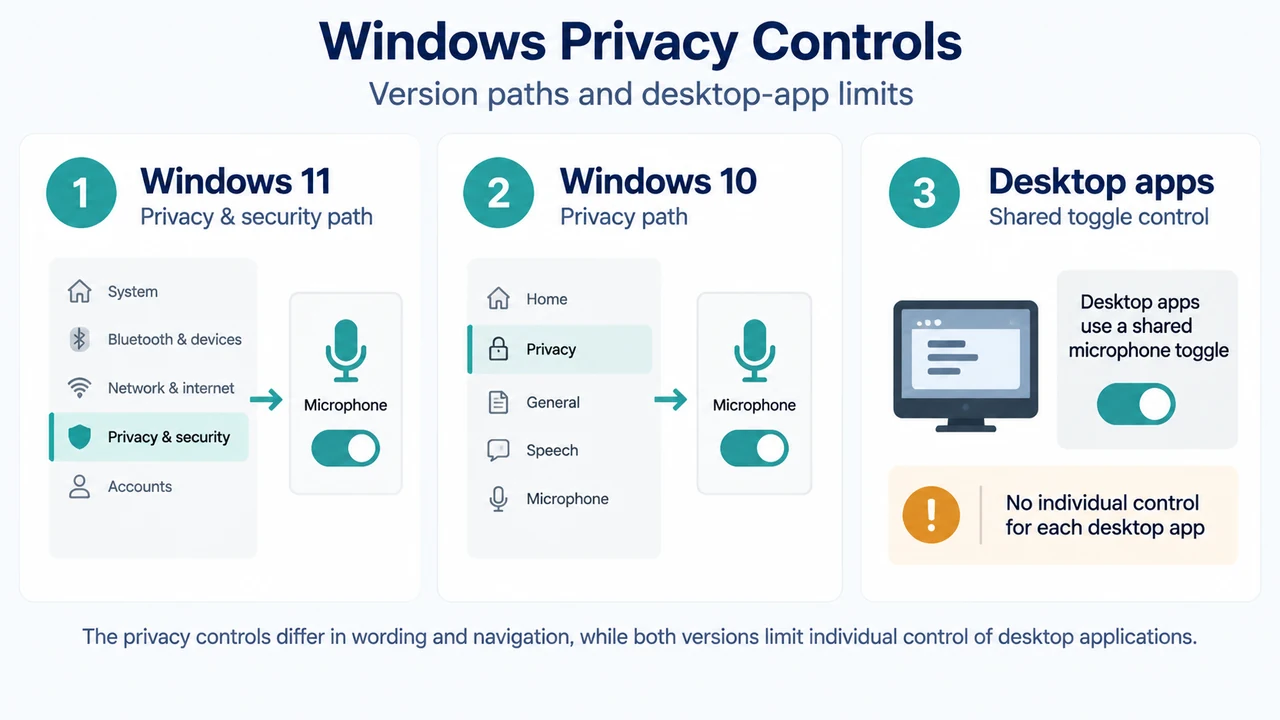
- Select Start > Settings > Privacy & security > Microphone.
- Turn Microphone access to On.
- Turn Let apps access your microphone to On.
- To allow a specific Microsoft Store app, locate it in the list and set its toggle to On.
- For desktop applications, scroll to Let desktop apps access your microphone and set the toggle to On. Desktop apps cannot be individually toggled; turning this setting on or off impacts all desktop apps listed under it.
Windows 10
- Select Start > Settings > Privacy > Microphone.
- Under Allow access to the microphone on this device (or Microphone access for this device), select Change if needed and ensure the toggle is turned On.
- Turn Allow apps to access your microphone to On.
- Under the app list, turn the toggle On for any specific Microsoft Store app you wish to use.
- To manage desktop programs, scroll to Allow desktop apps to access your microphone and set the toggle to On. Note that starting with Windows 10 version 1903, this setting provides limited control over desktop apps that access the microphone using supported methods, and turning it on or off impacts all listed desktop apps.
Indirect Component Access: If an app or Windows feature accesses the microphone indirectly through a Windows component, the Windows component name will be listed instead (for example, “Speech Runtime Executable” when interacting with Cortana). Desktop apps might not always appear in the list or might still access the microphone when these settings are turned off.
Step 3: Restart Windows Audio Services
If microphone access remains unavailable, restart the core audio services:
- In the taskbar search box, type
services, then select it from the results. - Select each of the following services, right-click (or select and hold), select Restart, and then select Yes:
- Windows Audio
- Windows Audio Endpoint Builder
- Remote Procedure Call (RPC)
Step 4: Check Device Properties or Update Drivers
If issues continue, verify device status or update audio drivers:
- Check Device Status in Sound Settings: In Windows 11, select Start > Settings > System > Sound, select More sound settings under Advanced, open the Recording tab, select your device, select Properties, and verify that Use this device (enable) is selected. In Windows 10, select Start > Settings > System > Sound, select your input device, choose Device properties, and ensure the Disable checkbox is cleared.
- Update Driver via Device Manager: In the taskbar search box, type
device managerand open it. Expand Sound, video and game controllers. If an IDT High Definition Audio CODEC is listed, right-click it, select Update driver > Browse my computer for drivers > Let me pick from a list of device drivers on my computer, select High Definition Audio Device, and select Next.
Research Method and Limitations
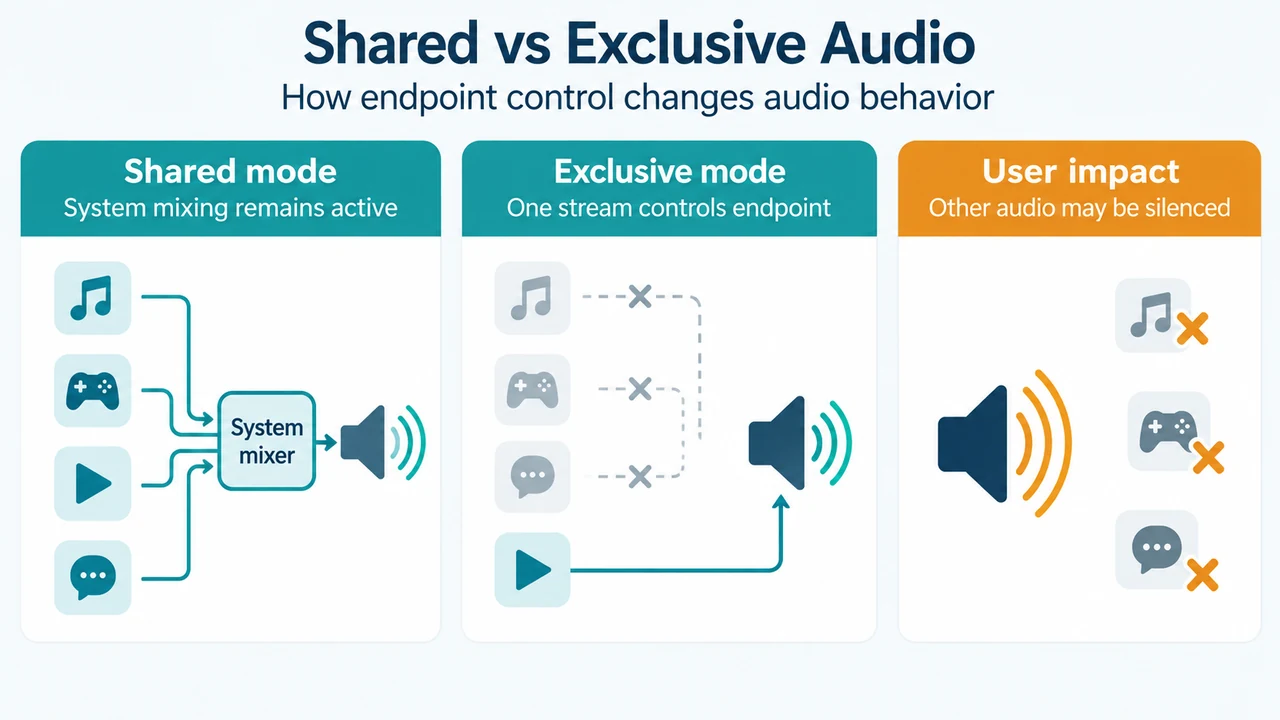
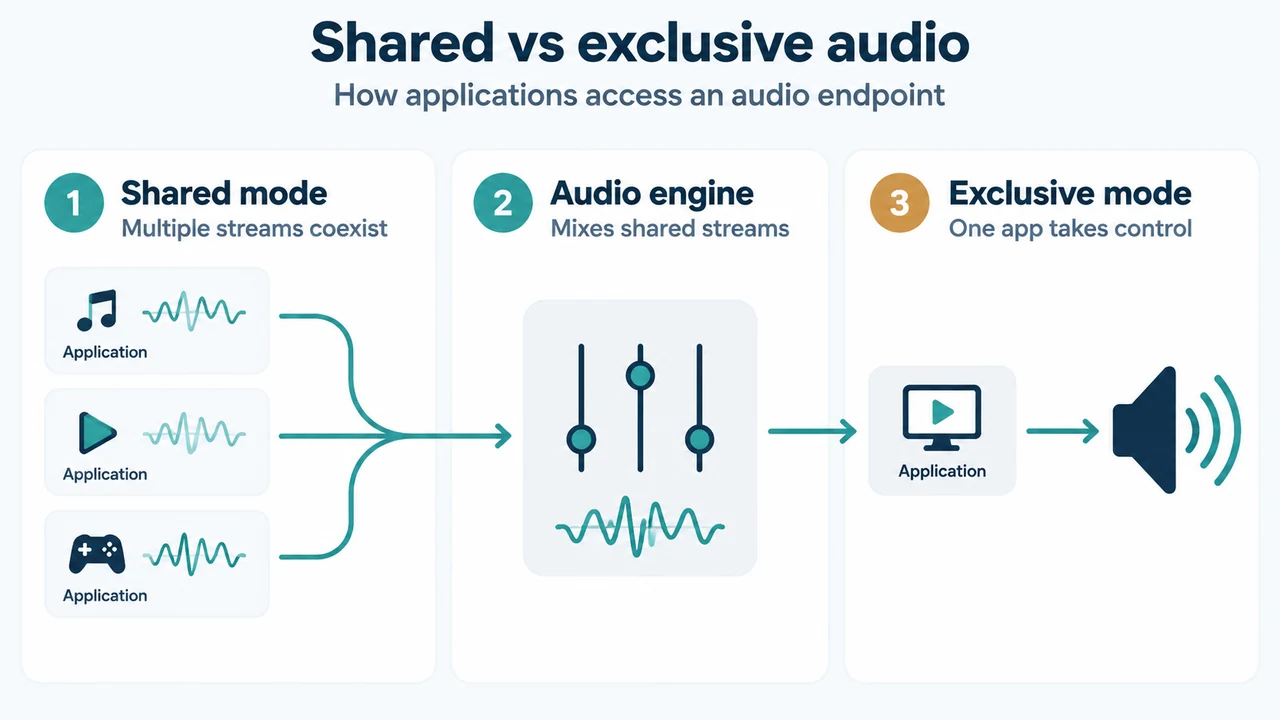
This troubleshooting guide was compiled strictly from the supplied public Microsoft support excerpts covering Windows 11 and Windows 10 audio troubleshooting and privacy controls. Material limitations include reliance on partial and truncated vendor excerpts without access to the full articles, and no competing coverage was retrieved or analyzed. Unsupported topics—such as unverified claims about the frequency of privacy toggle failures, third-party exclusive mode settings, unprovided automated diagnostic tools, or claims of guaranteed zero risk—are excluded.
Text version of the diagrams
- Microphone Access Boundaries: Hardware — Cable, mute, power; Privacy — Windows access toggles; Application — Store or desktop app
- Windows Privacy Controls: Windows 11 — Privacy & security path; Windows 10 — Privacy path; Desktop apps — Shared toggle control