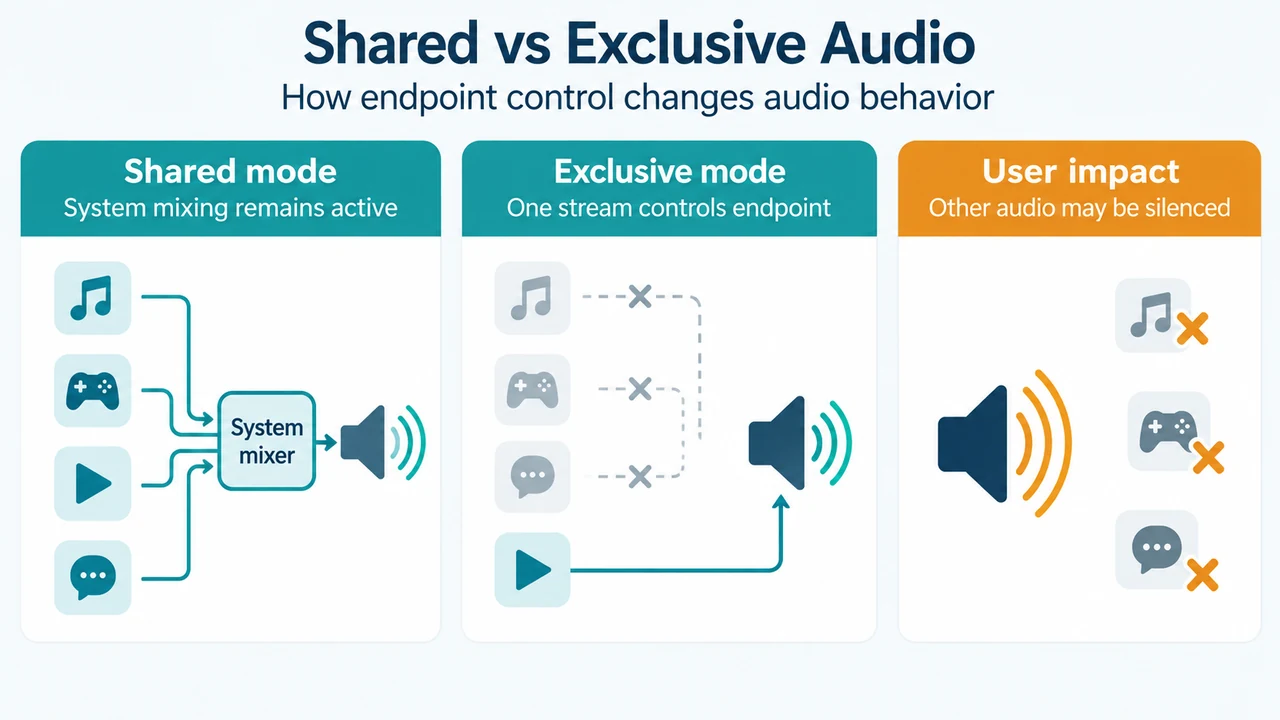
When an application opens an audio endpoint in exclusive mode, it seizes the device, silencing audio from other applications, system sounds, and notifications. In Windows 11 and Windows 10, you can resolve audio conflicts and app locking by opening the device properties in the Sound control panel and adjusting exclusive-mode permissions or preemption priority.
Understanding Shared Mode and Exclusive Mode
Windows audio endpoints support two operational streaming modes:
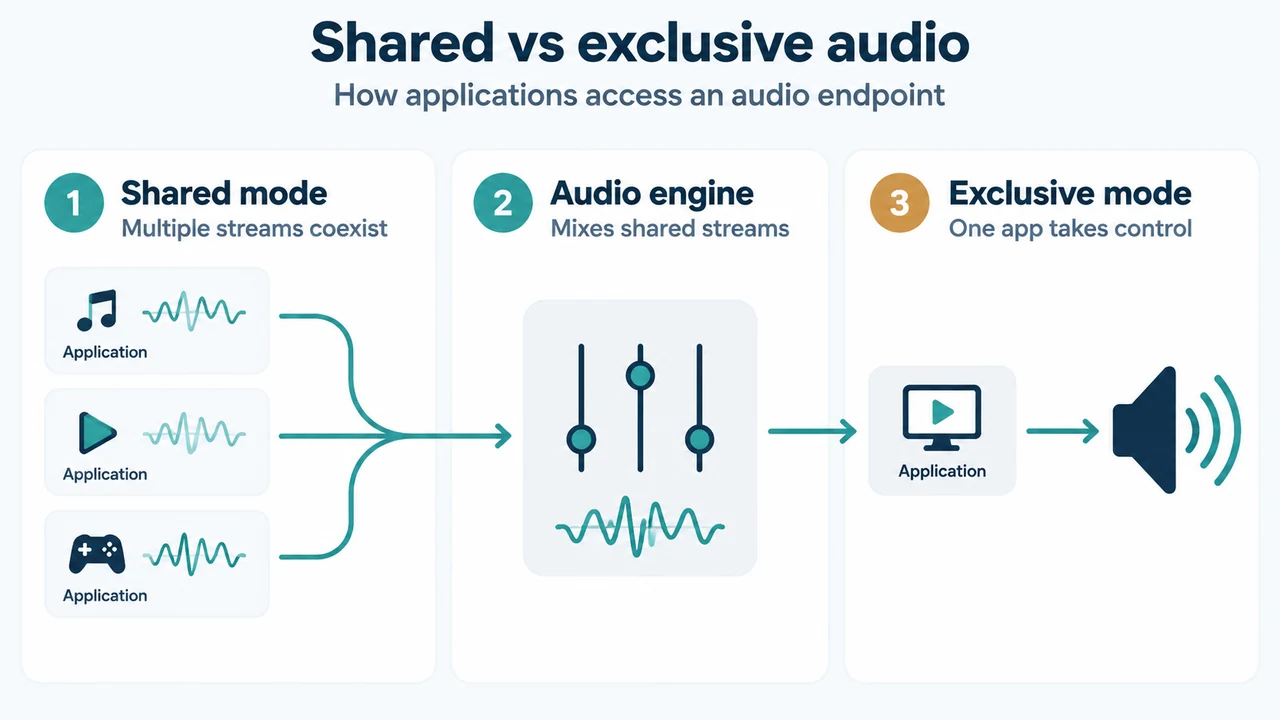
- Shared Mode: Multiple applications play or record streams concurrently through the system audio engine. Starting with Windows 10, low-period shared streams provide low latency while preserving system sound mixing and multi-app interoperability.
- Exclusive Mode: An application thread directly accesses audio endpoint buffers. When active, the exclusive stream seizes the endpoint and mutes all notifications, system sounds, and audio streams from other software.
If preemption is enabled, an application requesting exclusive control preempts active shared streams. If preemption is disabled, an exclusive request succeeds only if the device is completely idle; it fails if the endpoint is already in use by either shared-mode or exclusive-mode streams. Although Microsoft documentation historically noted that exclusive mode and shared-stream preemption were enabled by default beginning in Windows Vista, users can configure these settings per device in modern Windows releases.
Configuring Exclusive Mode in the Sound Control Panel
These Sound control panel steps apply to both Windows 11 and Windows 10:
- In the taskbar search box, type
control panel, and select it from the results. - Select Hardware and Sound, then select Sound (or run
Mmsys.cplfrom a Command Prompt window). - Select the Playback tab for output devices (such as speakers or headphones) or the Recording tab for input devices (such as microphones).
- Select your audio device from the list, then select Properties.
- Select the Advanced tab.
- Under Exclusive Mode, adjust the settings:
- Allow applications to take exclusive control of this device: Clear this checkbox to disable exclusive mode entirely. When disabled, the device only plays or records shared-mode streams.
- Give exclusive mode applications priority: If exclusive mode remains enabled, clear this checkbox to prevent exclusive-mode applications from preempting active shared-mode streams.
- Select OK.
Checking Microphone Privacy Settings
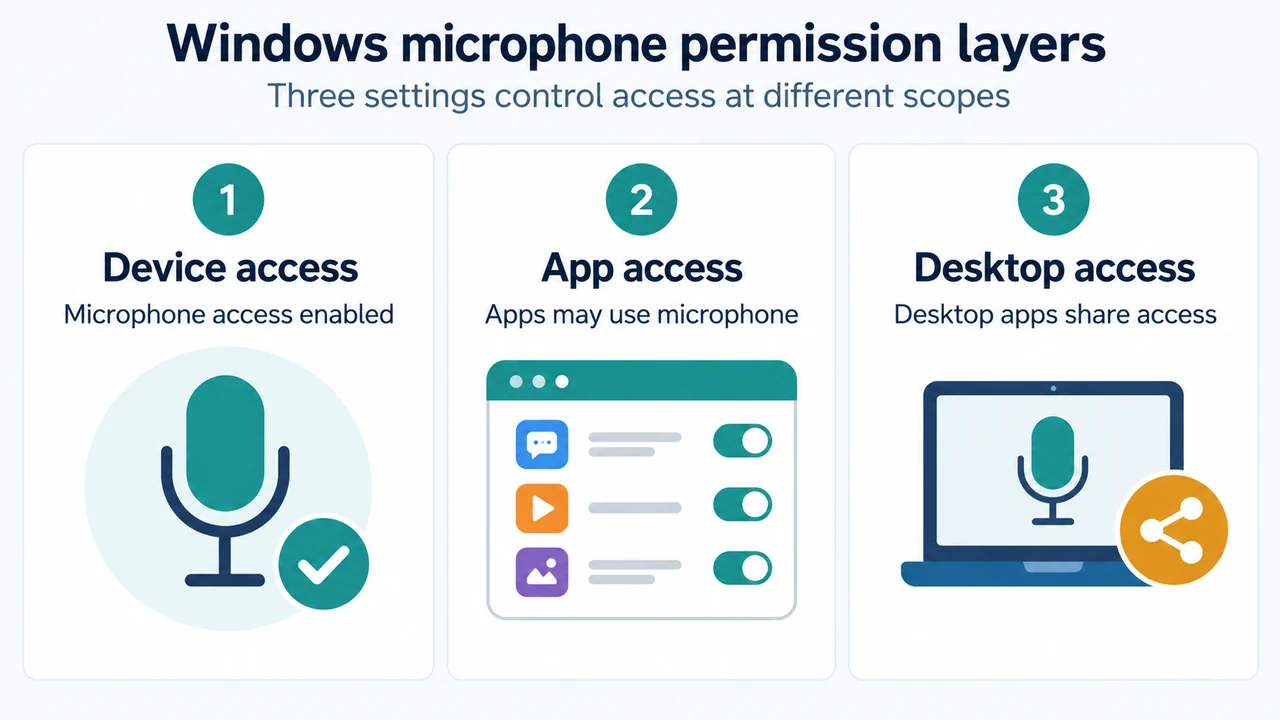
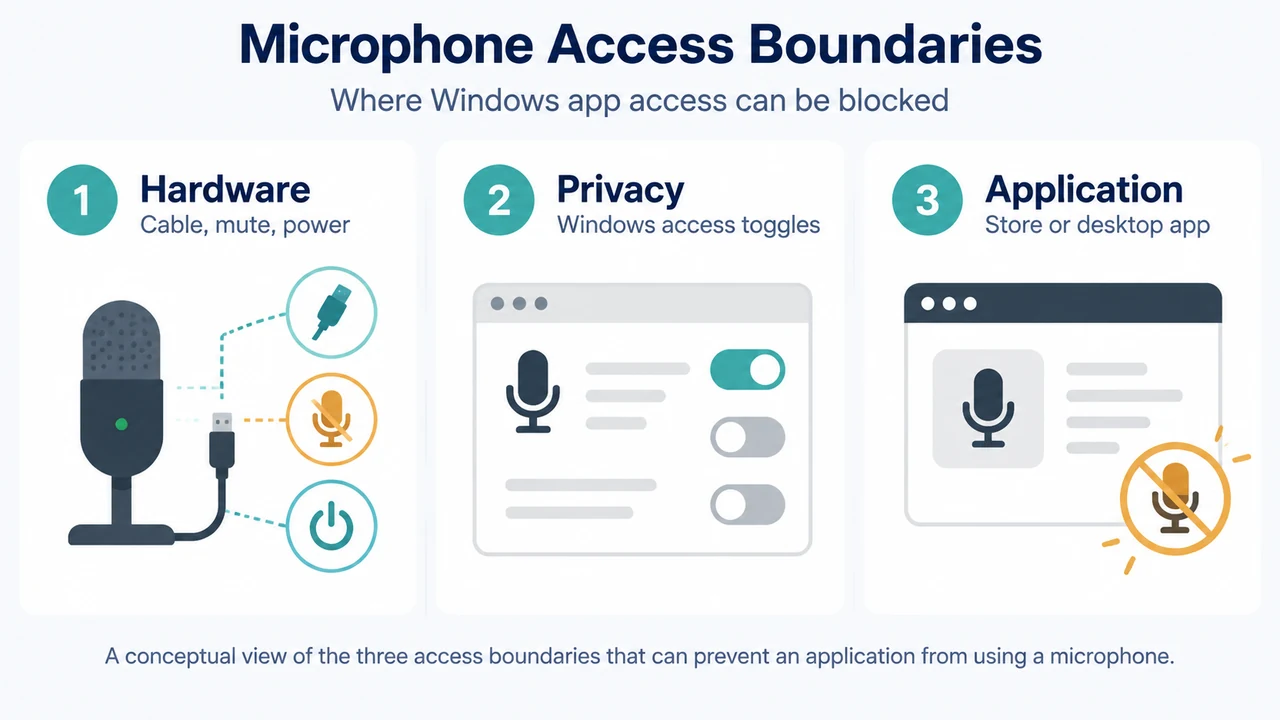
If a microphone remains inaccessible to a specific app, verify your Windows microphone privacy permissions for your version of Windows:
Windows 11
- Select Start > Settings > Privacy & security.
- Under App permissions, select Microphone.
- Verify that Microphone access and Let apps access your microphone are toggled On.
- Under Let apps access your microphone, locate the specific app and make sure its toggle is set to On.
Windows 10
- Select Start > Settings > Privacy, then select Microphone from the left menu.
- Under Allow access to the microphone on this device, select Change and ensure the toggle is On.
- Scroll down to Choose which Microsoft Store apps can access your microphone and verify that the toggle next to the affected app is set to On.
Restarting Windows Audio Services
If audio stream locking persists across Windows 11 or Windows 10, restart the core audio services:
- In the taskbar search box, type
services, and select it from the results. - Locate each of the following services, right-click (or select and hold), select Restart, and select Yes if prompted:
- Windows Audio
- Windows Audio Endpoint Builder
- Remote Procedure Call (RPC)
Research Method and Limitations
This troubleshooting guide was synthesized strictly from supplied public Microsoft Learn and Microsoft Support excerpts. A material limitation is that baseline default preemption behaviors in the evidence reference historical Windows Vista documentation rather than establishing standalone default benchmarks for Windows 11 or Windows 10. Additionally, source excerpts were truncated, and no competing coverage was available in the provided record.
Text version of the diagrams
- Shared vs exclusive audio: Shared mode — Multiple streams coexist; Audio engine — Mixes shared streams; Exclusive mode — One app takes control
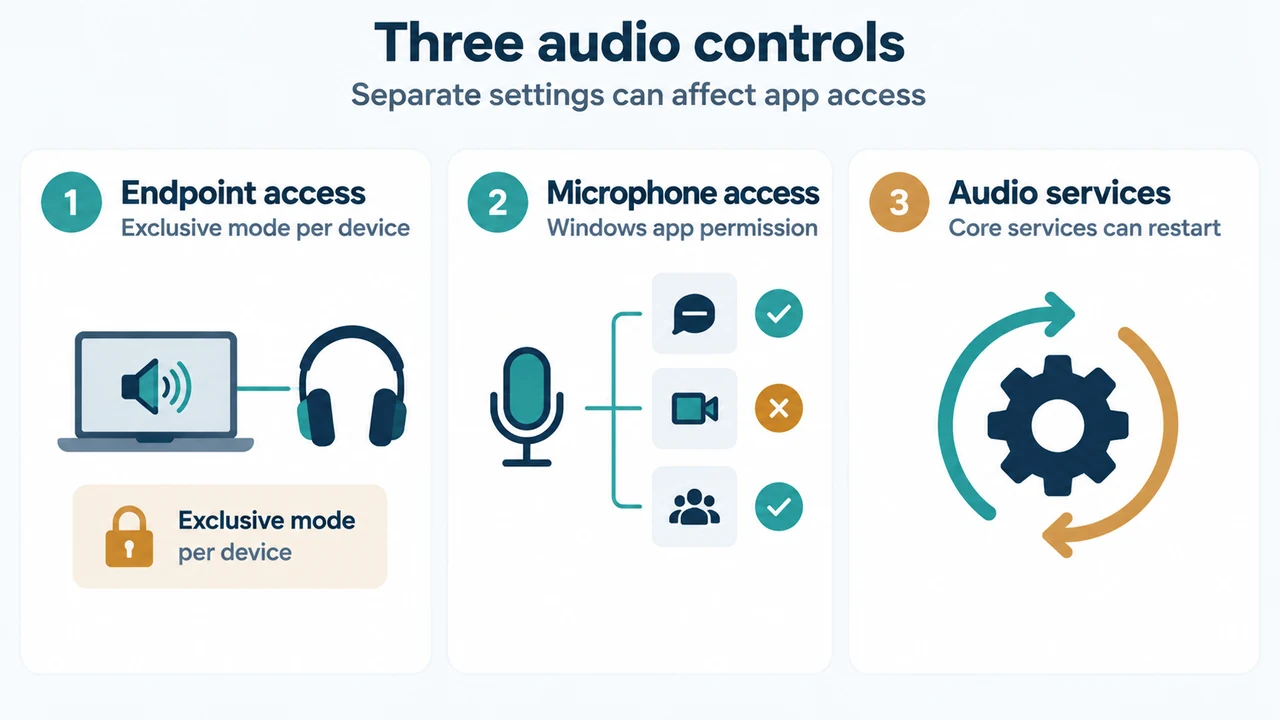
- Three audio controls: Endpoint access — Exclusive mode per device; Microphone access — Windows app permission; Audio services — Core services can restart