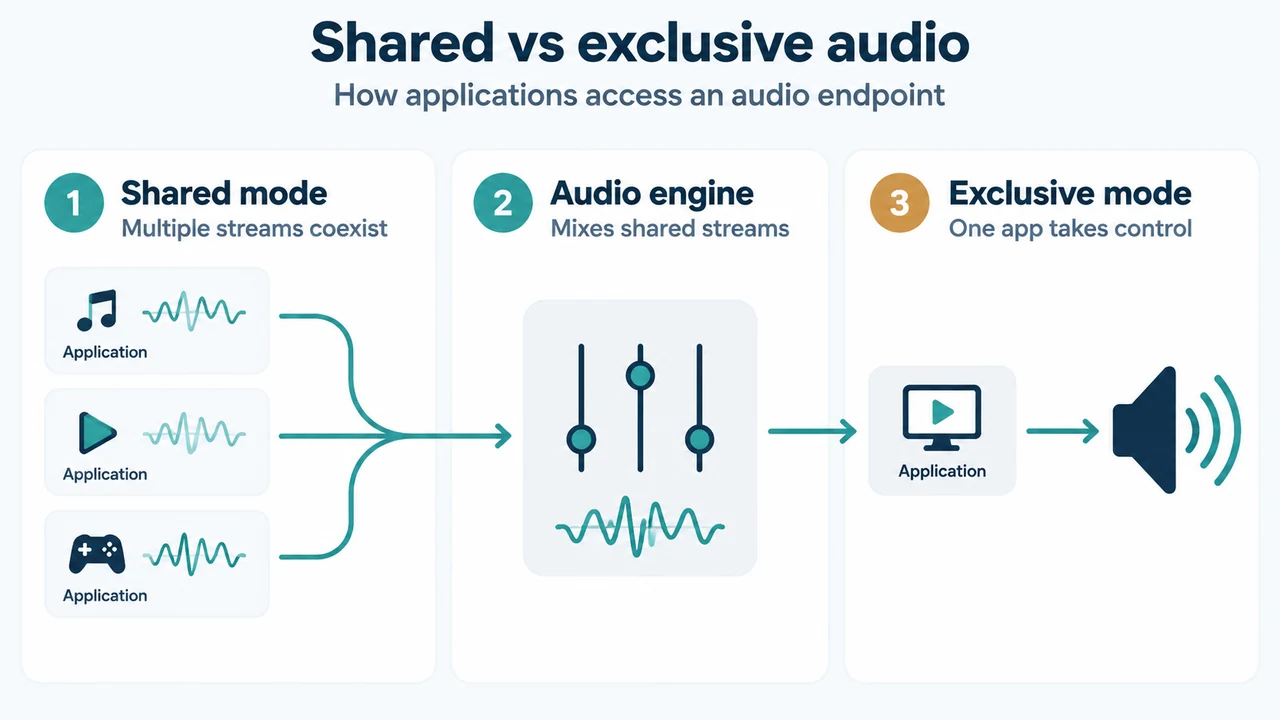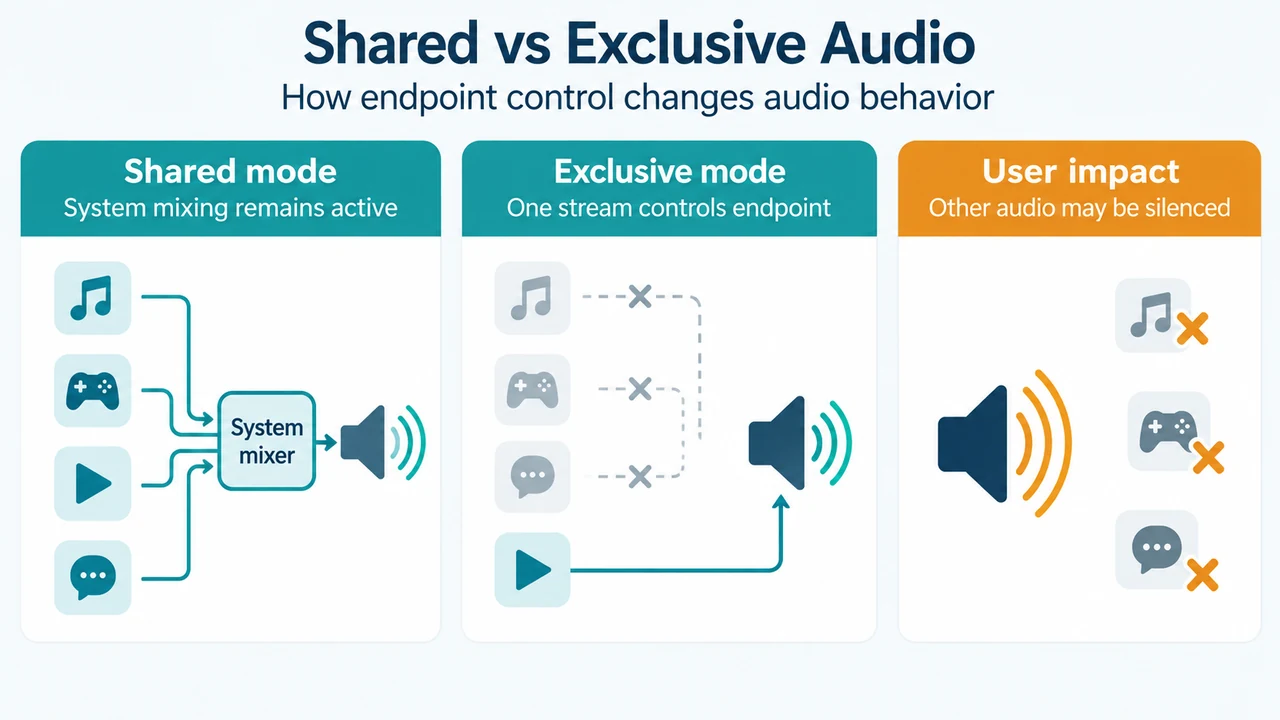
Windows audio endpoints support shared-mode and exclusive-mode audio streams. In exclusive mode, an application takes direct control of an audio endpoint, silencing system sounds, notifications, and audio from other applications. Under Core Audio APIs introduced in Windows 10, the IAudioClient3 interface also supports shared-mode streams with low period sizes, enabling low latency while preserving system sound mixing and application interoperability.
Core Audio Exclusive-Mode and Preemption Mechanics
In Windows Core Audio architecture, device behavior depends on exclusive-mode and preemption rules configured for the endpoint:
- Exclusive Mode Disabled: If exclusive mode is disabled on a playback or capture device, the device can only play or record shared-mode streams.
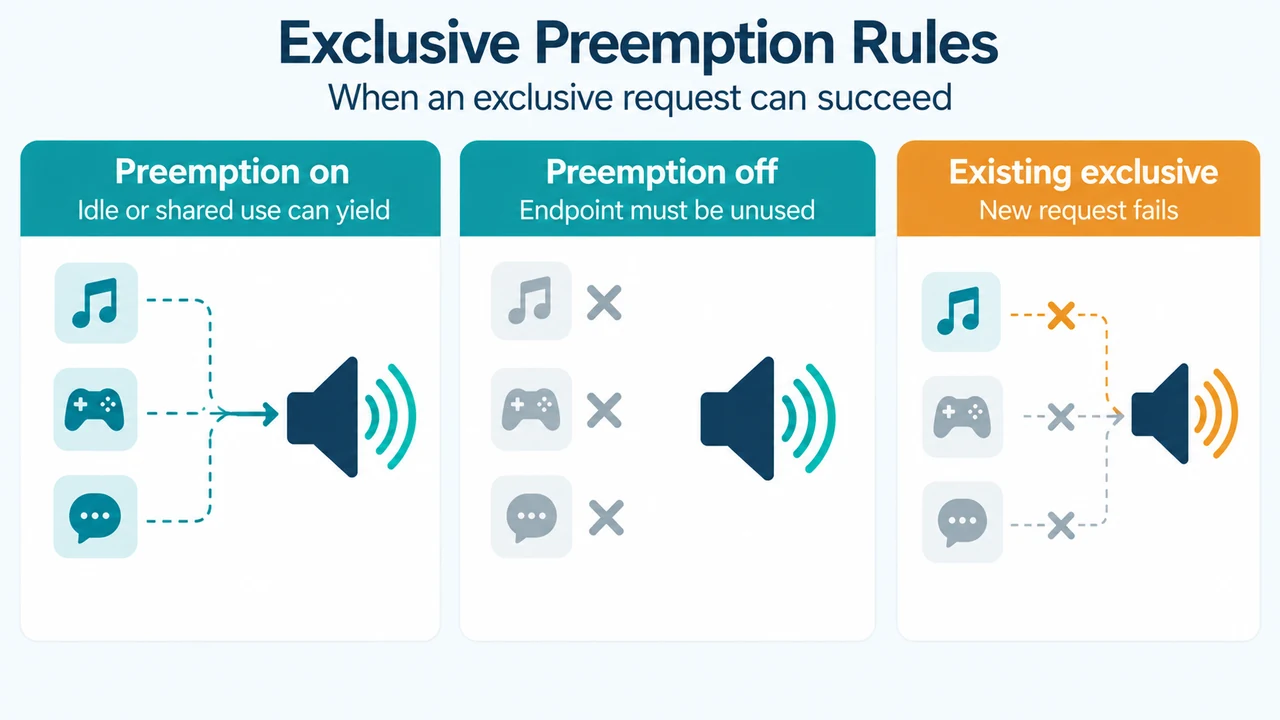
- Preemption Enabled: When exclusive mode and preemption are both enabled, an application’s request to take exclusive control succeeds if the device is currently idle or if it is currently playing or recording shared-mode streams. Any active shared-mode streams are preempted. However, if another application already holds exclusive control, the request fails.
- Preemption Disabled: When exclusive mode is enabled but preemption is disabled, an application’s request for exclusive control succeeds only if the endpoint is not currently in use. The request fails if the device is actively in use by either shared-mode or exclusive-mode streams.
In Windows Vista technical documentation, the documented default endpoint settings permit exclusive-mode streams, and exclusive-mode requests preempt active shared-mode streams.
Navigating to Sound Device Properties
You can access device properties to view audio settings using modern or classic Windows interfaces:
- Windows 11 Settings: Go to Start > Settings > System > Sound. Under Advanced, select More sound settings. Select either the Playback or Recording tab, select your device, and select Properties.
- Classic Sound Control Panel (Windows 11 and Windows 10): In the taskbar search box, type
control paneland select it. Go to Hardware and Sound, select Sound, locate the device under the Playback tab, and select Properties. - Command Prompt / Run: Run the Windows multimedia control panel by typing
Mmsys.cpl. Alternatively, right-click the speaker icon in the taskbar notification area and select Playback Devices or Recording Devices.
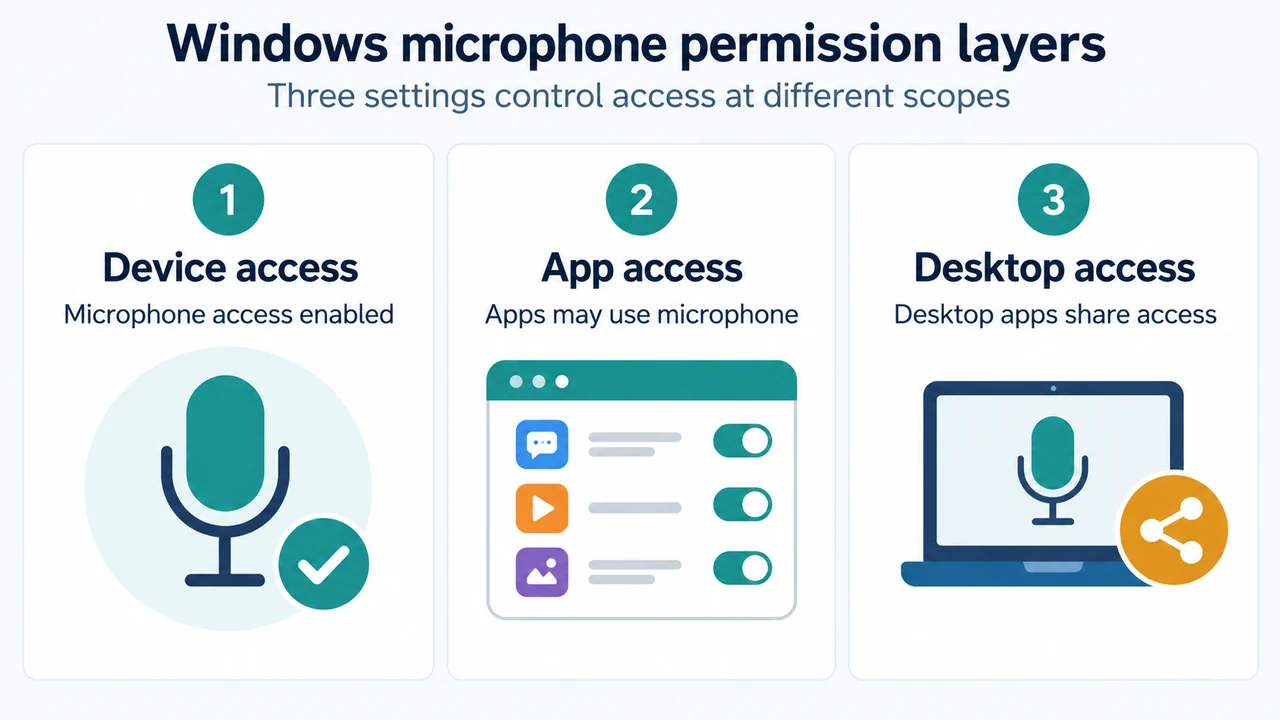
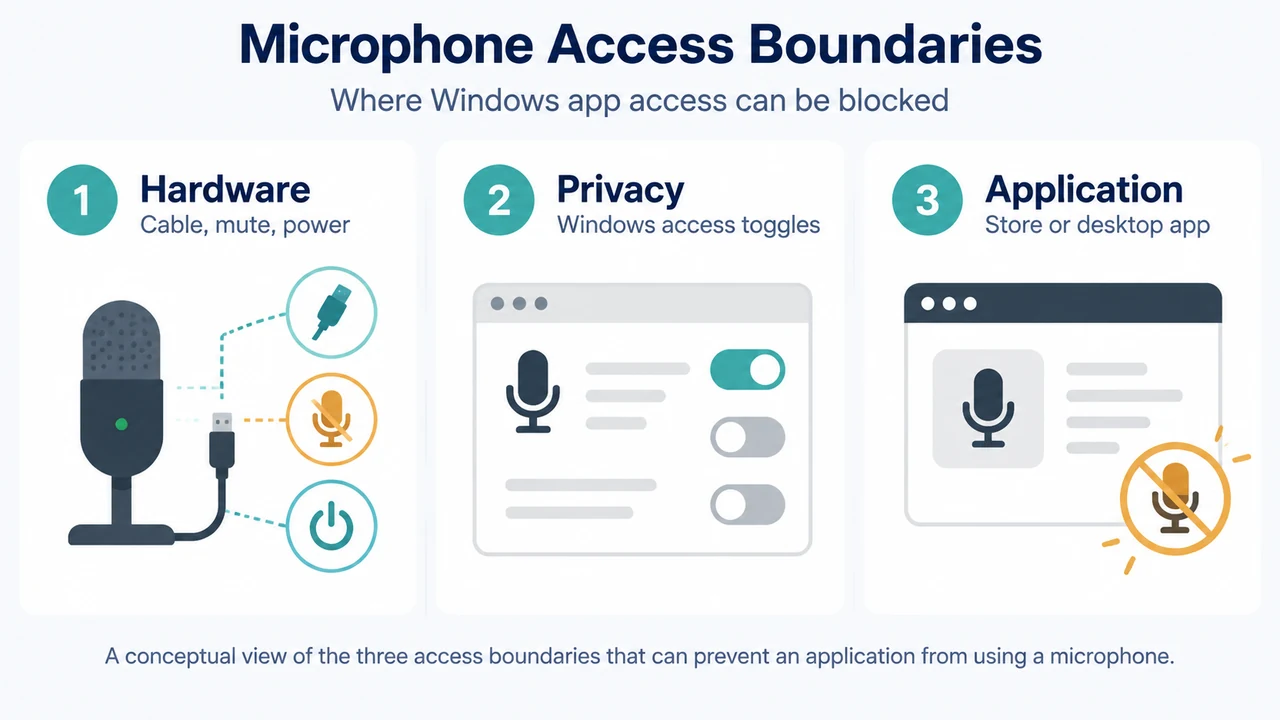
Configuring Microphone Privacy Permissions
If an application cannot record audio input, check Windows microphone privacy permissions:
- Windows 11: Select Start > Settings > Privacy & security. Under App permissions, select Microphone. Verify that Microphone access and Let apps access your microphone are toggled On. If an issue is limited to a specific application listed under Let apps access your microphone, ensure the toggle next to that specific application is also turned On.
- Windows 10: Select Start > Settings > Privacy, and select Microphone from the left menu. Under Allow access to the microphone on this device, select Change and verify that the toggle is turned On. If troubleshooting a specific Microsoft Store app, scroll to Choose which Microsoft Store apps can access your microphone and verify that the toggle next to that app is turned On.
Restarting Windows Audio Services
If audio endpoints or sound services stop responding, you can restart core audio services:
- Windows 11: In the taskbar search box, type
servicesand select Services from the results. Select each of the following services, select and hold (or right-click), select Restart, and then select Yes:- Windows Audio
- Windows Audio Endpoint Builder
- Remote Procedure Call (RPC)
- Windows 10: In the taskbar search box, type
servicesand select it from the results. Select each of the following services, right-click, and select Restart:- Windows Audio
- Windows Audio Endpoint Builder
- Remote Procedure Call (RPC)
Research Method and Limitations
This article was prepared solely from the supplied public documentation excerpts from Microsoft Support and Microsoft Learn. It distinguishes current Windows 11 and legacy Windows 10 troubleshooting steps from developer documentation for Core Audio APIs (including IAudioClient3 introduced in Windows 10 and default preemption behaviors documented in Windows Vista). Material limitations include truncated excerpts in the supplied primary sources: specific UI control labels and property tab layouts for toggling exclusive mode and preemption within Mmsys.cpl are truncated in the visible text, so those specific control names are omitted. Furthermore, the visible Windows 10 privacy excerpt specifically documents toggles for Microsoft Store apps, and no competing coverage was available for independent comparison.
Text version of the diagrams
- Shared vs Exclusive Audio: Shared mode — System mixing remains active; Exclusive mode — One stream controls endpoint; User impact — Other audio may be silenced
- Exclusive Preemption Rules: Preemption on — Idle or shared use can yield; Preemption off — Endpoint must be unused; Existing exclusive — New request fails