If Windows Search is unresponsive or search results do not appear as expected on supported versions of Windows 11 and Windows 10, Microsoft provides several documented solutions to restore functionality. Resetting Windows Search does not affect your personal files, though it may temporarily affect the relevance of search results.
Solution 1: Restart Windows Font Cache Service
In some cases, restarting Windows Font Cache Service resolves Windows Search issues:
- In the search box on the taskbar, enter
services.mscto open the Services console. - In the right pane, right-click Windows Font Cache Service, and then select Stop.
- Try to search again.
- In the Services console, right-click Windows Font Cache Service, and then select Start.
Solution 2: Check for Updates
Installing the latest updates keeps your device running smoothly and securely:
- Select Start > Settings > Update & Security > Windows Update > Check for updates.
- Install any available updates.
- Restart your computer if the updates require it.
Solution 3: Run the Search and Indexing Troubleshooter
Windows automatically indexes content to deliver faster search results. On Windows 10, version 1903 (May 2019 Update) or later, Windows automatically runs the Search troubleshooter if it detects a problem, resetting Windows Search to the default experience. You can view troubleshooter history under Start > Settings > Update & Security > Troubleshoot > View troubleshooting history.
To run the troubleshooter manually:
- Open a Command Prompt window.
- Run the following command:
msdt.exe -ep WindowsHelp id SearchDiagnostic - Select any problems that apply so Windows can attempt detection and resolution.
Solution 4: Restart Windows Search
Stopping the search process stops Windows Search; the next time you search, Windows Search starts automatically.
- Press Ctrl + Alt + Delete, and select Task Manager.
- In Task Manager, select Details.
- In the Name column, right-click
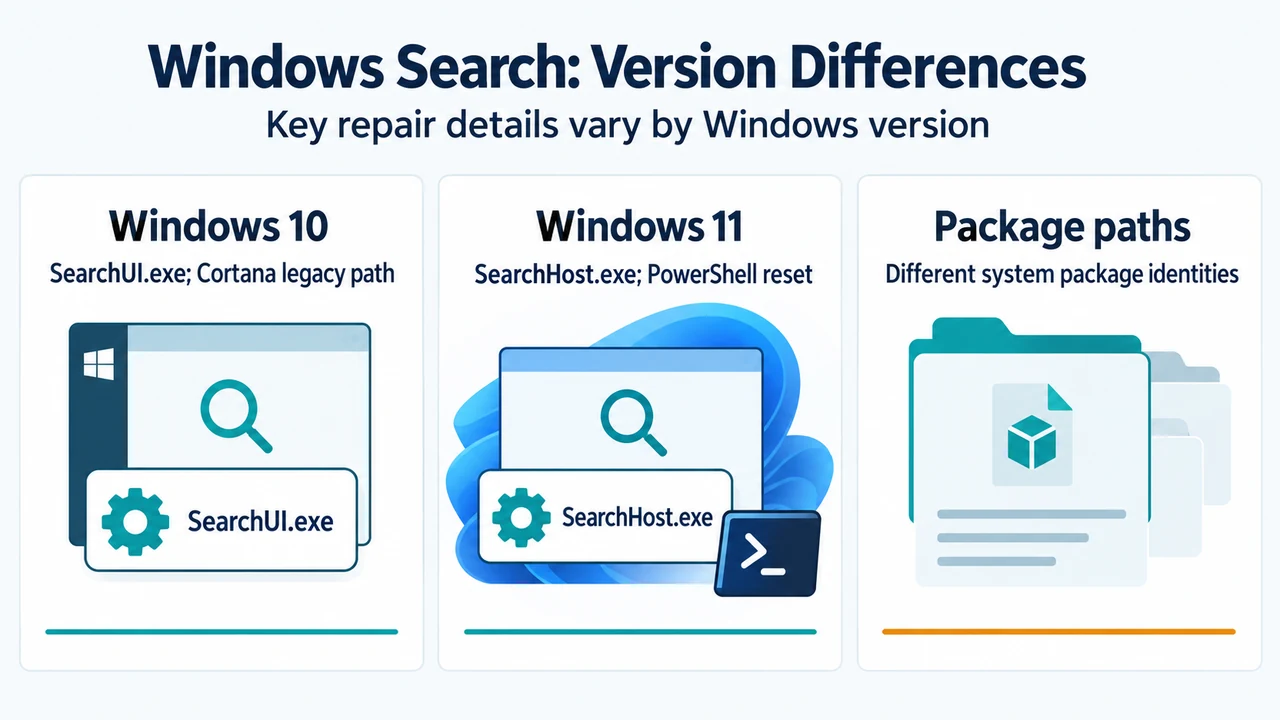
SearchUI.exe(on Windows 10) orSearchHost.exe(on Windows 11), and select End task. - When prompted, select End process.
- If this does not resolve the issue, restart your device (restarting also installs any pending updates).
Solution 5: Reset Windows Search
To check your Windows version before proceeding, navigate to Start > Settings > System > About and check the version under Windows specifications.
Windows 10, version 1809 or earlier
- Select Start, right-click Cortana, and select More > App settings.
- In the Cortana settings, select Reset.
Windows 11, Windows 10 version 1903, or later
Running the reset script requires administrator permissions. If your organization has disabled the ability to run scripts, contact your administrator for assistance.
- Open an elevated PowerShell window and check the execution policy:
Get-ExecutionPolicy - If the policy is
Unrestricted, proceed to downloading the script. Otherwise, record the displayed value for later use, and run:Set-ExecutionPolicy -Scope CurrentUser -ExecutionPolicy UnrestrictedSelect Y and press Enter to accept the security risk warning. After the change finishes, close the PowerShell window.
- Download
ResetWindowsSearchBox.ps1from Microsoft’s documented script link and save it to a local folder. - Right-click the saved file and select Run with PowerShell.
- Select Yes when prompted with “Do you want to allow this app to make changes to your device?”.
- The script resets Windows Search. When the word Done appears:
- If you did not change the execution policy, close the PowerShell window.
- If you changed the execution policy, keep the window open, press any key to continue, and revert the policy by running:
Set-ExecutionPolicy -Scope CurrentUser -ExecutionPolicy <PreviousValue>(Replace
<PreviousValue>with the original recorded value). Select Y, press Enter, and close the window.
Note: If you receive an error stating that running scripts is disabled on the system, return to the execution policy steps to verify the policy before running the script again.
Solution 6: Regenerate the Search Package AppData Folder and Registry Key
This method modifies the Windows Registry. Serious problems might occur if the registry is modified incorrectly; back up the registry before proceeding. Use the Windows Recovery Environment, or sign out and sign in using another user account.
- Verify that Windows Search works in a newly created Windows account to confirm the issue is account-specific.
- Delete the package directory corresponding to your Windows version:
- Windows 10: Delete
%USERPROFILE%\AppData\Local\Packages\Microsoft.Windows.Search_cw5n1h2txyewy(in some earlier versions, this folder is namedMicrosoft.Windows.Cortana_cw5n1h2txyewy). - Windows 11: Delete
%USERPROFILE%\AppData\Local\Packages\MicrosoftWindows.Client.CBS_cw5n1h2txyewy.
- Windows 10: Delete
- Sign in using the affected account, open Registry Editor, and navigate to:
HKEY_CURRENT_USER\SOFTWARE\Microsoft\Windows\CurrentVersion\Search - Delete the Search registry key.
- Open an elevated PowerShell window and run the command for your version:
Windows 10:
Add-AppxPackage -Path "C:\Windows\SystemApps\Microsoft.Windows.Search_cw5n1h2txyewy\Appxmanifest.xml" -DisableDevelopmentMode -RegisterWindows 11:
Add-AppxPackage -Path "C:\Windows\SystemApps\MicrosoftWindows.Client.CBS_cw5n1h2txyewy\Appxmanifest.xml" -DisableDevelopmentMode -Register - Restart the computer and try searching again. This action restarts search indexing and regenerates the registry key and the AppData folder.
Submitting Feedback
If these steps do not fix the problem, submit feedback via the Feedback Hub under the Desktop Environment category and Search subcategory, providing details, screenshots, and log files.
Research Method and Limitations
This article was prepared strictly from the supplied public source excerpt of Microsoft support article KB 4520146 (“Fix problems in Windows Search”). No hands-on hardware testing or benchmarks were conducted. Material limitations include the lack of accessible competing coverage, preventing comparative analysis against alternative troubleshooting techniques, and the reliance on official documented paths and commands without evaluation of non-default enterprise configurations.
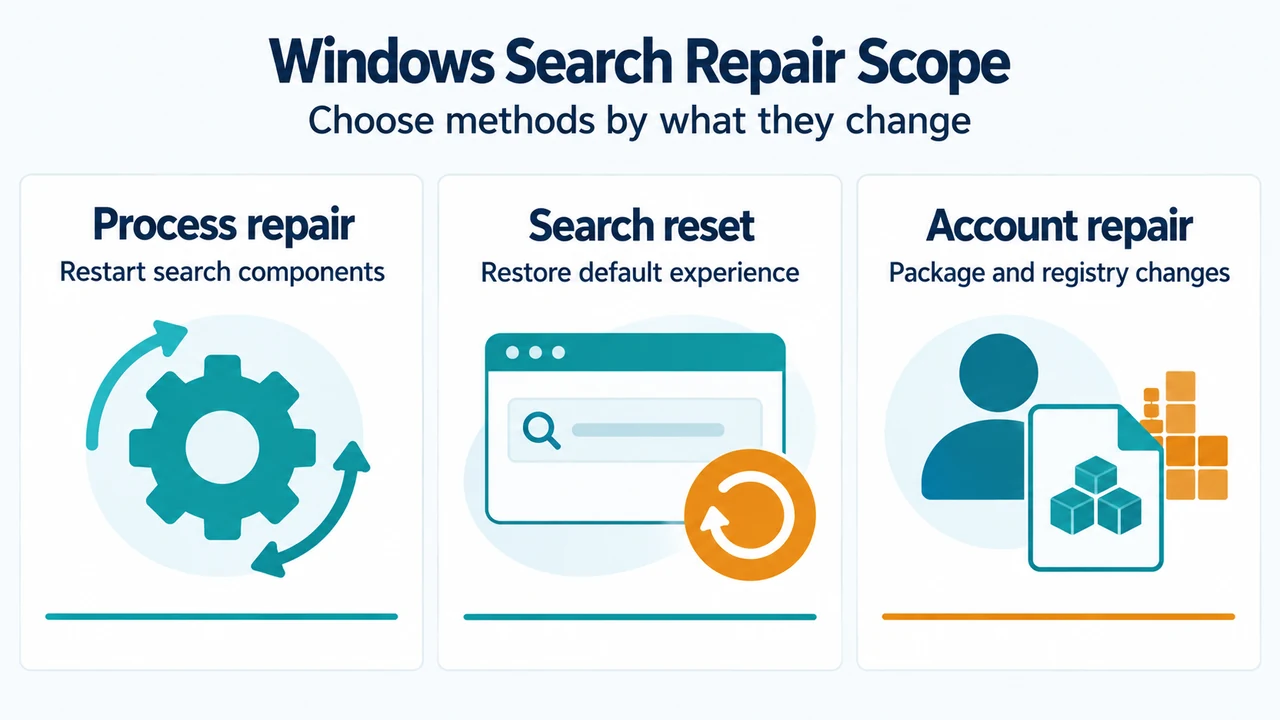
Text version of the diagrams
- Windows Search: Version Differences: Windows 10 — SearchUI.exe; Cortana legacy path; Windows 11 — SearchHost.exe; PowerShell reset; Package paths — Different system package identities
- Windows Search Repair Scope: Process repair — Restart search components; Search reset — Restore default experience; Account repair — Package and registry changes