Why Windows 11 24H2 Blocks Network Shares with Error 0xc000a000
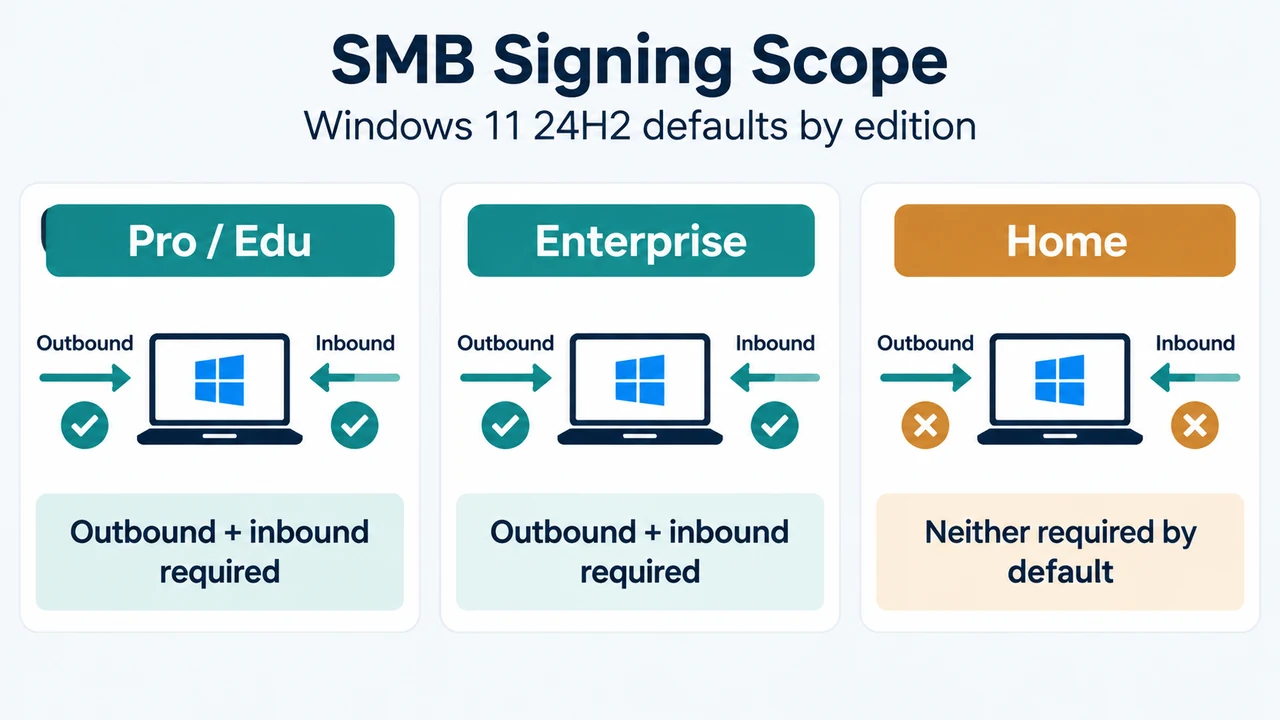
Starting with Windows 11, version 24H2 (specifically Enterprise, Pro, and Education editions), Windows enforces Server Message Block (SMB) signing for all outbound client connections and inbound server connections by default. When an SMB client connects to a file server or Network Attached Storage (NAS) device that has SMB signing disabled or unsupported, the connection fails immediately. Windows displays error code 0xc000a000, integer code -1073700864, or the textual status STATUS_INVALID_SIGNATURE (“The cryptographic signature is invalid”).
In contrast, Windows 11 version 24H2 Home edition does not enforce SMB signing requirements by default, while Windows Server 2025 requires outbound SMB signing only. According to Microsoft’s official SMB signing documentation, this default requirement is designed to stop adversary-in-the-middle, relay, and spoofing attacks by ensuring message integrity across the local network.
How SMB Signing Protects File Sharing
SMB signing uses a session key and a cryptographic cipher suite to attach a digital signature containing a hash of the entire message header into each transmission. If network data is modified in transit, the calculated hash no longer matches, alerting the operating system to tampering. The signature also validates the identity of the sender and recipient.
When Windows 11 24H2 requires outbound signing, the client expects the receiving server or NAS to agree to sign all SMB messages. If a third-party appliance or legacy file server refuses or does not support signing, Windows halts communication with error 0xc000a000.
Diagnostic Check: Verify SMB Signing Status on Windows 11
Before adjusting configurations, verify the current signing enforcement state on your Windows 11 system using elevated PowerShell.
- Right-click the Start menu and select Terminal (Admin) or PowerShell (Admin).
- Run the following query to check outbound client configuration:
Get-SmbClientConfiguration | FL RequireSecuritySignature - To inspect local inbound server settings on the same machine, run:
Get-SmbServerConfiguration | FL RequireSecuritySignature
If the output returns True, SMB signing is strictly required. If it returns False, signing is optional or not enforced.
Primary Fix: Enable SMB Signing on Your NAS or Third-Party Server
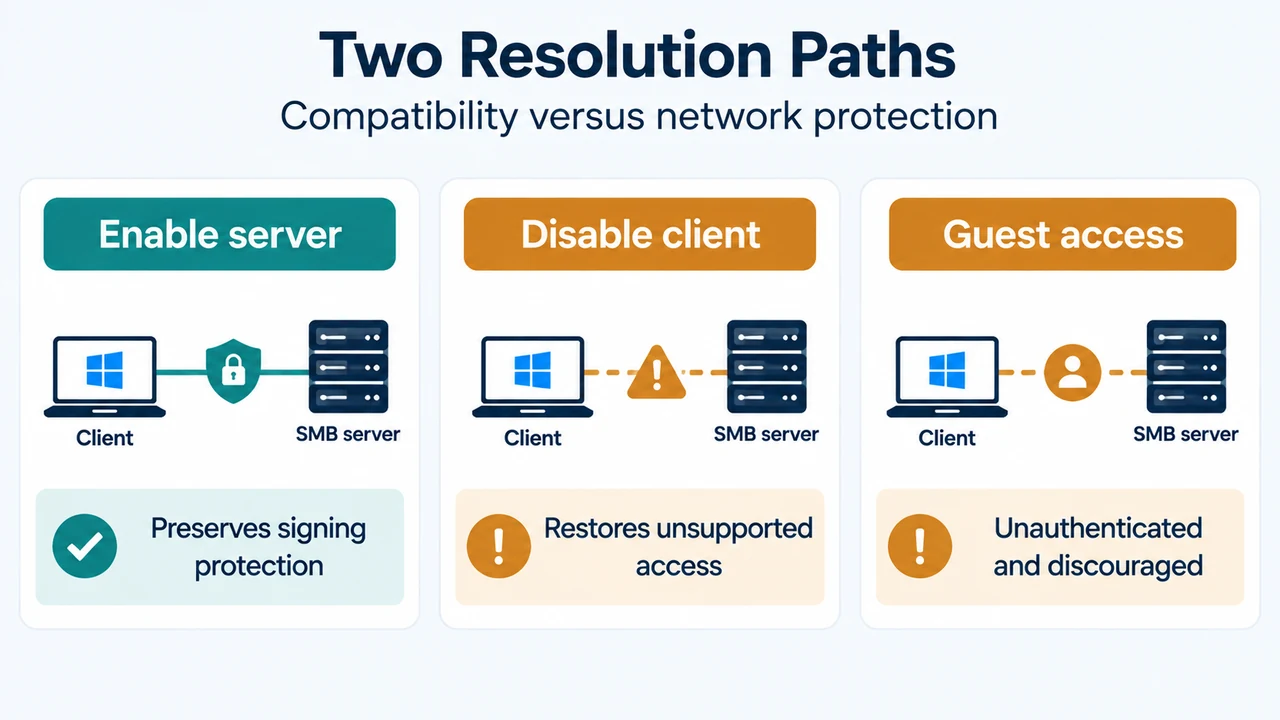
The vendor-recommended and safest resolution is to enable SMB signing directly in your third-party NAS operating system or file server settings. Enabling signing on the remote share allows Windows 11 24H2 to complete its cryptographic handshake without lowering client-side security policies or leaving your workstation vulnerable to network spoofing.
Refer to your NAS administration interface to ensure SMB signing (often labeled “SMB digital signing” or “Require security signature”) is enabled.
Temporary Workaround: Disabling SMB Client Signing on Windows 11
If your third-party storage device does not support SMB signing and cannot be updated immediately, Microsoft outlines two methods to temporarily disable outbound signing enforcement: elevated PowerShell and Local Group Policy.
Method 1: Change SMB Client Signing via PowerShell
To disable the requirement on an individual Windows 11 24H2 client:
- Open PowerShell as an Administrator.
- Execute the following command to stop requiring outbound client signatures:
Set-SmbClientConfiguration -RequireSecuritySignature $false - To revert the setting later and restore security enforcement, run:
Set-SmbClientConfiguration -RequireSecuritySignature $true
Method 2: Change SMB Client Signing via Local Group Policy
For systems managed through Group Policy:
- Press Win + R, type
gpedit.msc, and press Enter. (For Active Directory domain controllers, use Group Policy Management,gpmc.msc). - Navigate to:
Computer Configuration > Windows Settings > Security Settings > Local Policies > Security Options - Locate the policy setting named Microsoft network client: Digitally sign communications (always).
- Double-click the policy, select Disabled, and click OK.
- To restore protection later, set this policy back to Enabled.
Security Considerations and Guest Access Limitations
Disabling SMB signing lowers network protection. Microsoft explicitly notes that disabling SMB signing as a workaround for third-party appliances is not recommended for production environments because it removes safeguards against network tampering and relay attacks.
Furthermore, requiring SMB signing inherently disables unauthenticated guest access. If your third-party device relies on guest accounts, attempting to connect may produce errors such as 0x80070035 (“The network path was not found”) or policy warnings stating unauthenticated guest access is blocked. While disabling SMB signing may restore guest communication, Microsoft recommends eliminating guest account reliance in favor of authenticated, signed connections.
Best Practices for Secure SMB Communication
To maximize file sharing performance and cryptographic reliability, Microsoft recommends the following configuration practices:
- Use Kerberos authentication instead of NTLMv2 wherever feasible.
- Connect to network shares using proper hostnames rather than raw IP addresses.
- Avoid CNAME records in DNS for file servers; configure alternate computer names with
netdom.exeinstead.
Text version of the diagrams
- SMB Signing Scope: Pro / Edu — Outbound + inbound required; Enterprise — Outbound + inbound required; Home — Neither required by default
- Two Resolution Paths: Enable server — Preserves signing protection; Disable client — Restores unsupported access; Guest access — Unauthenticated and discouraged
Research Scope and Limitations
This technical troubleshooting guide was prepared directly from public vendor documentation published by Microsoft regarding SMB signing controls in Windows 11 version 24H2 and Windows Server 2025. It does not reflect hands-on lab benchmarks, physical hardware tests, or vendor-specific proprietary NAS firmware menus outside the verified primary record. No competing third-party web pages were accessible during review.