If PDF thumbnails are missing in Windows 11 File Explorer, first check that the folder uses medium-sized icons or larger. For local files, Microsoft PowerToys documents PDF thumbnail support, but a reboot may be required after enabling it. Files managed by OneDrive have a separate documented limit: OneDrive provides no previews or thumbnails for PDFs larger than 100 MB.
First check the File Explorer view
Microsoft’s OneDrive guidance says that a PC’s File Explorer view should use medium-sized icons or larger for thumbnails to appear. Check this display setting first.
This applies to the File Explorer view. It does not establish that every PDF receives a thumbnail in every storage location.
When PowerToys can add PDF thumbnail support
Microsoft documents PowerToys thumbnail support for PDF files. In PowerToys, set the PDF thumbnail extension to On. The documentation says a reboot may be required for the setting to take effect. This is a documented possibility, not a guarantee or a universal fix.
PowerToys also documents PDF support for its Preview Pane previewer. Its warning says that enabling the preview handlers overrides other installed preview handlers, and reports incompatibility between Outlook and the PDF Preview Handler. Consider that documented compatibility warning before enabling preview support. The supplied documentation does not establish one universal cause or fix when thumbnails remain absent.
Thumbnail view and Preview Pane are separate checks
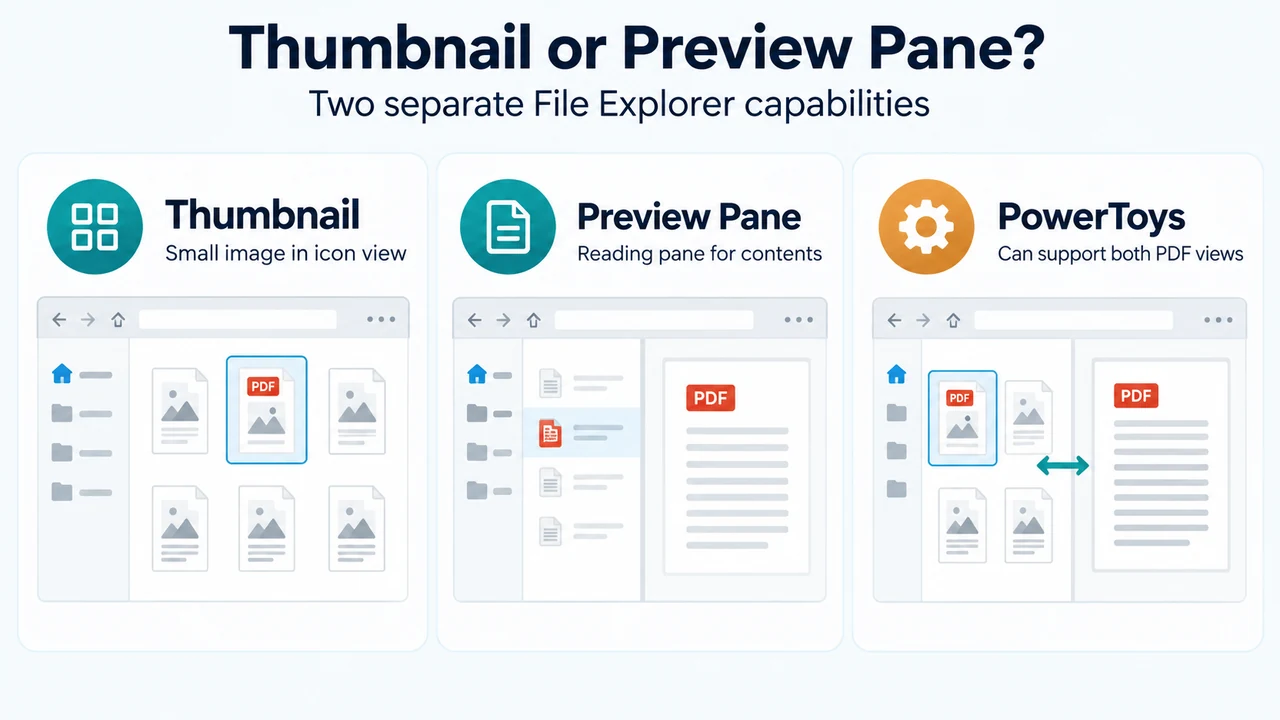
Thumbnail previews are small file images shown in an icon view. The Preview Pane is File Explorer’s reading pane for viewing file contents. Microsoft documents these as separate PowerToys capabilities.
To enable the Preview Pane in Windows 11, open File Explorer, choose View, and select Preview pane. Microsoft also says that Windows File Explorer’s advanced settings must have Show preview handlers in preview pane selected for the preview pane to display.
That setting concerns the Preview Pane. The supplied documentation does not say that changing it alone guarantees PDF thumbnails.
Why OneDrive files may still lack thumbnails
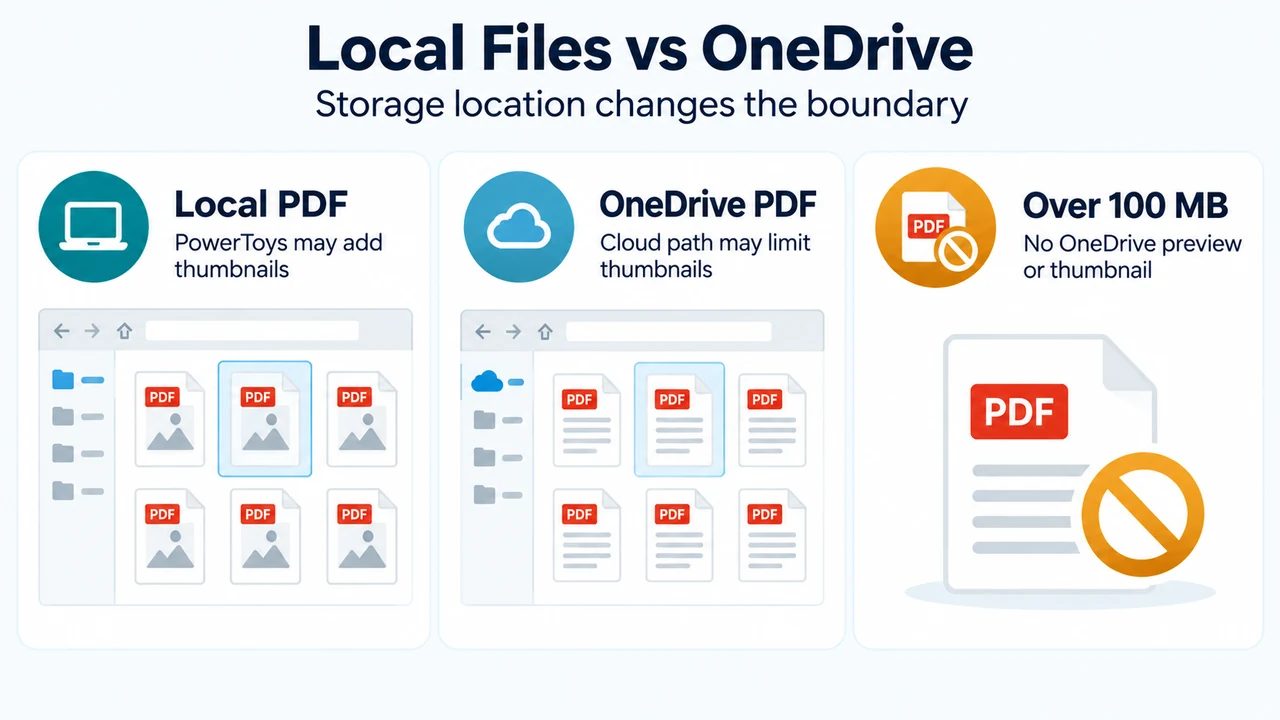
PowerToys warns that thumbnails might not appear on paths managed by cloud-storage solutions such as OneDrive because those solutions may get thumbnails from the cloud instead of generating them locally.
Microsoft’s OneDrive support page gives a specific OneDrive limit: no OneDrive previews or thumbnails are available for PDFs or images larger than 100 MB. This limit describes OneDrive previews and thumbnails; it does not establish the same limit for every local or synced File Explorer thumbnail path.
For a OneDrive folder, Microsoft recommends checking the folder view, using medium-sized icons or larger in File Explorer, and enabling Always keep on this device if thumbnails still do not show. These checks do not override the documented no-preview/no-thumbnail limit for a PDF larger than 100 MB.
A supported order for checking the problem
- Check that File Explorer is using medium-sized icons or larger.
- For local files, check whether PowerToys PDF thumbnail support is set to On.
- If PowerToys thumbnail support was just enabled, note that Microsoft says a reboot may be required for the setting to take effect.
- If you also need the reading pane, turn on Preview pane and verify that Show preview handlers in preview pane is selected.
- Before enabling PowerToys preview handlers, account for Microsoft’s warning that they override other installed preview handlers and have reported incompatibility with Outlook and the PDF Preview Handler.
- If the files are in OneDrive, check whether the PDF is larger than 100 MB. For a PDF above that threshold, Microsoft’s OneDrive page documents that no OneDrive preview or thumbnail is available.
- For a OneDrive file within that documented limit, check the OneDrive folder view and consider enabling Always keep on this device.
This order combines the documented checks and boundaries in the supplied Microsoft excerpts. It does not show that every PDF-thumbnail failure has the same cause.
Research method and limitations
This answer was prepared from the supplied public Microsoft source excerpts. They document the listed settings, PowerToys capabilities, possible reboot requirement, preview-handler warning, cloud-storage limitation, and OneDrive’s 100 MB restriction. The excerpts do not establish a universal fix or explain every local and synced storage path. No hands-on test, benchmark, or new research activity was performed, and competing coverage was unavailable.
Text version of the diagrams
- Thumbnail or Preview Pane?: Thumbnail — Small image in icon view; Preview Pane — Reading pane for contents; PowerToys — Can support both PDF views
- Local Files vs OneDrive: Local PDF — PowerToys may add thumbnails; OneDrive PDF — Cloud path may limit thumbnails; Over 100 MB — No OneDrive preview or thumbnail