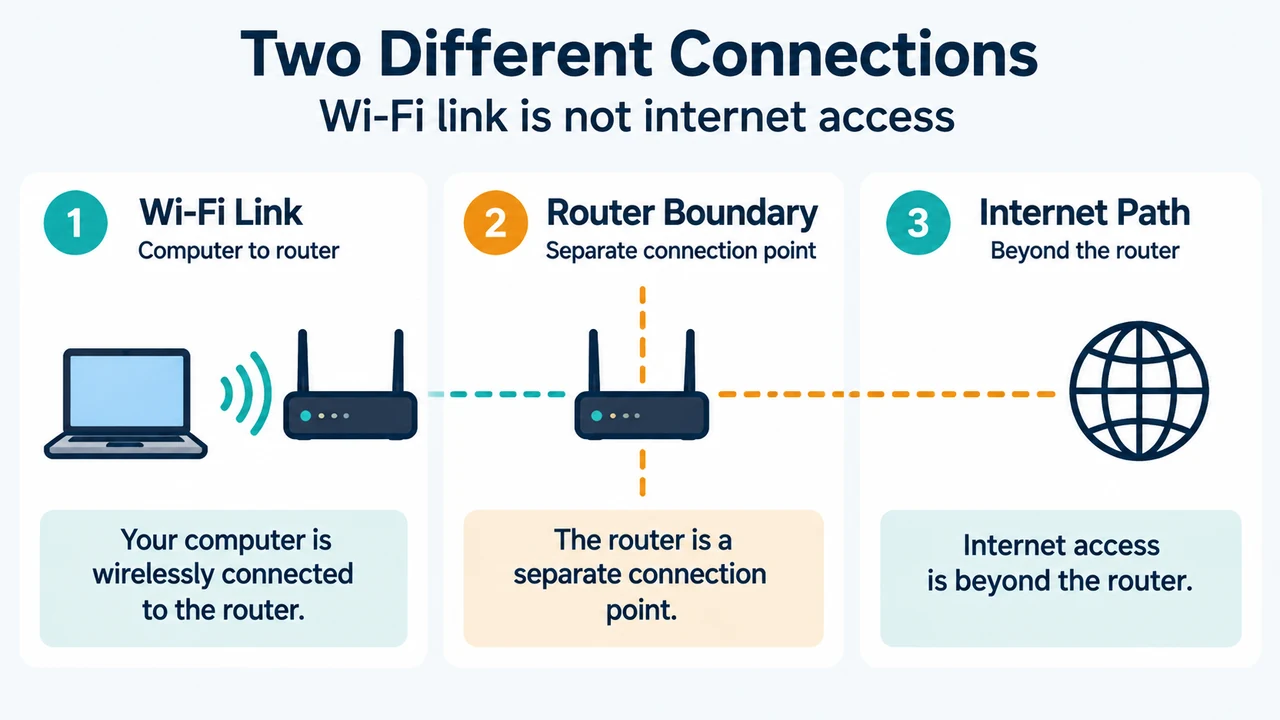
If Ubuntu 26.04 shows a Wi‑Fi connection but websites do not load, first separate two facts: the computer may be connected to the wireless device that provides internet access, while the internet connection beyond that device may still be unavailable. Ubuntu’s documentation says these are different connections.
This guide covers only the checks supported by the supplied Ubuntu 26.04 documentation: confirming what the Wi‑Fi indicator means and checking whether Ubuntu recognized the wireless adapter. It does not establish a DNS diagnosis, test the router’s internet service, or prove that a particular driver is available.
What “connected” confirms
Ubuntu says a successful wireless connection changes the network icon to a dot with curved bars. More bars indicate a stronger wireless connection, while fewer bars indicate a weaker one. The same documentation warns that a stronger wireless connection does not necessarily mean faster internet or faster downloads.
The practical boundary is important: Wi‑Fi connects the computer to a router or modem, but that wireless connection and the router or modem’s internet connection are separate. Therefore, the connected indicator alone cannot establish that websites should load.
Check whether Ubuntu recognized the wireless adapter
Ubuntu’s wireless troubleshooter recommends checking the adapter before moving to later troubleshooting steps.
Internal or otherwise listed network hardware
Open a Terminal and run:
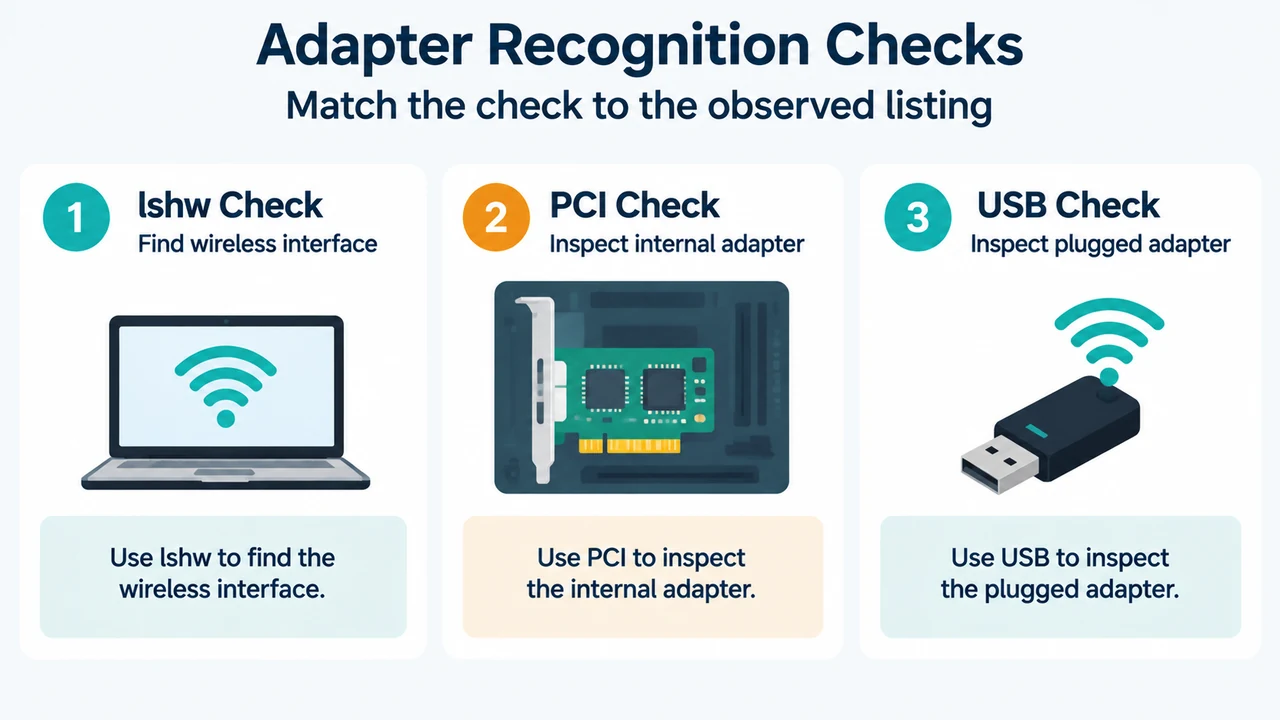
lshw -C networkLook for a section identified as a wireless interface. Ubuntu gives an example containing a product name and “Wireless interface,” but the exact hardware details can differ. If a wireless device is listed, the documentation says to continue to its Device Drivers step.
If the command reports an error, Ubuntu notes that the lshw program may need to be installed. The supplied excerpt does not provide installation instructions, so this article does not prescribe a package command.
If no wireless interface appears
For an internal PCI adapter, run:
lspciLook for a device marked “Network controller” or “Ethernet controller.” Terms such as “wireless,” “WLAN,” “wifi,” or “802.11” may help identify the relevant entry.
For a USB adapter, run:
lsusbLook for an entry that refers to a wireless or network device. Ubuntu cautions that 3G or mobile-broadband adapters can look similar to Wi‑Fi adapters, so confirm which type of device you have.
How to interpret the result
| Observed result | What the supplied documentation supports |
|---|---|
| Wi‑Fi icon shows a connected state | The computer has a wireless connection to the network device; this does not prove internet access or speed. |
lshw -C network lists a wireless interface |
Ubuntu recognized a wireless network device; the documentation directs you to the Device Drivers step. |
| No wireless interface appears | Check the relevant PCI or USB device list. If the adapter is still not recognized, Ubuntu says the device may not work properly or the correct drivers may not be installed. |
| No adapter information is found | The supplied Ubuntu excerpt directs readers to distribution-specific support; it does not identify a universal fix. |
What this check cannot prove
These checks do not prove that your router has internet access, that DNS is working, or that a website is reachable. The supplied Ubuntu pages identify separate wireless-connection problems such as a weak signal, a disconnected connection, or an unrecognized adapter, but they do not provide a complete command-based decision path for every “connected but no internet” cause.
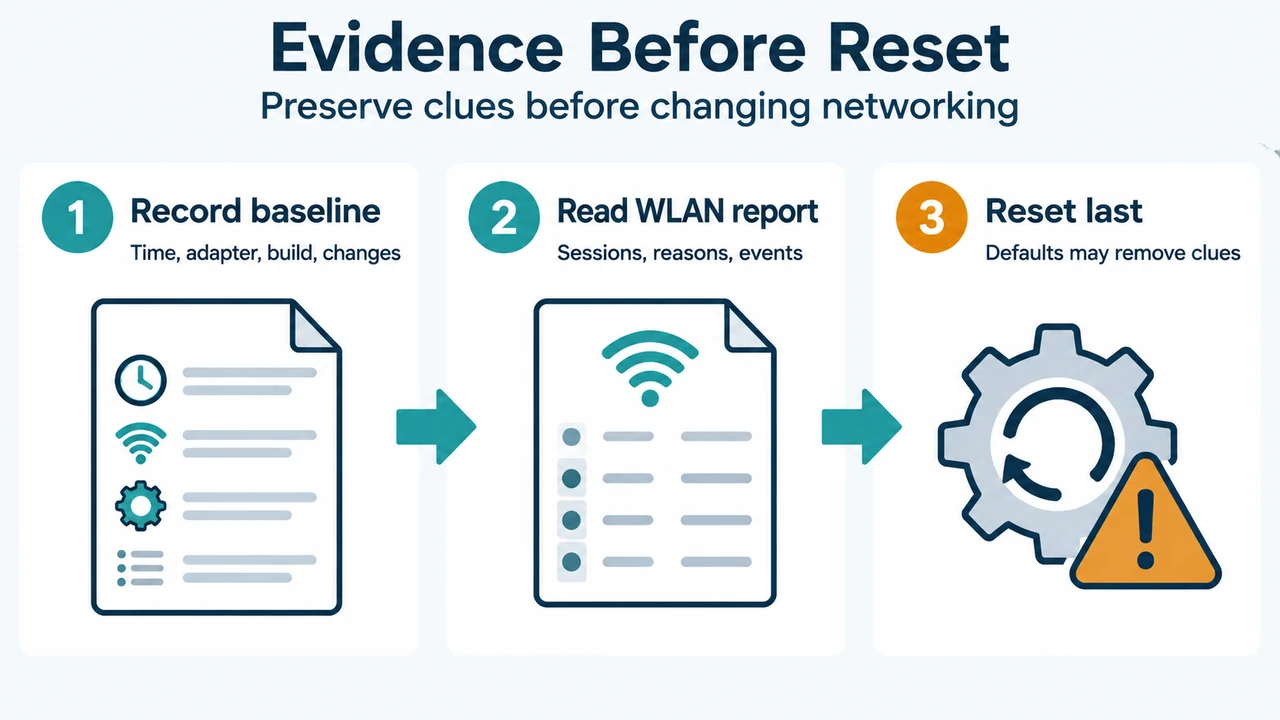
Do not reset network settings merely because the Wi‑Fi indicator is visible. The documented evidence first supports checking the boundary between wireless association and adapter recognition. If the adapter is not recognized, Ubuntu says the next steps depend on the adapter type and Linux distribution. If it is recognized, the supplied excerpts do not establish the next cause of website-loading failure.
Scope and research limits
This research-based article was prepared from the supplied public Ubuntu documentation excerpts retrieved on 19 September 2026. The pages identify themselves as Ubuntu 26.04 Desktop Guide material, while the release notes identify Ubuntu 26.04 LTS as released on 23 April 2026. The article uses only the visible, non-truncated primary excerpts. No hands-on testing, lab measurement, benchmark, driver installation, router test, or comprehensive review was performed. A competing page was unavailable, so no competitor-coverage claim is made.
Text version of the diagrams
- Two Different Connections: Wi-Fi Link — Computer to router; Router Boundary — Separate connection point; Internet Path — Beyond the router
- Adapter Recognition Checks: lshw Check — Find wireless interface; PCI Check — Inspect internal adapter; USB Check — Inspect plugged adapter