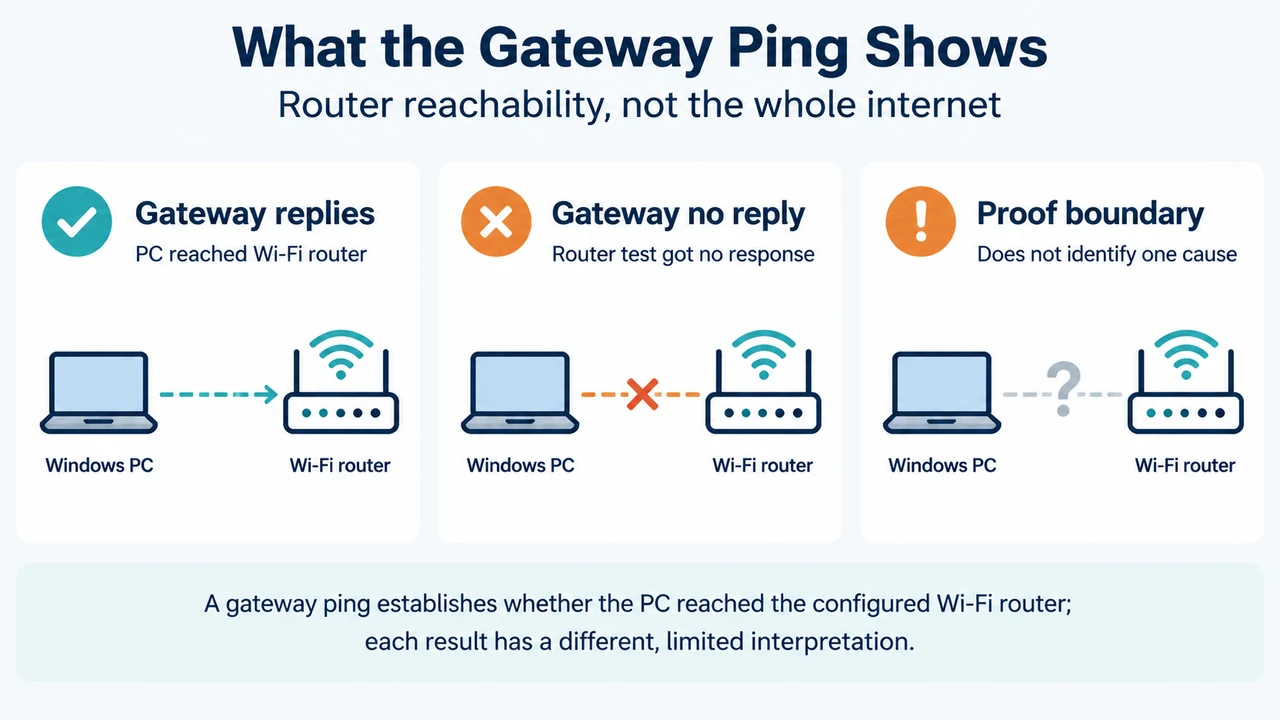
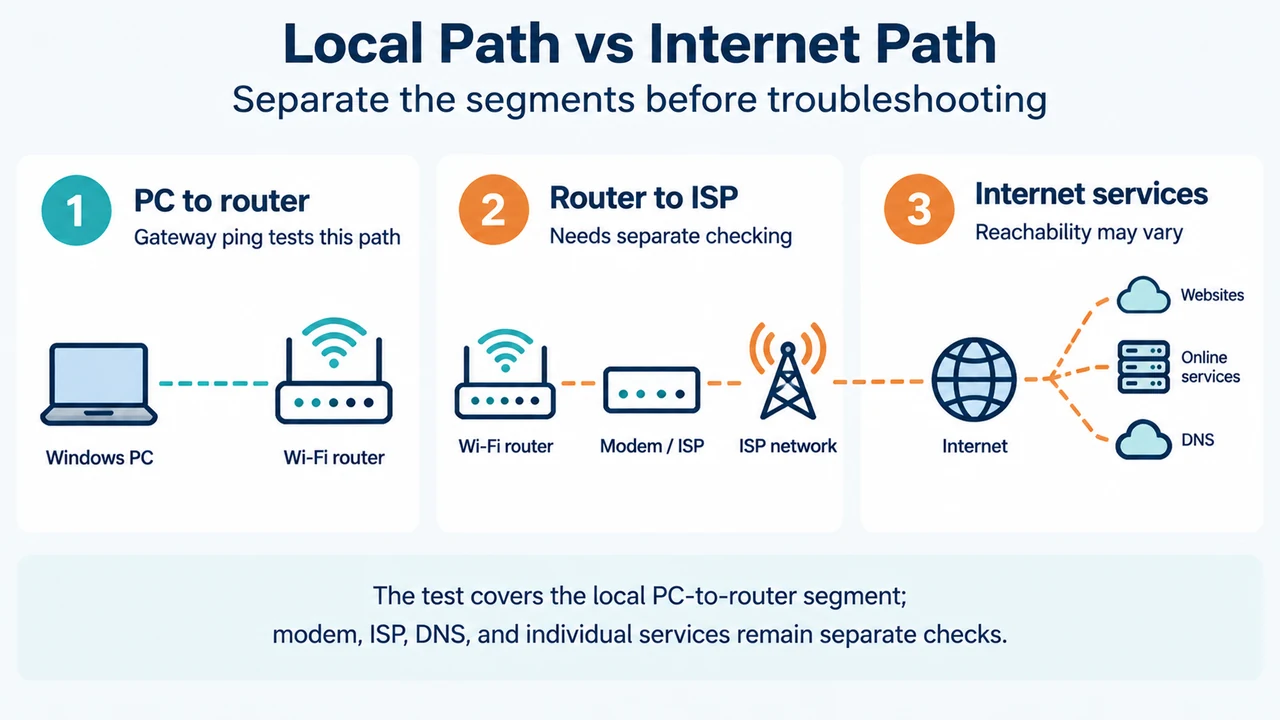
For Windows 11 Wi-Fi, the safest first question is whether the PC can reach its configured router. Microsoft’s documented test is to find the Wi-Fi network’s Default gateway address and ping it. A reply shows a connection to the Wi-Fi router; Microsoft says the remaining problem may then involve the modem or internet service provider (ISP). No reply shows that the router did not respond to this test, but the supplied evidence does not identify one universal cause.
What the default gateway does
Windows uses the subnet mask to determine whether a destination is on the local subnet or a remote network. For remote traffic, the computer sends packets to the default gateway, and the router passes traffic between IP networks. Microsoft Learn identifies a router as a device that passes network traffic between different IP networks and describes the default gateway as one of the TCP/IP settings required on a Windows computer.
This message concerns the path through the configured gateway. It does not, by itself, establish that DNS is the cause. The supplied Microsoft evidence discusses DNS as a separate check for limited internet connectivity, while the gateway test checks reachability of the Wi-Fi router.
Run Microsoft’s gateway check
- Open the Windows network information for the Wi-Fi connection and locate the IP address shown beside Default gateway. Microsoft gives
192.168.1.1as an example. - Open Command Prompt and run
ping <DefaultGateway>, replacing the placeholder with the address you recorded. For example:ping 192.168.1.1. - Read the result before changing settings. Four replies with 0% loss are the example Microsoft provides for a responding router.
This command tests connectivity and does not change the Windows network configuration.
If the gateway replies
A reply means the PC has a connection to the Wi-Fi router. Microsoft says the problem might instead be with the modem or ISP, and recommends contacting the ISP or checking for a service outage on another device if possible.
This result supports reachability of the local Wi-Fi router. It does not guarantee that internet access works for every service or prove that the modem or ISP is at fault.
If the gateway does not reply
The supplied Microsoft guidance recommends trying an Ethernet connection to the modem, if available. If internet access works over Ethernet, Microsoft says this confirms the connection problem is due to the Wi-Fi router. It also recommends checking that the router has current firmware and consulting the router documentation.
Do not treat a no-reply result as proof of a particular hardware failure. The supplied excerpts do not establish whether it is caused by the adapter, router configuration, wireless interference, or another condition.
Reversible Windows checks for recurring Wi-Fi drops
Reconnect to the saved Wi-Fi network
Microsoft lists forgetting and reconnecting as a general Wi-Fi step. In Windows, open Settings > Network & internet > Wi-Fi > Manage known networks, select the network, choose Forget, and reconnect to a recognized network. This removes the saved network entry, so you will need the network’s password to reconnect.
Check Wi-Fi adapter power management
Microsoft’s Windows 10/11 Wi-Fi guidance says to open Device Manager, expand Network adapters, open the Wi-Fi adapter’s properties, select Power Management, and clear Allow the computer to turn off this device to save power. This is a documented setting check for Wi-Fi problems; the supplied evidence does not establish that it fixes every recurring gateway message.
Check for Windows updates
Microsoft also lists Start > Settings > Windows Update > Check for updates. Install available updates according to Windows’ prompts. The excerpt does not identify a particular update as the cause of this symptom.
What this check can and cannot establish
| Result | Supported interpretation |
|---|---|
| Gateway replies | The PC can reach the Wi-Fi router; Microsoft says the modem or ISP may need checking. |
| Gateway does not reply | The router did not respond to the test; Ethernet testing may help distinguish a Wi-Fi-router problem. |
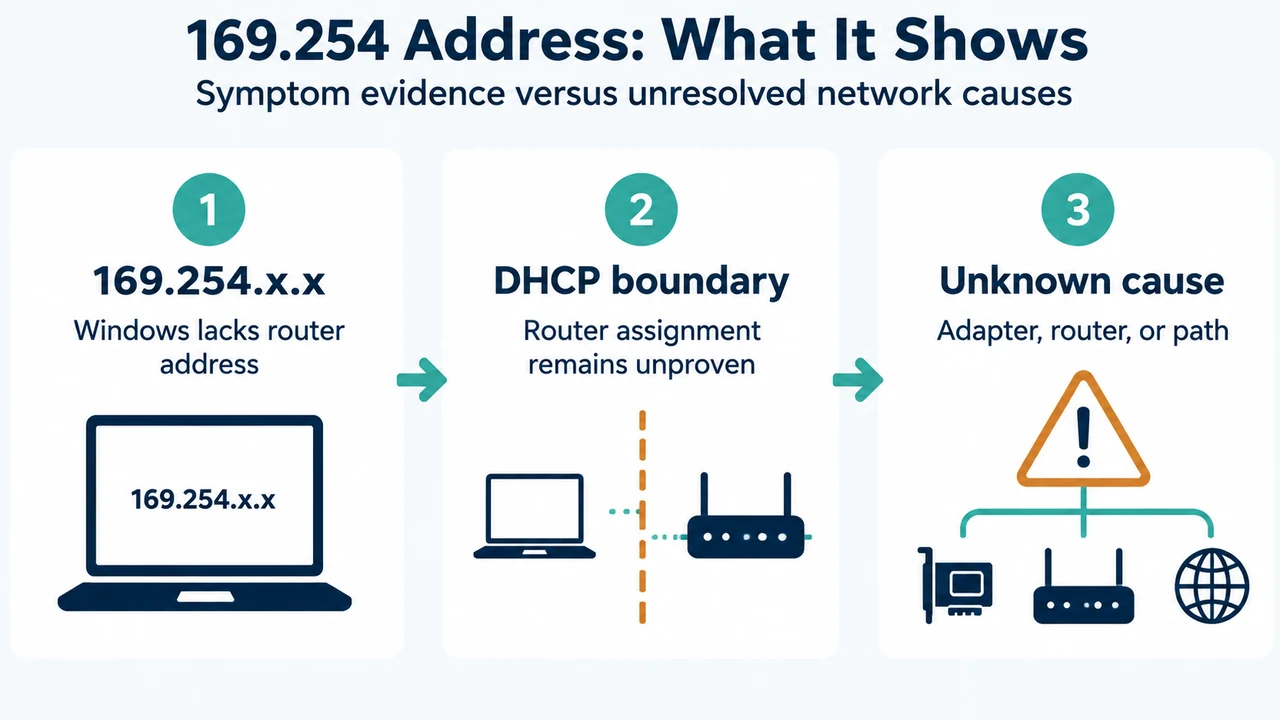
| 169.254.x.x address | Microsoft says Windows could not obtain an IP address from the router; check whether DHCP is enabled if static addressing is not being used. |
The supplied excerpts do not provide a complete Windows 11 procedure for inspecting route tables, changing TCP/IP values, reinstalling a driver, or performing a network reset. Those actions are outside this focused, evidence-limited guide.
Research method and limitations
This article was prepared from the supplied public Microsoft source excerpts retrieved on 20 September 2026, including Microsoft’s Windows 10/11 Wi-Fi guidance and its TCP/IP addressing explanation. The supplied passages were truncated, and the Microsoft Learn passage reported an authorization limitation, so this article uses only visible statements and does not treat unseen text as support. The supplied competing coverage was unavailable for full comparison; competitor URLs are retained only as coverage-review metadata, not as technical authority. This is research-based guidance, not a hands-on test, lab result, benchmark, or comprehensive review.
Text version of the diagrams
- What the Gateway Ping Shows: Gateway replies — PC reached Wi-Fi router; Gateway no reply — Router test got no response; Proof boundary — Does not identify one cause
- Local Path vs Internet Path: PC to router — Gateway ping tests this path; Router to ISP — Needs separate checking; Internet services — Reachability may vary
Sources
- Microsoft: Fix Wi-Fi connection issues in Windows (Windows 10 and Windows 11 guidance; retrieved 20 September 2026).
- Microsoft Learn: TCP/IP addressing and subnetting (default-gateway behavior; retrieved 20 September 2026).