If a Windows 11 PC loses Wi‑Fi after sleep or resume, collect evidence before resetting the adapter, deleting profiles, or restarting the device. Microsoft’s wireless troubleshooting guide specifically includes issues that begin after sleep or resume and recommends recording the baseline state and reproduction time first.
This guide covers Windows 11 and supported versions of Windows 10. It is for cases where Wi‑Fi disconnects, fails to reconnect, or behaves intermittently after the PC wakes. It does not establish that sleep is always the cause.
First, record what happened
Write down the exact time of the failed reconnect, the network name, whether the adapter was visible, and what appeared after wake. Also record recent changes to Windows, the wireless driver, firmware, BIOS, security software, VPN software, wireless profiles, authentication policy, or the access point.
Microsoft recommends recording the wireless adapter model, driver version, driver date, Windows build, and recent update history. In Device Manager, expand Network adapters, open the wireless adapter’s properties, and use the Driver tab to view the driver date and version.
Generate the WLAN report before changing configuration
Open an elevated Command Prompt and run:
netsh wlan show drivers
netsh wlan show interfaces
netsh wlan show networks mode=bssid
netsh wlan show profiles
netsh wlan show wlanreport
Microsoft says that netsh wlan show wlanreport creates an HTML report and displays its location when it finishes. The report summarizes recent wireless sessions, disconnect reasons, adapter information, and related events.
The mode=bssid option adds the visible network’s BSSID, signal strength, channel, and radio type. Those details can help identify band, channel, or coverage problems. They do not prove that any one of those problems caused a sleep-related failure.
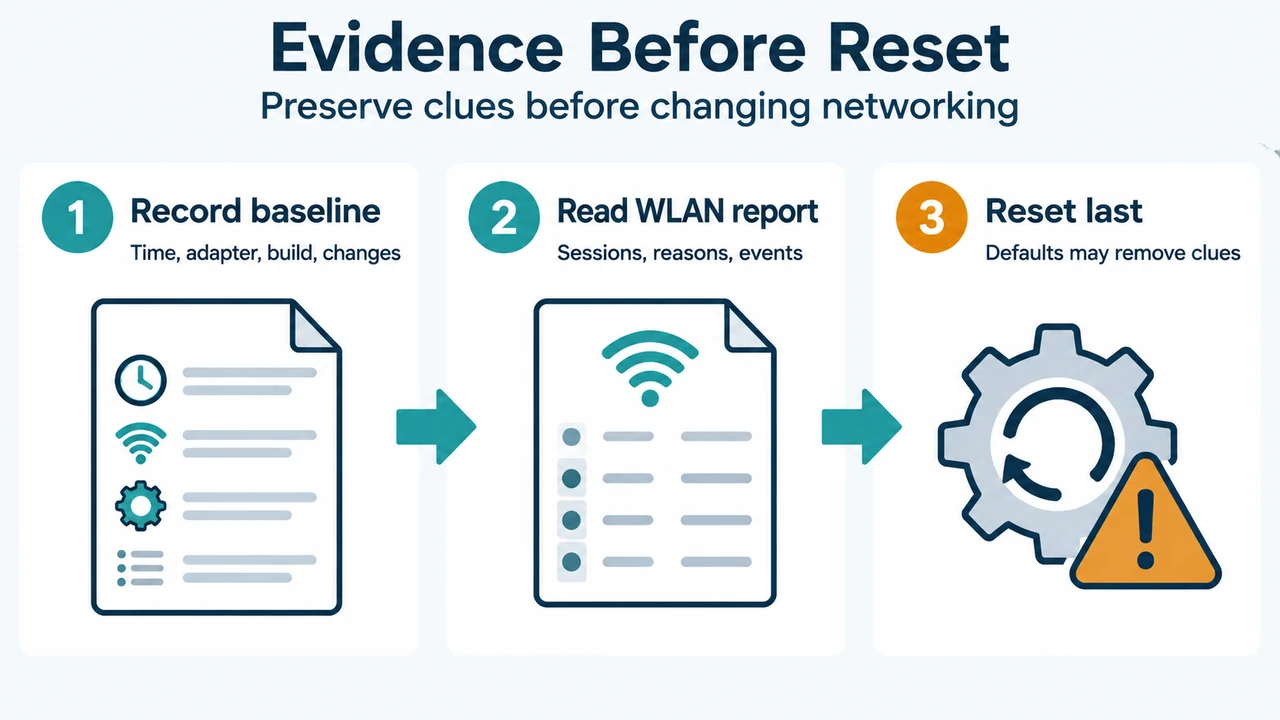
Save the report and note the failed reconnect time. Avoid deleting profiles, removing the adapter or driver, or resetting the network until the baseline has been recorded, because those actions can remove evidence or temporarily change the behavior.
Separate a resume problem from other Wi‑Fi failures
Use the symptom after wake to choose the next check:
| What you see | What to check |
|---|---|
| The Wi‑Fi adapter or control is missing | Check whether the adapter is present and enabled, whether WLAN AutoConfig is running, and the Device Manager status. |
| Expected networks are not listed | Check the radio state, WLAN AutoConfig, supported bands, and whether another client can see the same network. |
| The connection or authentication fails | Use the report and the failure timestamp to determine whether the failure occurred during association or authentication. |
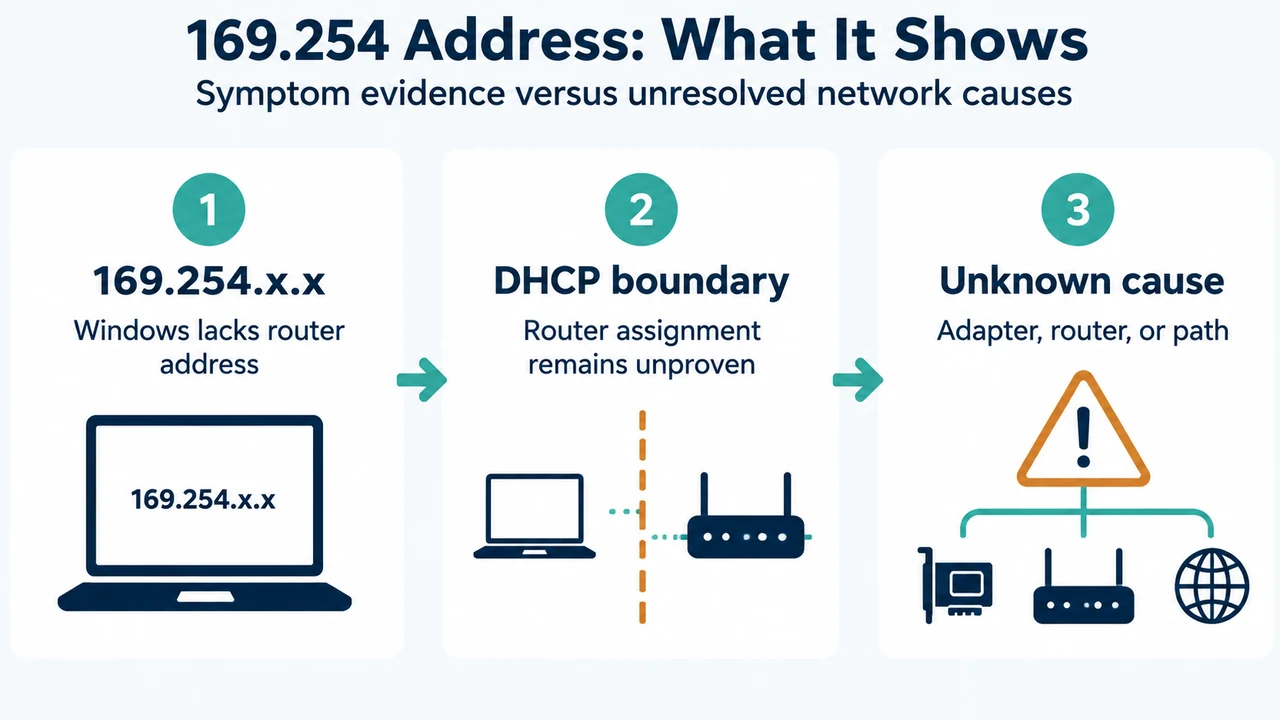
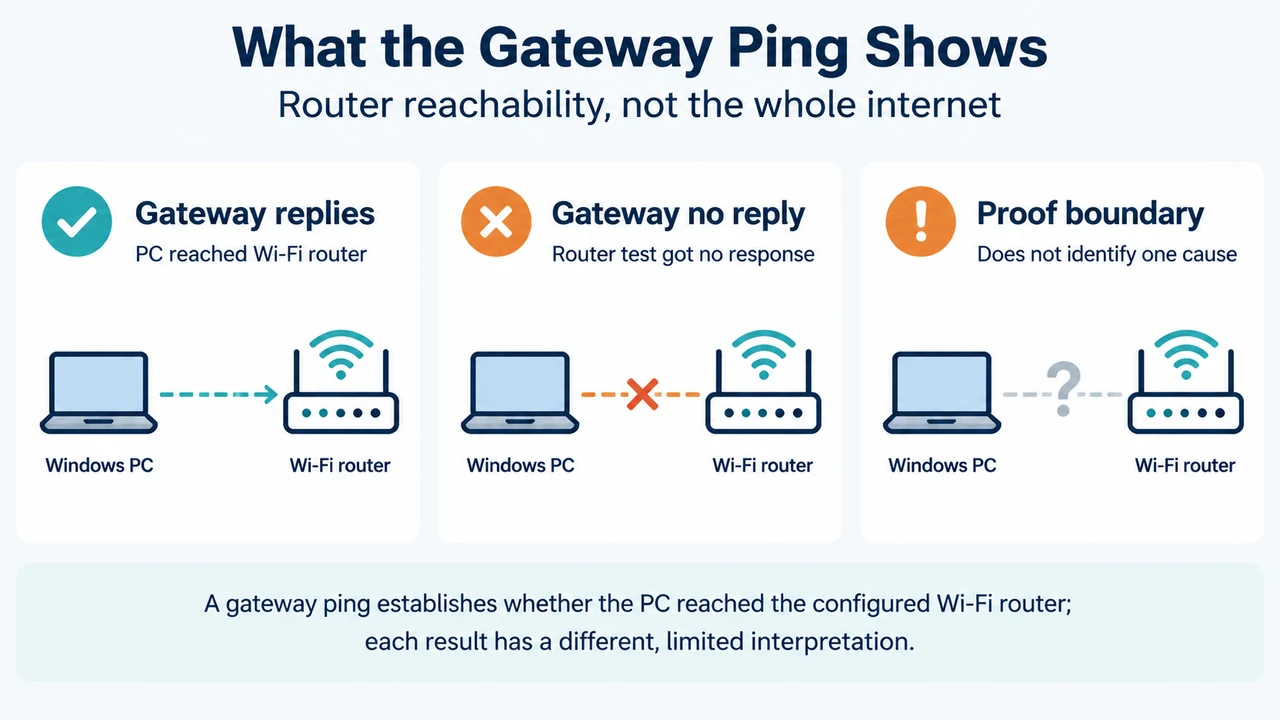
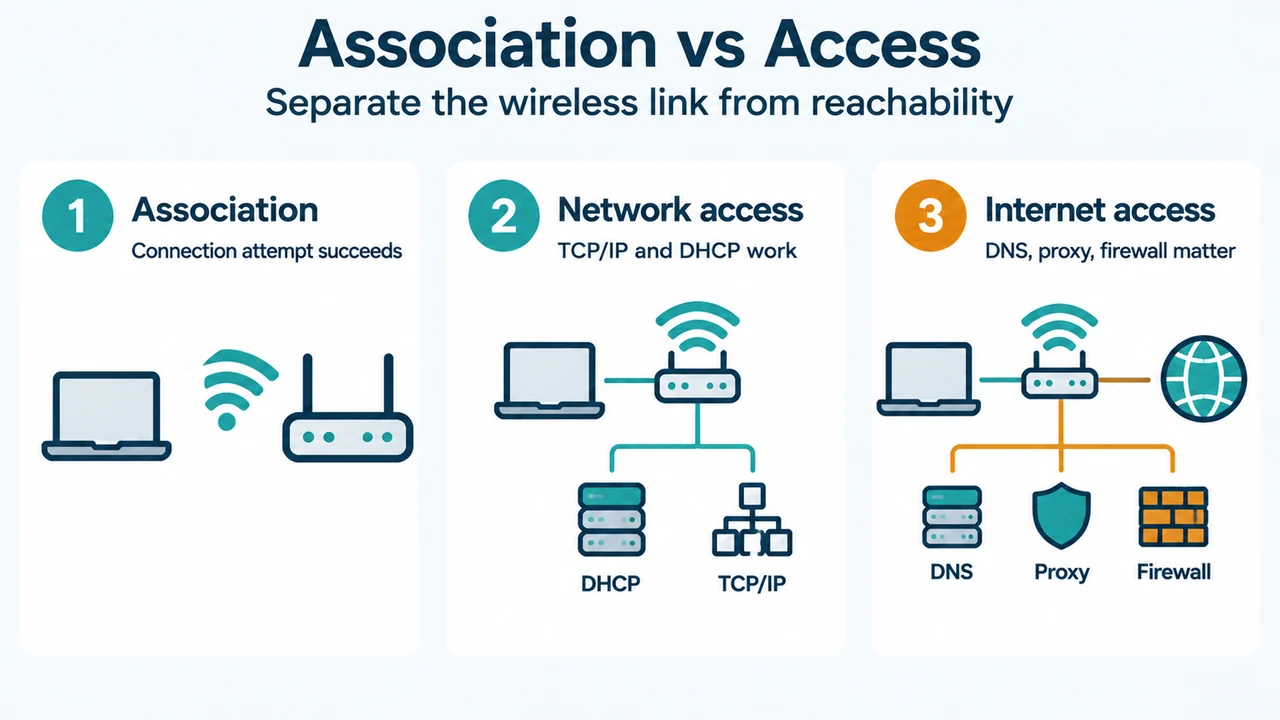
| Wi‑Fi connects but internet access fails | Continue with TCP/IP, DHCP, DNS, proxy, or firewall troubleshooting rather than assuming the wireless association failed. |
| The issue affects several devices | Compare affected and unaffected devices before changing the Windows client configuration. |
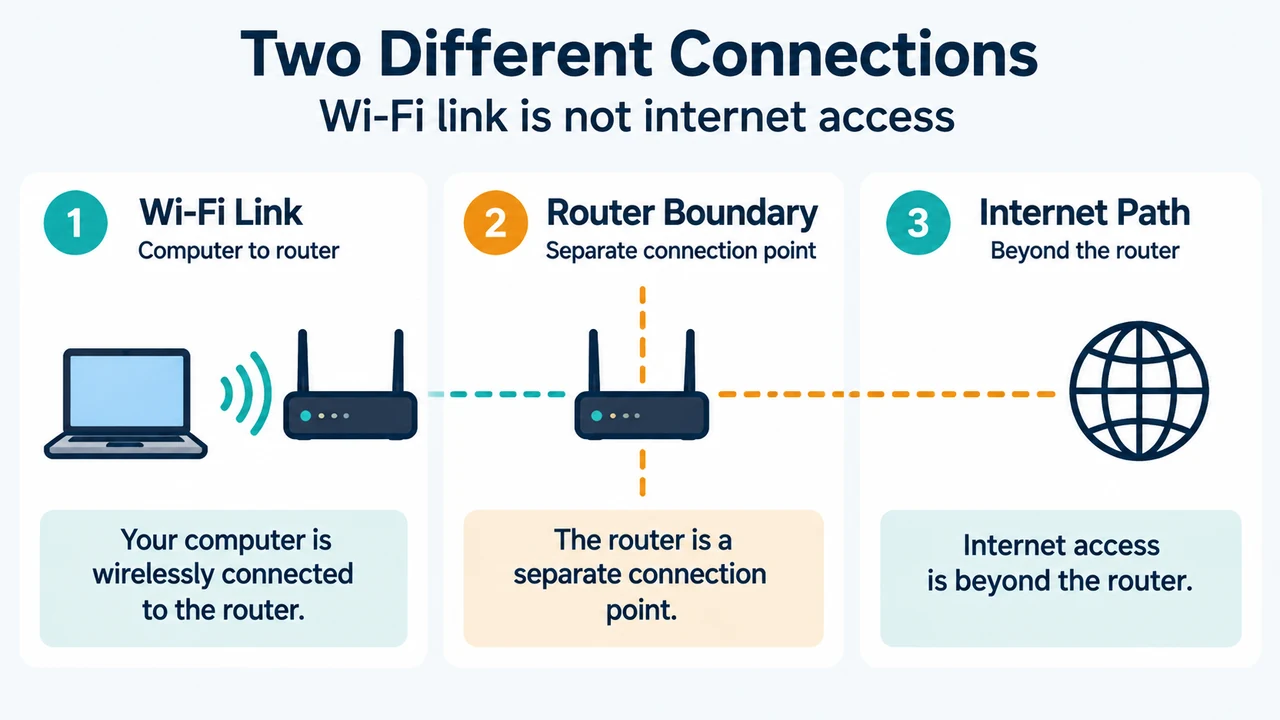
These categories matter because a successful Wi‑Fi association does not by itself show that network access, DNS, or internet access is working.
Check the documented power-management setting
Microsoft Support documents a power-management check for the wireless adapter. Open Device Manager, expand Network adapters, open the wireless adapter’s properties, and select the Power Management tab. If the option is present, clear Allow the computer to turn off this device to save power, then test sleep and resume again.
This is a reversible configuration check. Record whether the behavior changes. The supplied Microsoft material does not establish that this setting is the cause of every resume-related disconnect.
Check the driver and Windows scope
Compare the current driver and firmware versions with the versions recommended by the device or adapter manufacturer. Microsoft also recommends checking Windows Update and reviewing recent changes. The wireless guide notes that event text and component behavior can differ by Windows version, adapter, driver model, access point, and authentication method.
If the connection stopped working properly after a recent update, Microsoft Support lists uninstalling the network adapter driver and restarting as an option. Before doing that, make sure a driver is available as a backup. This changes the system and should come only after the report, timestamps, and driver details have been recorded.
Leave network reset until the end
Microsoft describes Network reset as a last step. On Windows 11, the path is Settings > Network & internet > Advanced network settings > Network reset. Network reset removes installed network adapters and their settings, then reinstalls the adapters and returns their settings to defaults after restart.
Afterward, you might need to reinstall and configure networking software such as VPN clients or Hyper‑V virtual switches. Known connections may also be set to a public network profile. Because of these effects, network reset is not a first response to a single failed resume.
When the report is not enough
For a reproducible issue requiring advanced analysis, Microsoft’s wireless guide documents an ETW trace workflow. It requires an elevated Command Prompt and an existing output folder. The excerpted procedure creates a trace, asks you to reproduce the failure and record its time, then stops and optionally converts the trace. This is intended for advanced analysis or support cases, not as a substitute for first recording the baseline.
Research method and limits
This article was prepared from the supplied public Microsoft Support and Microsoft Learn excerpts retrieved on 2026-09-19. The Microsoft Learn passage states that access to the page requires authorization, and both supplied primary passages are truncated; this article therefore uses only the visible statements. The competitor page was reviewed only for coverage comparison. No hands-on test, lab measurement, benchmark, or comprehensive review was performed.
Text version of the diagrams
- Evidence Before Reset: Record baseline — Time, adapter, build, changes; Read WLAN report — Sessions, reasons, events; Reset last — Defaults may remove clues
- Association vs Access: Association — Connection attempt succeeds; Network access — TCP/IP and DHCP work; Internet access — DNS, proxy, firewall matter