If Windows 11 connects to Wi-Fi but shows an address beginning with 169.254., Microsoft says Windows could not get an IP address from the router. If the network does not use static addresses, Microsoft recommends checking whether DHCP is enabled on the router. This is a narrower problem than a general “No Internet” message, so check the address and local connection before using Network reset.
This guide applies to Windows 11 Wi-Fi connections. It is based on the supplied public Microsoft excerpts and does not claim a hands-on test or a complete diagnosis for every router, adapter, driver, or network configuration.
1. Confirm the address and connection state
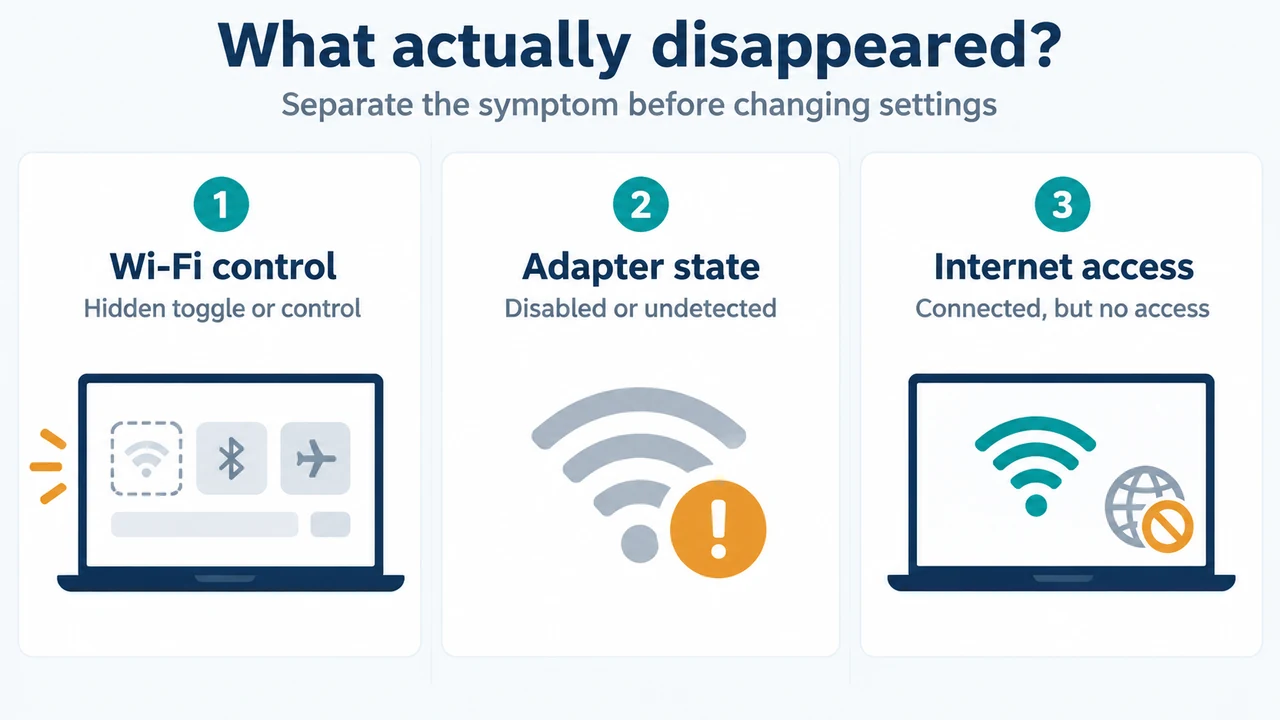
Open Settings > Network & internet > Wi-Fi and confirm that the intended wireless network is shown as connected. Microsoft also recommends checking that Wi-Fi is turned on and Airplane mode is off.
Then check the IP configuration. In an elevated Command Prompt, run:
ipconfig /allLook at the Wi-Fi adapter. Confirm whether its IPv4 address begins with 169.254.. Also note the default gateway and DNS server entries. Microsoft’s DNS troubleshooting guidance says a valid configuration should include an appropriate IP address, subnet mask, default gateway, and DNS servers for the network.
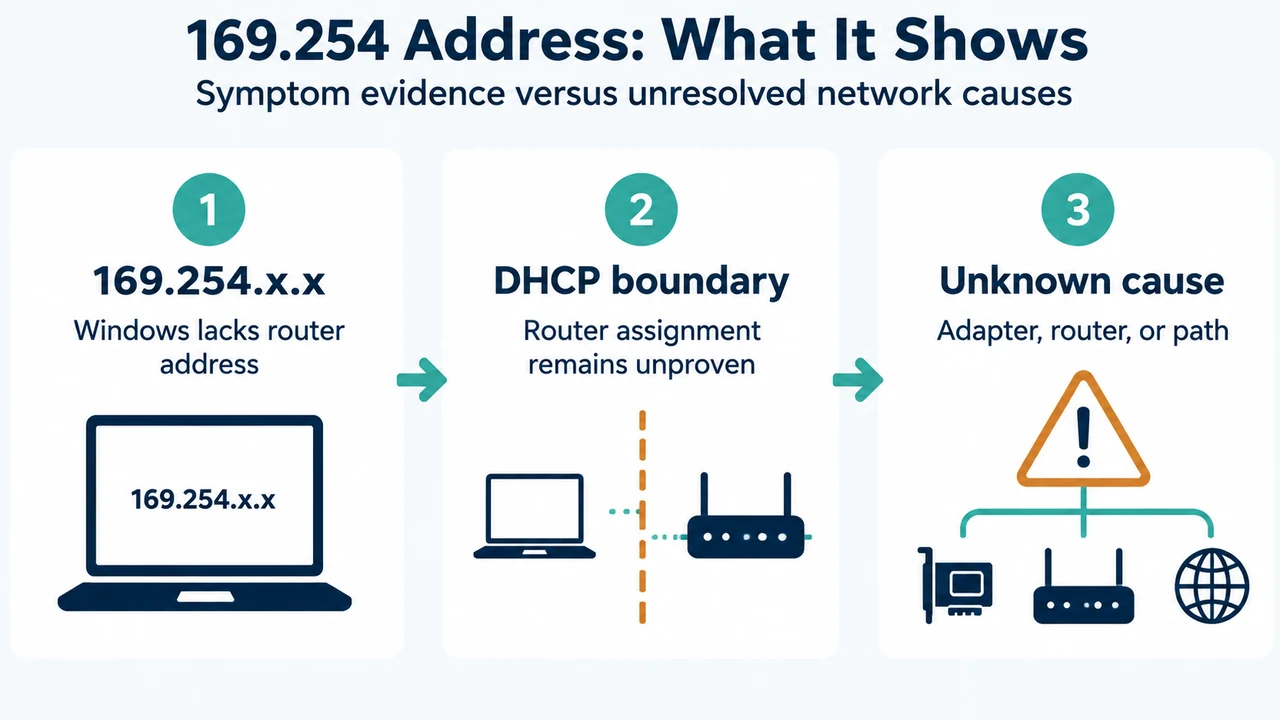
A 169.254.x.x address is the key decision point here: according to Microsoft’s Windows Wi-Fi guidance, it means Windows could not obtain an address from the router. It does not, by itself, establish whether the fault is the laptop adapter, the wireless connection, the router, or the router’s DHCP configuration.
2. Renew the address before changing network settings
Microsoft documents renewing the IP configuration as an early check. In an elevated Command Prompt, run these commands one at a time:
ipconfig /release
ipconfig /renew
Run ipconfig /all again afterward. If the Wi-Fi adapter now has a usable address for the network, test the connection. If it still shows 169.254.x.x, continue with the router and adapter checks below.
These commands are intended to renew a dynamically assigned configuration. They do not prove that the router’s DHCP service is available or correctly configured.
3. Check the router and DHCP boundary
Microsoft says that, when static IP addresses are not being used, you should check that DHCP is enabled on the router. The exact router menu and procedure depend on the router model, so use its documentation or administration interface rather than applying a generic setting.
Restarting the modem and wireless router is also included in Microsoft’s general Wi-Fi troubleshooting steps. Microsoft notes that connected devices will be temporarily disconnected during this process. If the equipment is a combined modem/router, Microsoft says only the single device needs to be restarted.
After the equipment is available again, reconnect the Windows 11 PC and run ipconfig /all once more. If other devices can connect while this PC continues to receive 169.254.x.x, the next focus is the PC’s Wi-Fi adapter, profile, or driver. If several devices cannot obtain network access, the router or upstream connection needs attention; the supplied excerpts do not establish which router fault is responsible.
4. Test the local Wi-Fi router
If ipconfig /all shows a default gateway, Microsoft documents a ping test to check the PC-to-router connection. Record the gateway address, then run:
ping <DefaultGateway>For example, if the gateway shown by ipconfig is 192.168.1.1, run:
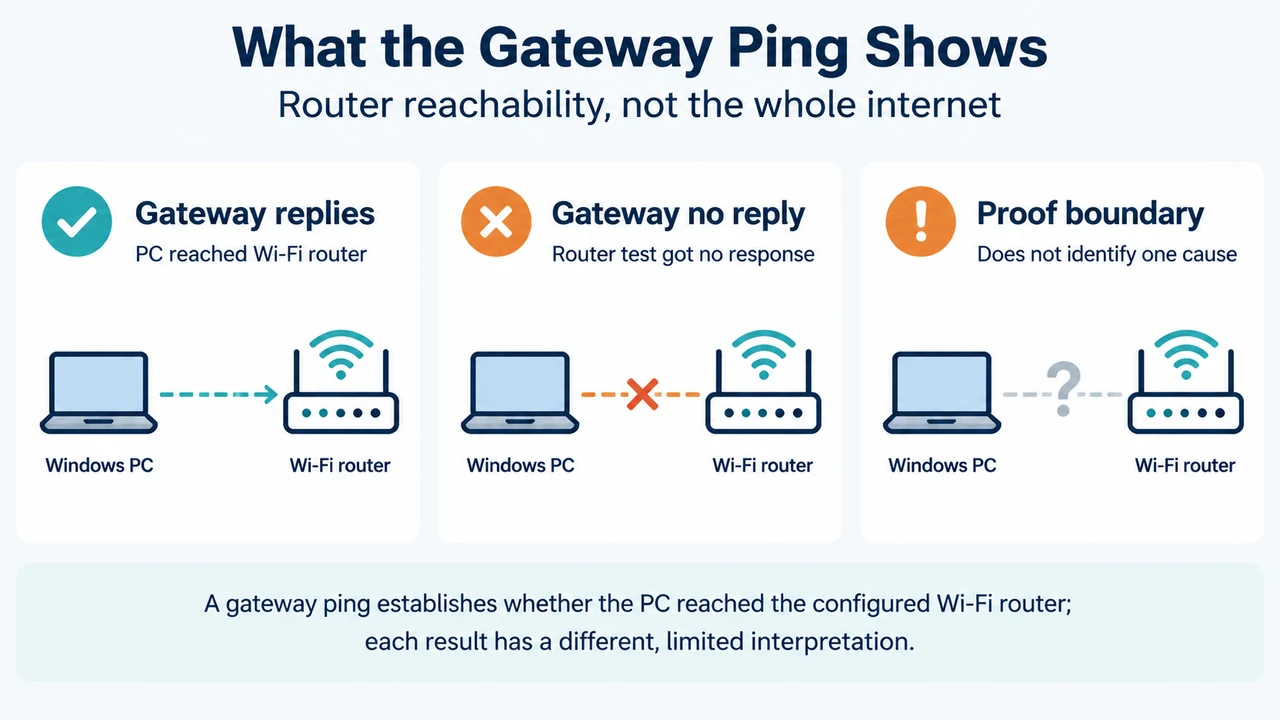
ping 192.168.1.1Microsoft’s example shows replies and 0% packet loss when the PC can reach the Wi-Fi router. A reply indicates local router connectivity, but Microsoft says the remaining problem might then involve the modem or internet service provider. No reply indicates that the PC is not getting a response from the router; Microsoft suggests trying a direct Ethernet connection to the modem if possible. The supplied evidence does not support a universal conclusion from every ping failure, because firewall and router settings can affect responses.
5. Check the Windows adapter before resetting the network
Microsoft’s Windows Wi-Fi guidance includes checking whether the wireless adapter is enabled in Device Manager. Open Device Manager, expand Network adapters, and check the Wi-Fi adapter’s state. If it is disabled, Microsoft documents selecting Enable device.
Microsoft also recommends checking for driver updates through Windows Update or the adapter manufacturer. The Windows 11 wireless troubleshooting guidance says to record the adapter model, driver version, and driver date when collecting baseline information. It also advises recording recent changes to Windows, drivers, firmware, security software, VPN software, wireless profiles, and access-point configuration.
Before removing an adapter or driver, record the current state. Microsoft warns that removing the adapter or driver, deleting wireless profiles, resetting the network stack, or restarting the device can remove evidence or temporarily change the behavior.
6. Use Network reset only after the earlier checks
Windows 11’s documented Network reset path is Settings > Network & internet > Advanced network settings > Network reset. Select Reset now, confirm, and allow the PC to restart.
Network reset changes the networking configuration, so it belongs after the address, router, DHCP, gateway, and adapter checks. Microsoft says that afterward you might need to reinstall and set up networking software such as VPN clients or Hyper-V virtual switches. Microsoft also says Network reset can set known network connections to a public network profile.
Do not treat Network reset as proof that DHCP was the cause. It may change the symptoms while leaving a router or DHCP problem unresolved. If the PC still receives 169.254.x.x after the reset, return to the router and DHCP boundary and consult the router’s documentation or your network administrator.
What this symptom does—and does not—establish
| Observation | Supported conclusion | What remains unknown |
|---|---|---|
| Wi-Fi is connected and the address is 169.254.x.x | Microsoft says Windows could not get an IP address from the router. | The excerpts do not identify the exact failing component. |
A new address appears after ipconfig /renew |
The dynamic configuration was renewed successfully at that point. | This does not establish why the original request failed. |
| The default gateway replies to ping | The PC can reach the Wi-Fi router. | The modem, ISP, DNS, or internet path may still need investigation. |
| Network reset completes | Windows has applied its documented network-reset operation. | VPN, virtual-switch, profile, and DHCP issues may still require separate checks. |
Research method and limitations
This article was prepared from the supplied public Microsoft source excerpts retrieved on September 23, 2026. One Microsoft Wi-Fi guide and the Microsoft Learn wireless guide were supplied as truncated passages, so this article relies only on the visible statements. The DNS source applies to Windows Server versions and is used only for its visible IP-configuration checks; it does not establish a Windows 11-specific DHCP diagnosis. The supplied competitor passage covered the broader “No Internet, Secured” state rather than this exact 169.254.x.x decision path. No hands-on, lab, benchmark, router-model, or comprehensive device review was performed.
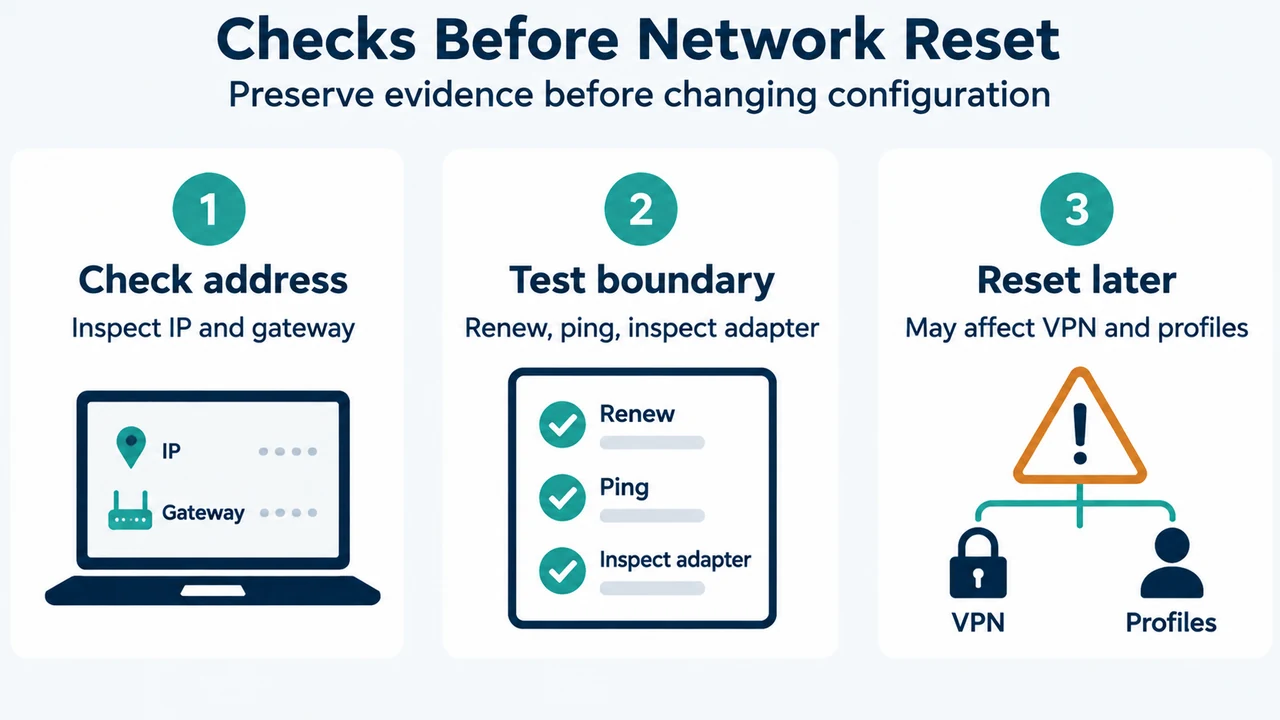
Text version of the diagrams
- 169.254 Address: What It Shows: 169.254.x.x — Windows lacks router address; DHCP boundary — Router assignment remains unproven; Unknown cause — Adapter, router, or path
- Checks Before Network Reset: Check address — Inspect IP and gateway; Test boundary — Renew, ping, inspect adapter; Reset later — May affect VPN and profiles
Sources
- Microsoft: Fix Wi-Fi connection issues in Windows — Windows 10 and Windows 11 Wi-Fi checks, 169.254.x.x interpretation, IP renewal, gateway ping, adapter checks, router restart, and Network reset.
- Microsoft Learn: Troubleshoot wireless network connectivity issues — Windows 11 troubleshooting scope, baseline collection, and cautions before resetting or removing networking components.
- Microsoft Learn: Troubleshooting DNS clients — IP configuration fields and the documented
ipconfig /renewcheck; applies to the listed Windows Server versions.