If Windows 11 shows “This app has been blocked for your protection” or “Administrator has blocked you from running this app,” identify the protection layer before changing a security setting. Microsoft documents these messages for some applications whose older SHA-1 signature is no longer valid, while SmartScreen and Smart App Control can also warn about or block untrusted downloaded apps.
This guide covers the checks documented for Windows 11 by Microsoft. It does not establish that every message has the same cause, and it does not recommend disabling protection to force an unknown app to run.
Start with the exact file and message
Note the complete message, the application name, and whether the file was downloaded. Microsoft says SmartScreen evaluates downloaded applications and installers using reported unsafe files, known frequently downloaded files, and the digital signature used to sign a file. An item without an established reputation can receive a warning.
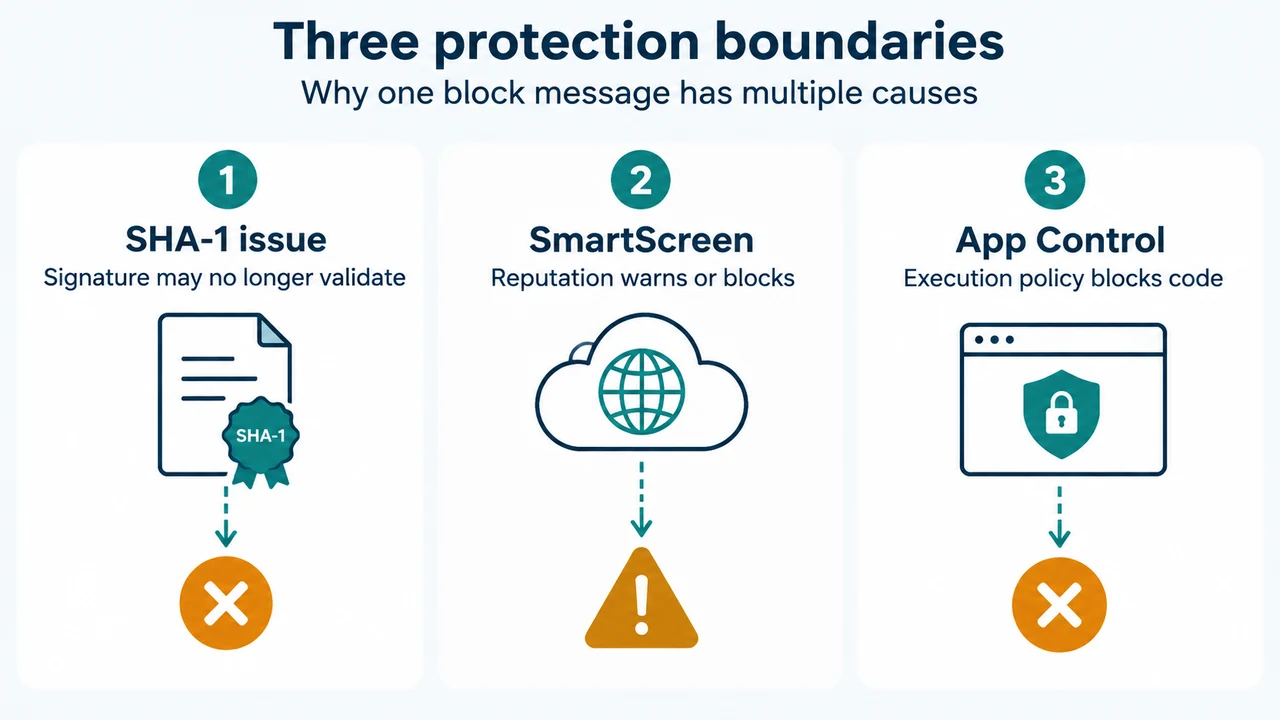
Microsoft also lists the two messages in this guide among errors that may occur when an application or driver is only SHA-1 signed. In the documented example, SmartScreen may block the application when its signature is no longer valid and display “Publisher: Unknown.” The supplied Microsoft passage does not say that every occurrence of either message is caused by SHA-1.
Check the application’s digital signature
- Find the application’s EXE file in File Explorer.
- Right-click the EXE and select Properties.
- Open the Digital Signatures tab.
- Inspect the signature list and its Digest algorithm column.
Microsoft says a SHA-2-signed application shows SHA256 in that column. If the application is not SHA-2 signed, Microsoft says you might encounter issues or have to disable security warnings or security features to let it run, and does not recommend doing that. Microsoft’s documented next steps are to use the latest application version and contact the manufacturer if the issue continues.
If the Digital Signatures tab is absent, the supplied Microsoft evidence does not establish why it is absent or what change is safe. Do not treat that absence alone as proof that the file is malicious or that SmartScreen is the cause.
Identify which Windows protection is involved
Microsoft Defender SmartScreen
SmartScreen is Microsoft’s reputation-based protection for websites, downloads, applications, and installers. It checks downloaded files against known unsafe software and reported malicious sites, and it can warn when a file does not have an established reputation. It also evaluates the digital signature used to sign a file.
In Windows Security, open App & browser control. Microsoft describes Reputation-based protection there as the area for SmartScreen settings, including Check apps and files. The supplied documentation does not establish that turning this setting off is an appropriate fix for this particular file. On managed devices, SmartScreen settings may be controlled through Group Policy, Intune, or other mobile-device-management settings.
Smart App Control
Smart App Control is a separate app-execution control feature. Microsoft says it allows apps and binaries to run when they are likely to be safe, or when they are signed with a certificate issued by a certificate authority in the Trusted Root Program. Microsoft also says malware, potentially unwanted apps, and unknown unsigned code are blocked by default in its enforcement mode.
To check its state, open Windows Security > App & browser control. Microsoft documents three states:
- Evaluation: Windows evaluates whether the device is a suitable candidate, and Microsoft’s Windows Security article says it does not block anything during this period.
- On: Smart App Control is running in enforcement mode; trusted apps and apps with valid signatures may run.
- Off: Smart App Control is not running on the device.
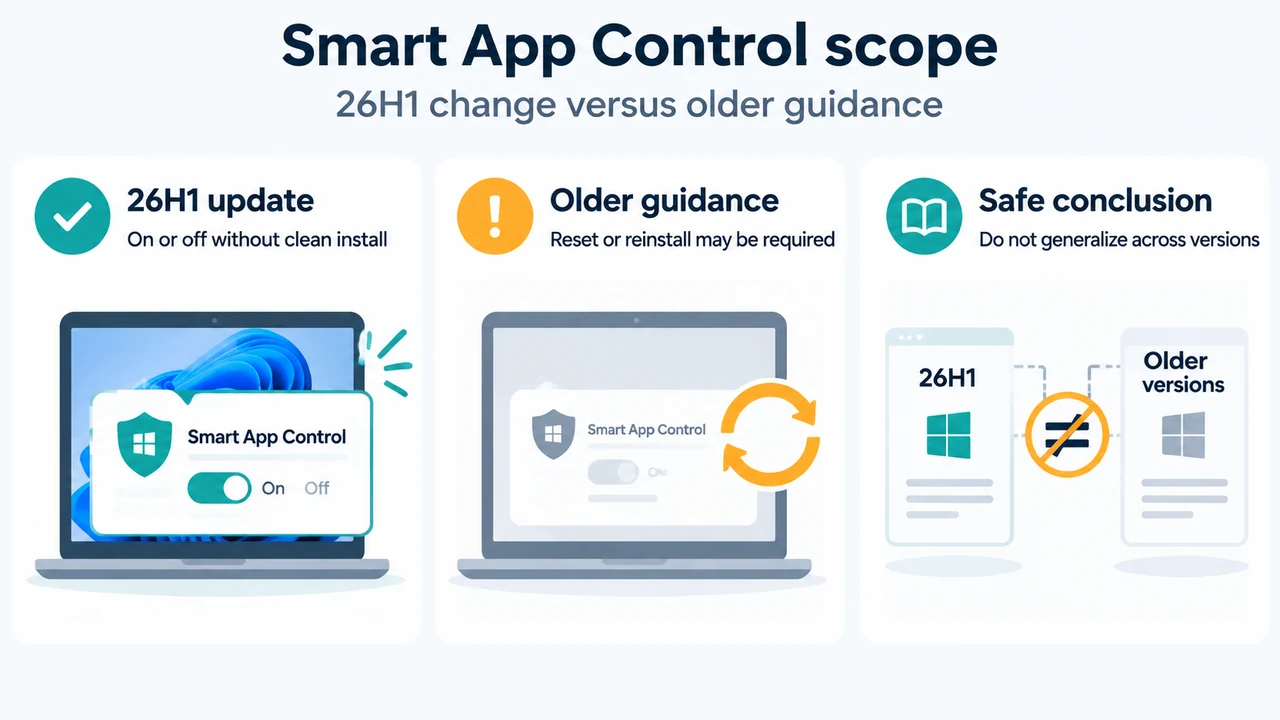
Microsoft says Smart App Control is designed for a clean Windows installation and is available on Windows 11 version 22572 or higher, subject to regional availability. Another Microsoft support article says it can be used only on new Windows 11 installs and that a device receiving it through an update cannot turn it on unless Windows is reset or reinstalled. These requirements describe Smart App Control generally; they do not prove that it caused a particular block.
Recognize a managed-device boundary
Microsoft documents Group Policy and Intune controls for SmartScreen. Administrators can configure SmartScreen to block suspicious content entirely or to warn and allow users to continue. Policy can also prevent users from bypassing warnings for downloaded files or sites.
If the device belongs to an employer, school, or another organization, a policy may determine whether you can override the warning. The supplied evidence does not provide a supported way for an end user to bypass an enforced policy. Contact the device administrator and provide the exact message, application name, file path, publisher information, and signature result.
A safe order for the checks
- Record the exact message and identify the EXE that Windows is trying to run.
- Check the EXE’s Digital Signatures tab and look for the documented SHA256 digest result.
- Open Windows Security > App & browser control and record whether Smart App Control is in Evaluation, On, or Off state.
- Review the documented Reputation-based protection area for SmartScreen.
- If the device is managed, ask the administrator whether policy controls the block.
- If the signature is not SHA-2 or the application is outdated, obtain the current version from the manufacturer and contact that manufacturer if the problem remains.
This sequence identifies documented boundaries without assuming that one setting explains every block. Do not disable security warnings or security features merely to test an unknown application. Microsoft specifically says it does not recommend doing that for applications affected by the SHA-1 signing issue.
What this guide cannot establish
The supplied evidence does not provide a universal mapping from either message to one cause. It also does not establish that changing a file’s properties, launching it from an administrator command prompt, or performing a clean boot is a Microsoft-supported answer to this specific problem. Those suggestions appear only in the supplied competitor excerpt and are not used here as technical authority.
This research-based guide was prepared from the supplied public source excerpts retrieved on September 20, 2026. The Microsoft SmartScreen passages were accessible only as excerpts that state the relevant settings and behavior; no additional page content was used. The evidence does not identify Windows 11 versions 24H2 or 25H2 specifically, so this article does not claim version-specific behavior for them. It includes no hands-on testing, lab results, benchmark, or comprehensive review.
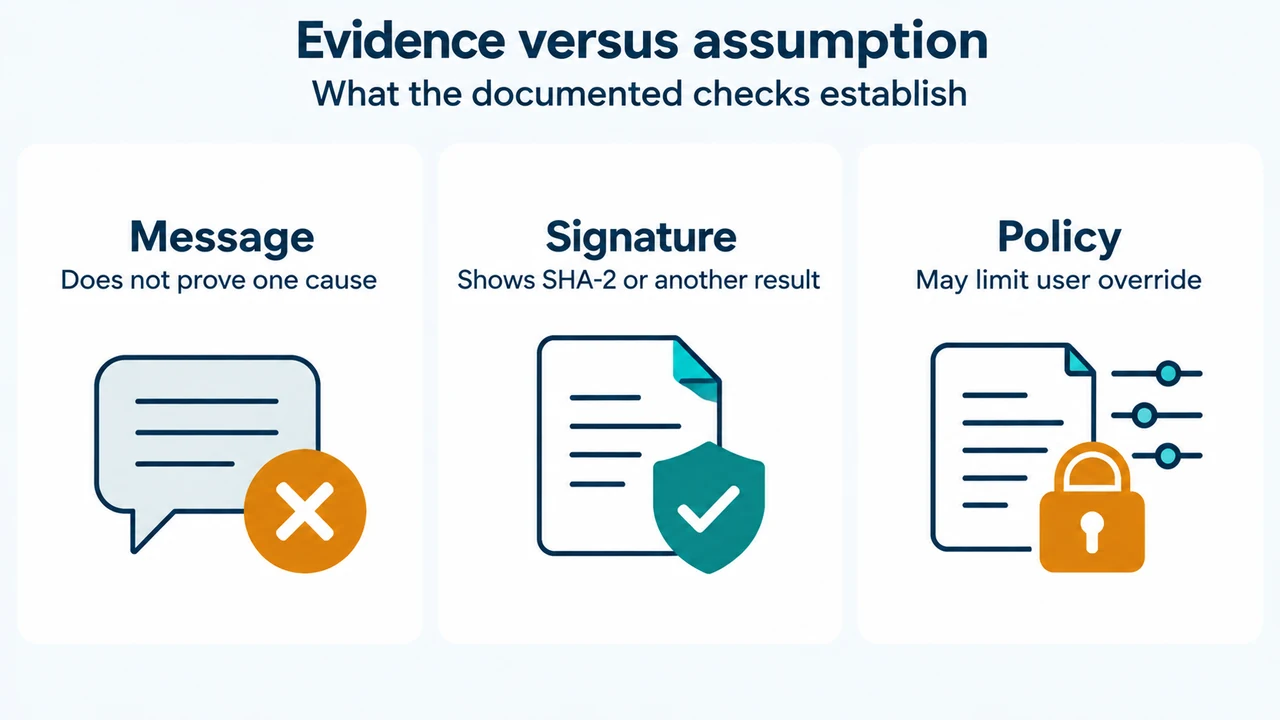
Text version of the diagrams
- Three protection boundaries: SHA-1 issue — Signature may no longer validate; SmartScreen — Reputation warns or blocks; App Control — Execution policy blocks code
- Evidence versus assumption: Message — Does not prove one cause; Signature — Shows SHA-2 or another result; Policy — May limit user override
Sources
- Microsoft KB5003341: Issues you might encounter when SHA-1 Trusted Root Certificate Authority expires — SHA-2/SHA256 signature check, listed error messages, and Microsoft’s recommendation to update the application or contact its manufacturer.
- Microsoft Defender SmartScreen — SmartScreen’s reputation checks for sites, downloads, applications, and signatures; retrieved page last updated April 23, 2026.
- Available Microsoft Defender SmartScreen settings — Group Policy, Intune, warning, blocking, and bypass-control behavior; retrieved page last updated May 27, 2026.
- Smart App Control overview — execution rules, signing requirement, modes, and Windows 11 version 22572-or-higher requirement; retrieved page last updated November 18, 2025.
- App & browser control in the Windows Security app — locations and descriptions for Smart App Control and Reputation-based protection in Windows Security.