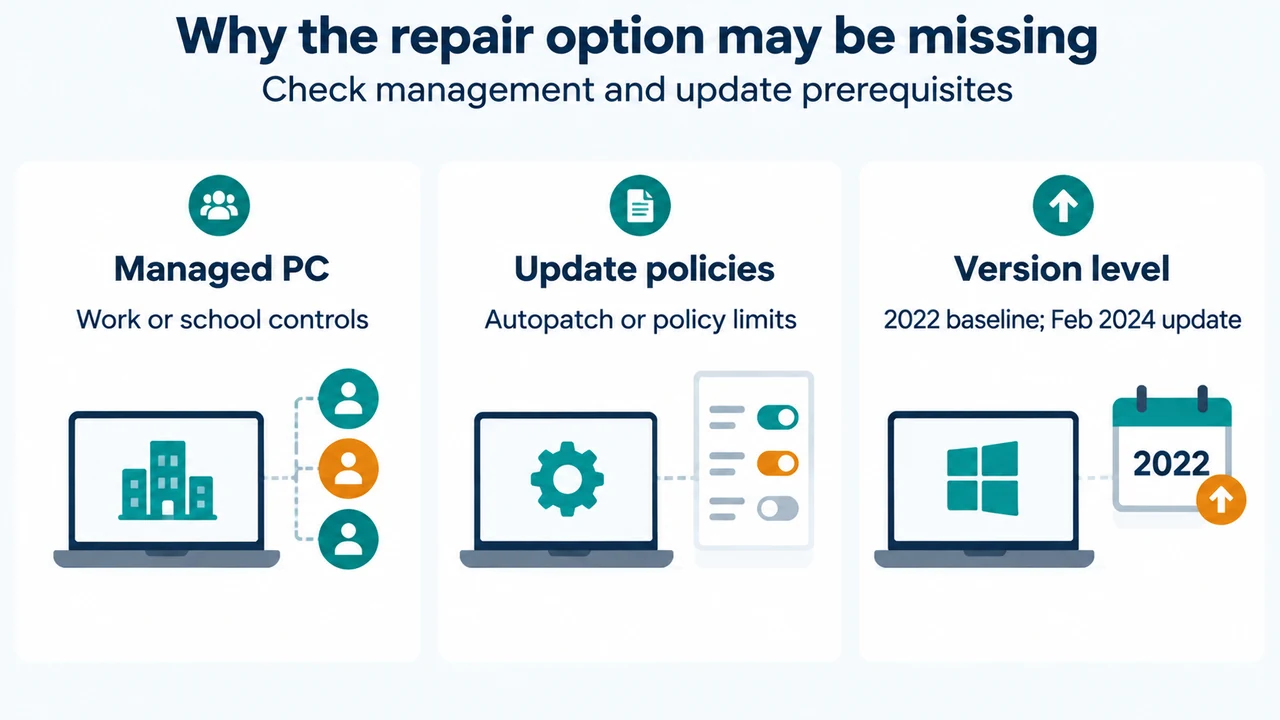
If Fix problems using Windows Update is missing in Windows 11 Recovery settings, check Microsoft’s documented availability conditions. The option may be unavailable when the PC is managed by work or school, when updates are managed through Autopatch or the deployment service, or when specified Windows Update policies are configured.
The option may also be missing when Windows is earlier than Windows 11 with the 2022 annual update, or when the February 2024 optional update or a later update is not installed. These conditions do not establish the cause in every case.
What the recovery option does
When available, Fix problems using Windows Update reinstalls the same Windows version already on the PC. Microsoft says it repairs system files and components while preserving apps, files, and settings. Keep the PC connected to power and the internet during the entire process.
The process downloads a repair version of the last operating-system update that was successfully installed, then installs that repair version. If Windows recommends the reinstall after an update fails because of system-file or component problems, selecting Reinstall now opens this recovery option.
Why the option may be missing
Work or school management
Microsoft says the option might be unavailable when the PC is managed by work or school. It is also unavailable on devices whose updates are managed through Autopatch, the deployment service, or listed Windows Update policies.
The supplied Microsoft excerpt lists examples including an intranet Microsoft update service location, policies that defer feature or quality updates, a target feature-update version, and a policy that removes access to Windows Update features. The supplied evidence does not explain how to change an organization’s policy. If the PC is managed, use the recovery guidance supplied by the administrator.
Windows version and update level
Microsoft says the option might be missing on a version earlier than Windows 11 with the 2022 annual update. The PC also needs the February 2024 optional update or a later update installed.
These are documented prerequisites. The supplied evidence does not prove that installing an update will make the option appear in every configuration, especially when update-management policies apply.
What to check
- Open Start > Settings > System > Recovery.
- Look for Fix problems using Windows Update and its Reinstall now option.
- If it is absent, check whether the PC is managed by work or school.
- Check whether the Windows version and update level meet Microsoft’s stated conditions.
- If the PC is managed or a condition cannot be verified, follow administrator guidance.
If the option is available, select Reinstall now. Windows opens the Windows Update page, downloads the repair version, and installs it. You can allow the PC to restart automatically 15 minutes after installation completes. Otherwise, restart the PC when the reinstall is complete.
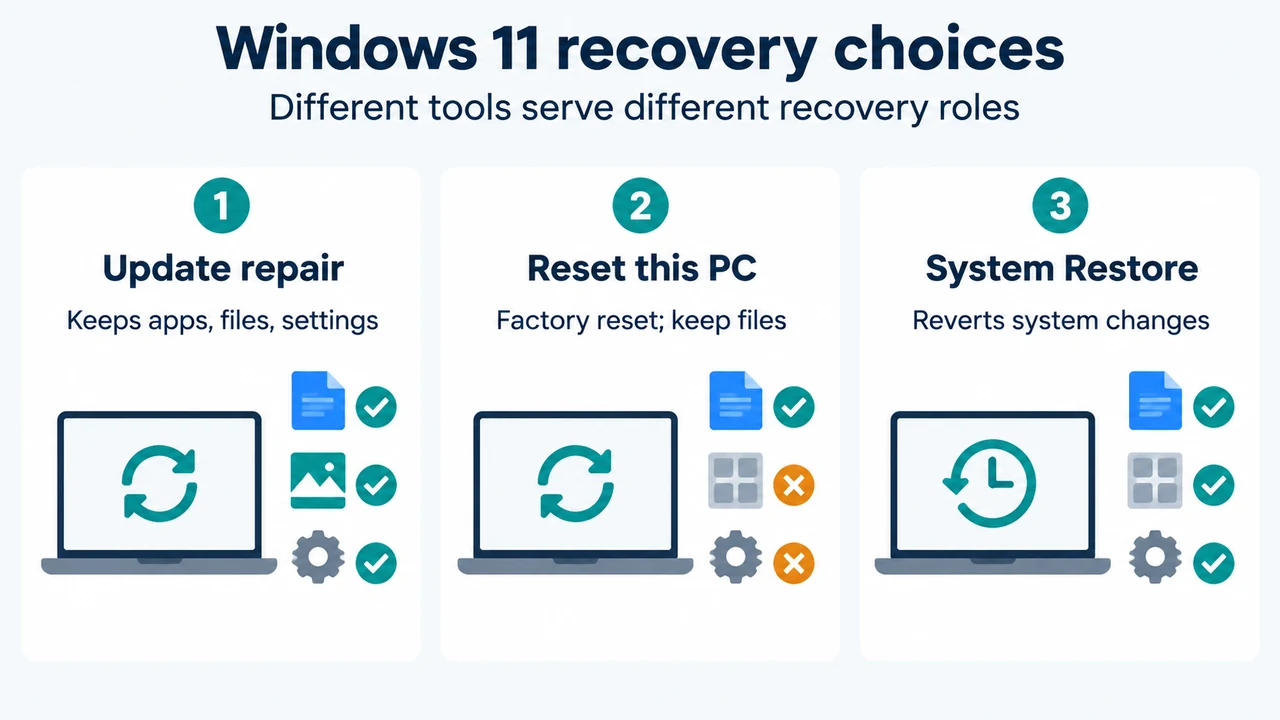
How the documented recovery choices differ
Microsoft describes these recovery roles in the supplied excerpts:
| Documented role | Recovery choice |
|---|---|
| Reinstall the current Windows version while preserving apps, documents, and settings | Fix problems using Windows Update |
| Reset the PC to factory settings while choosing whether to keep personal files | Reset this PC |
| Revert the PC to an earlier restore point after problems caused by software, drivers, or system-setting changes | System Restore, when a suitable restore point exists |
These roles are boundaries described by Microsoft, not a promise that a tool will solve every fault. The supplied excerpts do not provide a complete decision tree for every Windows failure.
Backup and recovery limits
The supplied Microsoft recovery excerpt describes Windows Backup as backing up items such as files, themes, settings, installed apps, and Wi-Fi information to the cloud through a Microsoft account. It describes File History as saving copies of personal files to an external drive or network location. These are backup methods; the excerpt does not establish that the Windows Update repair reinstall replaces a separate backup plan.
Do not treat a missing option as proof that Windows is permanently damaged. The visible Microsoft guidance identifies management, version, and update prerequisites as possible reasons. If those conditions do not explain the absence, the supplied excerpts do not establish the cause.
Research method and limitations
This answer was prepared from the supplied public Microsoft source excerpts retrieved on 2026-09-22. One recovery overview excerpt is truncated, so only its visible statements were used; unseen text was not treated as support. No competing coverage was available for review, and this answer includes no hands-on testing or comprehensive failure diagnosis.
Sources
- Microsoft, “Fix issues by reinstalling the current version of Windows” — Windows 11 scope, repair behavior, prerequisites, steps, restart choice, and availability limits. Retrieved 2026-09-22.
- Microsoft, “Backup, restore, and recovery in Windows” — visible recovery-tool distinctions and backup descriptions. The supplied excerpt is truncated. Retrieved 2026-09-22.
Text version of the diagrams
- Windows 11 recovery choices: Update repair — Keeps apps, files, settings; Reset this PC — Factory reset; keep files; System Restore — Reverts system changes
- Why the repair option may be missing: Managed PC — Work or school controls; Update policies — Autopatch or policy limits; Version level — 2022 baseline; Feb 2024 update