If Windows 10 shows “The Windows Search service on local computer started and then stopped” when you try to start Windows Search, Microsoft documents a specific recovery path. The documented cause can involve missing Search registry entries or corrupted transaction-log files in C:\Windows\System32\config\TxR. Microsoft says not to replace the machine-specific registry key manually.
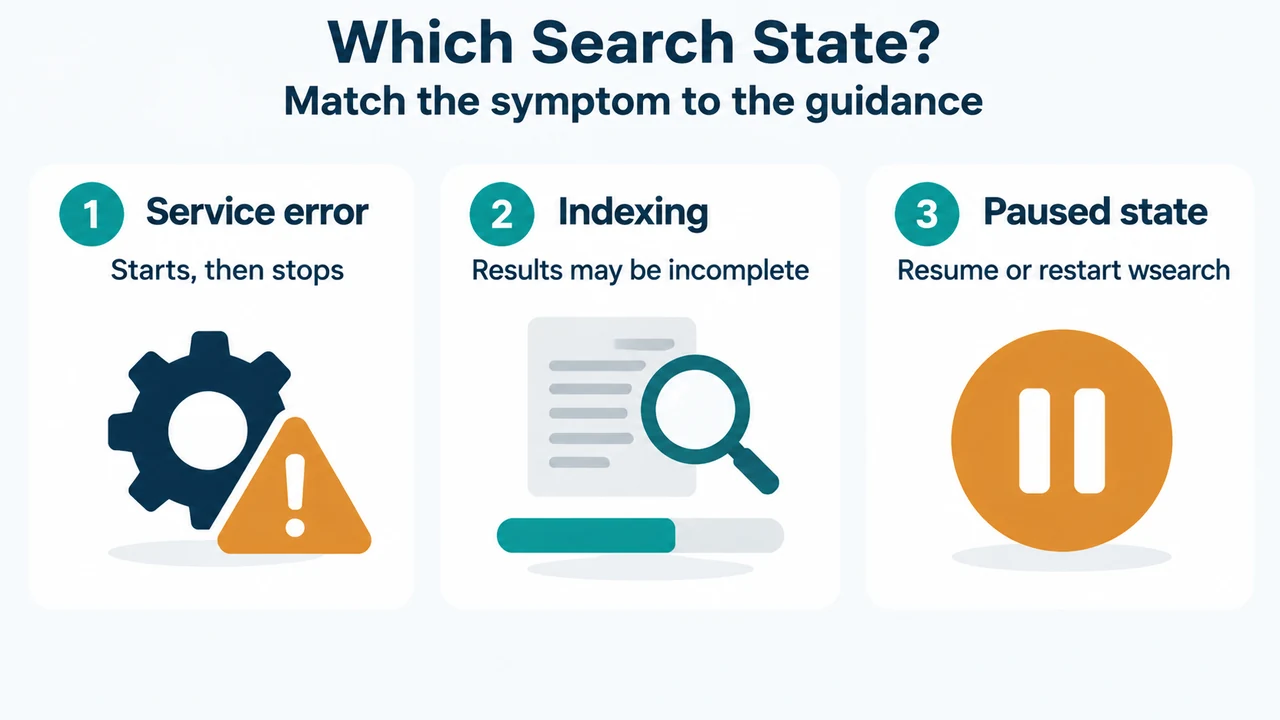
First, identify which Search problem you have
This article is for the exact service error above. It is different from a search that is merely still indexing, paused, or returning incomplete results.
- Exact service error: Windows Search starts and then stops when started manually. Use the TxR recovery section below.
- Indexing in progress: Results may be incomplete while new or changed files are being added. Microsoft says this can take a few hours.
- Indexer maintenance: The index may be recovering or optimizing. Microsoft says this can take up to 30 minutes on a slow computer.
- Paused indexing: Windows Search may resume after a pause, or restarting the
wsearchservice can resume it sooner.
Documented recovery for the exact service error
Microsoft’s Windows 10 article identifies two possible causes: missing subkeys or registry entries under HKEY_LOCAL_MACHINE\SOFTWARE\Microsoft\Windows Search\CrawlScopeManager\Windows\SystemIndex, or corrupted log files in C:\Windows\System32\config\TxR.
The same article specifically warns that the registry key is unique to each machine and should not be replaced manually. Do not copy that key from another computer.
Delete the documented TxR file types
- Open
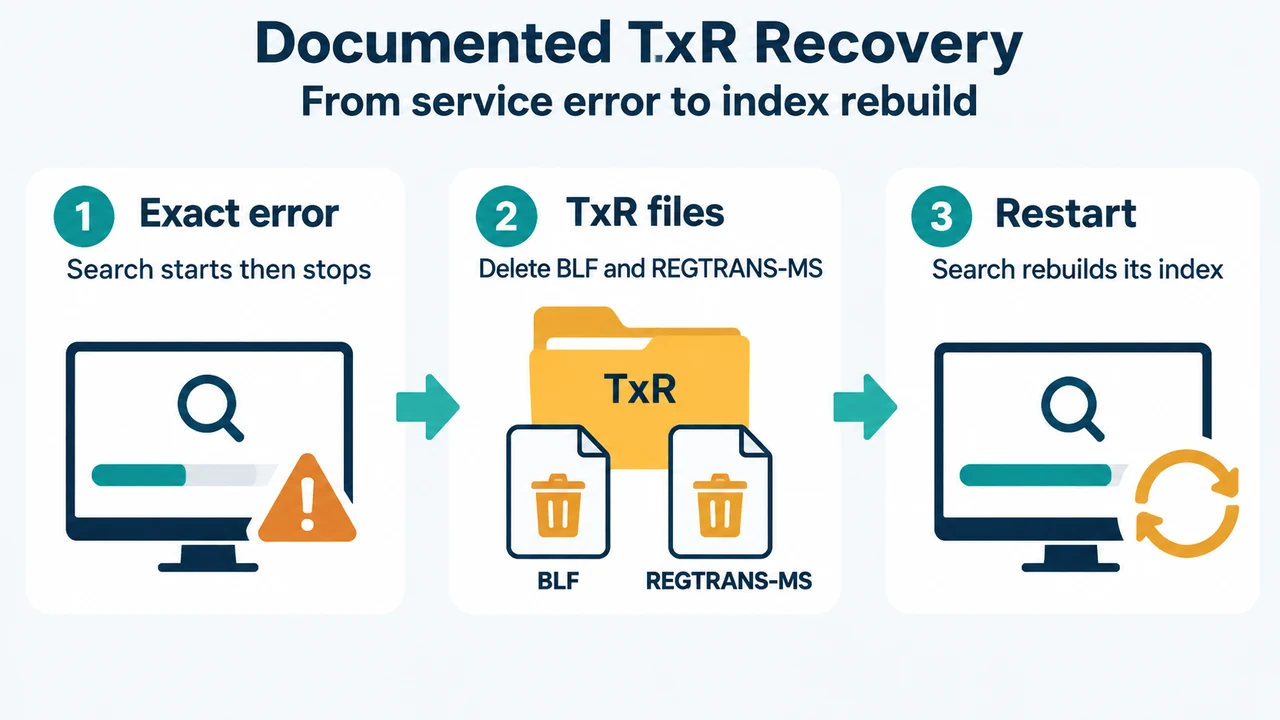
C:\Windows\System32\config\TxR. - Delete the files in that folder with the
.BLFand.REGTRANS-MSextensions, as Microsoft directs. - If the files are not visible, Microsoft notes that the folder contains hidden files. You may need to change the setting that hides protected operating-system files before they appear.
- Restart the computer.
This step changes files in a protected Windows system directory. Confirm that you are working in the exact TxR path and limit the deletion to the two documented file extensions. Do not delete unrelated files, and do not manually replace the machine-specific Search registry key.
What to expect after the restart
Microsoft says that after the restart, Windows Search should already be running and rebuilding the index. High CPU use may occur while the index is rebuilt.
Index rebuilding is not an instant result. Microsoft’s performance guidance says that indexing may take a few hours when many files have changed, and that a slow computer may take up to 30 minutes during index maintenance. Leave the computer running long enough for the documented indexing state to finish before judging the results.
If there is no service error
For ordinary incomplete or delayed results, Microsoft lists several non-failure states:
- When indexing is in progress, results may be incomplete. Microsoft recommends leaving the computer turned on and connected to power, when applicable, for a few hours.
- When indexing is waiting for the computer to become idle, high disk or CPU use can delay it.
- When indexing is paused to conserve battery power, connecting the device to power allows indexing to resume after the battery is sufficiently charged.
- When indexing is paused from Windows Search settings, restarting the Windows Search service can resume it sooner.
To inspect the service state, Microsoft identifies the Windows Search service as wsearch and directs readers to Services or Task Manager for service management. On Windows 10, the documented normal configuration is Status: Running and Startup Type: Automatic (Delayed Start), although the source presents this in the context of checking a service that is not running.
Limits of this fix
The TxR recovery path addresses the specific “started and then stopped” service error documented by Microsoft. It does not establish that every Windows Search failure has the same cause. Microsoft separately documents other paths for unresponsive search, version-specific Search resets, and problems involving the Search index or database. Do not apply those other procedures just because search results are incomplete.
Research method and limitations
This article was prepared from the supplied public Microsoft Learn excerpts retrieved on September 20, 2026. The primary service-error source states that it applies to Windows 10 editions and was last updated February 12, 2026. The supplied performance excerpt is truncated, so this article uses only the visible statements from it. The supplied competing page was not used as technical evidence and was available only as a partial excerpt. This is research-based guidance, not a hands-on test, lab result, benchmark, or comprehensive review.
Text version of the diagrams
- Documented TxR Recovery: Exact error — Search starts then stops; TxR files — Delete BLF and REGTRANS-MS; Restart — Search rebuilds its index
- Which Search State?: Service error — Starts, then stops; Indexing — Results may be incomplete; Paused state — Resume or restart wsearch