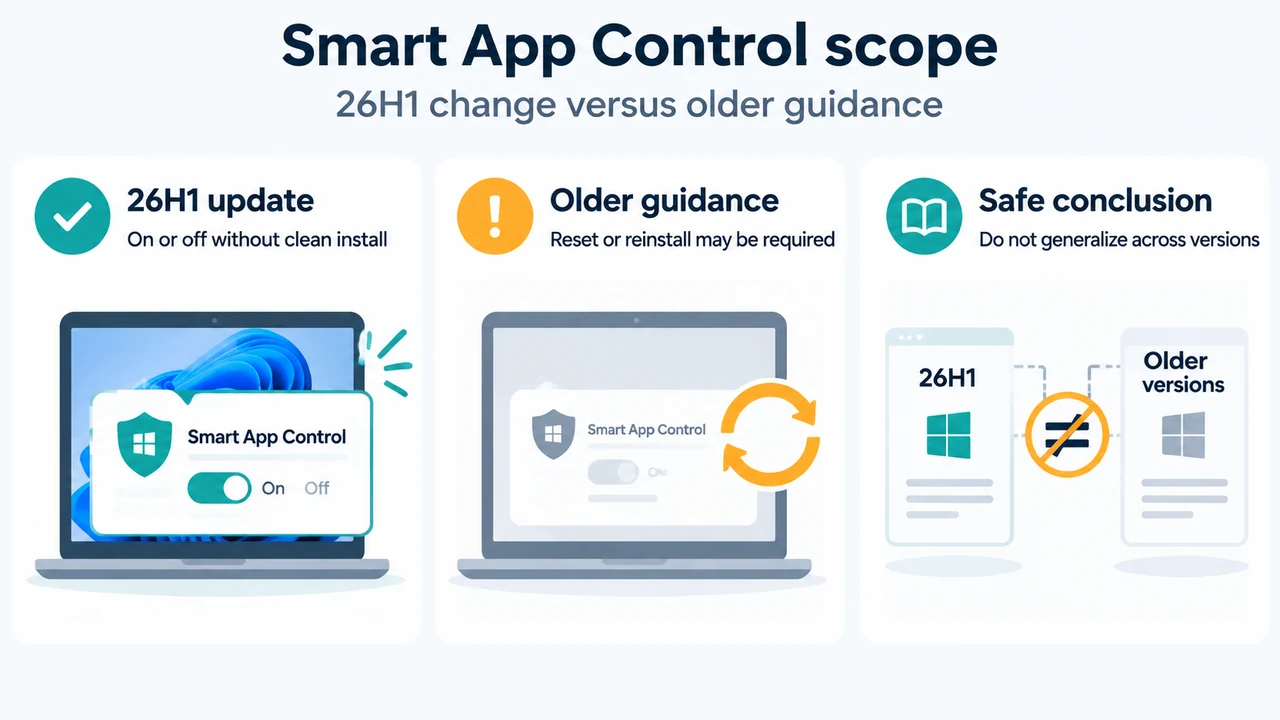
If Smart App Control shows Off, first check your Windows version and the wording of Microsoft’s documentation. For Windows 11 version 26H1, Microsoft’s April 30, 2026 KB5083806 Preview update says you can turn Smart App Control on or off without needing a clean install. The documented path is Settings > Windows Security > App & Browser Control > Smart App Control settings.
This does not replace the older general requirements shown in Microsoft’s Smart App Control documentation. That overview says the feature was designed to be enabled on a clean Windows installation, and Microsoft’s Windows Security support page still says that a device receiving the feature through a Windows update cannot turn it on unless Windows is reset or reinstalled. The 26H1 update is therefore a specific, version-scoped change—not a universal rule for every Windows 11 installation.
What the Off status means
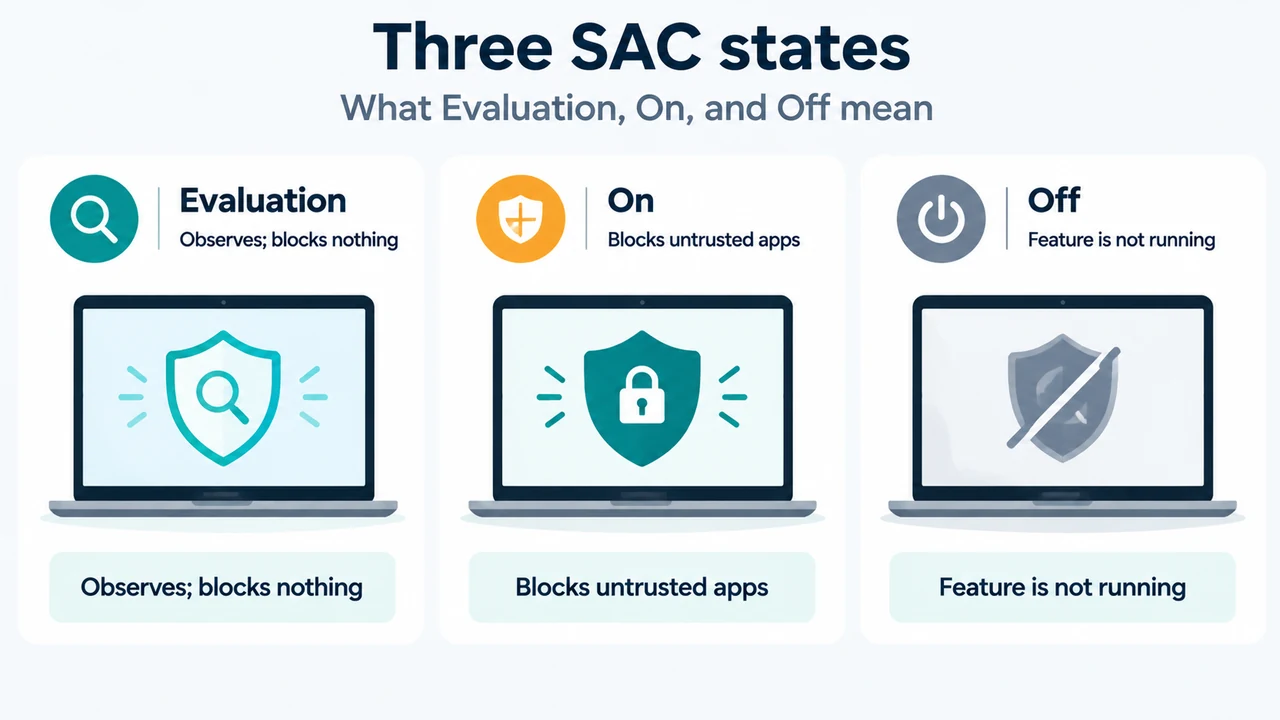
Microsoft’s overview identifies three Smart App Control states:
- Evaluation: Smart App Control runs in the background while Windows evaluates whether the device is a good fit.
- On: Smart App Control is in enforcement mode. Microsoft says apps and binaries must be recognized as likely safe by its app intelligence services or signed with a certificate issued by a certificate authority in the Trusted Root Program.
- Off: Smart App Control is not running on the device.
The Windows Security support page adds that Evaluation mode does not block anything while the evaluation is running. It also says that after evaluation is complete, or after Smart App Control is manually switched on or off, the device cannot return to Evaluation mode unless Windows is reinstalled or reset.
What changed in Windows 11 version 26H1
Microsoft’s KB5083806 Preview update applies to Windows 11 version 26H1, all editions. In its Smart App Control entry, Microsoft says the update allows users to turn the feature on or off without a clean install and directs users to the Smart App Control settings page.
The same update says this feature change was previously disclosed in January 2026 and is beginning to roll out. The supplied update passage does not establish that the change applies to earlier Windows 11 versions, every servicing state, or every device immediately.
Use the documented settings path
On a Windows 11 26H1 device covered by the update, open Settings > Windows Security > App & Browser Control > Smart App Control settings. The available state shown there tells you whether Smart App Control is Off, in Evaluation, or On. Microsoft’s general overview uses the same Windows Security area to identify the current mode.
If your device is not confirmed to be Windows 11 version 26H1, do not assume that the 26H1 change applies. Microsoft’s general support documentation retains the clean-install or reset limitation for devices that received Smart App Control through an update.
What Smart App Control does when it is On
Microsoft describes Smart App Control as a feature that helps block untrusted or potentially harmful apps. Its developer overview says that malware, potentially unwanted apps, and unknown unsigned code are blocked by default. It also says that an app may run when Microsoft’s app intelligence service considers it likely safe or when it has a certificate issued by a certificate authority in the Trusted Root Program.
Microsoft’s Windows Security page describes Smart App Control as working alongside Microsoft Defender or non-Microsoft antivirus tools. The supplied sources do not establish that it will allow every legitimate application, nor do they provide a complete compatibility list for particular programs.
Why the documentation needs careful reading
The supplied Microsoft pages describe different scopes. The KB5083806 Preview entry documents a new on-or-off setting for Windows 11 version 26H1. The general Smart App Control overview and Windows Security support page describe the earlier clean-install model. The safest conclusion from these excerpts is limited: the no-clean-install change is documented for the named 26H1 update, while the older limitation remains documented elsewhere for broader Windows scenarios.
The excerpts do not establish a universal way to re-enable Smart App Control on every Windows 11 version, a guaranteed rollout date for every device, or a way to return to Evaluation mode after changing the setting. They also do not establish how a particular third-party app will behave.
Research method and limitations
This article was prepared from the supplied public Microsoft source excerpts retrieved on September 19, 2026. The KB5083806 passage was truncated, so this article uses only the visible statements from that excerpt. Microsoft’s Smart App Control overview was available in the supplied excerpt but displayed an access-authorization notice on the page. No hands-on test, lab test, benchmark, or comprehensive review was performed. The competing pages were inspected only for coverage comparison and were not used as technical authority.
Text version of the diagrams
- Smart App Control scope: 26H1 update — On or off without clean install; Older guidance — Reset or reinstall may be required; Safe conclusion — Do not generalize across versions
- Three SAC states: Evaluation — Observes; blocks nothing; On — Blocks untrusted apps; Off — Feature is not running