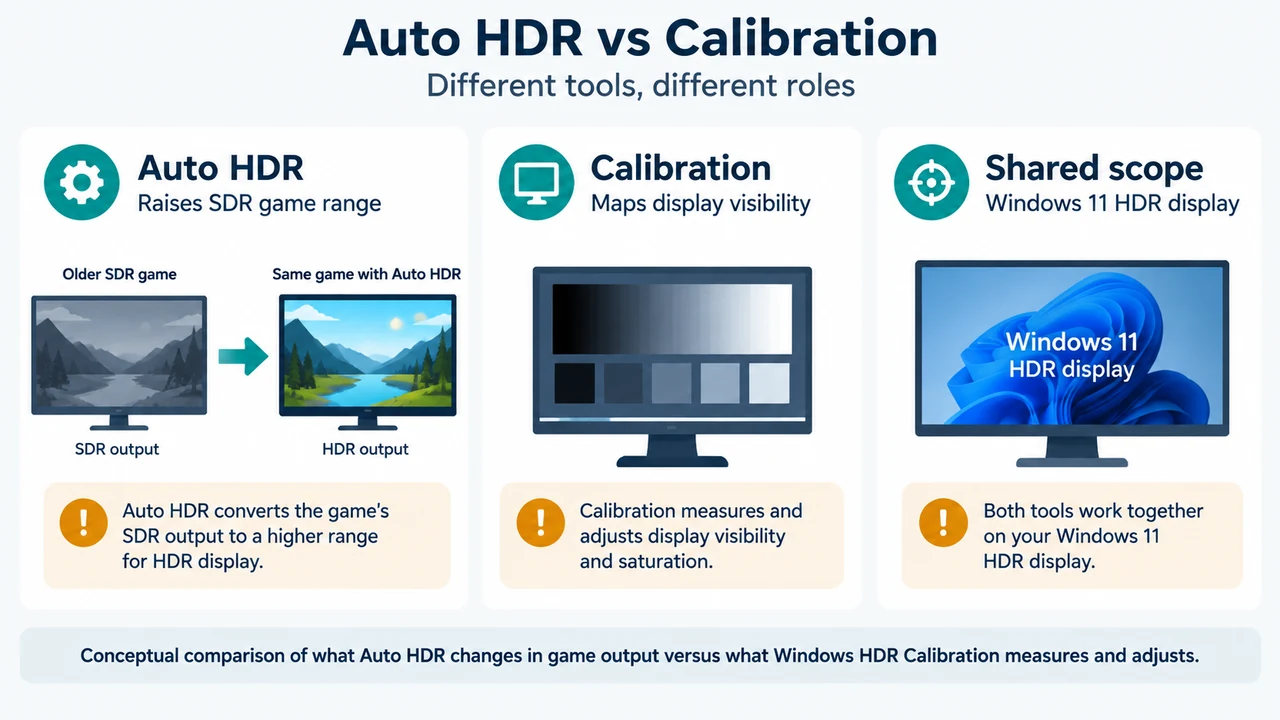
For an older SDR game on Windows 11, Auto HDR can automatically increase the color range and brightness to HDR when HDR is turned on for an HDR-capable display. Microsoft specifically describes this feature for some older games that use DirectX 11 or DirectX 12.
Check Auto HDR
Open Settings > System > Display. If you have multiple displays, select the HDR-capable display. Turn on HDR, expand the HDR section, and check Auto HDR.
Auto HDR is a Windows feature for the documented older SDR-game use case. The supplied evidence does not establish that every game supports the same result or that Auto HDR will correct a washed-out image.
Check HDR capability
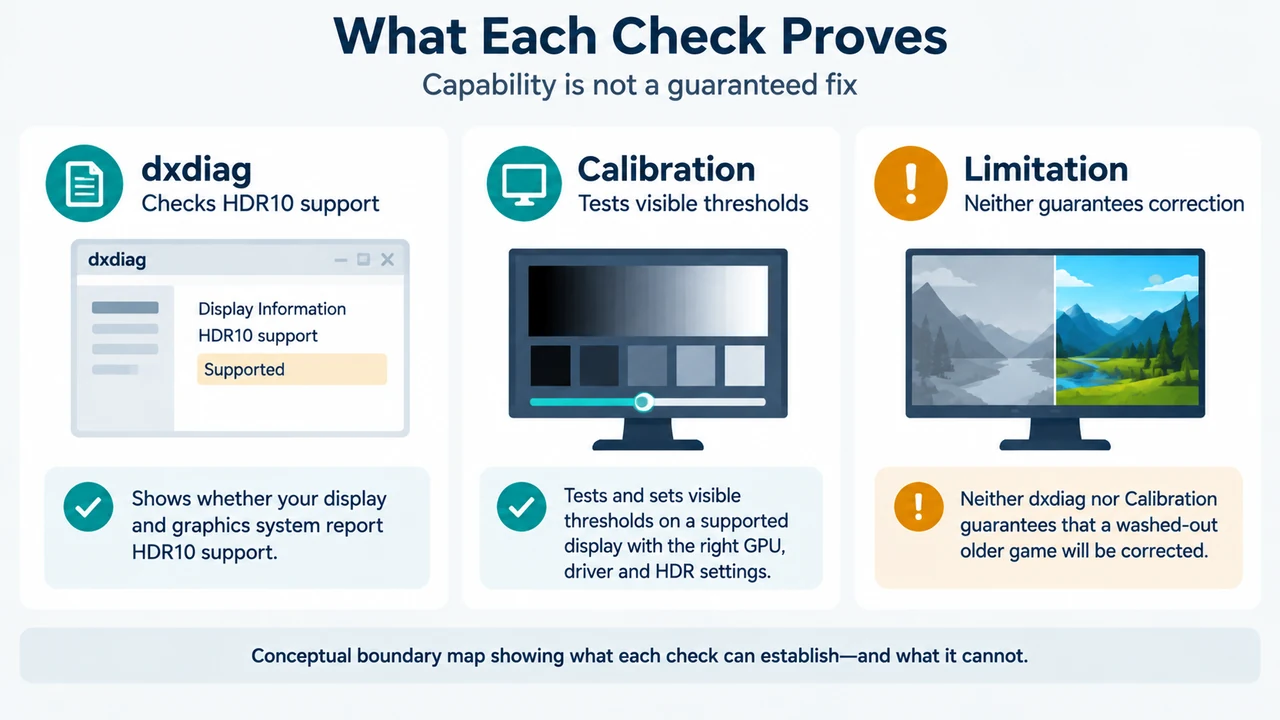
Microsoft says HDR games and apps require suitable PC hardware and an HDR-capable display. To check whether the installed display driver and display support HDR10, press Windows logo key + R, enter dxdiag, and select OK. Select Yes if prompted. In DirectX Diagnostic Tool, open the System tab and look in the System Information area. Save the information if needed, then open the saved text file and look for AdvancedColorSupported. Microsoft says this value indicates HDR10 support from the installed display driver and display.
This check describes HDR10 capability. It does not diagnose every game-rendering or display-mode problem.
Consider Windows HDR Calibration
The Windows HDR Calibration app is for Windows 11 with an HDR-capable display and HDR turned on. Microsoft says the app uses three test patterns to determine the darkest visible details, the brightest visible details, and the display’s maximum brightness. It also lets you adjust color saturation for HDR and SDR content.
The app must run full screen. Microsoft lists graphics requirements, including AMD RX 400 Series or later, Intel 11th Gen integrated graphics or later, Intel DG1 or later discrete graphics, or NVIDIA GTX 10xx or later, plus a WDDM 2.7-or-later display driver. The exact requirement depends on the graphics hardware. The app is available from the Microsoft Store.
During calibration, move the slider until each test pattern is no longer visible. Microsoft warns that increasing saturation too much can make HDR content look unnatural and oversaturated. The app may not work as expected when post-processing effects are enabled on the display.
If the app creates a color profile and you later need to remove it, open Color Management in Control Panel, select All Profiles, choose the profile, and select Remove. Microsoft also says to run the app again after changing the display setup, such as adding or replacing a display.
Supported order for this symptom
- Check whether the game is an older SDR DirectX 11 or DirectX 12 game.
- Check the Windows HDR and Auto HDR settings for the selected HDR-capable display.
- Use
dxdiagto check the documented HDR10 capability value if HDR support is unclear. - If the documented requirements are met, consider Windows HDR Calibration and keep saturation changes moderate.
This order reflects the documented roles of Auto HDR, HDR capability checking, and HDR Calibration. The supplied evidence does not establish a guaranteed fix for washed-out images.
Research method and limitations
This answer was prepared from the supplied public Microsoft source excerpts retrieved on 2026-09-20. The HDR settings excerpt is truncated, so claims about unseen SDR-brightness controls, display-type behavior, and other values were not used. The supplied evidence also does not provide competing technical coverage that can establish a different result. No hands-on testing, lab measurement, benchmark, or comprehensive review was performed.
Text version of the diagrams
- Auto HDR vs Calibration: Auto HDR — Raises SDR game range; Calibration — Maps display visibility; Shared scope — Windows 11 HDR display
- What Each Check Proves: dxdiag — Checks HDR10 support; Calibration — Tests visible thresholds; Limitation — Neither guarantees correction