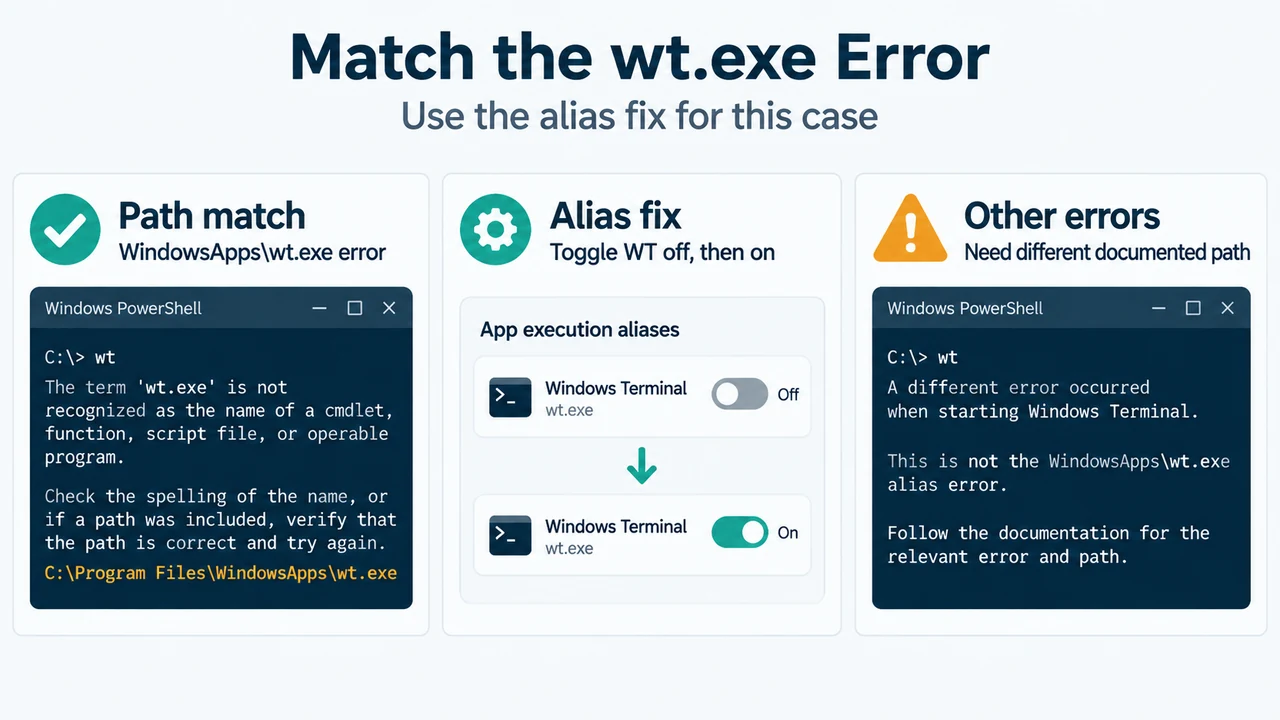
If Windows Terminal stops opening after an update and Windows reports that it cannot find a path ending in WindowsApps\wt.exe, the documented first fix is to toggle the Windows Terminal App Execution Alias off and then on again. Microsoft’s Terminal FAQ describes this as an intermittent problem that can occur when Terminal is updated.
This article covers that specific wt.exe alias error. It does not claim to fix every Windows Terminal launch problem.
Use the documented alias fix first
- Open Windows Settings and go to the App Execution Alias settings.
- Find the alias for Windows Terminal, shown in the supplied guidance as the WT or Terminal alias.
- Turn the alias off.
- Turn it on again.
Try launching Windows Terminal again after the toggle. The Microsoft FAQ says this resolves the problem “most of the time” when the execution alias has stopped working correctly after an update. That is a documented likelihood, not a guarantee.
Check that the error matches this case
This fix is intended for the message that says Windows cannot find a path similar to C:\Users\username\AppData\Local\Microsoft\WindowsApps\wt.exe. If your message is different, the supplied Microsoft excerpt does not establish that the same alias fix applies.
Installation source affects what happens next
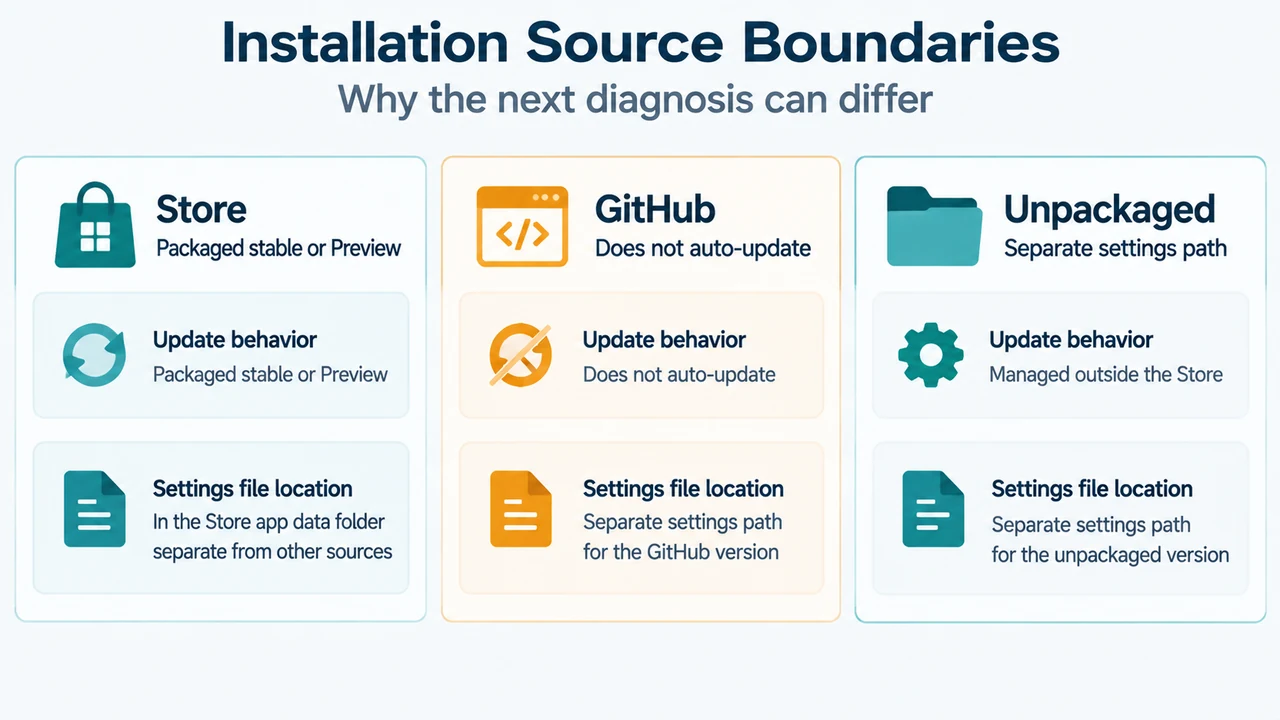
Microsoft documents several Windows Terminal installation routes. The Store is one route. Microsoft also provides builds through the GitHub releases page for people without Store access, and identifies package-manager options in the product repository.
Microsoft’s installation documentation says a GitHub installation does not automatically update with new versions. It also documents separate settings-file locations for stable, Preview and unpackaged installations:
- Stable:
%LOCALAPPDATA%\Packages\Microsoft.WindowsTerminal_8wekyb3d8bbwe\LocalState\settings.json - Preview:
%LOCALAPPDATA%\Packages\Microsoft.WindowsTerminalPreview_8wekyb3d8bbwe\LocalState\settings.json - Unpackaged installations such as Scoop or Chocolatey:
%LOCALAPPDATA%\Microsoft\Windows Terminal\settings.json
These paths identify configuration locations. They do not prove that changing a settings file will repair the wt.exe alias, so this guide does not recommend editing one for this error.
Windows version scope
Microsoft’s installation documentation states that the default-terminal feature is available on all Windows 11 versions and on Windows 10 22H2 after the May 23, 2023 update, KB5026435. That statement concerns the default-terminal feature; it is not a guarantee that every Windows Terminal feature or installation behaves identically on those systems.
If the alias toggle does not solve it
The supplied primary excerpts do not provide a complete, current repair-or-reset procedure for this exact wt.exe alias failure. Do not treat generic system-file scans, reinstallation advice or undocumented settings edits as confirmed fixes for this specific error.
For further diagnosis, confirm whether Terminal is the stable, Preview or unpackaged build and which installation source was used. The Microsoft documentation links to Terminal troubleshooting and to the product repository for issue reports. A different error message may require a different documented path.
Research method and limitations
This research-based guide was prepared only from the supplied public excerpts retrieved on 2026-09-23. The Terminal FAQ and Microsoft Learn installation and troubleshooting passages were used as primary evidence. The FAQ and troubleshooting excerpts were truncated, and the supplied competing page was not used as technical authority. No hands-on test, lab measurement, benchmark or comprehensive review was performed.
Text version of the diagrams
- Match the wt.exe Error: Path match — WindowsApps\wt.exe error; Alias fix — Toggle WT off, then on; Other errors — Need different documented path
- Installation Source Boundaries: Store — Packaged stable or Preview; GitHub — Does not auto-update; Unpackaged — Separate settings path
Sources
- Microsoft Terminal FAQ — documents the intermittent
wt.exealias failure and the off/on toggle. - Microsoft Learn: Install Windows Terminal — documents supported Windows scope, installation routes and settings-file locations; page last updated 2025-11-12 in the supplied excerpt.
- Microsoft Learn: Windows Terminal troubleshooting — supplied as the official troubleshooting reference, but the excerpt does not contain a complete repair/reset procedure for this error.