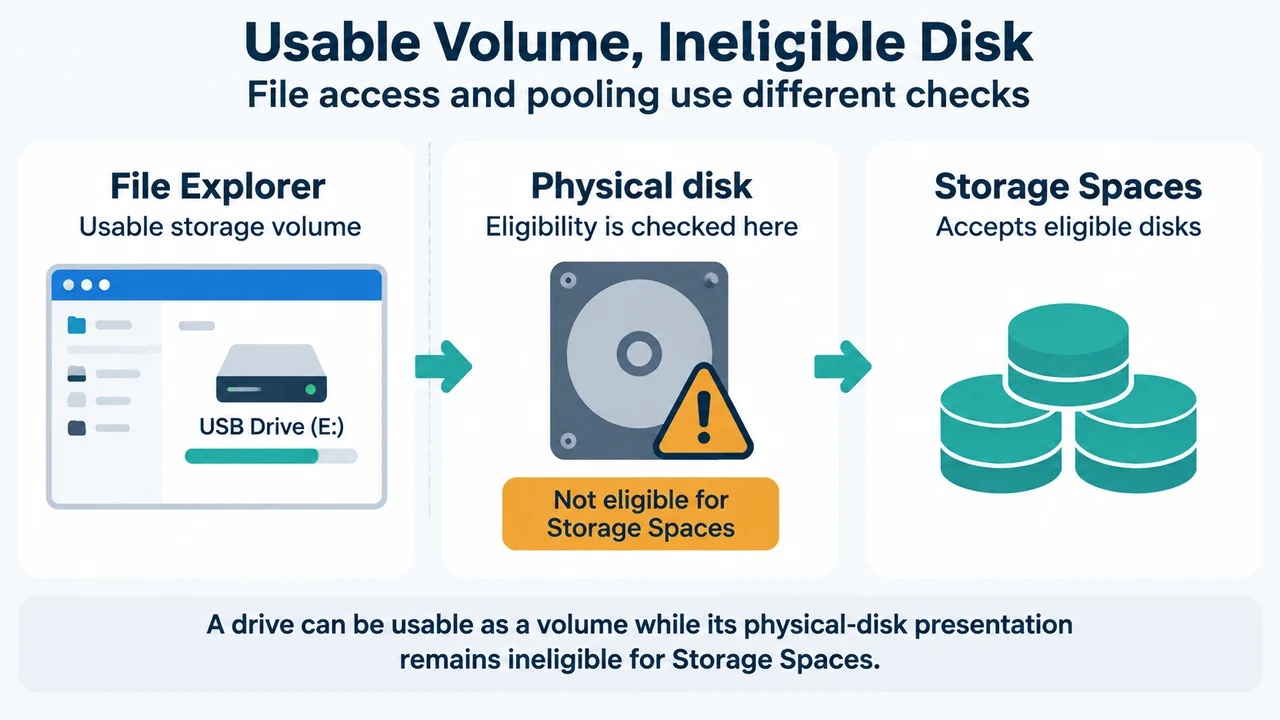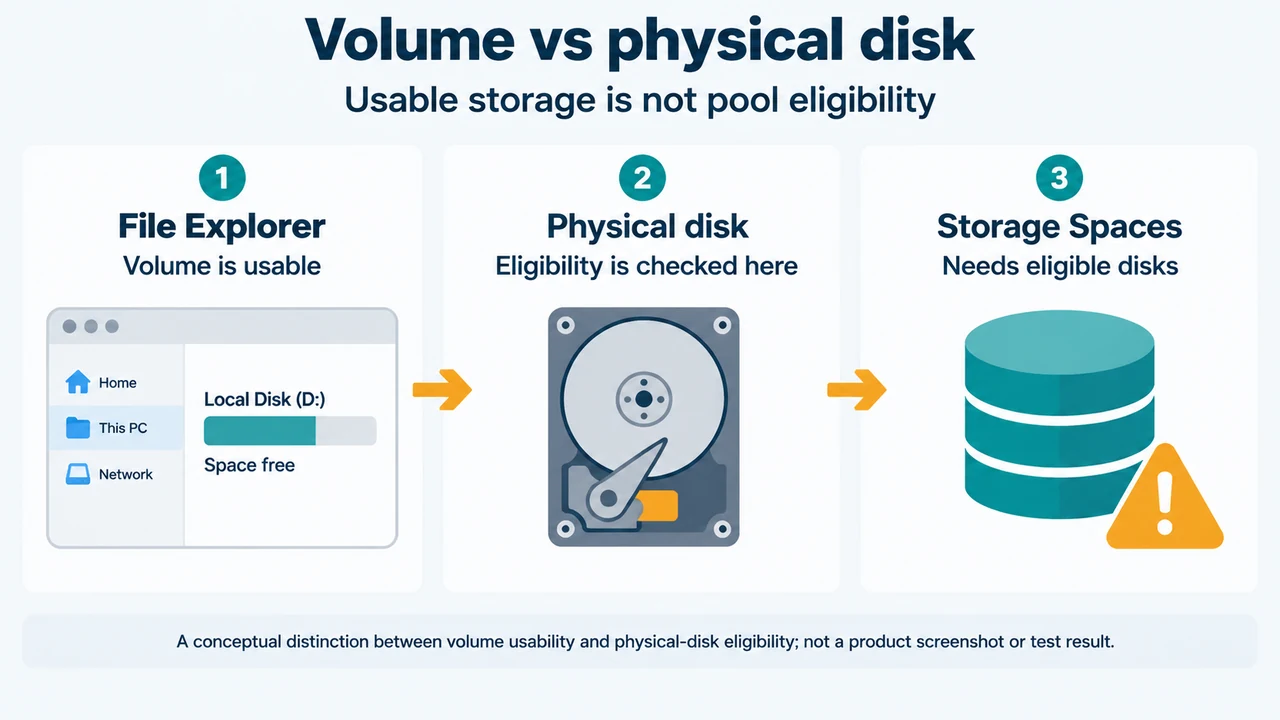
A USB drive can work in File Explorer and still be unavailable to Storage Spaces in Windows 10 or Windows 11. File Explorer shows usable storage. Storage Spaces requires an eligible physical disk.
The supplied Microsoft overview says USB enclosures and hubs can cause Windows to treat drives as removable or hide multiple disks behind one device identity. That can explain why a drive is visible in File Explorer but absent from Storage Spaces. These checks do not require formatting, deleting partitions, clearing a disk, or resetting a drive.
What the Windows 10/11 overview establishes
Microsoft says a new storage space needs at least two extra drives beyond the drive containing Windows. The drives can be internal or external hard drives or solid-state drives, including USB, SATA, and SAS drives.
A USB connection alone does not prove eligibility. Two volumes on one physical disk also do not count as two drives. Check the physical disk, not only its volume.
How USB presentation can affect eligibility
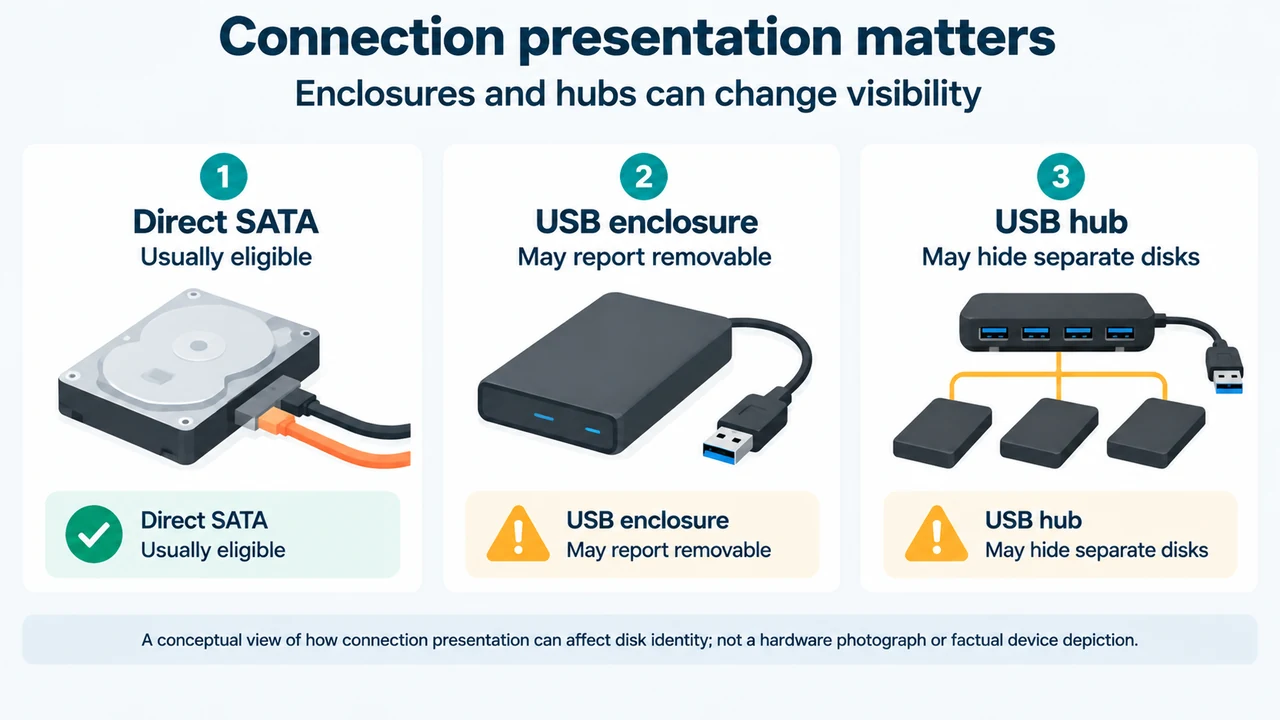
The supplied Windows 10/11 overview identifies these connection-related causes:
- An enclosure may report the disk as removable.
- A RAID-capable or smart enclosure may hide individual disks.
- A USB hub may collapse multiple disks into one device path.
The same overview says Storage Spaces excludes disks that Windows does not recognize as eligible physical disks. It also says USB eligibility depends on enclosure firmware. Directly connected SATA drives are usually eligible, but the supplied evidence does not guarantee eligibility for every disk or adapter.
If the limitation comes from the hardware presentation, the overview says reinstalling Windows, updating drivers, or changing power settings does not change disk eligibility.
Safe checks for Windows 10/11
1. Inspect the physical disk
In Device Manager or Disk Management, select the physical disk rather than its volume. Record whether Windows reports it as Fixed or Removable. The supplied overview supports this as an eligibility check, but it does not establish that Fixed status alone proves eligibility.
2. Record the connection presentation
Note whether the disk uses direct SATA or SAS, an individual USB enclosure, a multi-drive USB hub, or a RAID or smart enclosure. The supplied overview says a hub or enclosure may hide individual disks or present several disks through one identity.
3. Separate desktop evidence from Server evidence
The supplied Windows Server storage-states excerpt says removable media is not suitable for Storage Spaces. It also says that a physical disk’s CannotPoolReason property can show why the disk is not eligible for pooling. Its documented example is:
Get-PhysicalDisk | Format-Table FriendlyName,MediaType,Size,CanPool,CannotPoolReasonThis command and the removable-media state are documented in the supplied Windows Server material. The supplied evidence does not establish that the Server state documentation applies equivalently to Windows 10 or Windows 11 desktop editions. Do not treat the command as a proven desktop-specific remedy.
How to interpret the result
| Observation | What it establishes | Bounded conclusion |
|---|---|---|
| The volume works in File Explorer | The volume is usable | Physical-disk eligibility remains unproven |
| The physical disk is Removable | Windows reports a removable presentation | The Windows Server excerpt documents removable media as unsuitable for Storage Spaces; desktop equivalence is not established by the supplied evidence |
| Several disks appear behind one enclosure or hub identity | Individual disk identity may be hidden | Storage Spaces may not see eligible disks separately |
| The physical disk is Fixed | It passes that identity check | Fixed status alone does not establish eligibility |
CannotPoolReason reports an ineligibility reason |
The supplied Windows Server documentation provides a documented reason check | Use the reported reason only within the scope established by that Server documentation |
Changes to avoid during diagnosis
Do not format, initialize, delete a partition, clear a disk, or reset a physical disk merely to test eligibility. The supplied Windows Server excerpt describes clear and reset actions that can erase data. They are not supported as safe diagnostic steps for this symptom.
Limits of the supplied evidence
The Microsoft overview supports the Windows 10/11 scope, physical-disk requirement, USB support, enclosure and hub limitations, Fixed or Removable checks, enclosure-firmware dependence, and limits of software fixes. The Windows Server excerpt supports the removable-media state and the CannotPoolReason example, but the supplied evidence does not establish equivalent behavior or command applicability for Windows 10 or Windows 11 desktop editions.
This answer was prepared from the supplied public source excerpts retrieved on September 20, 2026. The Windows Server passage is access-limited and truncated, so this answer uses only its visible statements. Competing coverage was available only as a limited excerpt and was used for comparison, not as technical authority; broader competing coverage was not reviewed.
Text version of the diagrams
- Volume vs physical disk: File Explorer — Volume is usable; Physical disk — Eligibility is checked here; Storage Spaces — Needs eligible disks
- Connection presentation matters: Direct SATA — Usually eligible; USB enclosure — May report removable; USB hub — May hide separate disks