How chkdsk Diagnoses and Repairs Windows Disks
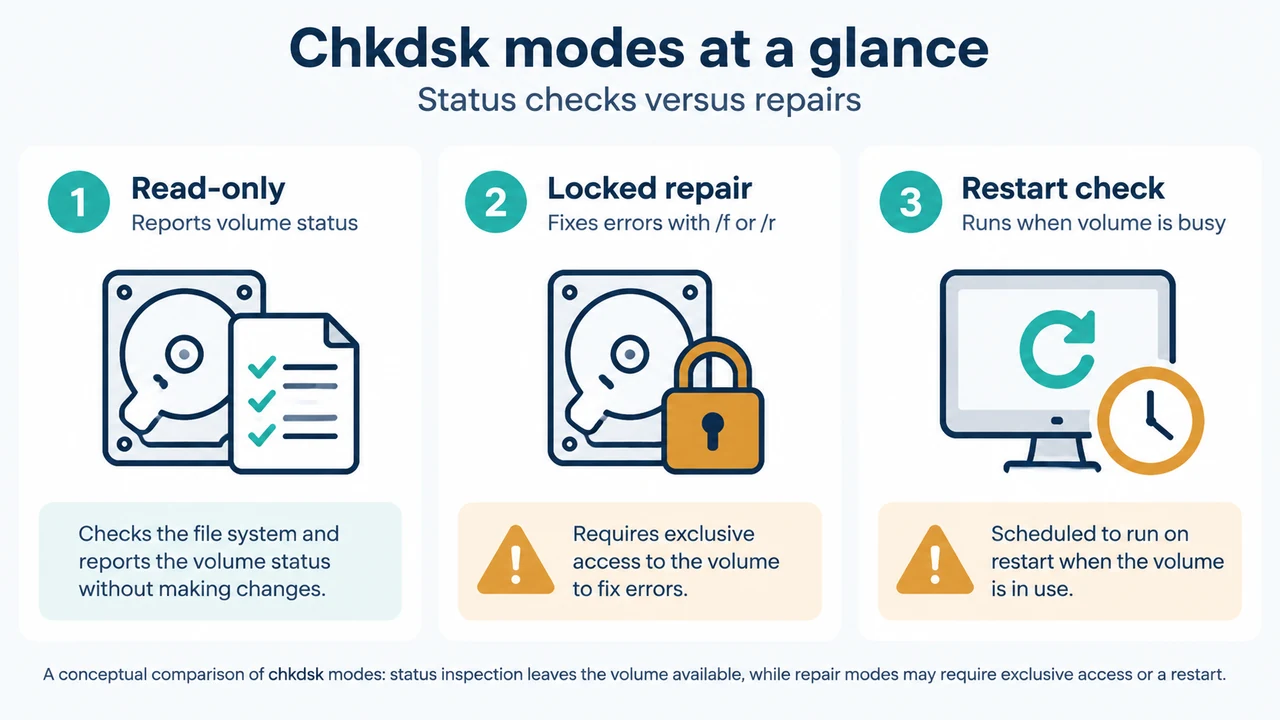
The chkdsk utility inspects file system integrity and metadata on local storage volumes. Depending on the parameters supplied, it can run in a non-destructive read-only state or initiate active repairs that require exclusive volume access. As documented in Microsoft’s chkdsk documentation, running chkdsk without fix parameters reports volume status without altering disk structures.
To run chkdsk, you must have membership in the local Administrators group or equivalent. Open an elevated Command Prompt by right-clicking Command Prompt in the Start menu and selecting Run as administrator. Note that chkdsk operates strictly on local drives; it cannot be executed against a local drive letter redirected over a network.
Checking Volume Dirty Status Before Scanning
Before initiating repair scans, administrators can check whether the operating system has flagged a volume as corrupt. A volume marked corrupt has its dirty bit set, indicating corruption.
fsutil dirty query <volume>: Queries whether the specified volume’s dirty bit is currently set.fsutil dirty set <volume>: Manually sets the volume’s dirty bit so that Windows runschkdskwhen the computer is restarted.chkntfs /c <volume>: Schedules the volume to be checked during the next computer restart.
Scan Modes and Key Parameters
Understanding parameter scope prevents unexpected downtime caused by drive locking or lengthy sector verification:
| Parameter | File System Scope | Documented Behavior and Requirements |
|---|---|---|
chkdsk <volume> |
All local | Read-only mode. Displays volume status and does not fix errors. |
/f |
All local | Fixes errors on the disk. Requires the disk to be locked. If open files exist, prompts to schedule at the next restart. |
/r |
All local | Locates bad sectors and recovers readable information. Requires drive lock. |
/scan |
NTFS only | Runs an online scan on the volume without taking it offline. |
/spotfix |
NTFS only | Runs spot fixing on the volume. |
/perf |
NTFS only | Must be used with /scan. Uses more system resources to complete a scan as fast as possible, which might negatively impact other running tasks. |
/sdcleanup |
NTFS only | Garbage collects unneeded security descriptor data (implies /f). |
/forceofflinefix |
NTFS only | Bypasses all online repair; queues all detected defects for offline repair (such as chkdsk /spotfix). |
/offlinescanandfix |
NTFS only | Runs an offline scan and fix on the volume. |
/freeorphanedchains |
FAT/FAT32/exFAT | Frees any orphaned cluster chains instead of recovering their contents. |
/markclean |
FAT/FAT32/exFAT | Marks the volume clean if no corruption was detected, even if /f was not specified. |
Volume Locking and Boot-Time Scheduling
For chkdsk to correct logical disk errors using /f or physical sector recovery using /r, it must lock the drive. You cannot have open files on the drive during active repair. If open files exist, chkdsk displays the following message:
Chkdsk cannot run because the volume is in use by another process.
Would you like to schedule this volume to be checked the next time the system restarts? (Y/N)
When confirmed with Y, Windows checks the drive and corrects errors automatically when the computer restarts. If the targeted partition is a boot partition, chkdsk automatically restarts the computer after checking the drive.
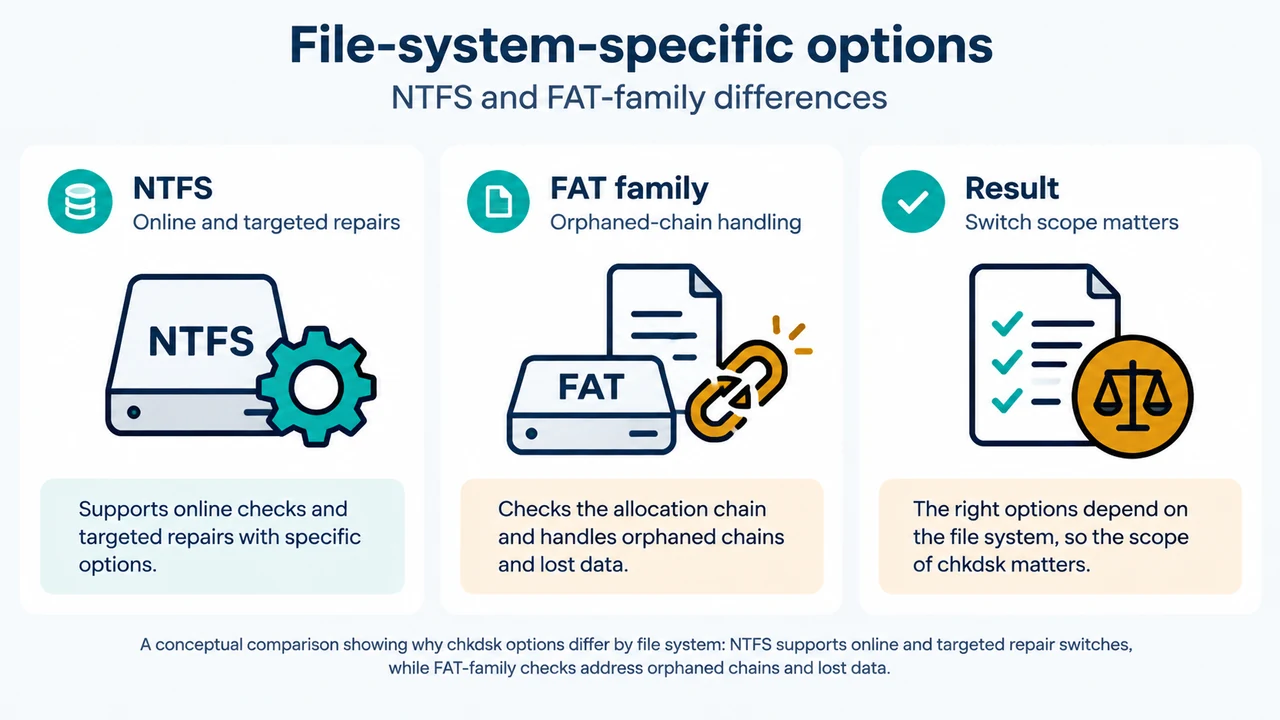
On FAT file systems, repairing allocation tables can alter data structures. When lost chains are identified, chkdsk might prompt whether to convert lost chains to files. Selecting Y saves each lost chain in the root directory as a file named in the format File<nnnn>.chk; selecting N fixes the disk without saving the contents of the lost allocation units.
Performance Across SSD and HDD Media
The time required for chkdsk varies significantly by storage media and requested flags:
- Hard Disk Drives (HDD): HDDs use spinning magnetic platters where physical heads move across data locations, making mechanical movement slower. A surface check using
/ror/bon large-capacity drives reads every sector, which can result in high-hour runtimes even on a mostly empty drive. If an HDD scan completes too quickly, it might indicate that the volume was dirty or locked, the operation performed only an online scan of the file system structure rather than an offline scan, every sector was not scanned, or a failing read head caused unpredictable behavior. Viewingchkdsklogs might point to a potential issue during scans. - Solid State Drives (SSD): SSDs scan faster because sector reads are faster due to physical NAND flash makeup and the absence of mechanical seek time. While running
chkdskon an SSD is not dangerous, repeated full-surface scans (especially with/r) could unnecessarily increase write and erase cycles, slightly reducing SSD lifespan. Occasional checks pose no significant concern. If an SSD scan completes too quickly, possible reasons include not scanning every sector, having more free space, using an NVMe drive that is not heavily fragmented, or internal SSD scan optimizations. Viewingchkdsklogs might point to a potential issue during scans.
Understanding chkdsk Exit Codes
Automated scripts or command prompts can evaluate results using documented process exit codes:
0: No errors were found.1: Errors were found and fixed.2: Performed disk cleanup (such as garbage collection) or did not perform cleanup because/fwas not specified.3: Could not check the disk, errors could not be fixed, or errors were not fixed because/fwas not specified.
Text version of the diagrams
- Chkdsk modes at a glance: Read-only — Reports volume status; Locked repair — Fixes errors with /f or /r; Restart check — Runs when volume is busy
- File-system-specific options: NTFS — Online and targeted repairs; FAT family — Orphaned-chain handling; Result — Switch scope matters
Research Method and Limitations
This guide was prepared strictly from the supplied public Microsoft technical documentation excerpts covering the chkdsk command. Material limits include truncated source passages and the unavailability of competing coverage at retrieval time. Information is limited strictly to supported switches, exit codes, and operational behaviors explicitly verified in the visible primary evidence.