DiskPart includes commands to inspect, set, and clear configuration flags on storage drives and volumes in Windows 11, Windows 10, Windows Server (2016 through 2025), and Azure Local 2311.2 and later. When a disk or volume has the readonly attribute enabled, you can inspect and clear that specific flag using DiskPart’s disk and volume attribute commands.
Inspecting and Clearing Disk Read-Only Attributes
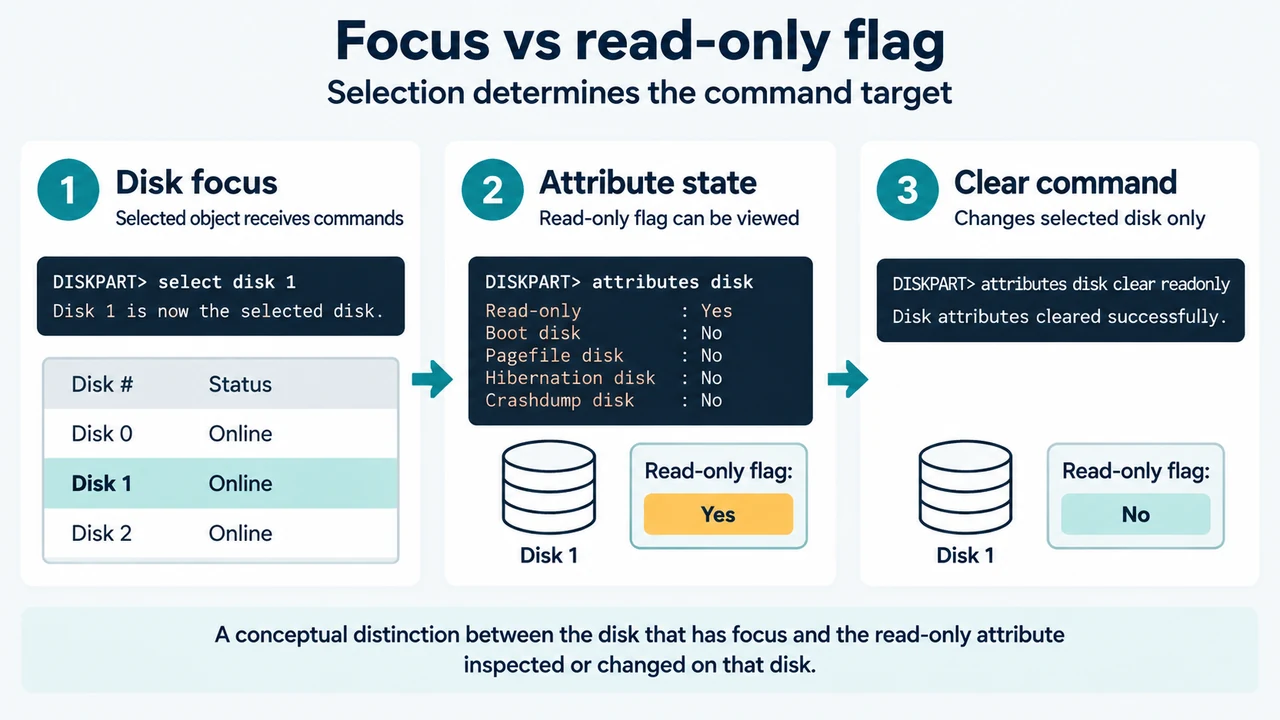
The attributes disk command displays, sets, or clears the attributes of a disk. When run without parameters, it displays the current attributes of the disk that currently has focus.
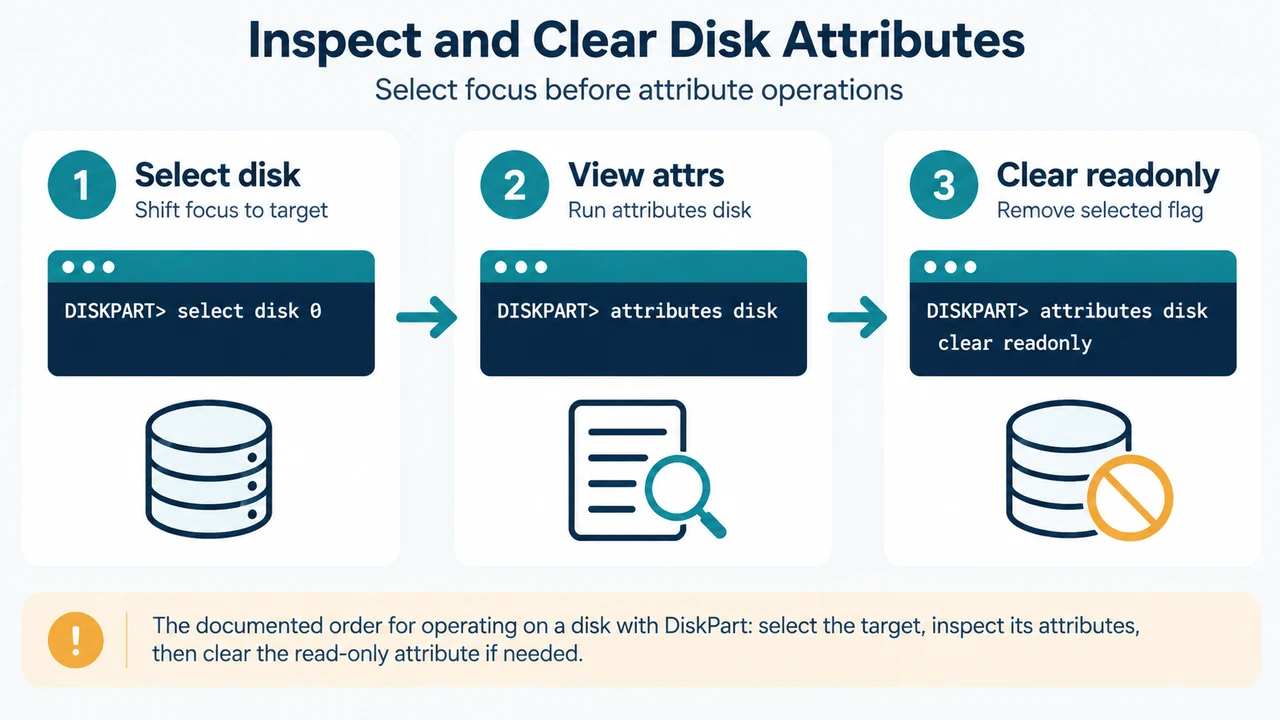
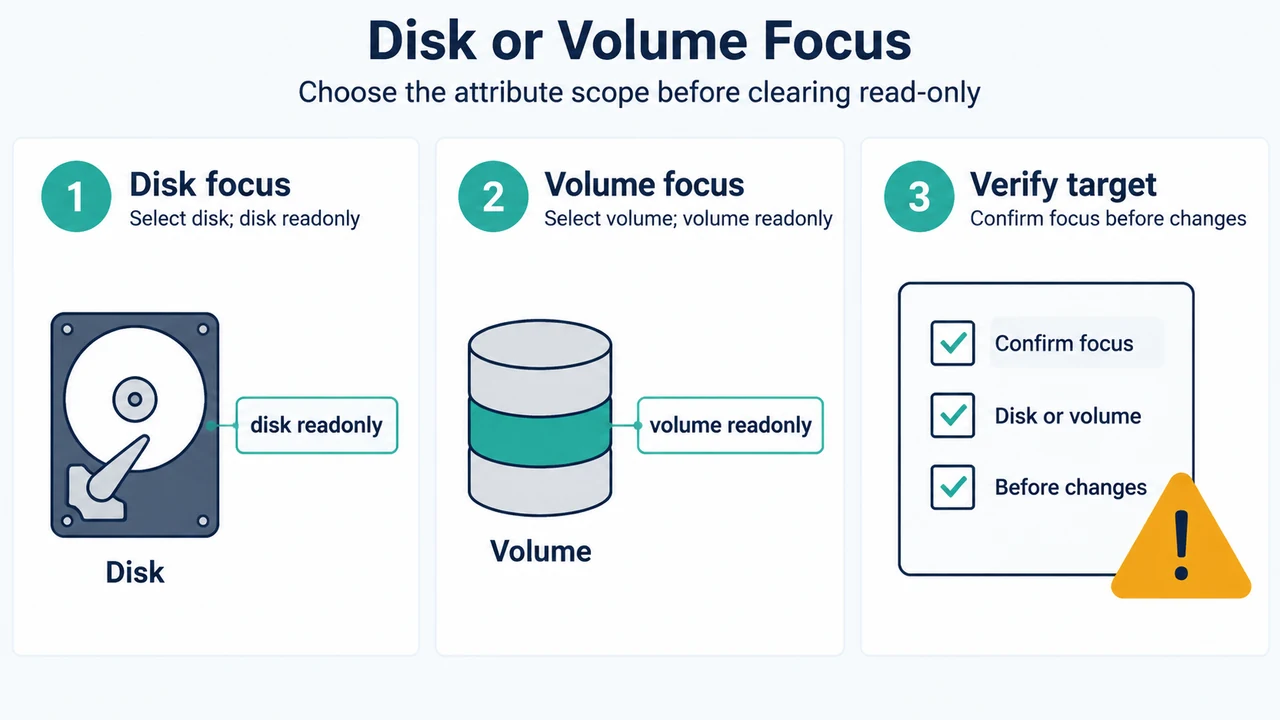
A disk must be selected before running the command. Use the select disk command to select a target disk and shift focus to it. Always verify that focus is on the intended disk before modifying attributes.
- Shift focus to the target disk:
select disk 1 - View the current attributes of the selected disk:
attributes disk - Clear the read-only attribute on the selected disk:
attributes disk clear readonly
DiskPart also supports the noerr parameter for scripting only. When an error is encountered, DiskPart continues processing commands as if the error did not occur; without this parameter, an error causes DiskPart to exit with an error code.
Inspecting and Clearing Volume Read-Only Attributes
The attributes volume command displays, sets, or clears volume-level attributes, including readonly, hidden, nodefaultdriveletter, and shadowcopy.
A volume must be selected before running attribute commands. Use the select volume command to select the target volume and shift focus to it. Verify that the correct volume has focus before making changes.
- Shift focus to the target volume:
select volume 2 - Display the current attributes on the selected volume:
attributes volume - Clear the read-only attribute on the selected volume:
attributes volume clear readonly
Partition Table Differences: MBR vs. GPT and Dynamic Disks
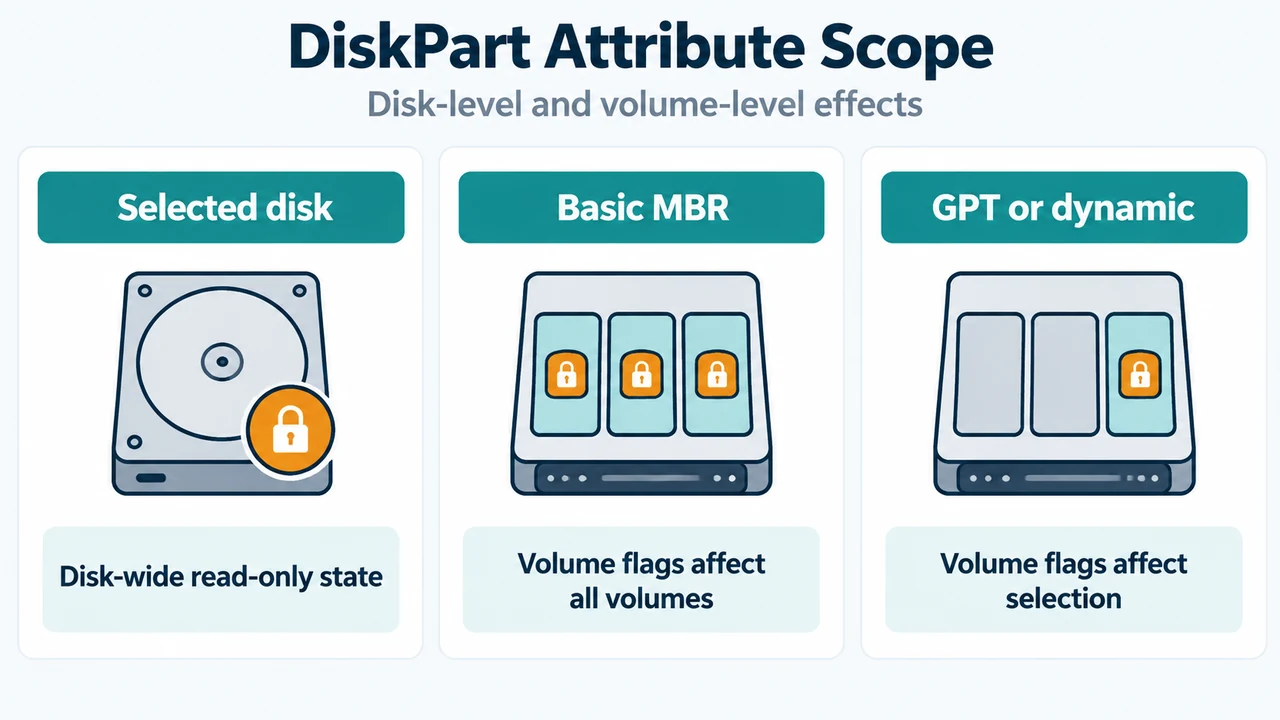
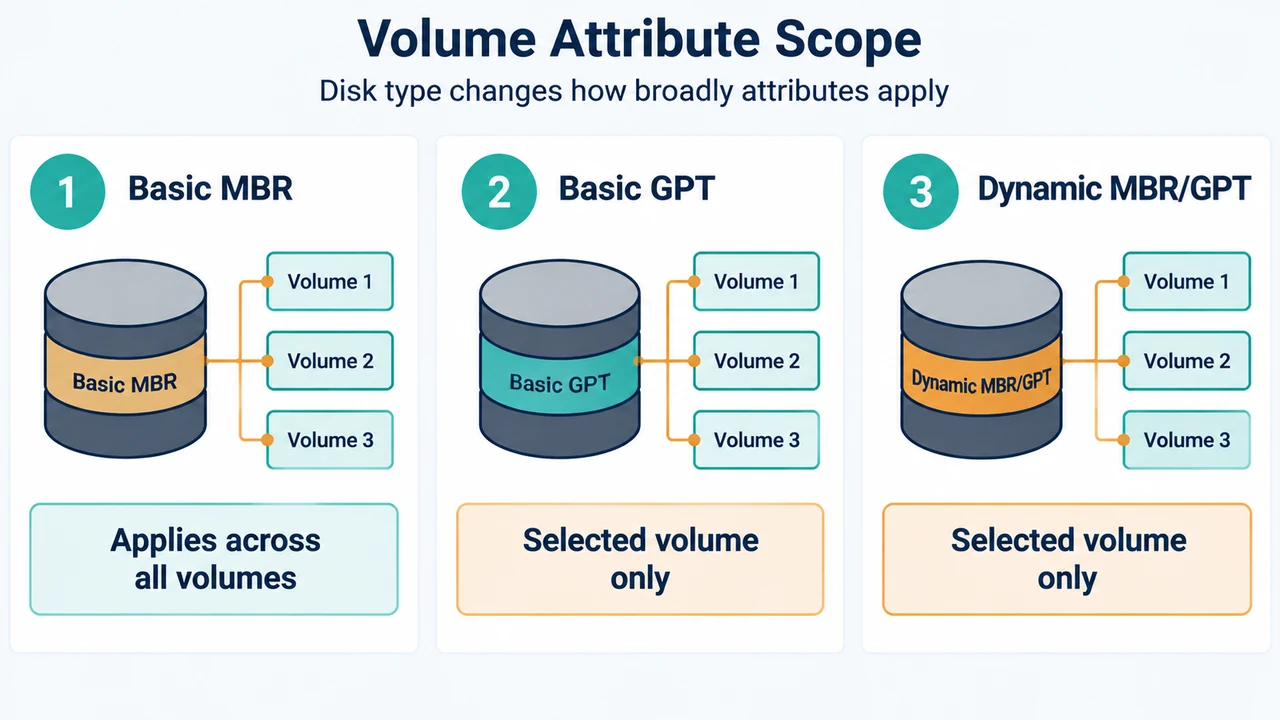
The scope of volume attribute changes depends on the disk type and partition style:
- Basic Master Boot Record (MBR) Disks: The
hidden,readonly, andnodefaultdriveletterparameters apply to all volumes on the disk. - Basic GUID Partition Table (GPT) Disks and Dynamic Disks: On basic GPT disks, as well as dynamic MBR and GPT disks, the
hidden,readonly, andnodefaultdriveletterparameters apply only to the selected volume.
Research Method and Limitations
This reference was prepared directly from the supplied Microsoft Learn command documentation excerpts for attributes disk and attributes volume. Material limitations include the absence of broader operating system documentation, such as elevated shell startup procedures, alternate administrative policies, hardware write-protect switches, or independent competing coverage. Neither excerpt provides troubleshooting steps for drive conditions outside documented DiskPart attribute parameters.
Text version of the diagrams
- Disk or Volume Focus: Disk focus — Select disk; disk readonly; Volume focus — Select volume; volume readonly; Verify target — Confirm focus before changes
- Volume Attribute Scope: Basic MBR — Applies across all volumes; Basic GPT — Selected volume only; Dynamic MBR/GPT — Selected volume only