If Windows cannot find a command, first check what your current shell can discover. You may be using an old terminal environment, searching the wrong folder, or encountering a command-name conflict. Changing system settings before identifying the cause can make the problem harder to diagnose.
Applies to: Windows 11 with PowerShell 7. The commands below inspect configuration; they do not install software or change PATH. The example command is ffmpeg. Replace that name with the command that fails on your computer.
1. Ask both Windows and PowerShell what they can find
where.exe ffmpeg
Get-Command ffmpeg -All -ListImported -ErrorAction SilentlyContinue
Microsoft documents where.exe as a file-location search. Its normal search includes the current directory and PATH. Without a supplied extension, it tries extensions from PATHEXT.
Get-Command examines PowerShell command discovery, including aliases, functions, cmdlets and applications. The -All option helps reveal multiple commands sharing a name. -ListImported limits module discovery to commands already available in the session, avoiding automatic module imports. If your missing command belongs to a PowerShell module rather than an application, consult that module’s setup instructions instead of assuming it is uninstalled.
| What you see | What to check next |
|---|---|
| One or more file paths | Check whether the location belongs to the program you intended to use. |
| A function or alias in Get-Command | The name may select a PowerShell command rather than the expected executable. |
| No matching file or command | Check the program’s installation location and the active PATH. |
A discovered file does not prove the application is working or fully installed. If launching it produces a different error, keep that error: command discovery and application startup are separate problems.
2. Avoid the PowerShell where alias
In PowerShell, where can refer to the Where-Object alias. Use where.exe when you want the Windows file-search utility. To inspect the names available in your session:
Get-Command where -AllMicrosoft’s command-precedence documentation explains why an alias, function or cmdlet can take precedence over an external executable. This is a shell distinction, not proof that PATH is damaged.
3. Compare the active PATH with saved values
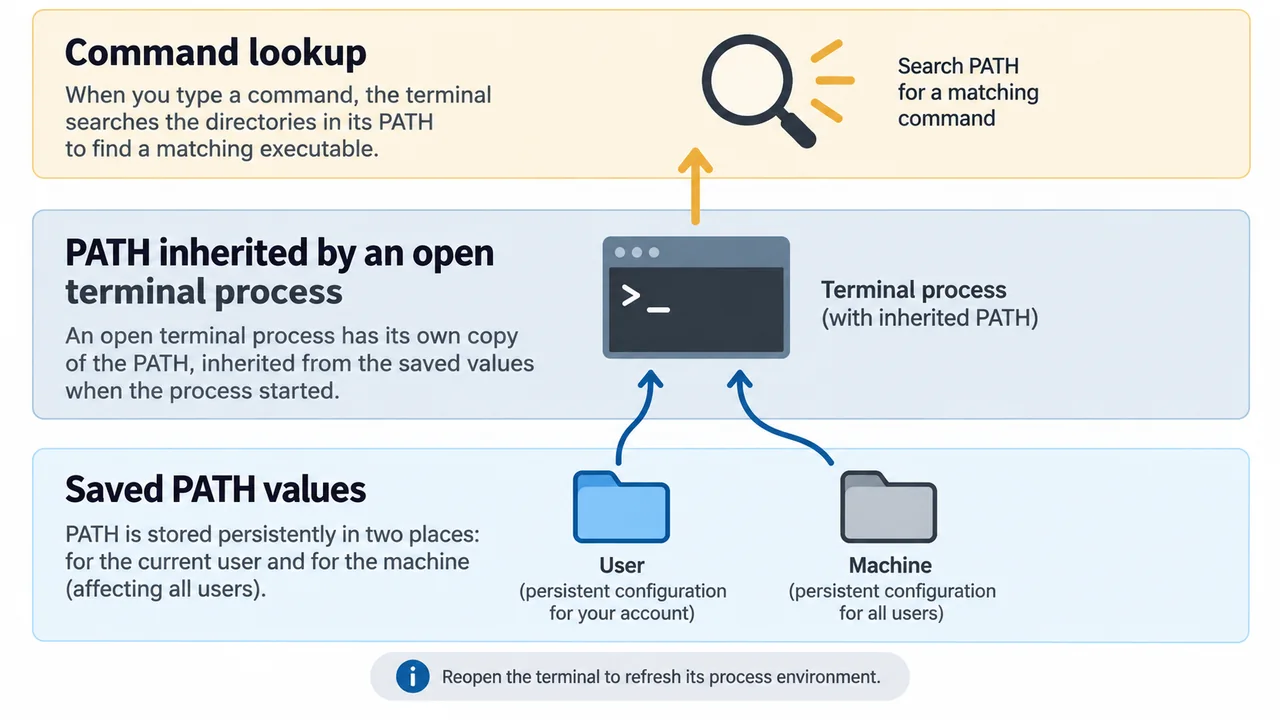
Run these individually in PowerShell. The first shows the current process value; the others show the saved User and Machine values.
$env:Path -split ';'
[Environment]::GetEnvironmentVariable('Path','User') -split ';'
[Environment]::GetEnvironmentVariable('Path','Machine') -split ';'
Look for the folder containing your program. A blank User value alone is not a fault: compare the scopes rather than assuming every scope must contain the same list. The PowerShell environment-variable reference explains these scopes and how a process inherits its environment.
If the folder is saved but missing from the active process value, close and reopen the terminal and check again. When another application launches the terminal, that parent application’s environment also matters; restart the parent application if necessary. A newly opened tab is not always evidence of a newly refreshed parent environment.
4. Recognize a current-folder mismatch
Finding a file in the current folder with where.exe does not guarantee that PowerShell will run its bare name. PowerShell requires an explicit path for an executable in the current directory when it is not otherwise discoverable through PATH. Microsoft’s command-precedence reference describes the .\ relative-path prefix.
This explains an apparent disagreement between the two discovery tools. Do not add an arbitrary download folder to PATH merely to make the disagreement disappear.
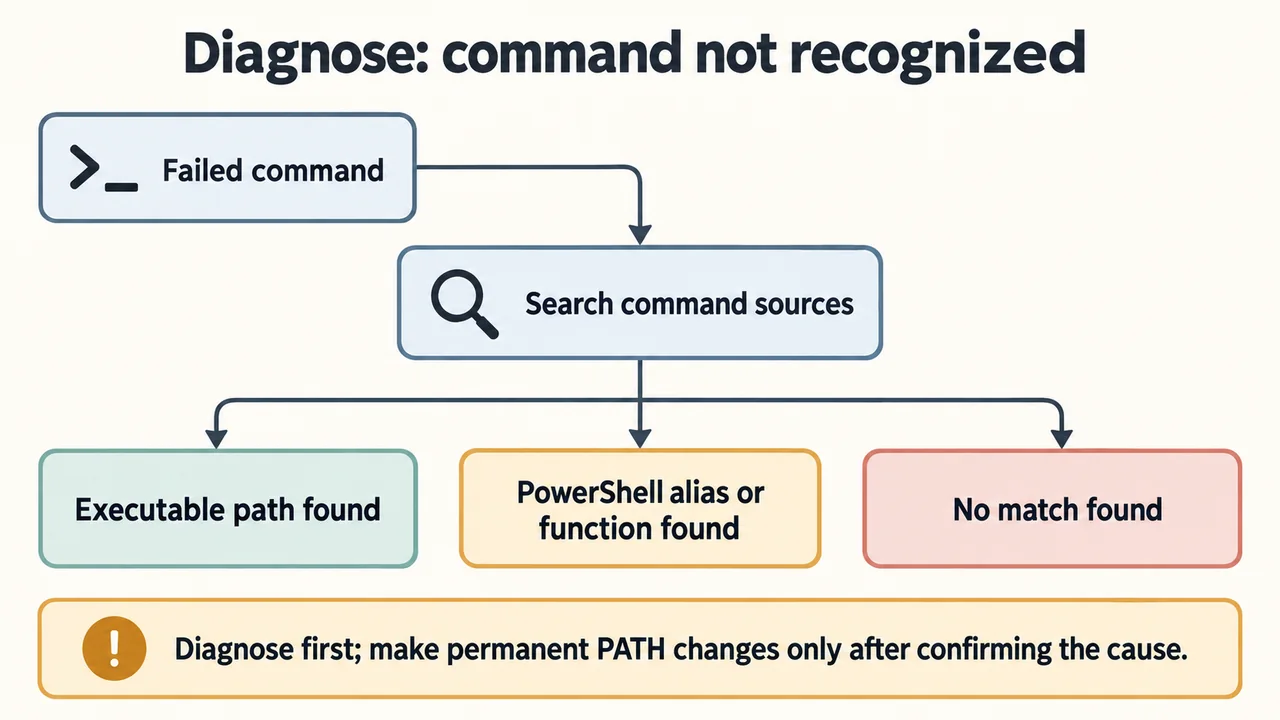
If the command still cannot be found
Check the application’s official installation instructions for its executable location and any required PATH setup. This guide deliberately stops at diagnosis; permanent edits should match that application’s requirements. Do not replace the entire PATH with a list copied from another computer.
Before requesting help, record the shell, failing command, whether a fresh terminal changes the result, and the relevant discovery output. Remove usernames and private directory names before sharing it. You now have a specific discovery problem to investigate rather than a reason to reinstall Windows or disable security software.