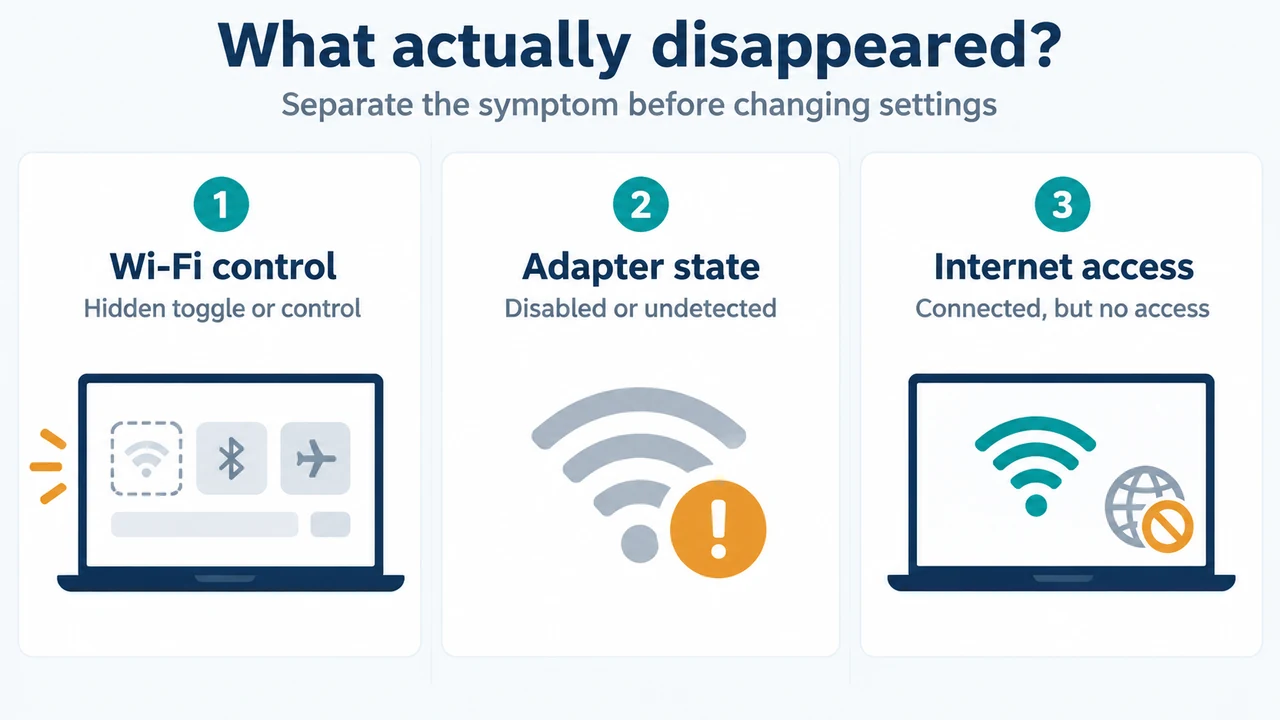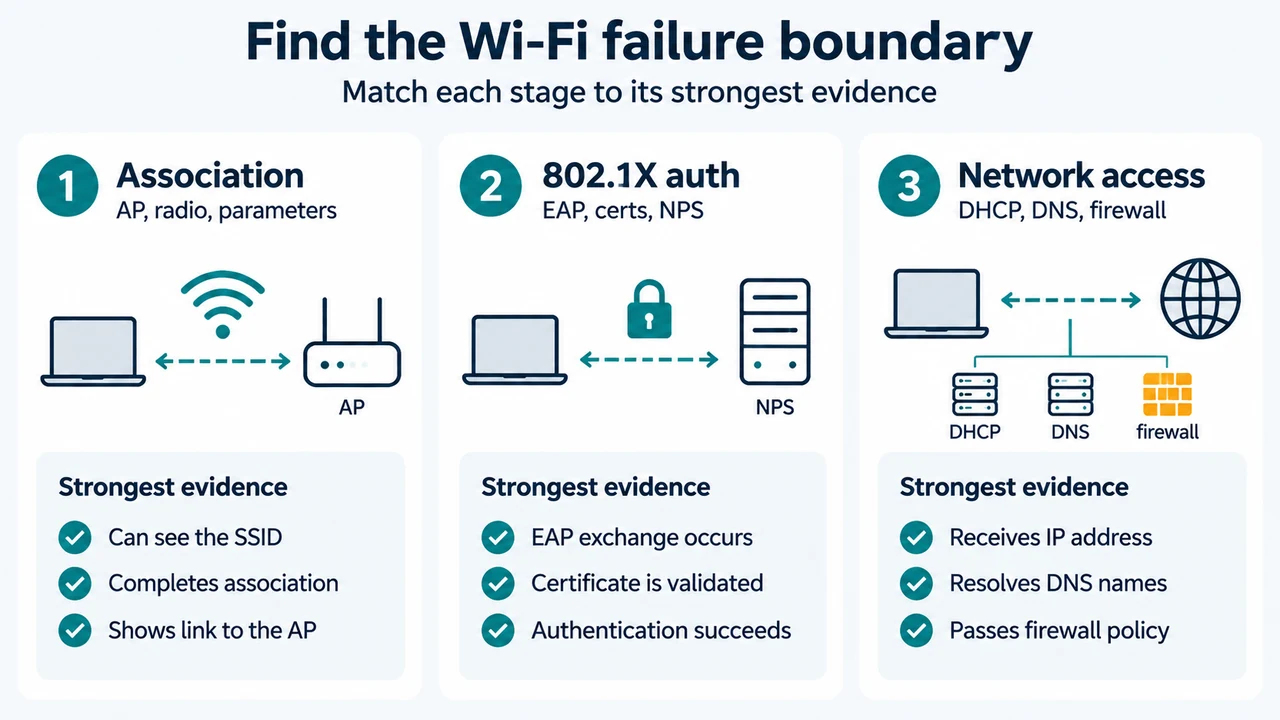
If a Windows 11 device shows a WPA3-Enterprise connection error, first determine whether it failed while associating with the access point or while authenticating through 802.1X. These are different stages and require different evidence.
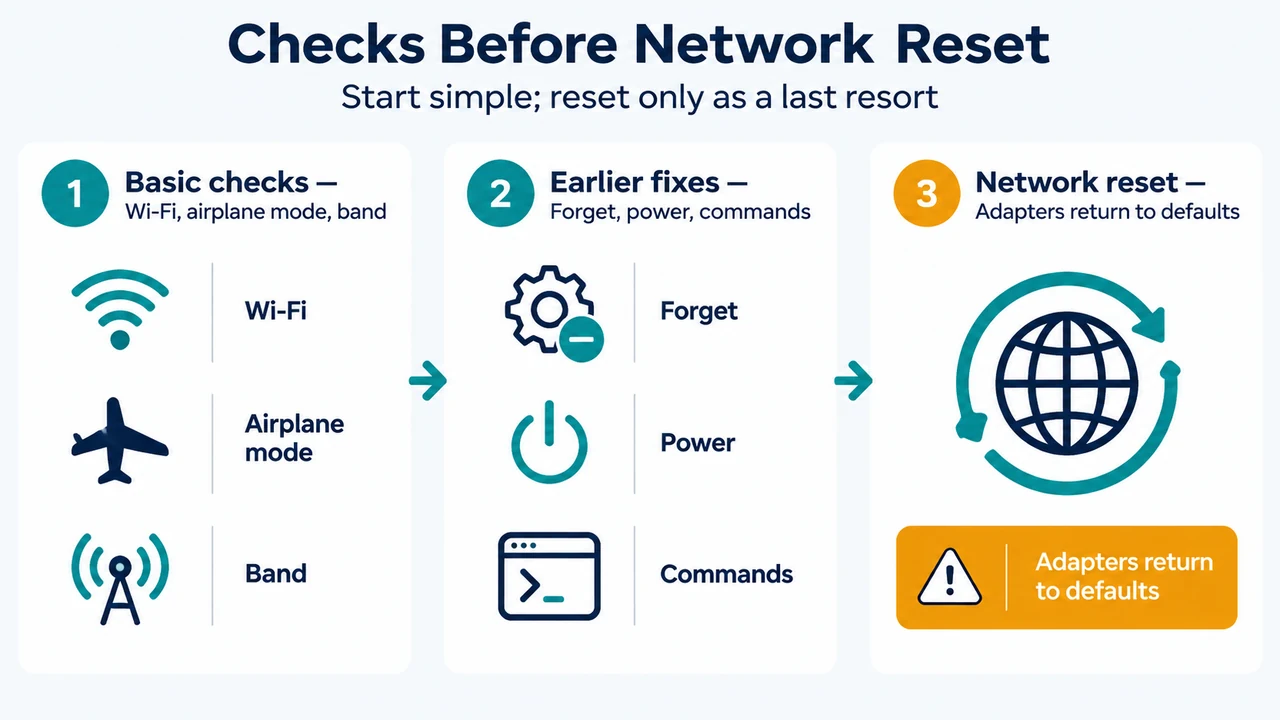
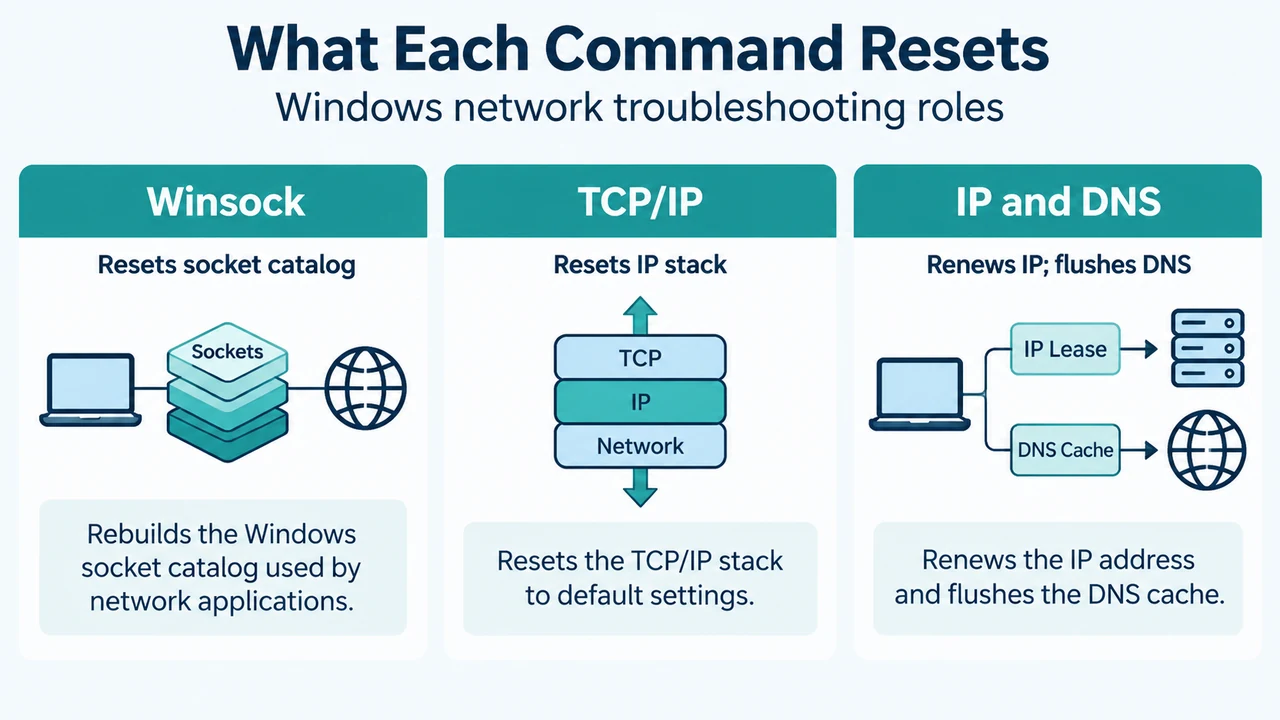
This guide applies to Windows 11 clients using WPA3-Enterprise and first-party Windows EAP methods. It focuses on reversible evidence collection. Do not delete the wireless profile, remove the adapter or driver, reset the network stack, or restart the device until you have recorded the baseline state and the exact reproduction time. Microsoft warns that these actions can remove evidence or temporarily change the behavior.
What the connection stages mean
Windows describes a connection state sequence that includes configuring, associating, authenticating, and connected. Association is the wireless link stage. Authentication is where the enterprise security exchange, including 802.1X, is processed.
A failure before authentication points toward wireless association, radio, compatibility, access-point, or connection-parameter evidence. A failure during authentication points toward the connection profile, EAP method, certificates, server validation, credentials, or the authentication server. The supplied Microsoft material does not establish one universal cause for the message “Wireless security failed.”
Collect a baseline before changing anything
Record the Windows build, wireless adapter model, driver version and date, network name, authentication method, and the exact date and time of the failed attempt. Also record whether the profile came from Group Policy, mobile-device management, or the user.
From an elevated Command Prompt, Microsoft’s wireless troubleshooting guide lists these commands for baseline collection:
netsh wlan show drivers
netsh wlan show interfaces
netsh wlan show networks mode=bssid
netsh wlan show profiles
netsh wlan show wlanreport
The report summarizes recent wireless sessions, disconnect reasons, adapter information, and related events. The mode=bssid option adds the access point identifier, signal strength, channel, and radio type for visible networks. These commands collect state; they do not by themselves prove which component caused the failure.
Check the client-side evidence
Open Event Viewer and review Applications and Services Logs > Microsoft > Windows > WLAN-AutoConfig > Operational. Microsoft says this log contains information about the adapter, wireless connection profile, specified network authentication, and the reason for a failure when connectivity problems occur.
Match the log entries to the failed attempt’s timestamp. Look for the last successful stage and the first error or bad state change. The Microsoft guide identifies WLAN AutoConfig as the service that manages wireless profiles and connectivity, while the security and authentication components handle connection security and 802.1X requests.
If the evidence stops during association, keep the investigation at the wireless and access-point boundary. If it reaches authentication and then fails, continue with the profile, EAP, certificate, and authentication-server evidence below.
For an 802.1X failure, compare both sides
On the Windows client, review the WLAN-AutoConfig Operational log and the profile’s authentication details. On the authentication-server side, Microsoft’s 802.1X guidance identifies the Windows Security log on the Network Policy Server as a key source. Event ID 6273 represents a rejected connection attempt and event ID 6272 represents an accepted attempt. The event includes the matched connection-request policy, the network policy result, and a Reason Code.
Use the failure timestamp to correlate the client event with the server event. If the client reports an authentication failure but there is no corresponding NPS event, the supplied sources do not establish why the server record is absent; escalate that boundary to the network or identity administrator rather than assuming the client profile is defective.
Microsoft notes that many 802.1X problems involve certificates used for client or server authentication. Examples listed in the source include an invalid or expired certificate, chain-validation failure, and revocation-check failure. The source also identifies the CAPI2 log as useful for certificate-related troubleshooting, but says that this log is not enabled by default.
Pay special attention to Windows 11 WPA3-Enterprise validation
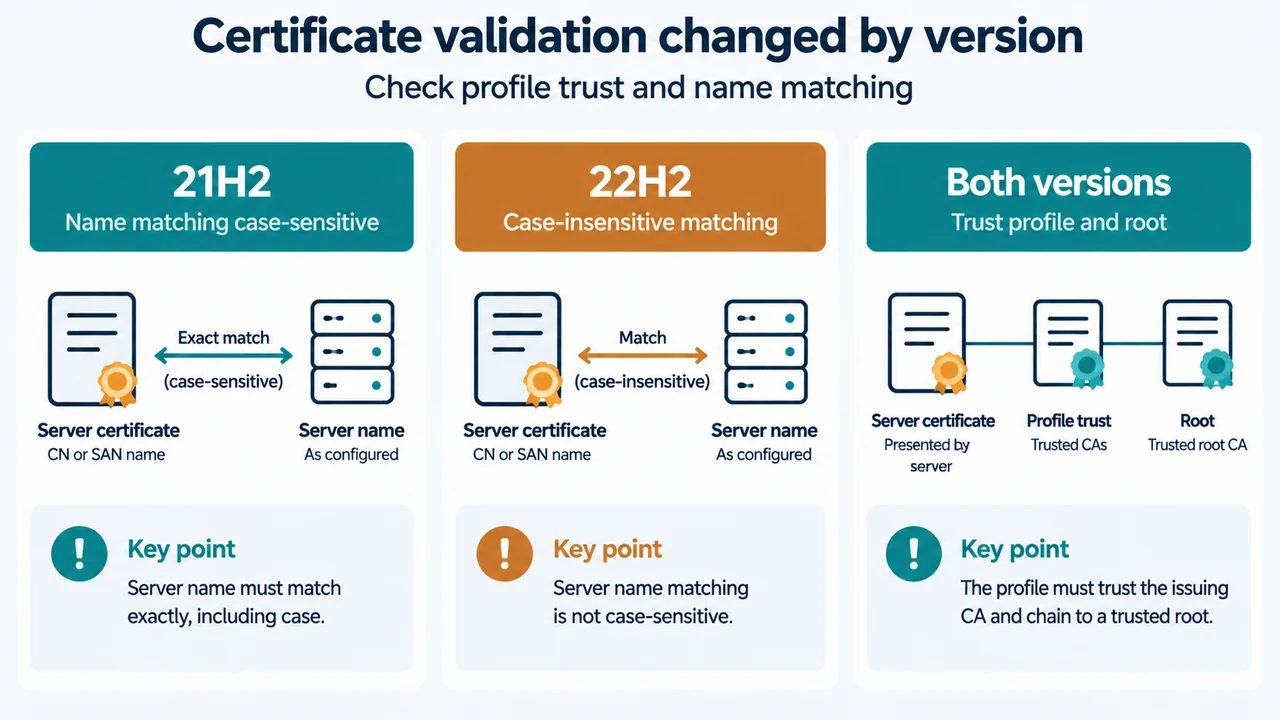
Windows 11 supports WPA3-Enterprise and applies updated, consistent server-certificate validation behavior to first-party EAP methods. Windows will trust the server certificate when the profile contains the server certificate thumbprint, or when the certificate chain is trusted, the trusted root thumbprint is in the profile, and any enabled server-name validation matches the name in the profile.
These are configuration conditions, not a guarantee that every enterprise profile is correct. Check the actual profile and the organization’s intended EAP configuration before changing it.
Microsoft describes a possible Windows 10-to-Windows 11 compatibility issue: an authentication that worked under some Windows 10 conditions may fail after upgrading because the profile does not meet the newer validation requirements. On Windows 11 version 21H2, server-name matching was case sensitive; Microsoft says this changed back to case insensitive in version 22H2, build 22621. If server-name validation is enabled, record the installed Windows version and compare the configured name exactly where the version requires it.
For WPA3-Enterprise, Microsoft also states that if server validation fails, Windows does not enter Phase 2 of the EAP exchange. The supplied evidence does not provide a universal repair for that condition. It supports checking the profile, trusted roots, certificate thumbprints, server name, EAP method, and authentication-server records with the organization’s administrator.
What not to conclude from the error alone
The message does not by itself identify whether association or authentication failed. Do not treat a generic consumer “cannot connect” checklist as proof of an 802.1X cause. The supplied competing pages focus on broad consumer remedies such as forgetting a network, changing IPv6 settings, or updating a driver; they do not document the WPA3-Enterprise and 802.1X boundary covered here.
Do not delete the profile, remove the driver, reset networking, or change enterprise certificate settings until the baseline, timestamps, profile source, and relevant logs are recorded. Such changes may remove evidence or alter the behavior.
When to escalate
Escalate to the wireless or identity administrator when the evidence reaches 802.1X authentication, certificate validation, NPS policy evaluation, or access-point/controller behavior. Provide the failed-attempt time, Windows build, adapter and driver details, network name, profile source, WLAN-AutoConfig entries, wireless report, and any matching NPS event and Reason Code.
If the wireless state shows association completed but network access fails afterward, Microsoft directs troubleshooting toward TCP/IP, DHCP, DNS, proxy, or firewall evidence. That is a different stage from the WPA3-Enterprise authentication failure addressed here.
Research method and limitations
This article was prepared from the supplied public Microsoft source excerpts retrieved on September 19, 2026, plus the supplied competitor excerpts used only to compare coverage. One Microsoft wireless-troubleshooting excerpt was truncated and its page indicated an access restriction, so this article relies only on the visible statements. It makes no hands-on, lab, benchmark, or comprehensive-review claim. Exact causes still depend on the client profile, Windows build, EAP method, certificate configuration, access point, and authentication server.
Text version of the diagrams
- Find the Wi-Fi failure boundary: Association — AP, radio, parameters; 802.1X auth — EAP, certs, NPS; Network access — DHCP, DNS, firewall
- Certificate validation changed by version: 21H2 — Name matching case-sensitive; 22H2 — Case-insensitive matching; Both versions — Trust profile and root