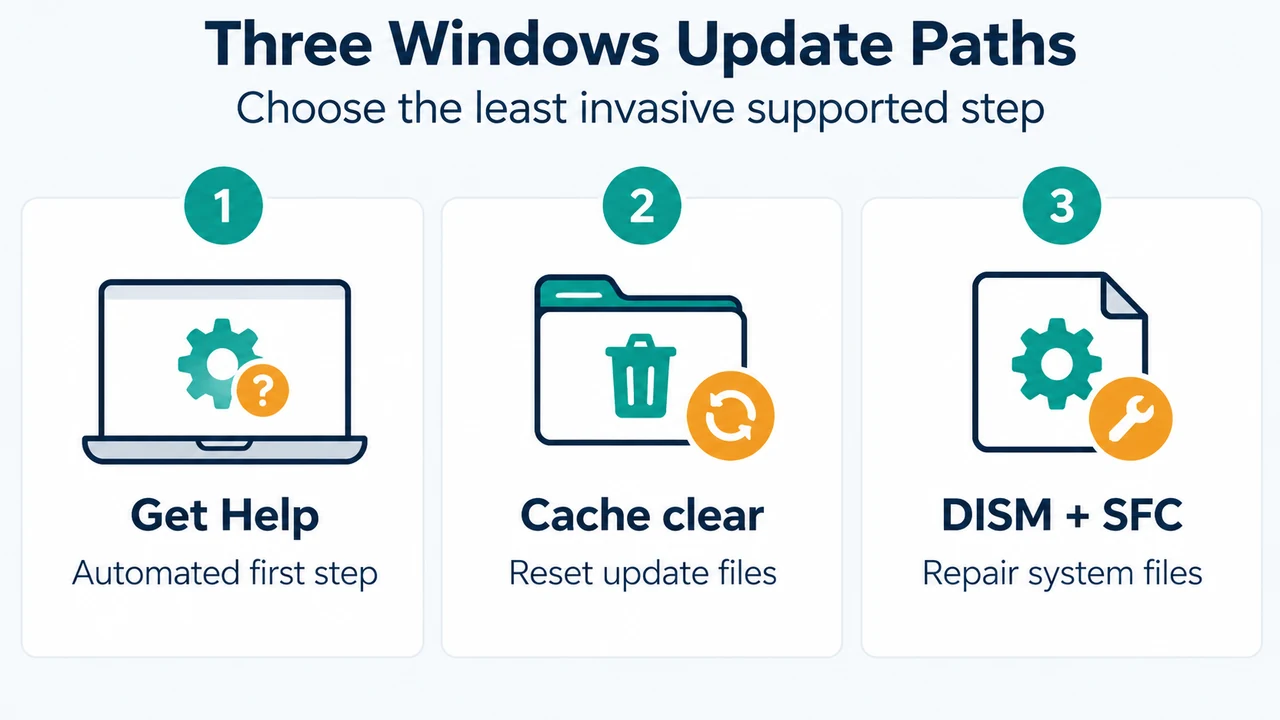
Microsoft lists Windows Update error 0x8007000d as a problem with Windows Update files or corruption in the update cache. On Windows 11, begin with the automated Windows Update troubleshooter in the Get Help app. If the error remains, Microsoft documents clearing the Windows Update cache and repairing system files with DISM followed by System File Checker (SFC).
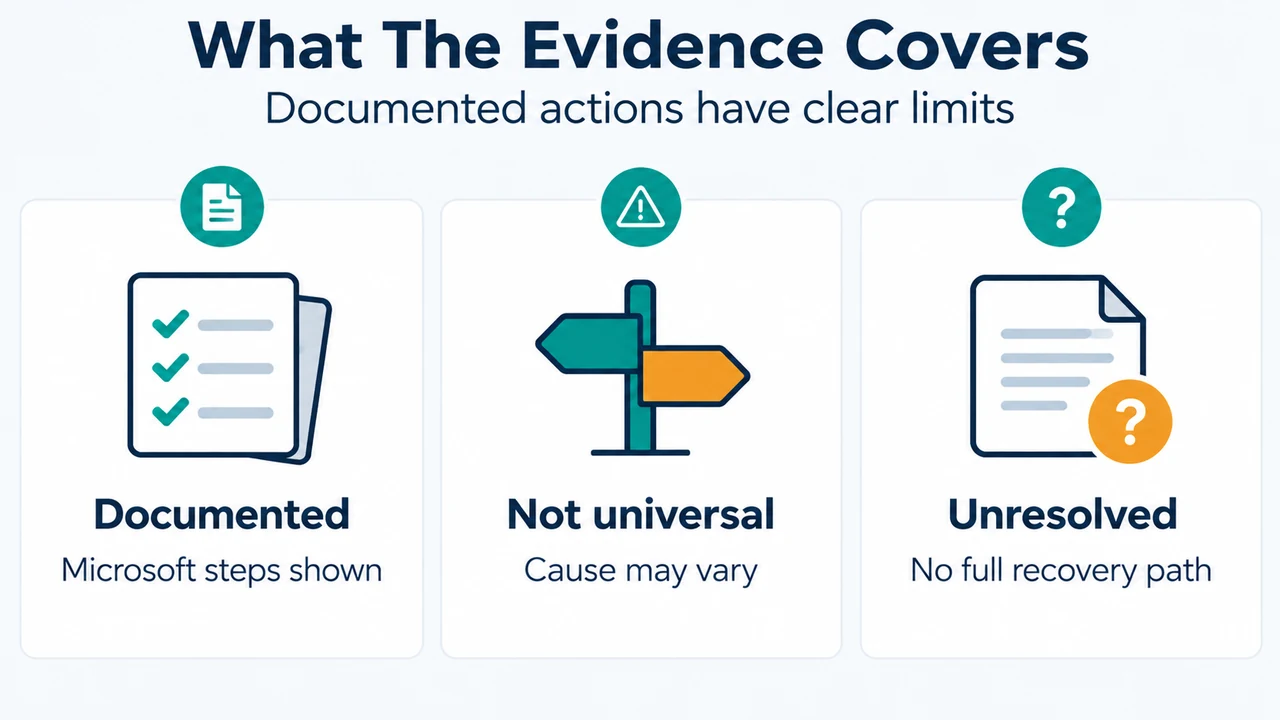
This guide applies to Windows 11. The exact settings path below comes from Microsoft’s Windows 11 troubleshooting documentation. The supplied Microsoft material does not establish that every occurrence has the same cause or that these steps will resolve every device.
1. Run the Windows Update troubleshooter first
Microsoft’s Windows 11 guidance says to start the automated Windows Update troubleshooter in the Get Help app. It runs diagnostics and attempts to fix common problems.
- Open the Get Help app.
- Run the Windows Update troubleshooter.
- Follow its instructions and let it finish.
- Restart the device when the troubleshooter finishes.
- Open Settings > Windows Update, select Check for updates, and try the update again.
If the issue continues, Microsoft says to run the troubleshooter again to check for additional errors or continue with its broader Windows Update troubleshooting guidance.
2. Clear the Windows Update cache
Microsoft’s error-specific guidance identifies the update cache as a possible source of 0x8007000d and documents this cache-clear sequence:
- Press Win + R, type
services.msc, and press Enter. - Find the Windows Update service.
- Right-click it and select Stop.
- Open
C:\Windows\SoftwareDistribution. - Delete the files and folders inside that directory.
After this step, return to the Windows Update settings and check for updates again. The supplied excerpt gives the stop-and-clear instructions, but it does not provide a separate rollback procedure or explain how every Windows Update component uses this directory. Do not delete files outside the specified directory.
3. Repair Windows system files with DISM, then SFC
Microsoft documents DISM and SFC as a system-file repair sequence in its Windows Update troubleshooting material. Open Command Prompt as administrator, then run:
DISM.exe /Online /Cleanup-image /RestorehealthWait for the command to finish. Microsoft says a successful operation displays a confirmation such as “The restore operation completed successfully” or “The operation completed successfully.” If no confirmation appears, Microsoft’s excerpt says to retype the command.
Next, run:
sfc /scannowWait until the SFC verification reaches 100 percent, close Command Prompt, and try Windows Update again.
These commands change system state and require an elevated Command Prompt. Save work first. The supplied excerpts do not state how long either command will take, what every result message means, or provide a complete recovery procedure for an interrupted repair.
Which step should you try?
| Situation | Supported next step |
|---|---|
| First occurrence of 0x8007000d | Run the Windows 11 troubleshooter in Get Help, restart, then check for updates. |
| The error remains and the update cache may be involved | Stop Windows Update through services.msc and clear the contents of the specified SoftwareDistribution directory. |
| The problem continues after cache troubleshooting | Run DISM first, then sfc /scannow, and try Windows Update again. |
Limits of this fix
Error 0x8007000d is documented here as associated with Windows Update files or update-cache corruption; that label is not proof of one universal cause. The Microsoft troubleshooting page is truncated in the supplied evidence, so this article uses only the visible Windows 11 instructions and does not reproduce unseen guidance. The Microsoft Learn page also contains broader and older reset procedures, including commands that can alter service settings; those more advanced steps are outside this focused sequence.
Research method: this article was prepared from the supplied public Microsoft source excerpts retrieved on September 23–24, 2026. No hands-on testing, lab work, benchmark, device access, or comprehensive competing-page review was performed. One supplied Microsoft Learn page reports an access limitation in its surrounding text, so only its visible excerpt was used. If these steps do not resolve the error, use Microsoft’s linked troubleshooting resources or support options rather than applying undocumented changes.
Text version of the diagrams
- Three Windows Update Paths: Get Help — Automated first step; Cache clear — Reset update files; DISM + SFC — Repair system files
- What The Evidence Covers: Documented — Microsoft steps shown; Not universal — Cause may vary; Unresolved — No full recovery path