In Microsoft support documentation for troubleshooting Windows Update issues, error code 0x80070002 is listed with the cause: Update failed to install. The documentation outlines general troubleshooting procedures when updates fail to install on Windows 11 and Windows 10, including restarting the device, running the troubleshooter, checking prerequisites, and repairing system files.
Preliminary Checks and Restart
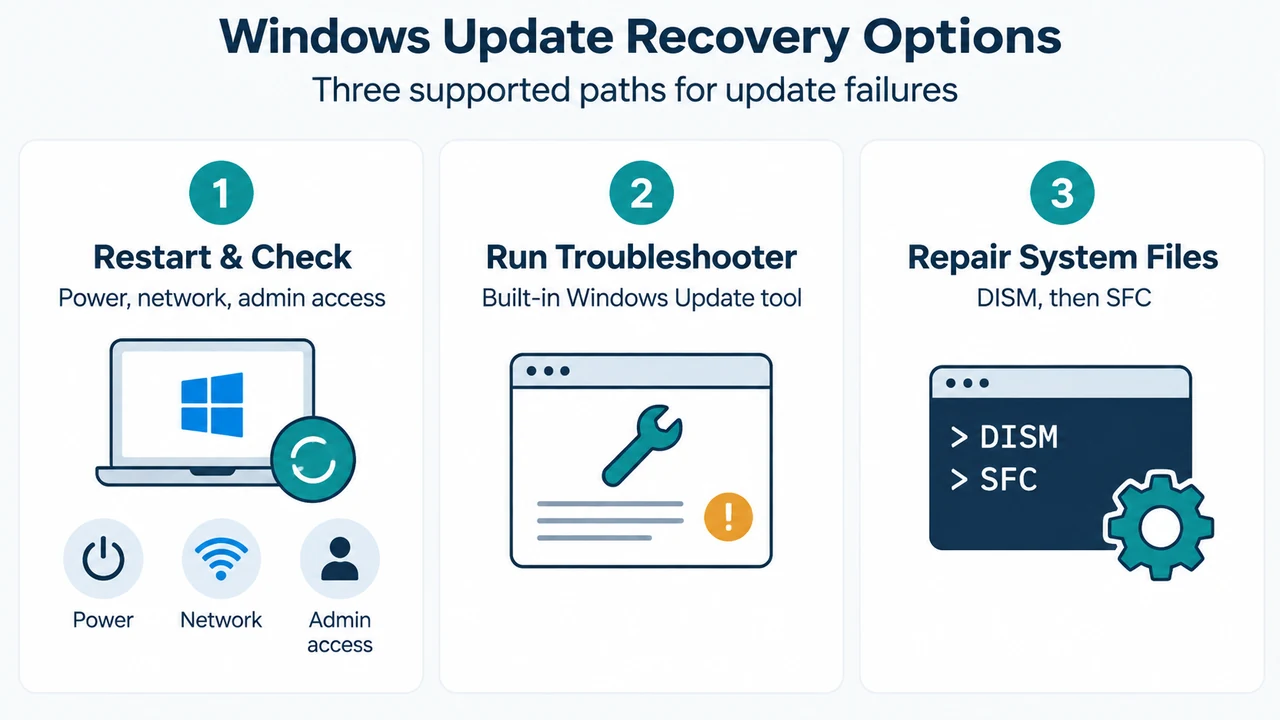
- Restart the device: Save your work and close all open applications. Select Start > Power, and select either Update and restart or Update and shut down.
- Verify power and connectivity: Verify that your device is plugged into a power source and connected to the internet. To check network status, select Start > Settings > Network & internet > Wi-Fi. If disconnected, reconnect to your network.
- Confirm administrator access: Some updates require administrator access. Ensure your account has administrator privileges or have an administrator on the device install the updates.
- Disconnect external hardware: Remove external storage devices, drives, docks, and other hardware not needed for basic functionality, then try running updates again.
Run the Windows Update Troubleshooter
On Windows 11, run the built-in troubleshooter using these documented steps:
- Select Start > Settings > System.
- Select Troubleshoot, then select Other troubleshooters.
- Locate Windows Update and select Run.
- Follow the on-screen instructions to complete the process.
Restore and Repair System Files
If updates continue to fail, repair system files using the Command Prompt:
- In the search box on the taskbar, type
command prompt, then select Run as administrator from the list of options. - In the Command Prompt window, type the following command exactly as shown, including spaces, and press Enter:
DISM.exe /Online /Cleanup-image /Restorehealth - When the operation completes successfully, Command Prompt displays:
“The restore operation completed successfully.” or “The operation completed successfully.”
Note: If you do not see a confirmation message, retype the command and try again.
- Next, type the following command, including the space as shown, and press Enter:
sfc /scannow - Wait until the scan verification reaches 100% completion, then close Command Prompt.
- Try running Windows Update again.
Research Method and Limitations
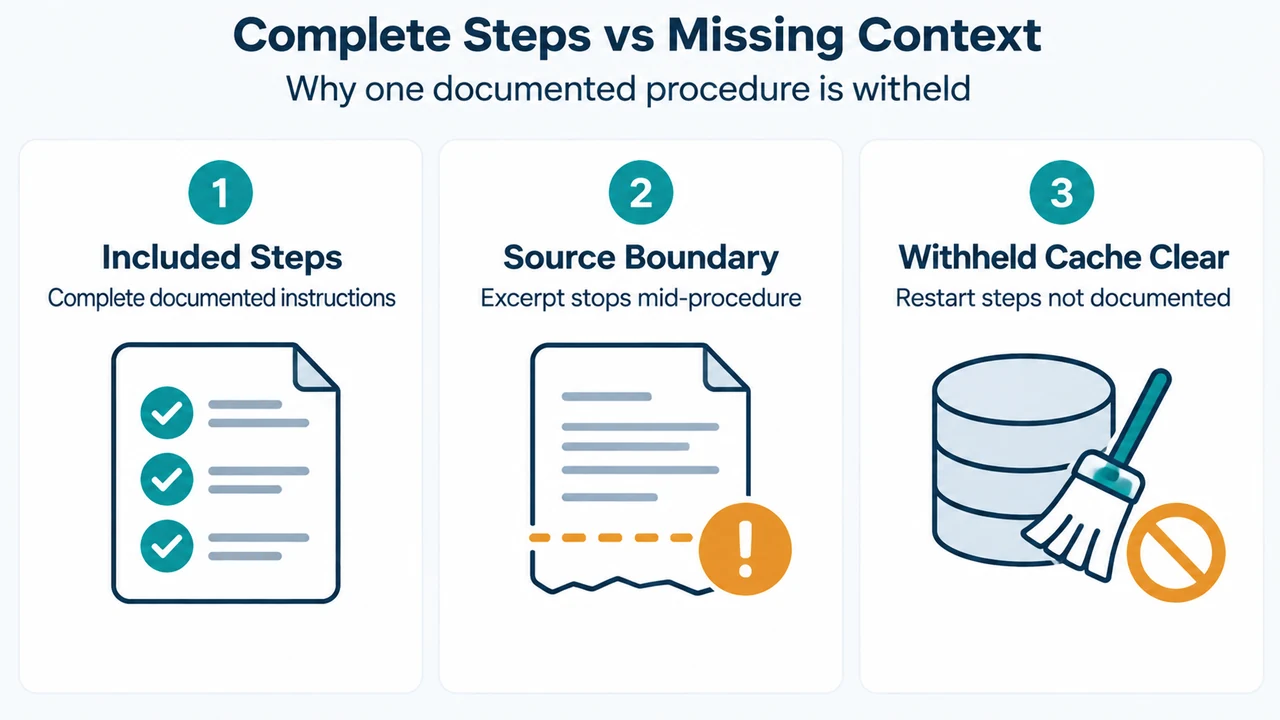
This article was prepared directly from public Microsoft support documentation excerpts on troubleshooting Windows update problems for Windows 11 and Windows 10. Material limitations apply: the source text is truncated, omitting surrounding context, detailed error mechanics, and post-step service management in cache-clearing sections. Because the provided excerpt cuts off immediately after stopping the Windows Update service and deleting files in C:\Windows\SoftwareDistribution without documenting how to restore or restart the service, the cache-clearing procedure is withheld from this guide to prevent incomplete system changes. Competing independent coverage was not available for comparison.
Text version of the diagrams
- Windows Update Recovery Options: Restart & Check — Power, network, admin access; Run Troubleshooter — Built-in Windows Update tool; Repair System Files — DISM, then SFC
- Complete Steps vs Missing Context: Included Steps — Complete documented instructions; Source Boundary — Excerpt stops mid-procedure; Withheld Cache Clear — Restart steps not documented