Check Windows 11 Microphone Privacy Access
Windows 11 lets you control which apps can use the microphone. These settings can explain why an app cannot access microphone input. The supplied evidence does not establish that one app disables or interrupts another app.
A microphone icon appears in the notification area of the taskbar when an app is using the microphone.
Step 1: Check Microphone Privacy Settings
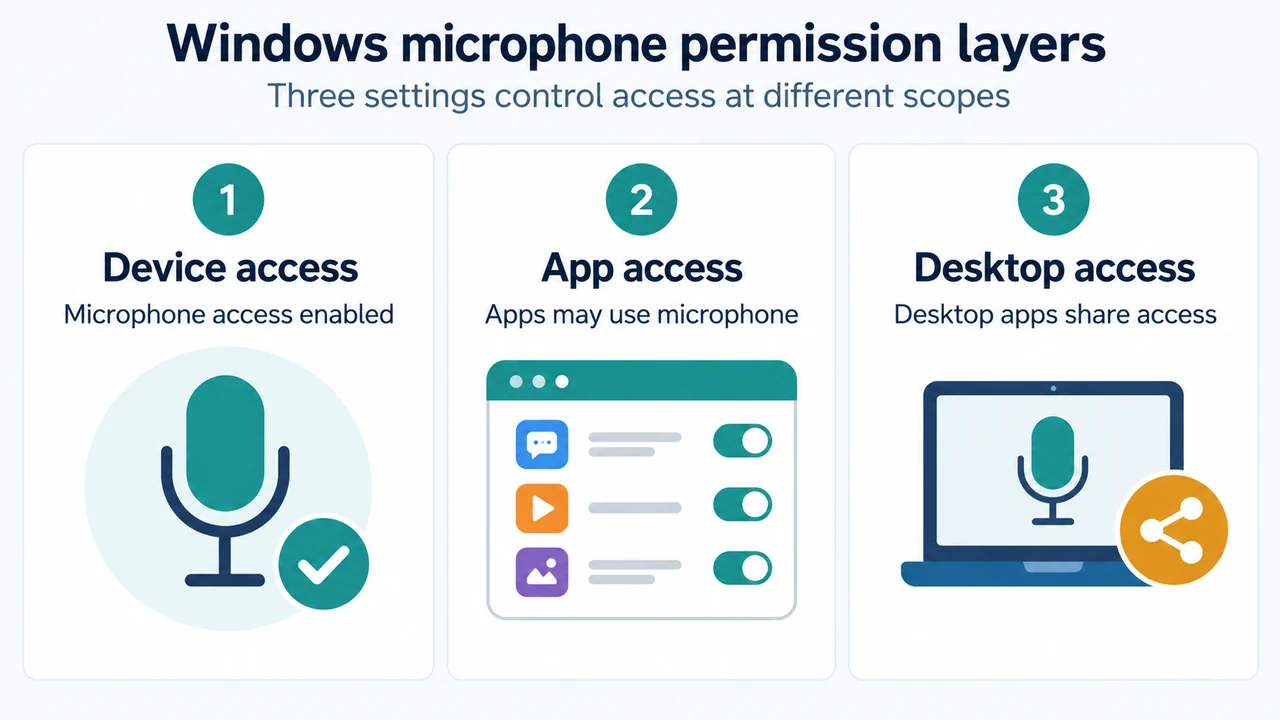
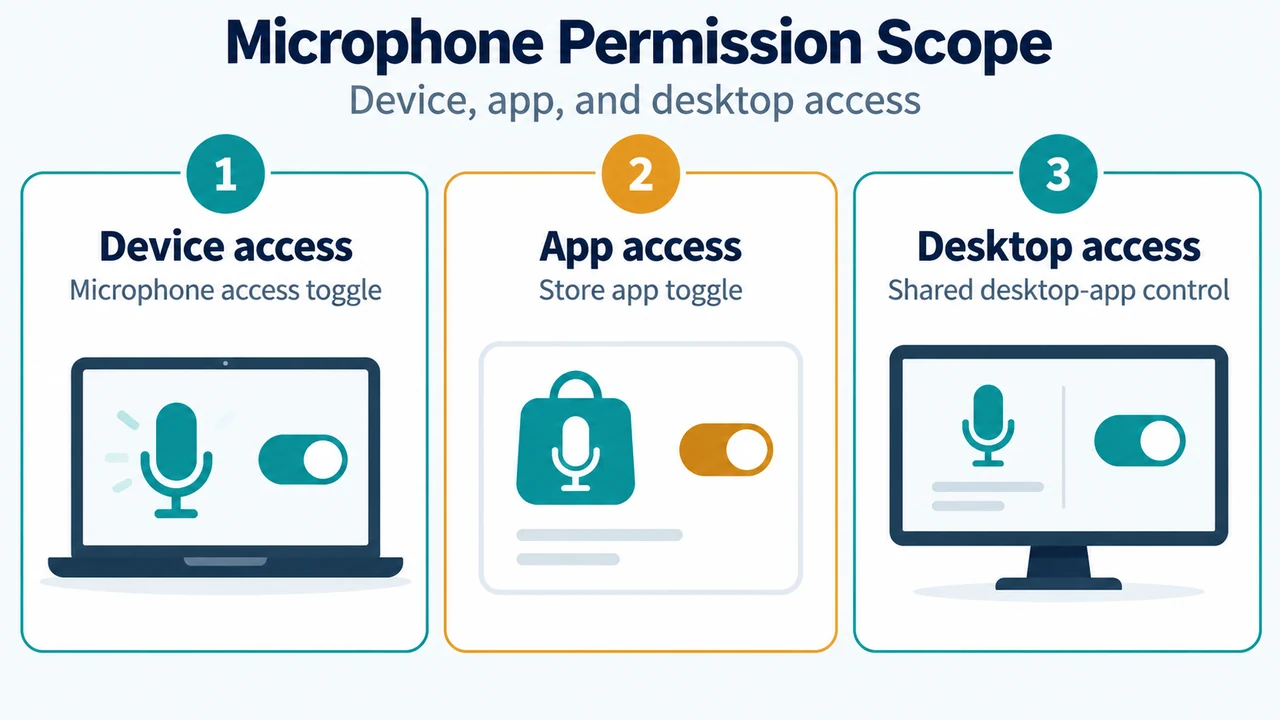
Open Start > Settings > Privacy & security > Microphone. Turn on Microphone access and Let apps access your microphone. If the affected app is a Microsoft Store app, turn on its individual toggle.
If the app is not listed individually, it may be a desktop app. Desktop apps cannot be toggled one at a time. Turn on Let desktop apps access your microphone. This setting applies to the desktop apps Windows has detected that interacted with the microphone.
Step 2: Check the Input Device Status
Open Start > Settings > System > Sound. Under Advanced, select More sound settings, then open the Recording tab. Select the microphone and choose Properties. Next to Device usage, confirm that Use this device (enable) is selected.
This checks whether Windows has disabled the selected input device. The supplied excerpts document default selection for output devices, not a corresponding default-microphone step.
Step 3: Check Connections and Mute Controls
Make sure the microphone cable is firmly connected to the correct jack. Some systems use a pink jack for microphone input; others label it microphone. If the microphone uses USB, try another USB port.
Check the microphone or headset for a physical mute switch and make sure it is off.
Text version of the diagrams
- Microphone Permission Scope: Device access — Microphone access toggle; App access — Store app toggle; Desktop access — Shared desktop-app control
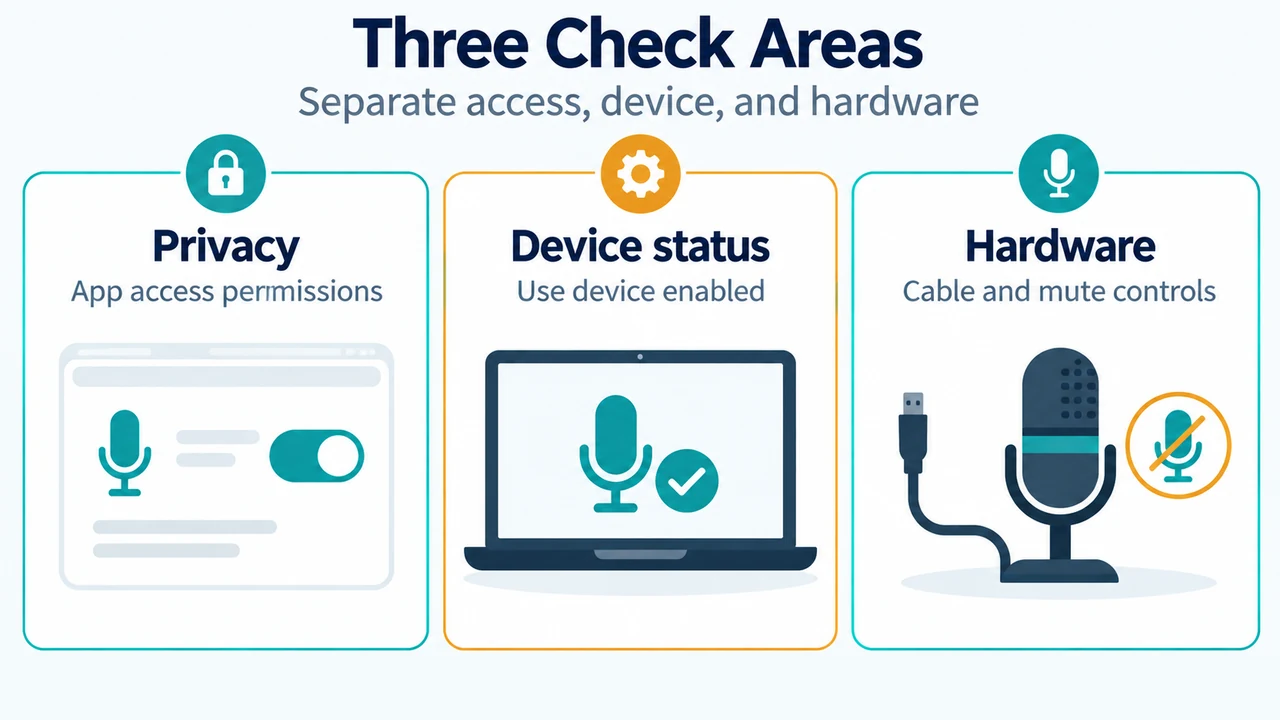
- Three Check Areas: Privacy — App access permissions; Device status — Use device enabled; Hardware — Cable and mute controls
Research Method and Limitations
This answer was prepared from the supplied public Microsoft source excerpts about Windows 11 microphone privacy and sound troubleshooting. The excerpts are truncated, so they do not support unseen details. No accessible competing coverage was supplied, and no hands-on testing, benchmarking, or independent app-to-app diagnosis was performed.