If a Windows 11 PC repeatedly fails to start, Quick Machine Recovery can check for a Microsoft-provided fix before you try broader recovery options. It is available on Windows 11 version 24H2 build 26100.4700 or later. In the Windows Recovery Environment (WinRE), it can use Ethernet or supported WPA/WPA2 Wi-Fi to connect to Microsoft cloud recovery services and scan Windows Update.
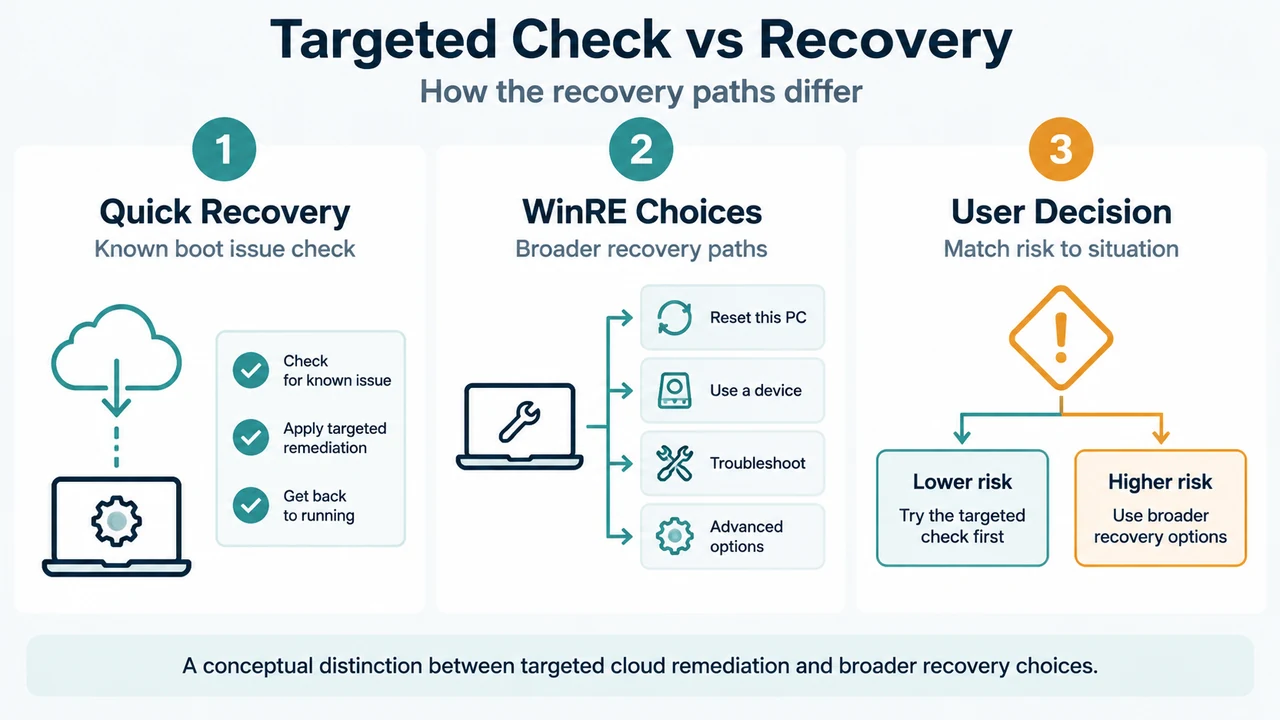
Quick Machine Recovery is designed for known, widespread boot issues. It is a best-effort feature and may not find a solution for every startup failure. If no fix is found, traditional recovery options remain available.
When Quick Machine Recovery fits
After repeated failed boot attempts, Windows can enter WinRE, establish a supported network connection, search Windows Update for a remediation, apply it if one is available, and restart. If the remediation succeeds, Windows starts. If no solution is found, the device proceeds to other recovery options. A configured retry policy can cause additional scans; with the default one-time scan, Windows guides you to other recovery choices after the first attempt.
Cloud remediation is enabled by default with one-time-scan auto remediation on Windows Home devices and on Windows Pro devices that are not domain joined or enrolled in enterprise endpoint management. It is disabled by default on Windows Enterprise and Education devices and on Windows Pro devices that are domain joined or managed by an organization. Explicit administrator settings continue to apply if the device changes between managed and unmanaged states.
What it needs
- Windows 11 version 24H2 build 26100.4700 or later.
- A Windows Recovery Environment session.
- Ethernet or password-based WPA/WPA2 Wi-Fi that WinRE can use.
- An applicable Microsoft remediation.
If the device cannot connect through a supported network, or no matching remediation exists, Quick Machine Recovery cannot complete a cloud-based repair. That does not remove the other WinRE options.
How to run it manually
- Enter WinRE.
- Select Troubleshoot > Advanced options > Quick machine recovery.
- Allow the device to connect and search Windows Update.
If a remediation is available, Windows downloads and applies it. If none is found, use the other recovery choices. The evidence supports this as a targeted check for a known, widespread boot issue, not a guarantee of a general repair.
Which recovery option comes next?
Microsoft’s visible recovery guidance says to start with the least disruptive suitable option. For a PC that will not start, the documented choices include these paths:
| Option | When it fits | Documented effect |
|---|---|---|
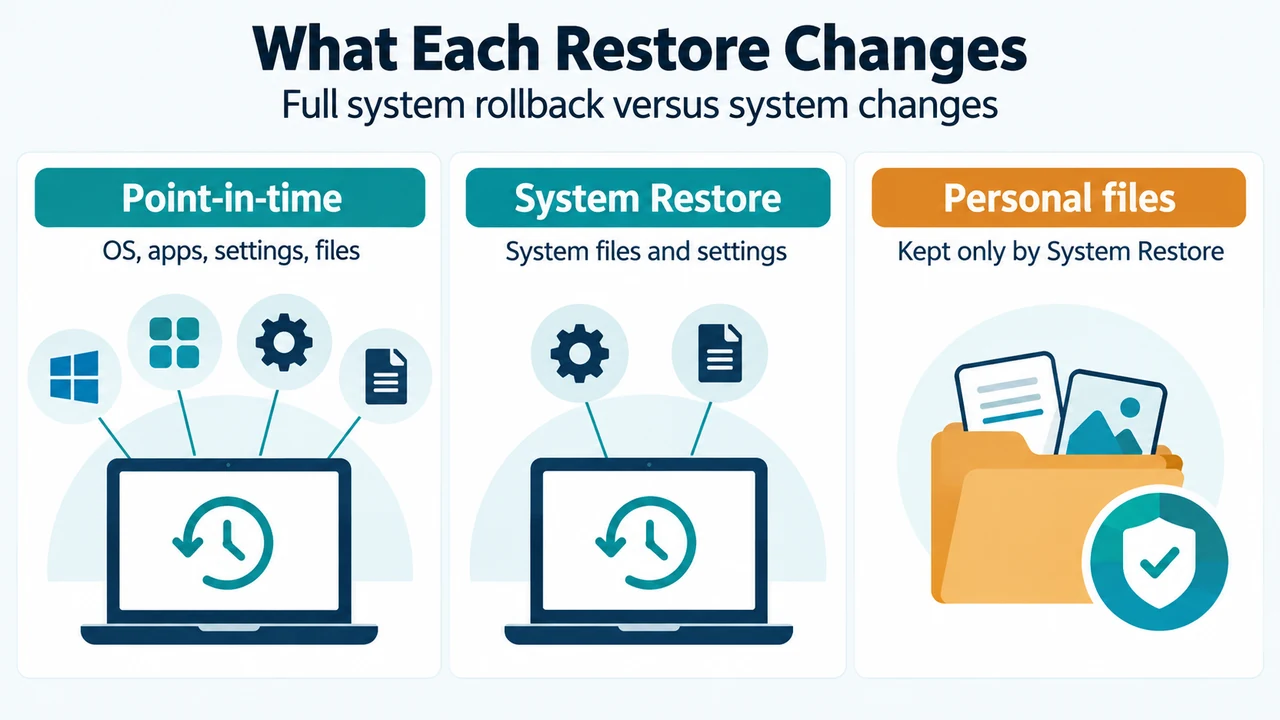
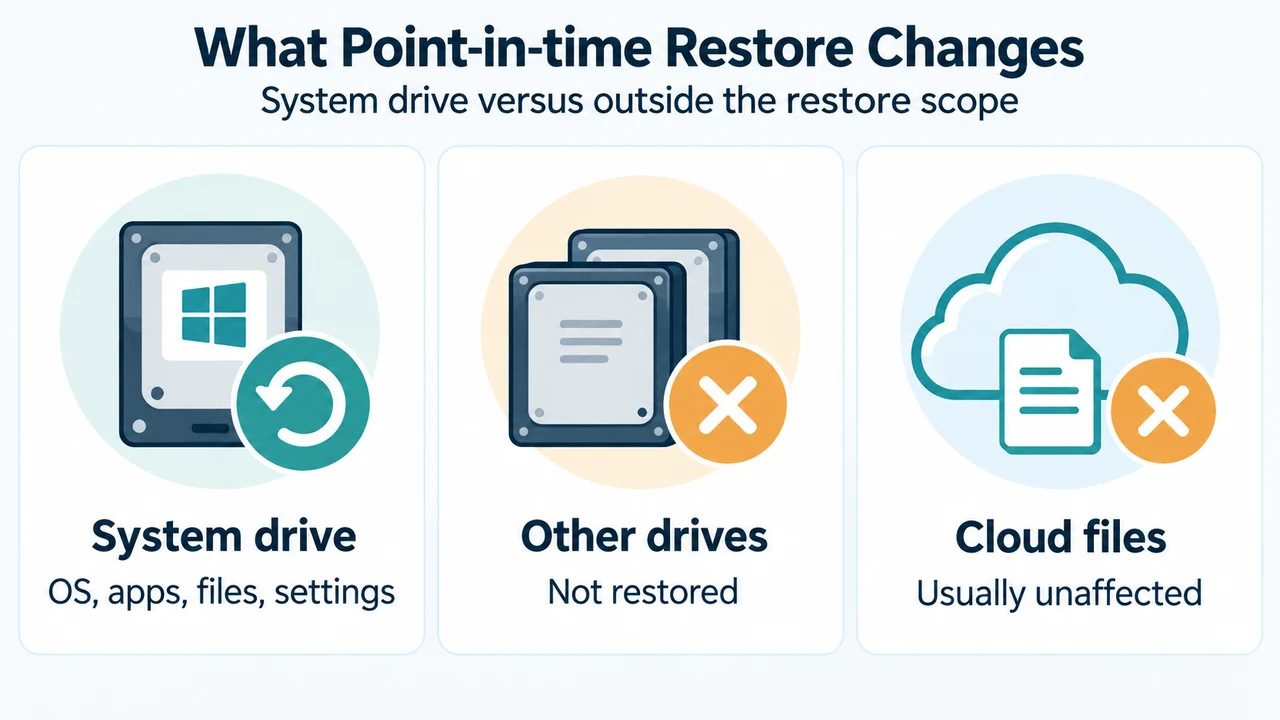
| Point-in-time restore | A suitable automatic restore point exists on Windows 11 version 24H2 or later. | Restores personal files, apps, and settings to the selected point. Changes after that point are lost. |
| Uninstall updates | The problem began after a recent Windows update. | Removes changes from the selected update. Personal files and apps are not affected. |
| Reinstall Windows using Windows Update | A Windows reinstall is needed and this option is available. | Reinstalls the current Windows version while keeping personal files, apps, and settings. The supplied guidance describes this as the least disruptive reinstallation option. |
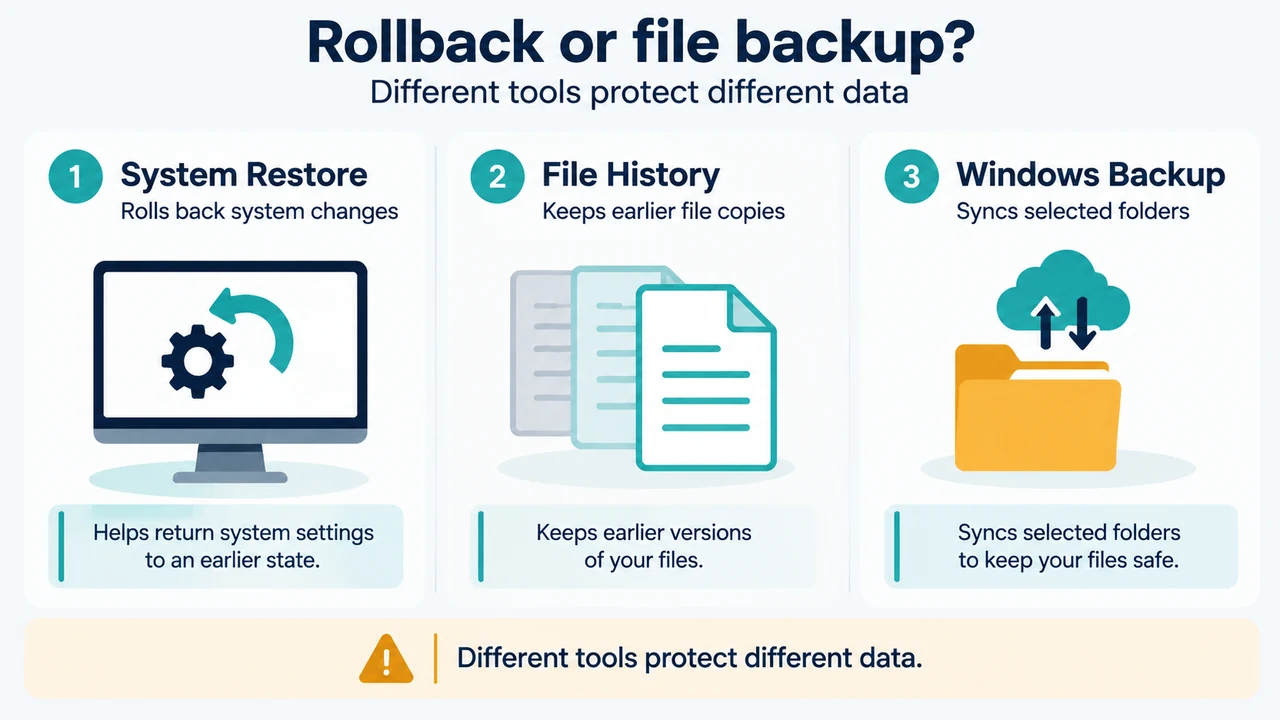
| System Restore | A system change, driver, update, or setting may have caused the failure. | Undoes system changes after the restore point. Personal files are kept, but recent apps, drivers, updates, or settings may be affected. |
| Reset this PC | Windows must be reinstalled after earlier options do not solve the problem. | Reinstalls Windows and lets you keep or remove personal files. Apps and settings are removed. |
| Installation media | Other recovery options do not work, or malware is suspected. | Depending on the installation choice, you may keep personal files and apps, keep personal files only, or remove everything. A clean installation removes Windows, personal files, apps, and settings from the selected drive. |
Where to find key choices in WinRE
For Windows 11 version 24H2 or later, select Troubleshoot > Point-in-time restore for that restore option. For an update-related failure, select Troubleshoot > Advanced options > Uninstall updates. Other choices depend on what the device presents in WinRE.
If BitLocker is enabled, you need the BitLocker recovery key to access most recovery options from WinRE. Have it available before choosing a recovery path if Windows requests it.
When to use installation media or a recovery drive
If WinRE options do not resolve the problem, Microsoft documents reinstalling with installation media or a recovery drive. Installation media can be created on another working PC with a USB drive. A recovery-drive reinstall removes personal files, apps, and settings, so back up files before using that option.
If malware is suspected, the supplied guidance says to first run a Windows Security scan. If the problem continues, reinstall Windows with installation media and choose a clean installation.
Bottom line
For a Windows 11 24H2 PC on build 26100.4700 or later, Quick Machine Recovery is a targeted first check when repeated boot failures may involve a known, widespread issue. If it finds nothing, use the least disruptive available option that matches the situation: Point-in-time restore, Uninstall updates, Windows Update reinstall, System Restore, Reset this PC, or installation media. Their effects differ, so check whether each option keeps personal files, apps, and settings before proceeding.
Research method and limits: This answer was prepared from the supplied public Microsoft source excerpts retrieved on 2026-09-20. The recovery-options excerpt was truncated, so only its visible statements were used; unseen text was not treated as support. No hands-on repair, lab test, benchmark, or comprehensive competing-page review was performed. Availability and displayed choices can depend on the Windows edition, build, management state, BitLocker status, and recovery configuration.
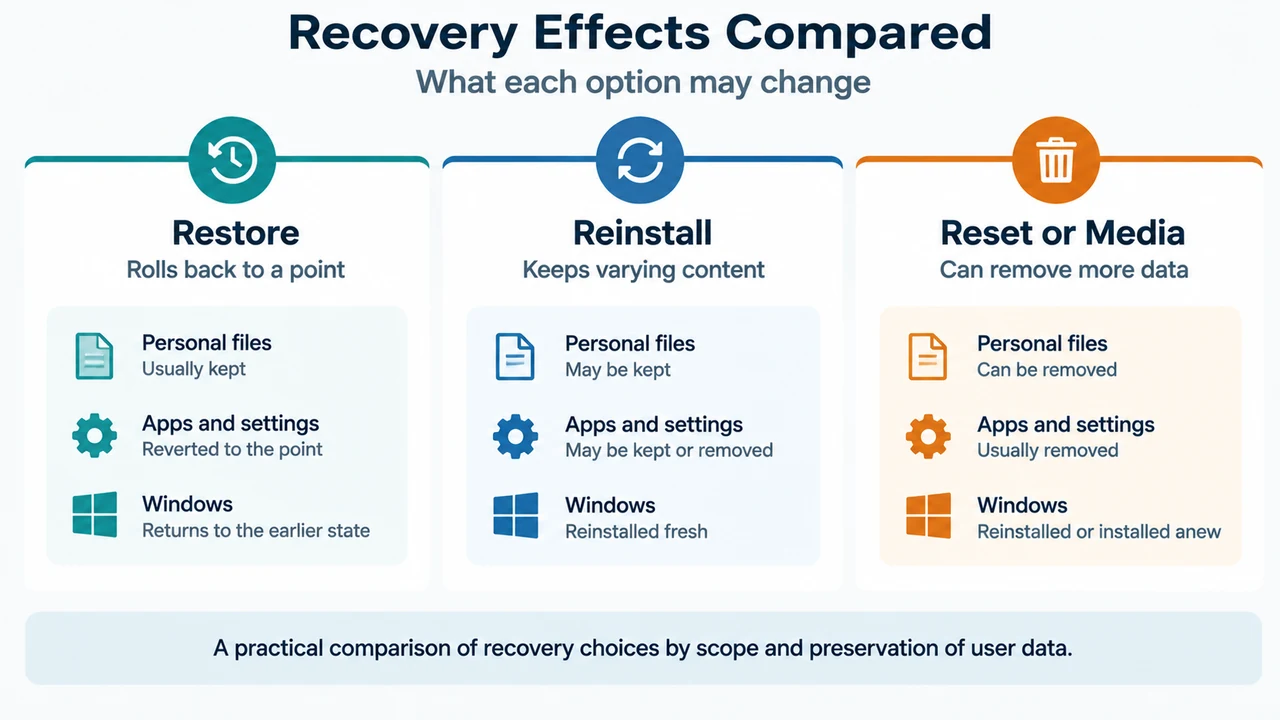
Text version of the diagrams
- Targeted Check vs Recovery: Quick Recovery — Known boot issue check; WinRE Choices — Broader recovery paths; User Decision — Match risk to situation
- Recovery Effects Compared: Restore — Rolls back to a point; Reinstall — Keeps varying content; Reset or Media — Can remove more data