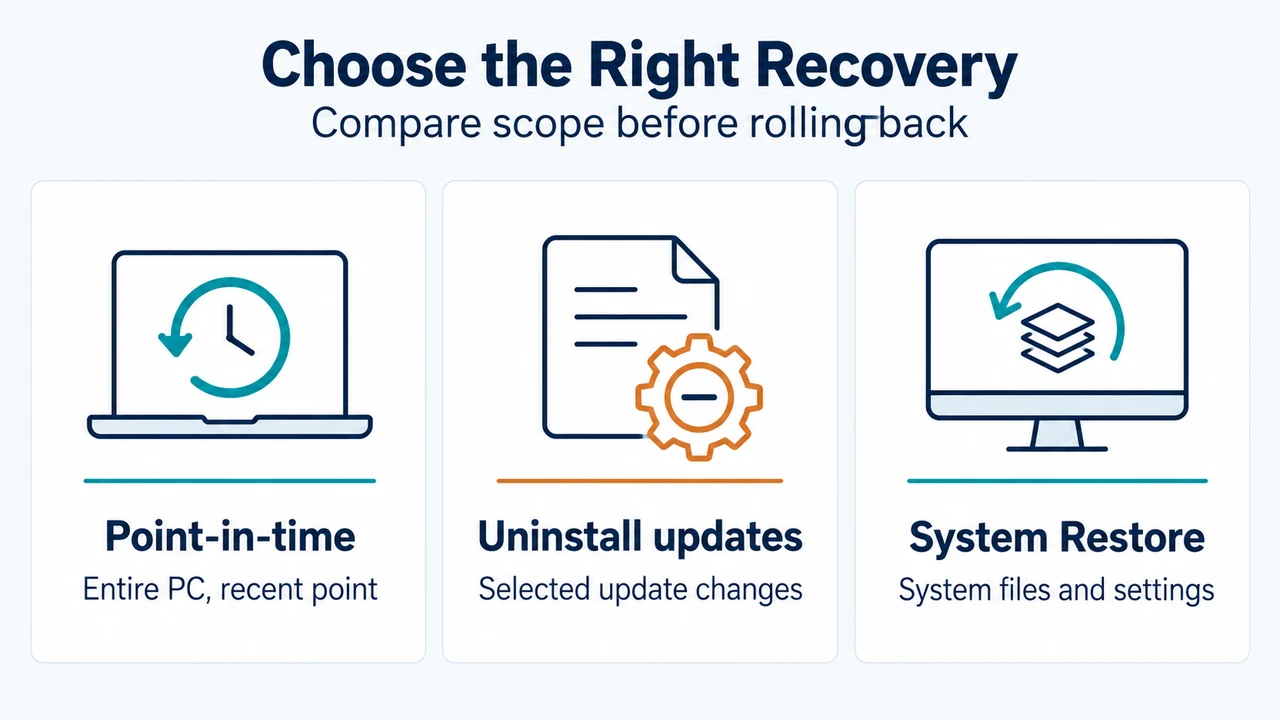
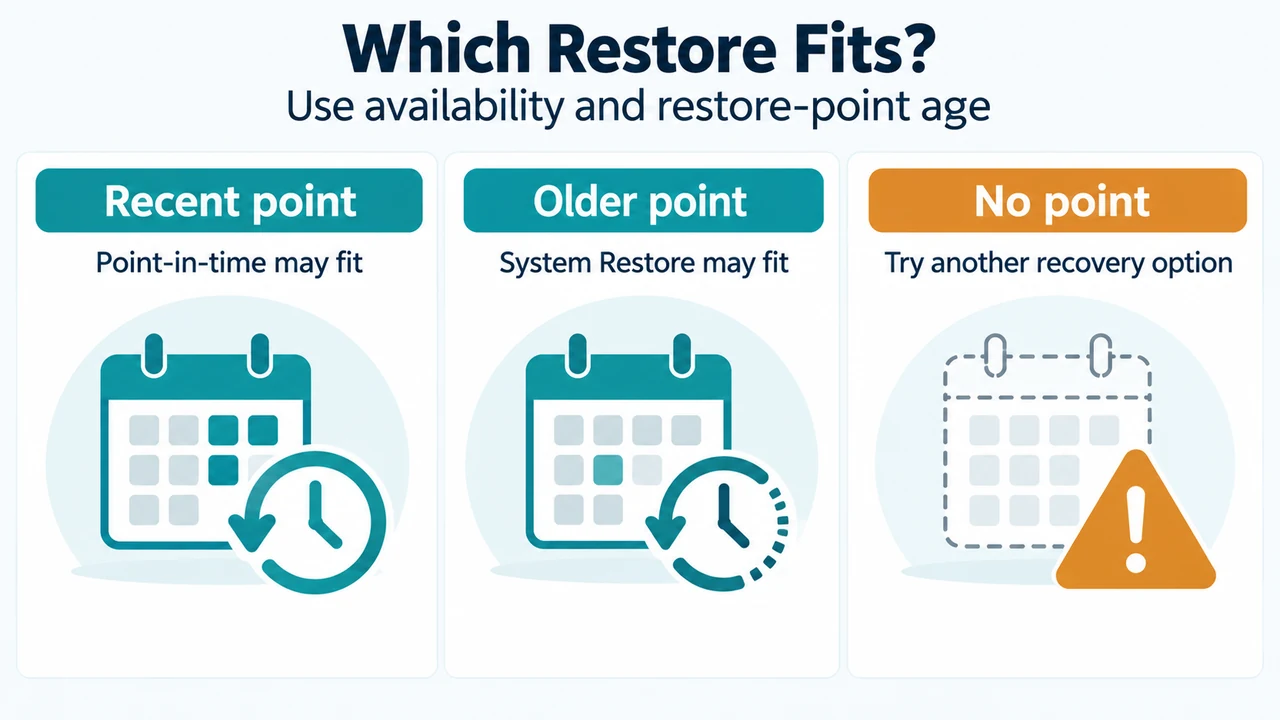
If a Windows 11 version 24H2 or later PC will not start after an update, driver, app, or other system change, check whether Point-in-time restore is available in Windows Recovery Environment (WinRE). Microsoft describes it as the first choice when available because it restores the entire system. Use System Restore when Point-in-time restore is unavailable or when you need to go back more than 72 hours.
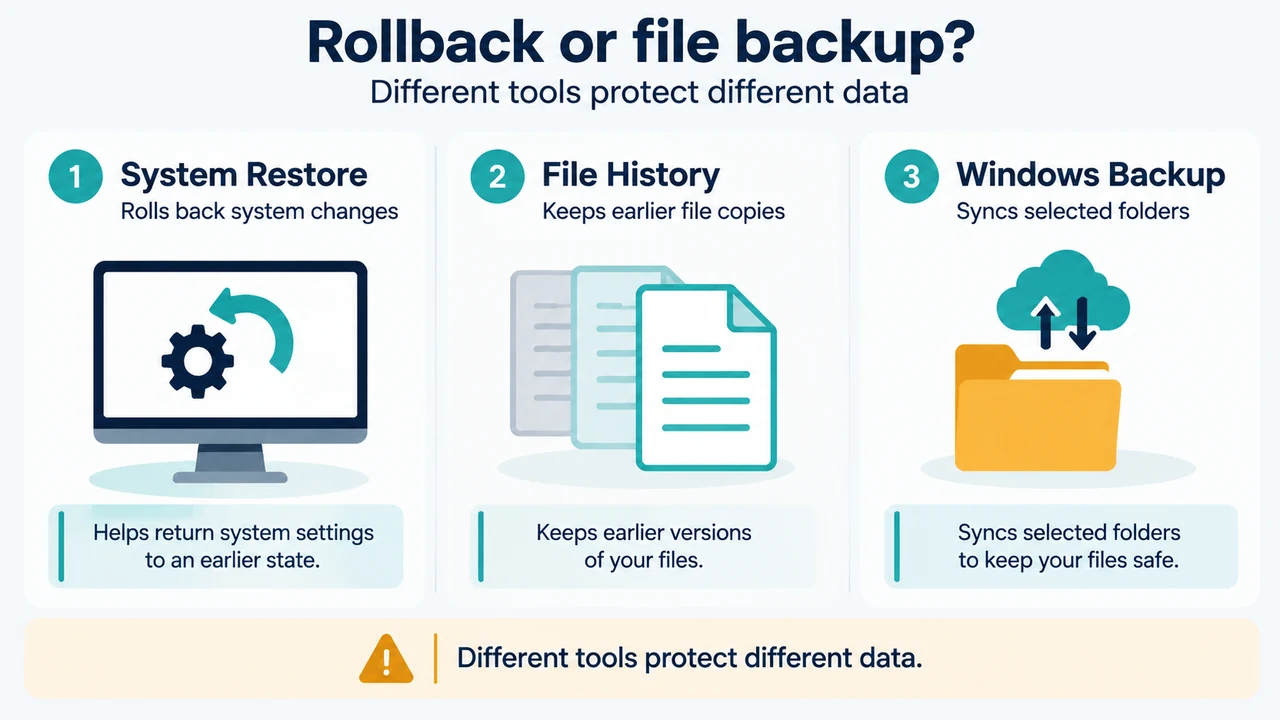
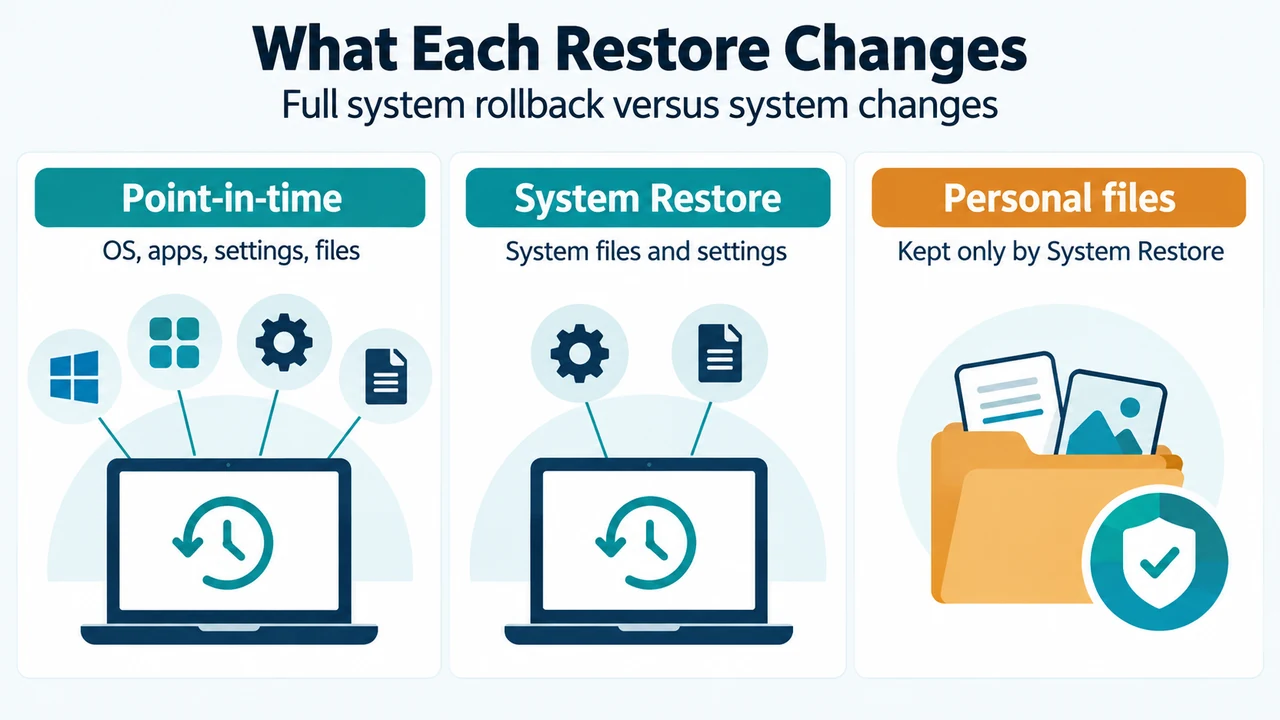
Both options can undo changes, but they have different effects. Point-in-time restore can remove personal files, apps, settings, passwords, certificates, and keys created or changed after the selected restore point. System Restore rolls back system files and settings while keeping personal files. Neither description makes either option a general backup.
Choose Point-in-time restore when its limits fit the problem
Point-in-time restore is documented for Windows 11 version 24H2 or later. In WinRE, select Troubleshoot > Point-in-time restore, enter the BitLocker recovery key if prompted, choose a restore point, review the warning, and select Restore.
Its restore points are automatic snapshots. Microsoft says they are created at regular intervals, approximately every 24 hours by default, and retained for up to 72 hours. The timing is not guaranteed: Microsoft Learn notes that device power state, restarts, and disk conditions can affect capture and removal timing.
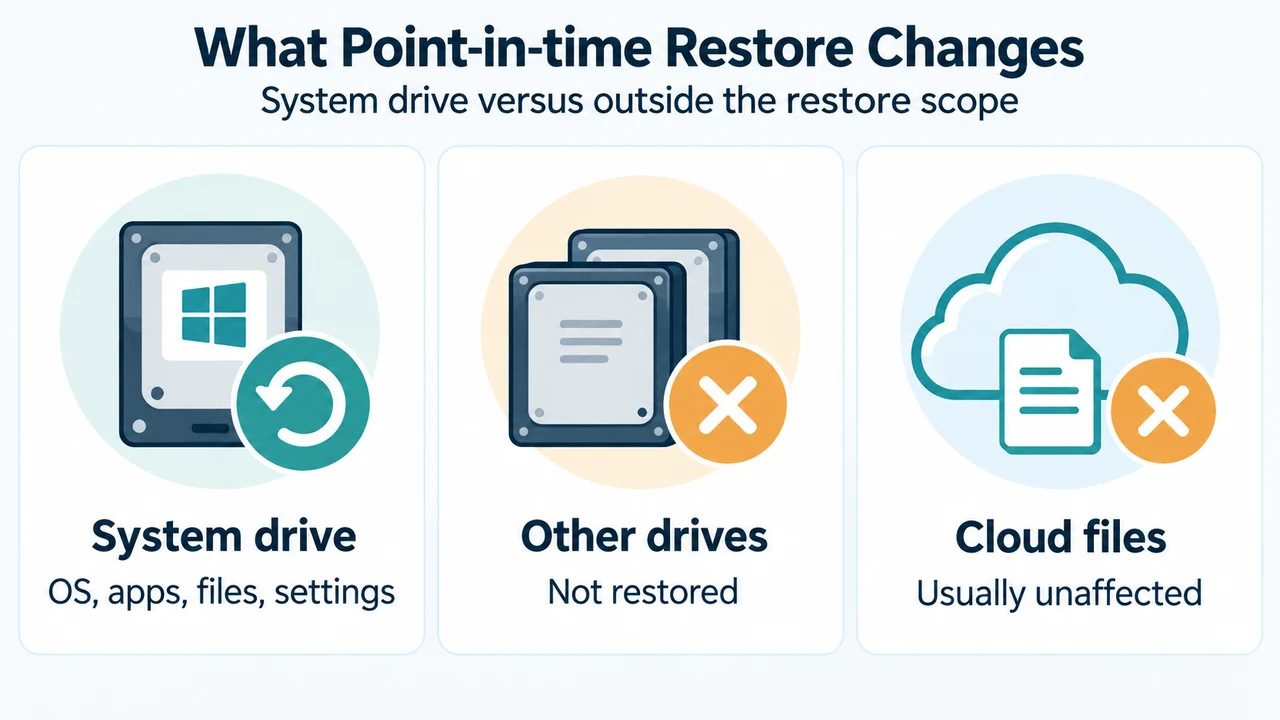
The scope is the key decision. Point-in-time restore returns the Windows system drive to the selected state, including the operating system, apps, settings, and files. Changes made after that point are lost. Cloud-stored files such as OneDrive files are not affected according to Microsoft’s support documentation. Other drives are not restored.
Before starting, make sure you can retrieve the BitLocker recovery key if BitLocker is enabled. Microsoft also says the PC needs enough free disk space to complete the restore, with at least as much free space as the total size of the restore points on the system. Keep the PC connected to power and do not turn it off during the restore.
Use System Restore when Point-in-time restore is unavailable or too recent
System Restore is available on Windows 10 and Windows 11. It rolls back system files and settings, but personal files are not affected. Microsoft lists it as an option when Point-in-time restore is unavailable or when you need to use a restore point older than three days.
System Restore does not provide the same full-system rollback. Microsoft says it may affect recently installed apps, drivers, updates, or settings, while personal files are kept. Its restore points may be event-triggered or created manually, and Microsoft documents retention as indefinite subject to disk space and cleanup.
In WinRE, use the recovery options presented by Windows and select System Restore if it is available. The supplied Microsoft excerpts do not provide a complete System Restore click path from WinRE, so this article does not add one.
A practical decision
| Question | Choose |
|---|---|
| Is the PC running Windows 11 version 24H2 or later, and is a recent Point-in-time restore point available? | Consider Point-in-time restore first. |
| Would losing files, apps, settings, passwords, certificates, and keys changed after that point be acceptable? | If yes, Point-in-time restore may fit; if no, do not approve that rollback without protecting needed data. |
| Is Point-in-time restore unavailable, or is the needed restore point more than 72 hours old? | Try System Restore if an appropriate point exists. |
| Is BitLocker enabled? | Have the BitLocker recovery key ready for WinRE recovery access and Point-in-time restore. |
What happens if neither option solves the startup failure?
Microsoft’s recovery guidance lists uninstalling a recent update as another option when the problem began after Windows Update. It says personal files, apps, and settings are kept, although some updates cannot be uninstalled. If recovery options do not work, Microsoft lists a recovery drive or Windows installation media as later options; reinstalling from installation media can remove everything, so back up files before using a destructive recovery path when possible.
Limitations and research method
This article was prepared from the supplied public Microsoft Support and Microsoft Learn excerpts retrieved on September 23, 2026, plus a supplied Windows Central excerpt used only to compare coverage. The Microsoft Learn passage was truncated and indicated that access may require authorization, so this article uses only the visible statements. The article makes no hands-on, lab, benchmark, or comprehensive-review claim. Restore-point availability and timing can vary with configuration, storage, device state, and edition; the cited excerpts do not establish that every Windows 11 installation has both recovery options available.
Text version of the diagrams
- What Each Restore Changes: Point-in-time — OS, apps, settings, files; System Restore — System files and settings; Personal files — Kept only by System Restore
- Which Restore Fits?: Recent point — Point-in-time may fit; Older point — System Restore may fit; No point — Try another recovery option