Windows 11 Point-in-time restore returns the PC to the state captured in a selected local restore point. It includes the operating system, apps, settings and local files. It can help when a problematic update, software conflict or unexpected change causes a problem.
Restore points are kept for up to 72 hours. The restore runs locally from the Windows Recovery Environment (WinRE). If the encrypted volume is protected by BitLocker, WinRE requires the BitLocker recovery key.
What the restore changes
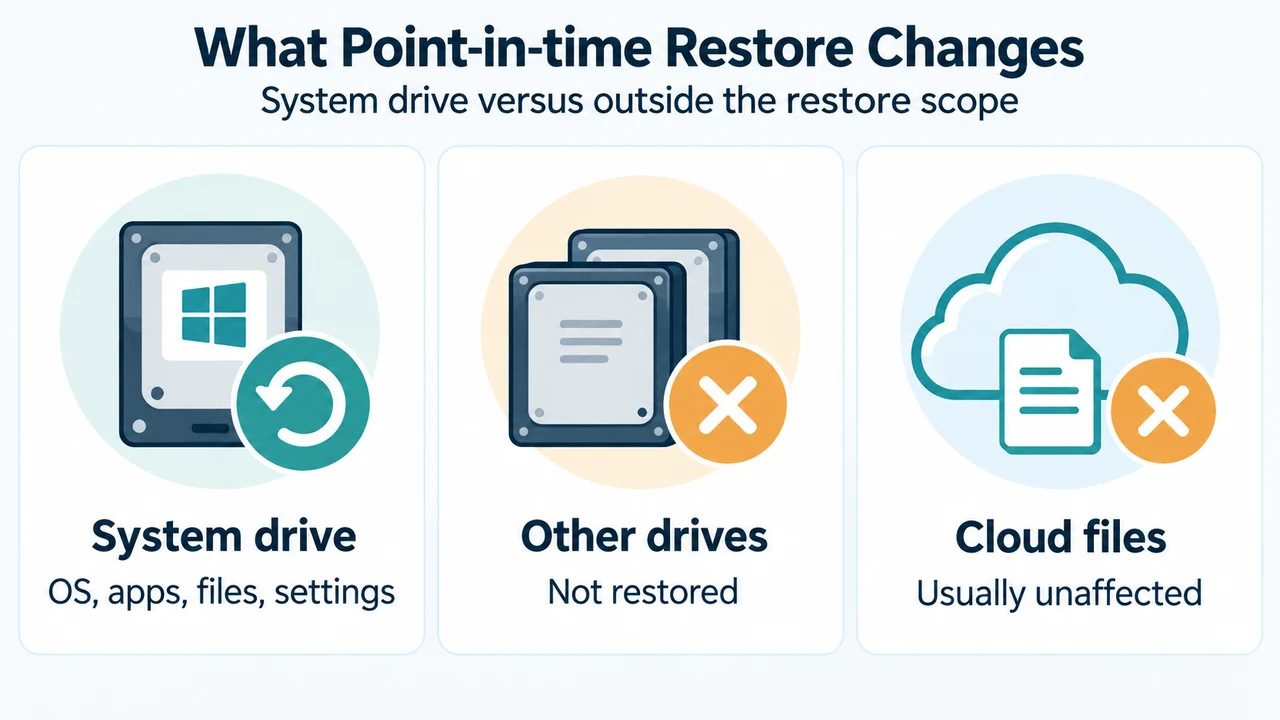
Point-in-time restore reverts the entire system drive to the selected restore point. Changes made afterward can be lost, including new files, app installations, settings, passwords, certificates and keys. Other drives are not restored.
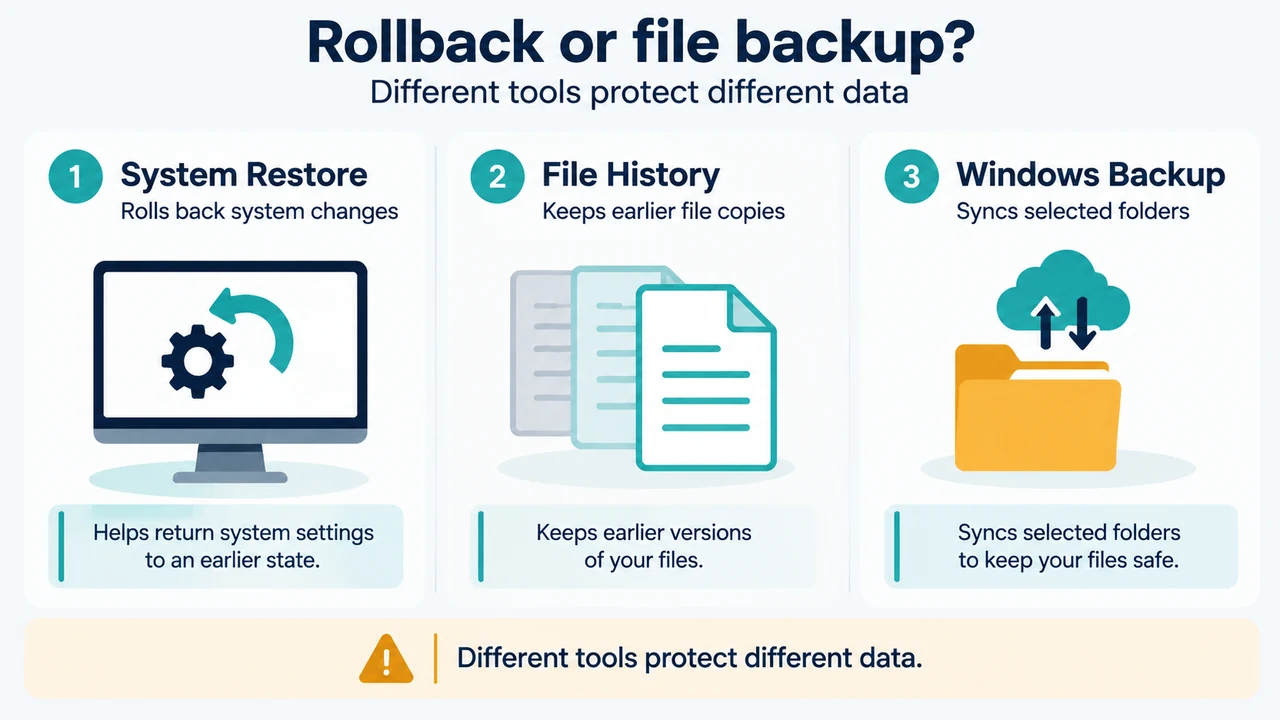
Files stored in cloud services such as OneDrive are not affected by the restore. Microsoft also notes that local and cloud versions of a file can conflict in some cases. Point-in-time restore is therefore not a substitute for a separate backup.
When it fits
The feature fits a recent problem when a suitable restore point exists. Windows creates restore points automatically at regular intervals when the feature is enabled. The default interval is approximately every 24 hours.
Restore points are kept for up to 72 hours and are automatically removed after that period. Older points can also be removed when storage limits or low free space require cleanup. Capture and removal do not necessarily happen at the exact configured time because timing can vary with device state, restarts and available disk space.
Availability and prerequisites
Microsoft’s support documentation covers Windows 11 and Windows 10. Point-in-time restore is currently disabled by default on IT-managed devices and is scheduled to be enabled by default starting with Windows 11, version 26H2. It is enabled by default on unmanaged devices. For default enablement, the Windows OS volume must be at least 200 GB; smaller volumes can enable the feature manually.
Restore-point frequency, retention and maximum-usage settings are configurable on Enterprise edition devices. Only local administrators can view or edit the configuration.
The PC needs enough free space to complete the restore. Microsoft recommends at least as much free space as the total size of all restore points on the system. A restore can also fail because of insufficient free space, file-system corruption or other documented conditions.
Documented restore path
Enter WinRE and select Troubleshoot > Point-in-time restore. Enter the BitLocker recovery key if prompted. Select a restore point, review the information and warning, then select Continue to acknowledge the risks and limitations. Confirm the restore-point selection and select Restore. Windows restarts after the process completes.
Do not power off the PC during the restore. Microsoft warns that interruption can leave the device unusable. A restore can also revert recent security updates or policies, so check for current Windows updates and validate important applications and security controls afterward.
Point-in-time restore versus System Restore
| Question | Point-in-time restore | System Restore |
|---|---|---|
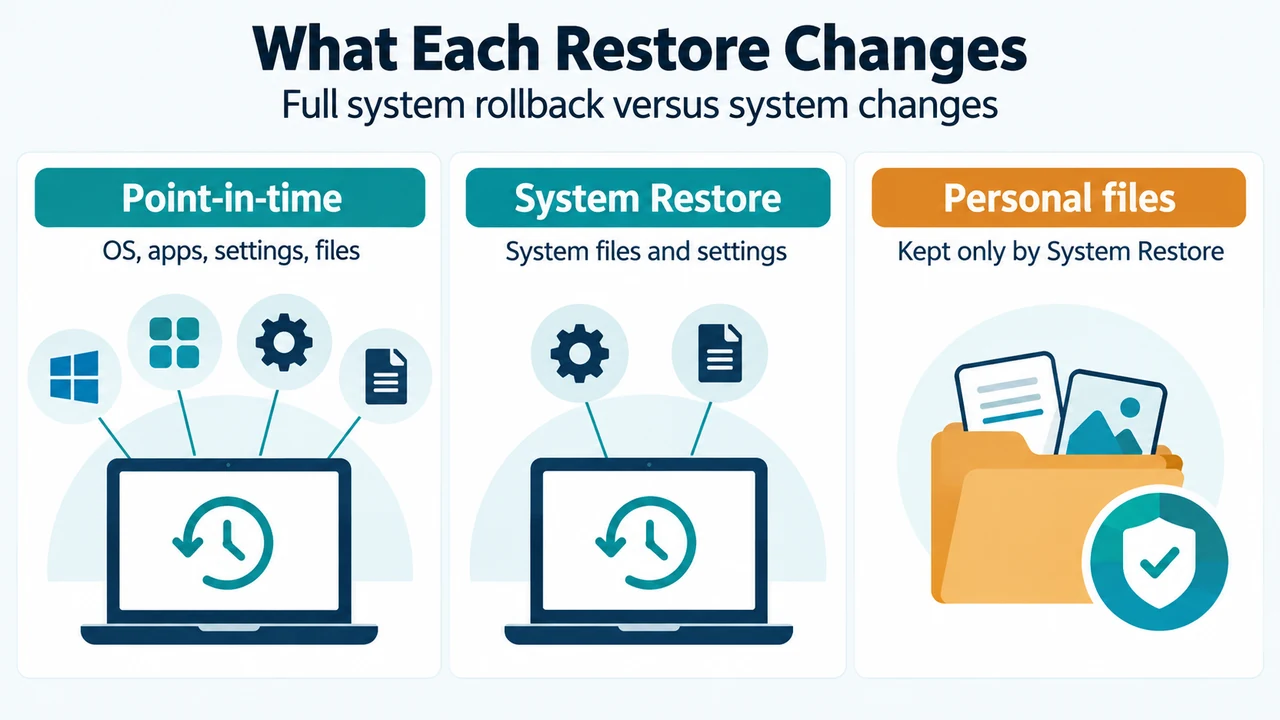
| What it restores | The full system state, including the operating system, apps, settings and files | System files and settings; personal-file coverage varies |
| How points are created | Scheduled automatic capture | Event-triggered or manual capture |
| How long points remain | Up to 72 hours | Indefinitely, subject to disk space and cleanup |
| Where it is configured | Settings | Control Panel |
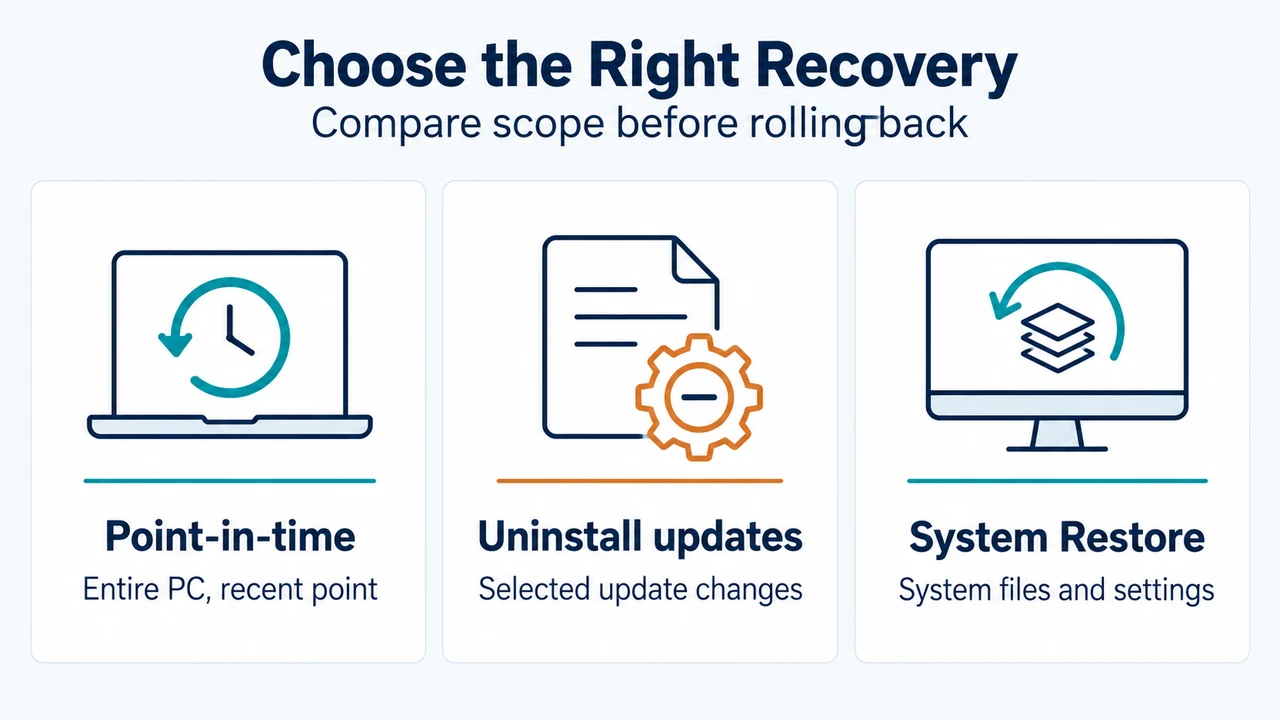
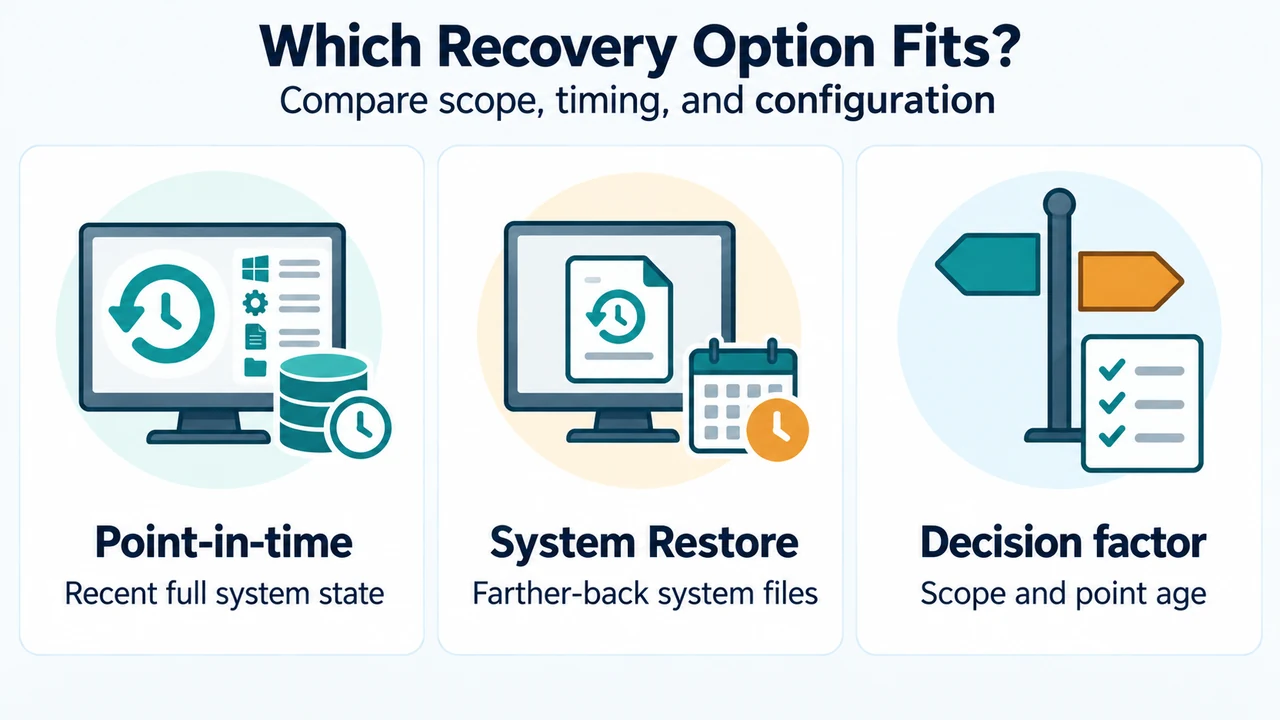
Use Point-in-time restore when a recent restore point exists and you accept the broader rollback of the system drive. Use System Restore when Point-in-time restore is unavailable or when you need to go farther back than 72 hours. Microsoft describes System Restore as restoring system files and settings rather than the full system state.
Limits and risks
- Changes made after the selected point can be lost.
- A restore can fail because of insufficient free space, file-system corruption or other documented conditions.
- A failed or interrupted restore can prevent a normal boot or leave the device in a corrupt state.
- A restore point created under a different Windows edition or SKU cannot be used with the currently installed edition.
- Only the Windows installation drive is restored.
The decision depends on the restore point’s date, the value of later local changes, available free space, access to the BitLocker recovery key and the need to preserve recent security changes.
Text version of the diagrams
- What Point-in-time Restore Changes: System drive — OS, apps, files, settings; Other drives — Not restored; Cloud files — Usually unaffected
- Which Recovery Option Fits?: Point-in-time — Recent full system state; System Restore — Farther-back system files; Decision factor — Scope and point age
Research method and limitations
This answer was prepared from the supplied public Microsoft Support and Microsoft Learn excerpts retrieved on September 20, 2026. It uses the visible Microsoft statements only. The Learn excerpt was truncated and partly access-limited, and competing coverage was not needed to support the technical claims. No hands-on testing, benchmark or comprehensive review was performed.
Primary sources: Microsoft Support: Point-in-time restore for Windows and Microsoft Learn: Point-in-time restore for Windows.