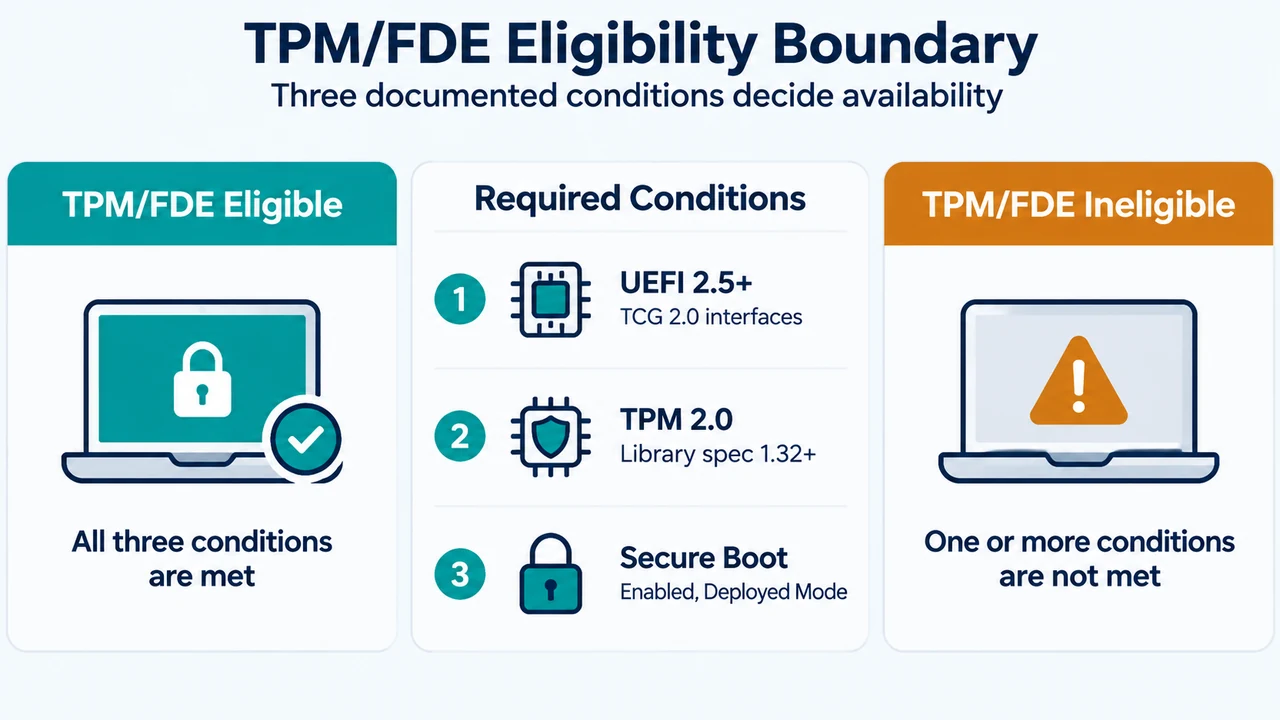
If the TPM-backed full-disk-encryption (TPM/FDE) option is unavailable during an Ubuntu Desktop 26.04 installation, the installer may not have accepted one or more required platform conditions. Ubuntu documents three main requirements: UEFI 2.5 or later with the required Trusted Computing Group interfaces, a PC-client TPM 2.0 chip meeting the stated library specification, and Secure Boot enabled in Deployed Mode. See Ubuntu’s TPM/FDE requirements.
TPM/FDE is currently a Beta feature, so meeting the listed requirements does not turn the feature into a universal guarantee. Ubuntu says that systems which appear eligible but are still not enabled should be reported as bugs. The checks below help you understand the documented boundary before choosing another encryption option.
What Ubuntu Desktop 26.04 checks
UEFI 2.5 or later
The device must use UEFI version 2.5 or later. Ubuntu also requires the UEFI implementation to meet the Platform Configuration Register and log requirements of the Trusted Computing Group EFI PC Client Platform Profile specification in the 2.0 family, and to implement the related TCG EFI Protocol specification. Older UEFI implementations that support only the 1.2 family are insufficient for TPM/FDE.
TPM 2.0
The device must have a PC-client Trusted Platform Module version 2 chip, using version 1.32 or later of the reference library specification. A TPM being present by itself is therefore not the complete documented requirement.
Secure Boot in Deployed Mode
Secure Boot must be enabled and in Deployed Mode. Ubuntu’s requirements page does not say that changing one setting alone will make every system eligible; the UEFI, TPM and Secure Boot conditions are described together.
Why the option may not provide automatic unlocking
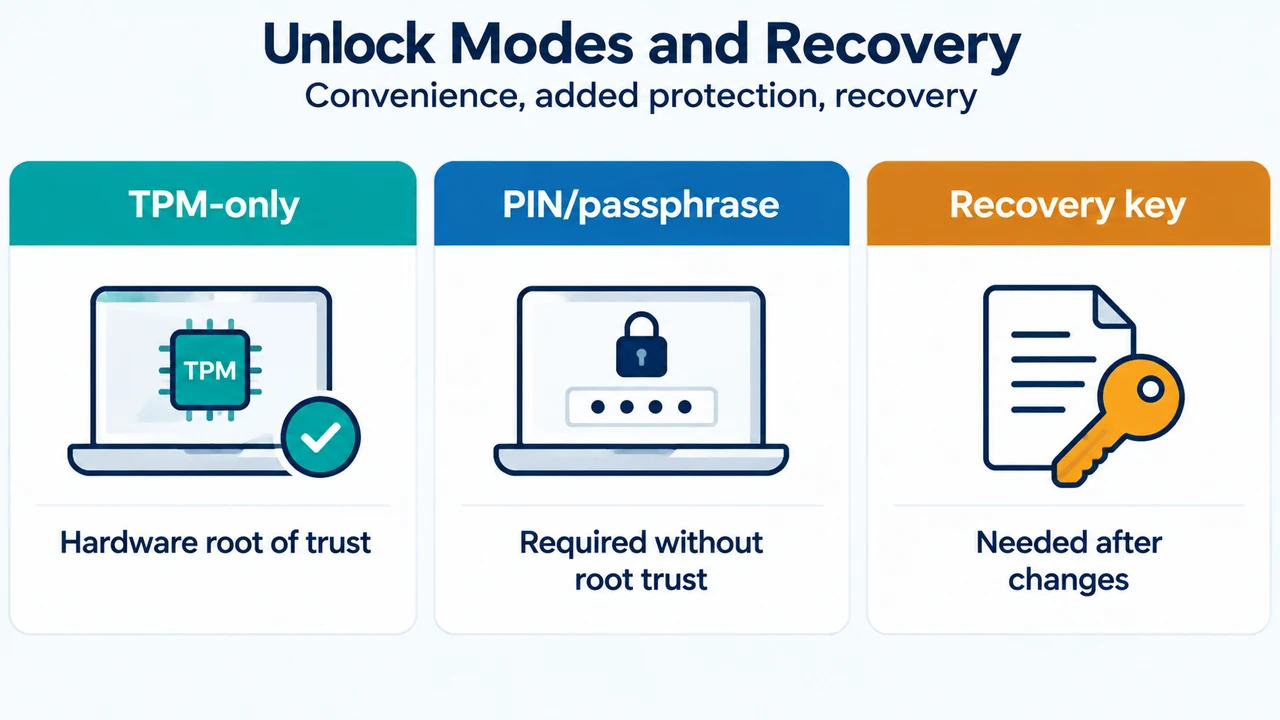
Ubuntu distinguishes TPM/FDE eligibility from automatic unlocking. Automatic unlocking, also called TPM-only unlock, requires firmware to be verified or measured by a hardware root of trust. Ubuntu documents Boot Guard Authenticated Code Module (ACM) for Intel systems and Platform Secure Boot (PSB) enabled on AMD systems as the relevant dedicated security-chip conditions.
On systems without a hardware root of trust, Ubuntu says the installer makes a PIN or passphrase mandatory. Ubuntu also states that a PIN or passphrase can be disabled after installation, but that doing so does not protect the system against the hardware and firmware threats described in the requirements documentation.
Some hardware vendors may enable firmware options that alter the chain of trust, such as Absolute Persistence technology. Ubuntu says the installer can alert you about this. Depending on your permissions, you may be able to disable the feature or keep it enabled.
Choose the encryption setup that matches the documented result
| Installer or system condition | Supported interpretation from Ubuntu’s documentation |
|---|---|
| TPM/FDE is offered and automatic unlocking is available | The system has the documented hardware-root-of-trust conditions for TPM-only unlock. A PIN or passphrase remains optional. |
| TPM/FDE is offered but a hardware root of trust is not available | Ubuntu requires a PIN or passphrase during installation. Ubuntu says this can be disabled after installation, with the stated security limitation. |
| TPM/FDE is not offered | Check the documented UEFI, TPM 2.0 and Secure Boot requirements. If the system appears to meet them but remains ineligible, Ubuntu directs users to report a bug. |
The choice between a PIN and a passphrase is also a risk decision. Ubuntu describes the PIN as numeric and the passphrase as an alphanumeric password. It says a passphrase provides additional protection against attacks targeting the TPM chip, because the passphrase is still needed even if the TPM is compromised. Ubuntu identifies security-conscious users, people handling sensitive data and users who may face targeted attacks as cases where this extra protection is particularly useful.
Plan for the recovery key before installing
Ubuntu provides a recovery key at the end of installation and says it should be stored safely outside the computer, such as in a cloud-based password manager. Ubuntu also warns that losing the key can mean losing access to data in certain situations.
The recovery key may be requested after moving the disk to another computer, forgetting the disk PIN or passphrase, changing hardware, updating BIOS, UEFI or firmware, changing boot settings such as Secure Boot, making certain security-policy changes, or resetting or clearing the TPM. Ubuntu recommends knowing the recovery key before planning such changes.
If you use another encrypted operating system or drive, keep that platform’s recovery key as well. Ubuntu gives the example of Ubuntu TPM/FDE alongside Windows BitLocker and says each platform has its own recovery-key requirements.
What to do when the documented checks appear to pass
Confirm the exact machine configuration against the requirements above, including the UEFI version and TPM 2.0 specification details rather than assuming that a visible TPM means every requirement is satisfied. Confirm that Secure Boot is enabled in Deployed Mode. Also consider whether vendor firmware settings have altered the chain of trust.
If the system still does not enable TPM/FDE despite appearing to meet Ubuntu’s documented requirements, use Ubuntu’s bug-reporting route. The supplied documentation does not establish a universal setting change, custom workaround or guarantee that the option can be restored on every affected machine.
Recovery is possible only with the required conditions
Ubuntu documents a recovery path for an encrypted disk when you know its recovery key, have access to a Linux system that can install snaps, and the disk is not corrupted. The documented process uses the snap-tpmctl tool to mount the encrypted partition and then prompts for the recovery key. This is a recovery procedure, not a method for bypassing a missing or unknown key.
Research method and limitations
This article was prepared from the supplied public Ubuntu 26.04 documentation excerpts retrieved on 20 September 2026. The release-notes excerpt was explicitly truncated, so it supports only the visible TPM/FDE statements. The requirements, explanation and recovery excerpts were used for the technical claims above. The competing page was reviewed only as evidence of competing coverage; its claimed hands-on testing was not used as technical evidence. This is research-based guidance, not a hands-on test, lab result, benchmark or comprehensive hardware-compatibility review.
Text version of the diagrams
- TPM/FDE Eligibility Boundary: UEFI 2.5+ — TCG 2.0 interfaces; TPM 2.0 — Library spec 1.32+; Secure Boot — Enabled, Deployed Mode
- Unlock Modes and Recovery: TPM-only — Hardware root of trust; PIN/passphrase — Required without root trust; Recovery key — Needed after changes