Documented Wi-Fi Connection Behavior in Ubuntu 26.04
In Ubuntu 26.04, connecting a wireless-enabled computer to an in-range wireless network provides access to local network shares and the internet. The standard connection workflow uses the desktop interface:
- Open the system menu from the right side of the top bar.
- Select Wi-Fi to expand the Wi-Fi section of the menu.
- Click the desired network name. If it does not appear initially, scroll down the list. If it still does not appear, the computer may be out of range, or the network might be hidden.
- If the network requires an encryption key (password), enter the password when prompted and click Connect. The password may be printed on the underside of the router or base station, listed in its manual, or provided by the network administrator.
Network Status Indicators and Connection Failures
Ubuntu 26.04 reflects connection progress and health through the network icon:
- Connecting: The network icon changes appearance while the computer attempts to connect.
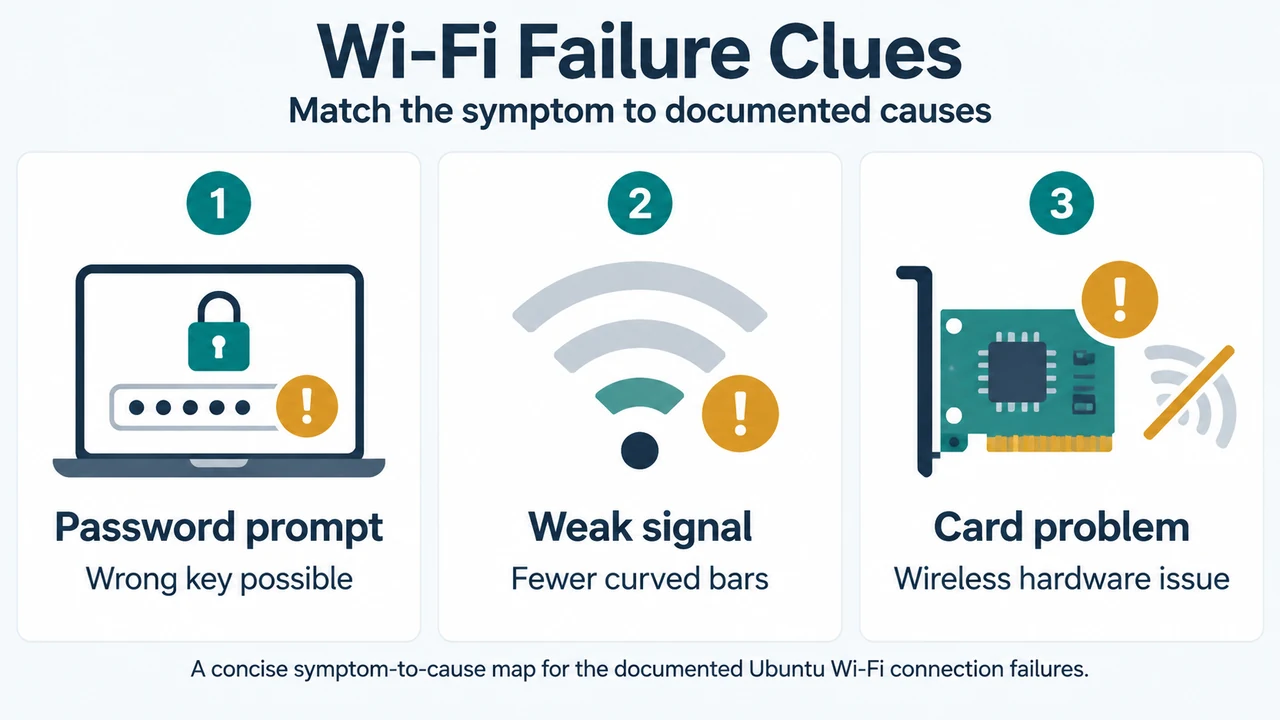
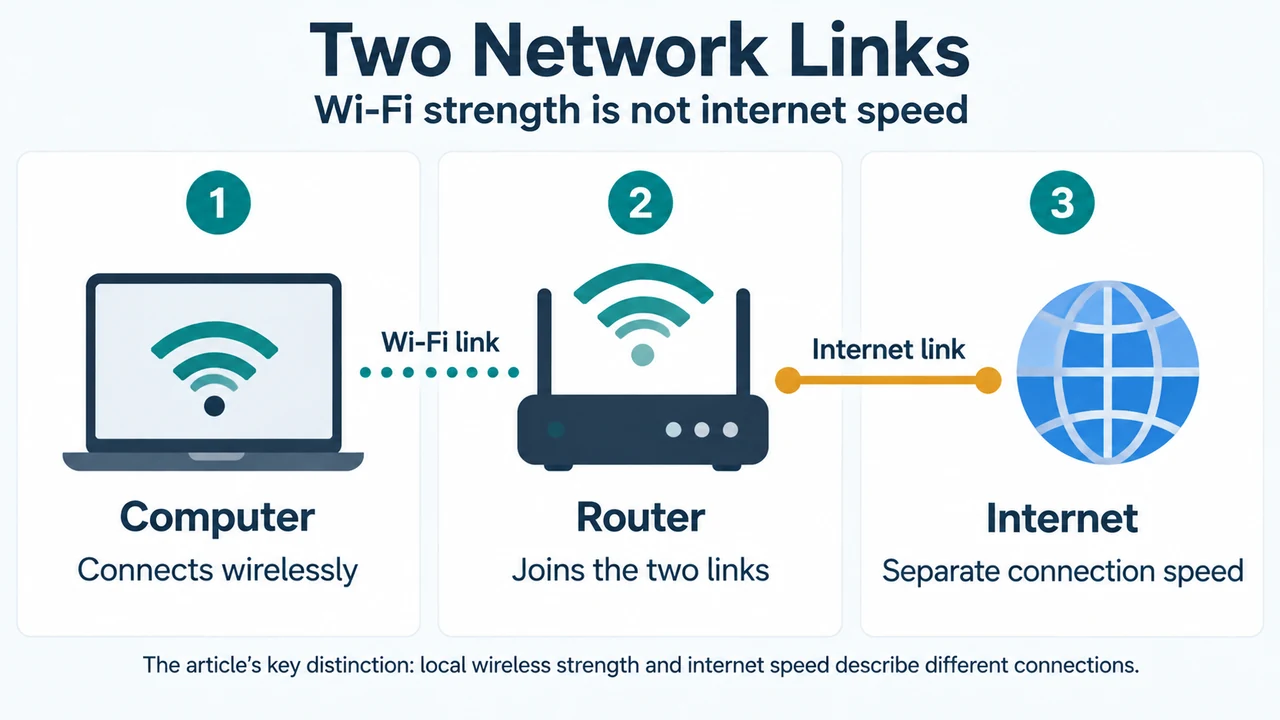
- Connected: When successful, the icon changes to a dot with curved bars above it. More bars represent a stronger connection. Fewer bars indicate a weaker, potentially unreliable connection. A stronger wireless signal does not guarantee faster internet or download speeds, because the wireless connection to the router operates separately from the internet connection provided by the modem or router.
- Disconnected or Repeated Password Prompt: If the attempt fails, Ubuntu may prompt for the password again or notify you that the connection has been disconnected. The official documentation identifies three potential causes: entering the wrong password, having a wireless signal that is too weak, or encountering a problem with the computer’s wireless card.
The Five-Stage Troubleshooting Outline
For ongoing issues, Ubuntu documentation provides a high-level five-step troubleshooter structure to isolate problems:
- Performing an initial check
- Gathering information about your hardware
- Checking your hardware
- Attempting to create a connection to your wireless router
- Performing a check of your modem and router
When running commands referenced in the troubleshooter, open the Terminal application from the Activities overview. Commands are case-sensitive and run after pressing Enter.
Diagnostic Reference
| Observed Symptom | Documented Causes or Status |
|---|---|
| Repeated password prompt or “disconnected” notice | Wrong password entered, wireless signal too weak, or computer wireless card problem |
| Fewer curved bars above dot icon | Weak wireless connection; connection reliability may be reduced |
| Network name missing from Wi-Fi list | Computer out of range or network is hidden (scroll down the list if not initially shown) |
Research Method and Limitations
This article was prepared solely from public documentation excerpts for Ubuntu 26.04 published on help.ubuntu.com (“Connect to a wireless network” and “Wireless network troubleshooter”). No hands-on testing, hardware diagnostics, or network benchmarks were conducted, and no competing coverage was available. Material limits: the supplied excerpts state the titles of the five troubleshooting phases and basic Terminal rules, but omit the detailed diagnostic commands, subpage instructions, and router check procedures.
Text version of the diagrams
- Wi-Fi Failure Clues: Password prompt — Wrong key possible; Weak signal — Fewer curved bars; Card problem — Wireless hardware issue
- Two Network Links: Computer — Connects wirelessly; Router — Joins the two links; Internet — Separate connection speed