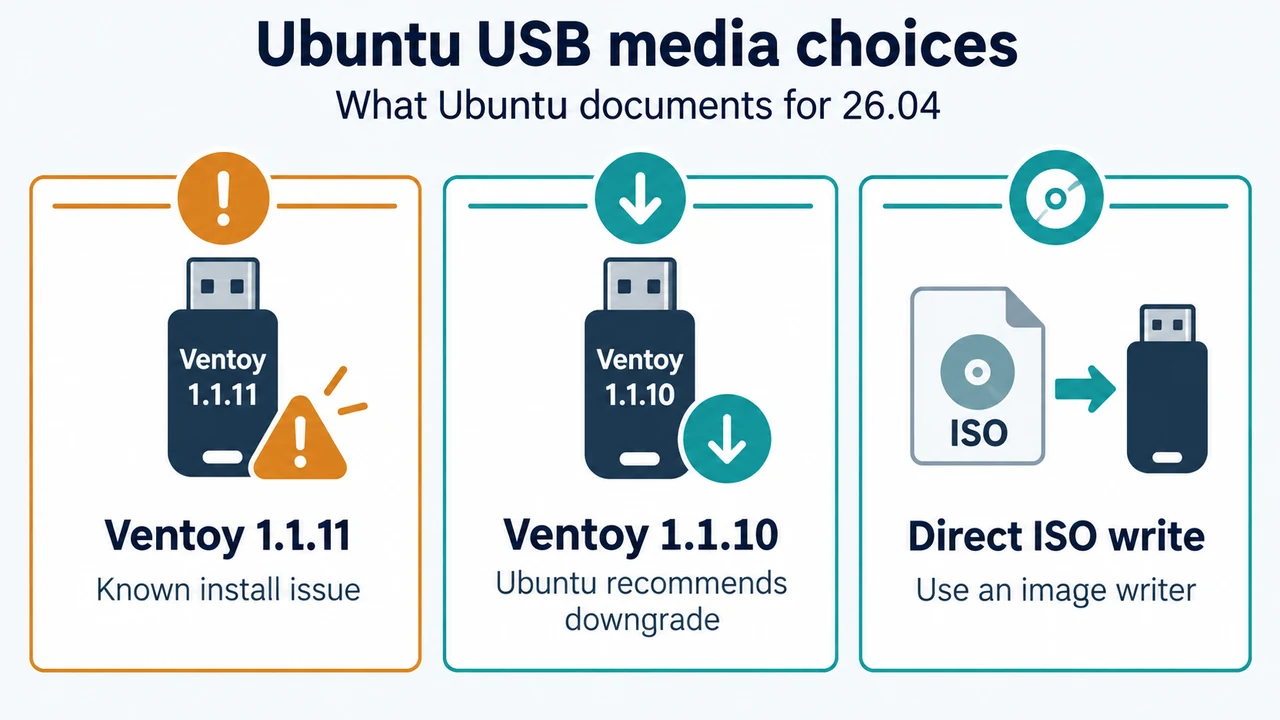
If Ubuntu 26.04 installation media created with Ventoy 1.1.11 cannot continue or shows installer errors, the USB-tool version is a documented suspect. Ubuntu says Ventoy 1.1.11, released in April 2026, has a known issue that prevents Ubuntu from installing correctly.
The supported choices in the supplied Ubuntu guidance are to use another Ventoy release, specifically Ventoy 1.1.10 in the Ubuntu 26.04 release notes, or write the Ubuntu ISO directly to the USB with an image-writing tool. This article covers that narrow Ventoy 1.1.11 case; it does not diagnose unrelated firmware, disk, partition, or hardware failures.
What the documented issue covers
Ubuntu’s bootable-USB documentation identifies Ventoy 1.1.11 as having a known issue that prevents Ubuntu from installing correctly. The same limitation appears in the Ubuntu 26.04 release notes, which recommend downgrading to Ventoy 1.1.10 or flashing the ISO directly to a USB drive.
That is a configuration-specific warning. It does not establish that every Ventoy release, every Ubuntu image, or every installation failure has the same cause. If your media was not made with Ventoy 1.1.11, this article does not provide enough evidence to identify the cause of the failure.
Option 1: use Ventoy 1.1.10
If you want to continue using Ventoy, the Ubuntu 26.04 release notes specifically recommend downgrading to Ventoy 1.1.10. Obtain Ventoy from its official download page and check the published SHA-256 hash, as the Ventoy page instructs.
After preparing the USB with the recommended Ventoy release, retry the Ubuntu 26.04 installation. Ubuntu’s supplied excerpts do not document a version-check command or a complete downgrade procedure, so this article does not prescribe an unverified command sequence. Confirm the version from the Ventoy package or release information you downloaded before recreating the media.
Option 2: write the Ubuntu ISO directly
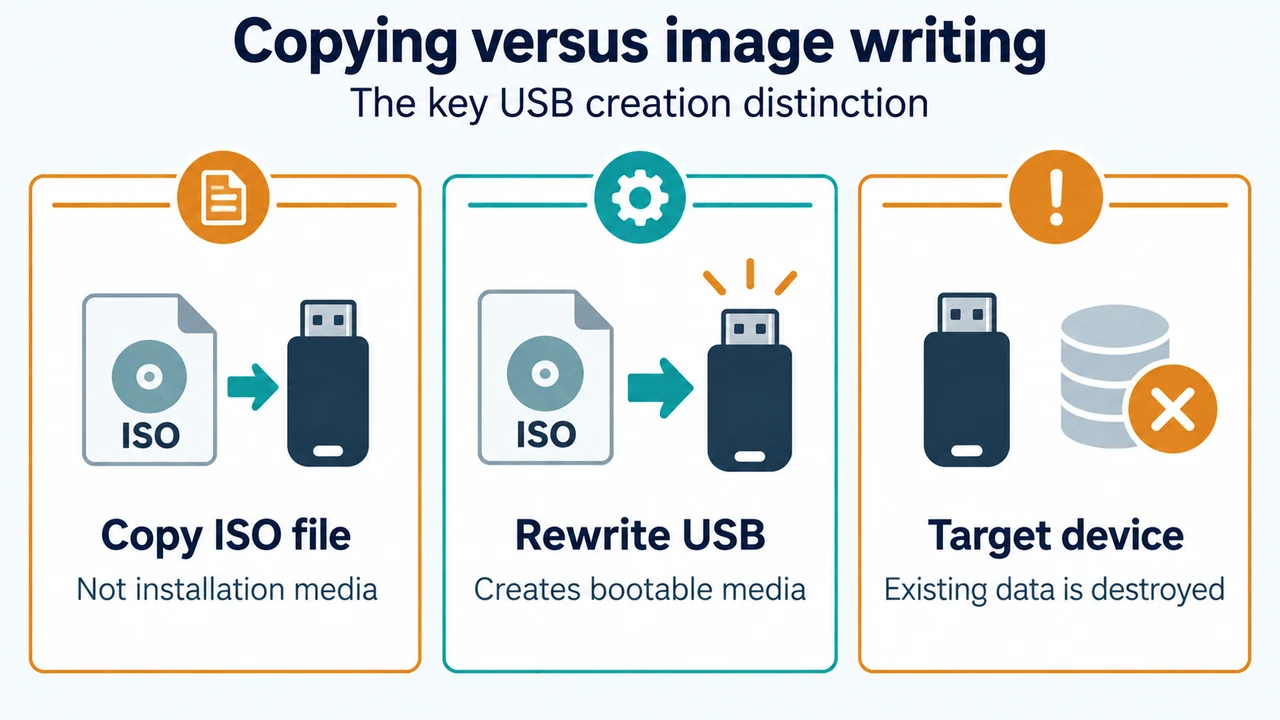
Ubuntu also recommends using another USB creation tool. Its documentation explains that a bootable USB is created by rewriting the USB with the Ubuntu image; simply copying the ISO file is different.
On Windows, Ubuntu documents Rufus and says to select the downloaded Ubuntu image, choose the correct USB device, and start the write process. On macOS, Ubuntu documents balenaEtcher and also describes a command-line method. On Ubuntu and other Linux distributions, the supplied page documents Disks, Startup Disk Creator, KDE ISO Image Writer, and other image-writing approaches.
Choose the method documented for your operating system in Ubuntu’s bootable USB instructions. The page also lists Ventoy, balenaEtcher, Rufus, Disks, Startup Disk Creator, and KDE ISO Image Writer as available approaches in the relevant sections.
Important data warning
Writing an Ubuntu image destroys data on the selected USB device. Ubuntu repeatedly warns users to select the USB stick rather than the disk containing the running system. Close applications using the USB and verify the target device before confirming the write.
The Ubuntu documentation marks the dd method as intended for advanced users and warns that choosing the wrong disk or file can destroy the running system. This article does not recommend that method when a graphical image writer is available.
A safe retry path
- Confirm that the affected media was created with Ventoy 1.1.11.
- Choose either Ventoy 1.1.10, which the Ubuntu 26.04 release notes specifically recommend, or a direct ISO-writing method documented by Ubuntu.
- Before writing, select the correct USB device and move any needed files from it. The write process overwrites the USB.
- After the media is recreated, boot the target computer from the USB and retry the Ubuntu 26.04 installation.
Ubuntu says that, after creating bootable media, you insert it into the target computer and reboot. The computer may recognize it automatically; otherwise, Ubuntu says you may need to open the boot menu, usually with a key such as F12, and select the USB.
What this fix does not prove
Avoid treating a change of USB tool as a universal solution. The supplied sources establish a known Ventoy 1.1.11 issue and two documented alternatives. They do not establish that a remaining failure is caused by firmware, the target disk, a partition layout, the Ubuntu ISO, or any other component.
If the installation still fails after recreating the media with one of the documented alternatives, the evidence supplied here is insufficient to diagnose the next cause. Record the exact installer message and configuration before seeking a separate diagnosis.
Research method and limitations
This research-based article was prepared from the supplied public excerpts retrieved on 23 September 2026. The primary evidence came from Ubuntu’s bootable-USB documentation, Ubuntu 26.04 release notes, and Ventoy’s official download page. The supplied excerpts were truncated in places, so this article relies only on their visible statements. No hands-on installation, lab test, benchmark, or comprehensive review was performed. No competing page was available for comparison.
Text version of the diagrams
- Ubuntu USB media choices: Ventoy 1.1.11 — Known install issue; Ventoy 1.1.10 — Ubuntu recommends downgrade; Direct ISO write — Use an image writer
- Copying versus image writing: Copy ISO file — Not installation media; Rewrite USB — Creates bootable media; Target device — Existing data is destroyed