Short answer: Ubuntu supports upgrading from Ubuntu 24.04 LTS to Ubuntu 26.04 LTS as a sequential LTS-to-LTS upgrade. Canonical says upgrades to a new LTS become available after its first point release, such as Ubuntu 26.04.1. The documented process requires current updates, a backup of user data, adequate free disk space and an interactive upgrade followed by a restart.
This is a research-based guide for Ubuntu Desktop users currently running Ubuntu 24.04 LTS. It uses the supplied Canonical documentation retrieved on 22 September 2026. It does not report hands-on testing, lab results, benchmark measurements or a comprehensive compatibility review.
Is Ubuntu 26.04 LTS the supported target?
Ubuntu 26.04 LTS was released on 23 April 2026. Canonical’s upgrade documentation states that LTS-to-LTS upgrades become available after the first point release. The Ubuntu 26.04.1 release notes describe fixes made between 26.04 and 26.04.1, including changes in supported packages and hardware-related components.
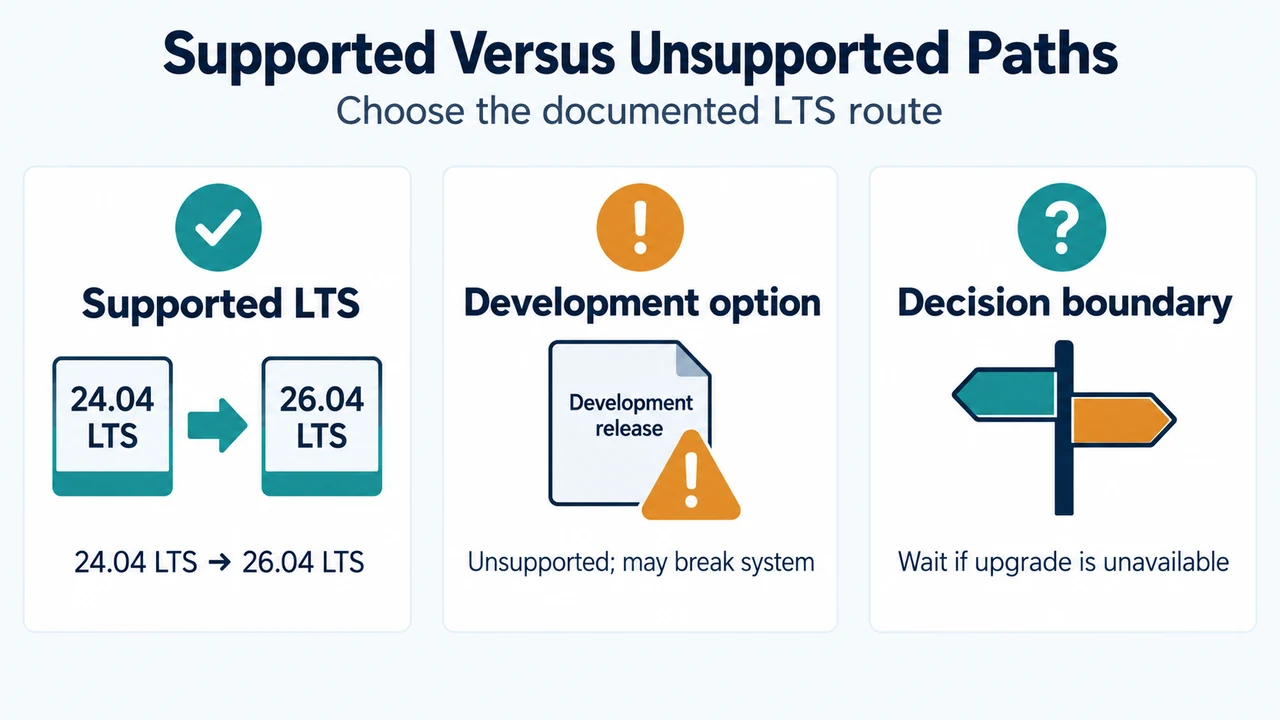
If the upgrade is not offered on a 24.04 LTS system, Canonical says the LTS upgrade may not yet be enabled, or known issues may be blocking it. Check again later and consult the release notes. Do not use a development-release option for a normal upgrade: Canonical warns that development-release upgrades are unsupported and might break the system.
What upgrade path does Canonical support?
Ubuntu only supports sequential upgrades. For an LTS system, that means moving from one LTS release to the next. A system on an older release, such as Ubuntu 22.04 LTS, must first reach Ubuntu 24.04 LTS before proceeding to Ubuntu 26.04 LTS.
Ubuntu’s supported desktop guide provides two documented ways to start the upgrade:
- Open Software Updater. After the system is fully updated, it can show that a new release is available. Select Upgrade.
- Use the documented command-line launcher:
sudo do-release-upgrade.
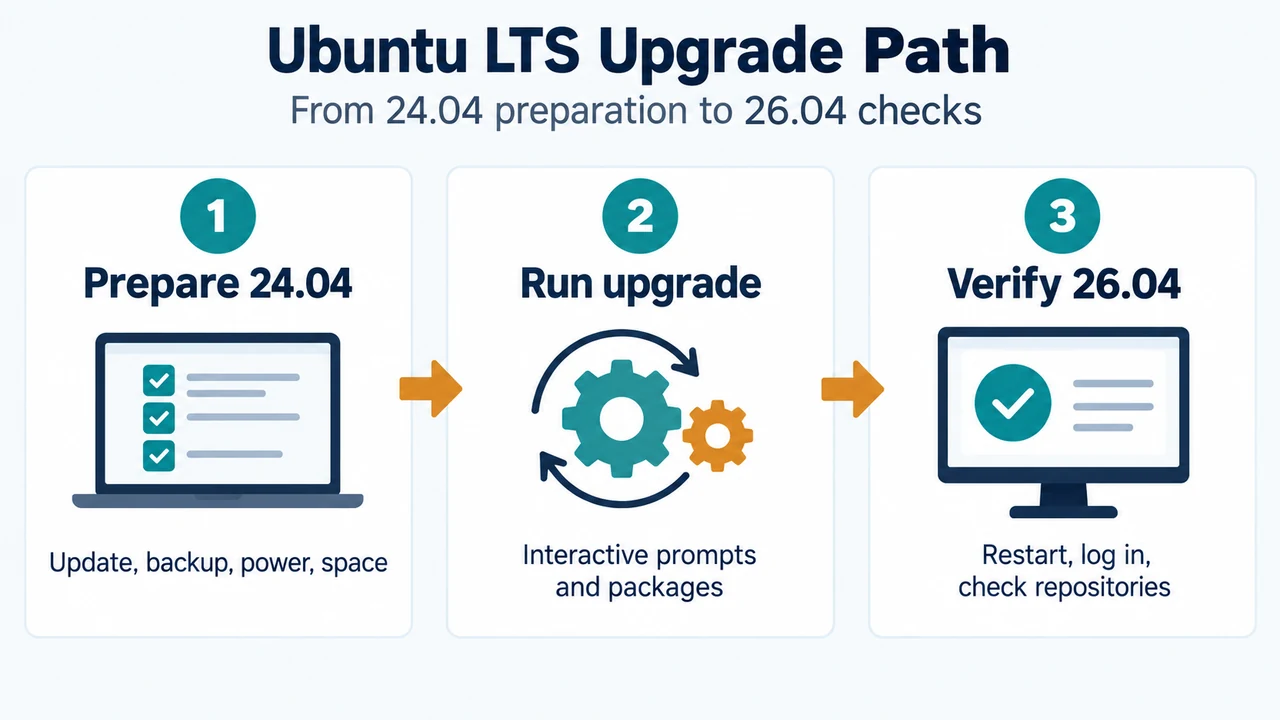
The process is interactive and can take up to an hour, depending on the internet connection and computer performance. Follow the prompts, review the packages that will be installed or removed, and restart when the process finishes.
Preparation before starting
Confirm the current release
On Ubuntu Desktop, open Settings, then System and About. The Operating System field shows the installed version. Canonical also documents lsb_release --description as a command-line way to display the release description.
Install current updates
Use Software Updater to install available updates and restart if prompted. Canonical also documents these safe preparation commands:
sudo apt update
sudo apt upgrade
systemctl reboot
These commands update package information, install available upgrades and restart the computer. They do not replace the release-upgrade process.
Check power, storage and backup
Keep a laptop or mobile device connected to power. Ubuntu needs several gigabytes of free disk space during the upgrade. Back up user data to external storage before starting. Canonical describes data loss during the process as unlikely but still recommends a backup.
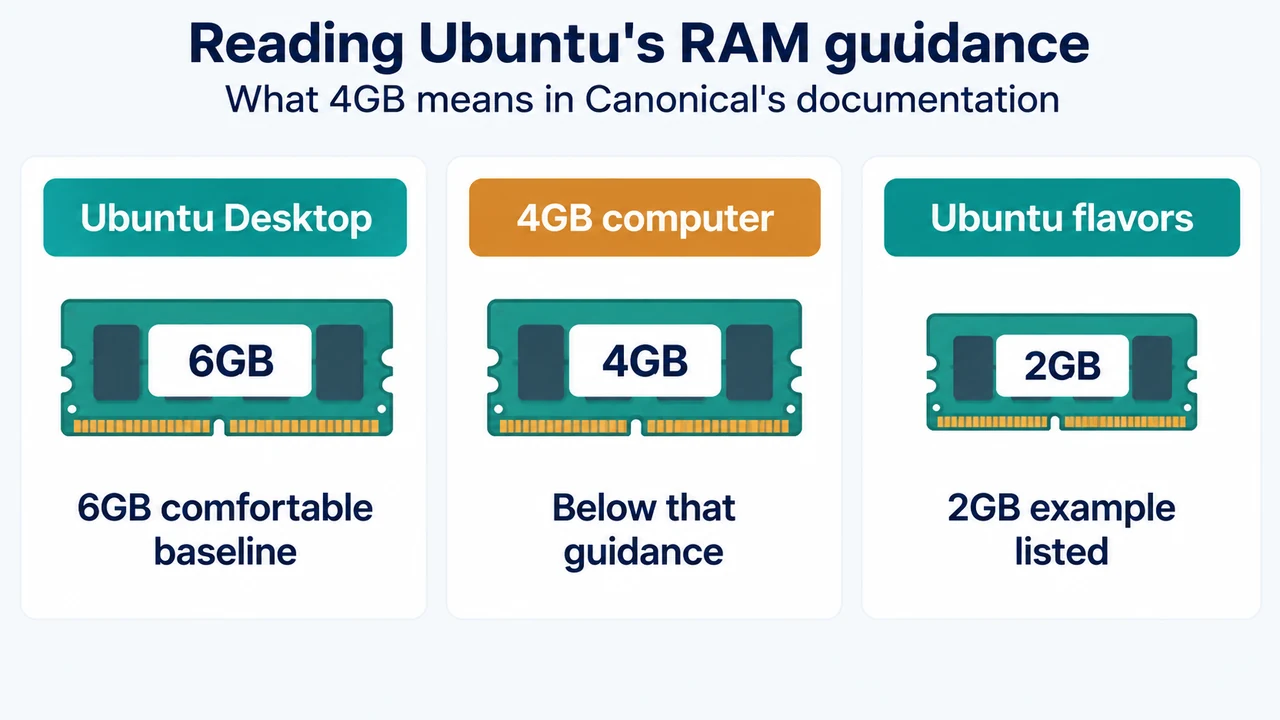
For Ubuntu Desktop 26.04 LTS, the release notes state a minimum of a 2 GHz dual-core processor, 6 GB of RAM and 25 GB of free storage for a comfortable experience. These are the documented 26.04 Desktop requirements. They are not a guarantee that every application, peripheral or third-party package will work after the upgrade.
What happens to third-party software?
Personal Package Archives and other third-party repositories can appear in the Foreign Packages Installed prompt. Canonical says you can try to proceed, but if the upgrade fails, you may need to remove those packages manually and try again. After the upgrade, third-party repositories and PPAs might be disabled. Check the Other Software tab in Software & Updates and look for updated versions before re-enabling anything.
This guidance applies to the documented repository and package behavior. The supplied evidence does not establish how every third-party application, plugin, driver or peripheral will behave on Ubuntu 26.04 LTS.
Checks after the restart
Log in to the upgraded system and check that it works as expected. Confirm the installed release in Settings > System > About or with the documented release-description command. Then review whether required third-party repositories remain disabled and whether updated versions are available.
Canonical notes that the first reboot can be slow while initial configuration completes. If the machine appears slower afterward, compare its hardware with the 26.04 release requirements. Ubuntu does not support downgrading the existing installation to an earlier LTS; returning to an earlier release requires reinstalling Ubuntu, so retain the backup until the new system is confirmed usable.
If the upgrade is interrupted
If the computer loses power during the upgrade, Canonical says it may be able to resume when started again. If you can log in, the documentation gives these recovery commands for configuring unpacked updates and fixing broken dependencies:
sudo dpkg --configure -a
sudo apt --fix-broken install
These commands change package state. Use them only for the interrupted-upgrade situation described by Canonical, and keep the backup available. If you cannot log in or the commands do not resolve the problem, Canonical recommends asking for help through Ubuntu support channels.
Limitations of this decision
The supplied primary excerpts document the release date, point-release gate, sequential upgrade rule, preparation steps, requirements and some recovery guidance. They do not document a general Wayland/X11 compatibility rule for this upgrade, so this guide makes no such claim. They also do not establish behavior for every hardware device, application, repository, driver or desktop configuration.
Research method: this article was prepared only from the supplied public source excerpts retrieved on 22 September 2026. One release-notes passage is truncated and includes excerpt boundaries, so claims are limited to the visible text. The supplied competitor passage was used only to assess coverage and was not used as technical authority. No hands-on access, lab test, benchmark or comprehensive review was performed.
Text version of the diagrams
- Ubuntu LTS Upgrade Path: Prepare 24.04 — Update, backup, power, space; Run upgrade — Interactive prompts and packages; Verify 26.04 — Restart, log in, check repositories
- Supported Versus Unsupported Paths: Supported LTS — 24.04 LTS → 26.04 LTS; Development option — Unsupported; may break system; Decision boundary — Wait if upgrade is unavailable