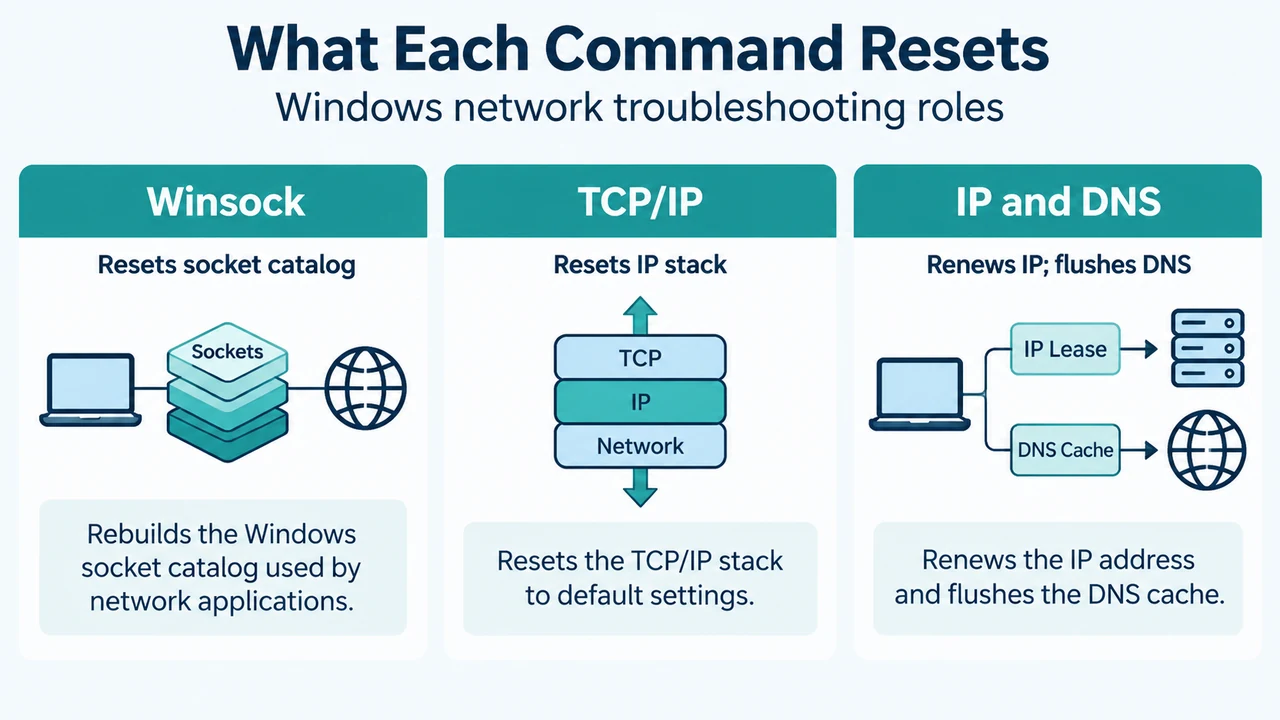
If you cannot access email, browse the web, or stream music on Windows 11 or Windows 10, official Microsoft troubleshooting guidance suggests running a specific sequence of network commands. These commands attempt to manually reset the TCP/IP stack, release and renew your IP address, and flush and reset the DNS client resolver cache.
How to Open an Elevated Command Prompt
To run these network commands, open Command Prompt as an administrator:
- Select Search on the taskbar and type
command prompt. - To the right of the Command Prompt button, select Run as administrator.
- Select Yes at the prompt.
Supported Command Sequence
At the command prompt, run the following commands in the listed order, and then check to see if that fixes your connection problem:
netsh winsock resetnetsh int ip resetipconfig /releaseipconfig /renewipconfig /flushdns
Press Enter after typing each command.
Additional Diagnostic Steps
If the command sequence does not resolve the issue, Microsoft documents additional diagnostic checks:
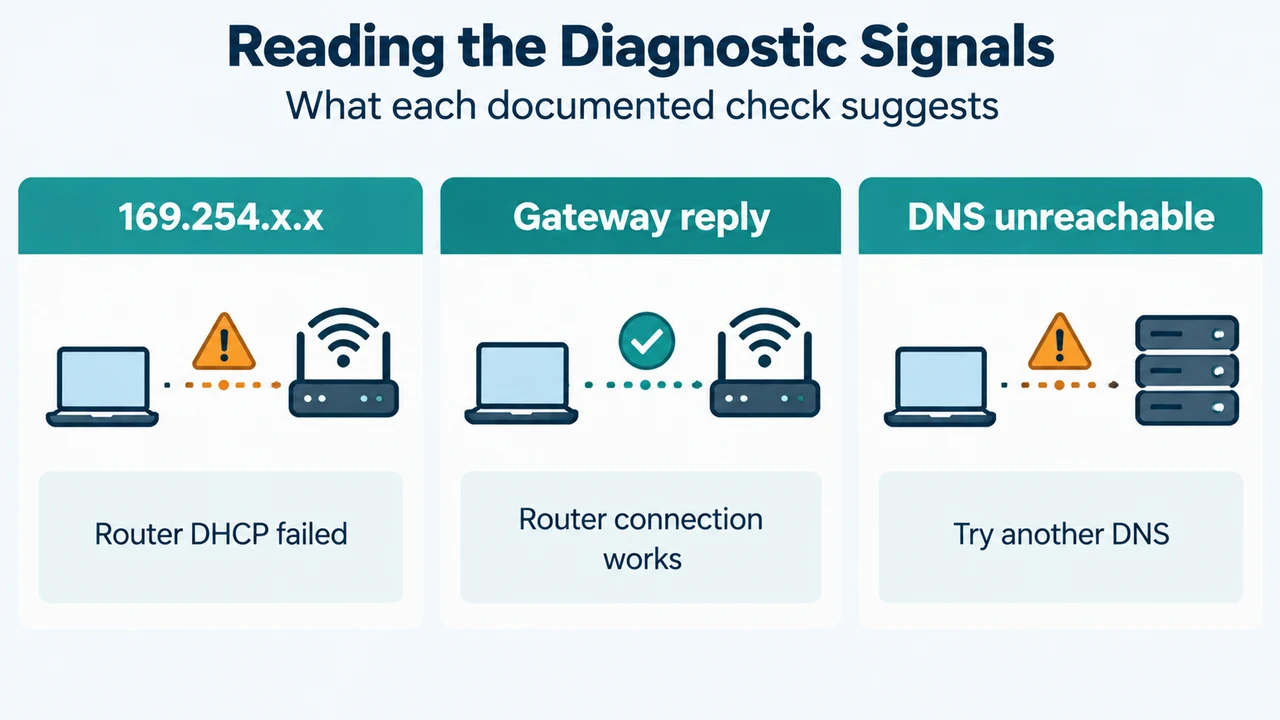
- Check your IP address: Check your IP address to verify it is not an address such as
169.254.x.x. An address formatted like that indicates Windows could not obtain an IP address from your router. If you do not use static IP addresses, verify DHCP is enabled on your router. - Ping the default gateway: Run
ipconfigin an administrative command prompt, locate the IP address listed next to Default gateway for your network (for example,192.168.1.1), and runping <DefaultGateway>. A reply indicates a working connection to your router, pointing to a potential modem or ISP issue. - Check DNS server connectivity: In an administrative command prompt, run
ipconfig /all | findstr /c:"DNS Servers"to view the listed DNS server address, then runping [DNS server address]. If you have a valid IP address but cannot ping your DNS server, Microsoft notes you can change to a different DNS server address.
Network Reset as a Last Resort
Microsoft advises that using network reset should be the last step you try if earlier steps do not help you get connected. Network reset removes installed network adapters and their settings. After your PC restarts, network adapters are reinstalled with default settings. Microsoft notes that after using network reset, you may need to reinstall and configure other networking software, such as VPN client software or virtual switches from Hyper-V, and known connections may be set to a public network profile.
Research Method and Limitations
This article was prepared strictly from visible excerpts of Microsoft Support documentation titled “Fix Wi-Fi connection issues in Windows” for Windows 10 and Windows 11. Material limits: The source material consists of truncated excerpts from a single public support article. Broader architectural details, non-visible portions of the guide, and competing third-party coverage were unavailable.
Text version of the diagrams
- What Each Command Resets: Winsock — Resets socket catalog; TCP/IP — Resets IP stack; IP and DNS — Renews IP; flushes DNS
- Reading the Diagnostic Signals: 169.254.x.x — Router DHCP failed; Gateway reply — Router connection works; DNS unreachable — Try another DNS