If Windows 11 cannot connect to one saved Wi‑Fi network, first check that Wi‑Fi is on, Airplane mode is off, and the network is still listed. Then forget that saved network and reconnect by selecting it again and entering its password. Microsoft documents this procedure for Windows 11 and supported Windows 10.
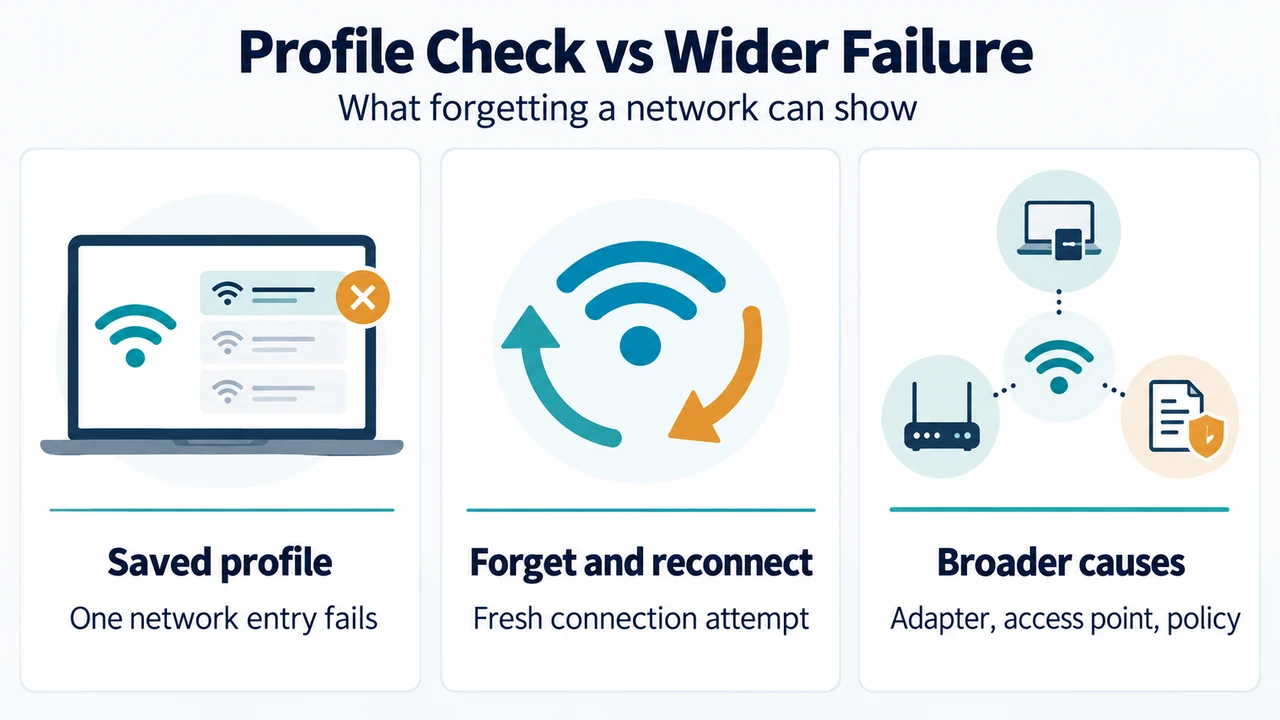
This is a narrow first check for a saved-network connection failure. It does not prove that the cause is the saved profile. Microsoft’s troubleshooting guidance also covers adapter, network-visibility, authentication, driver, firmware, policy, and access-point problems.
Use the reversible profile check first
- Open Settings > Network & internet > Wi‑Fi.
- Confirm that Wi‑Fi is turned on.
- Confirm that Airplane mode is turned off.
- Open Manage known networks.
- Select the affected Wi‑Fi network and choose Forget.
- Return to the available Wi‑Fi networks, select the network, and enter its password.
Microsoft’s connection instructions describe selecting a network from Windows 11 quick settings, choosing Connect, and entering the network password. If the expected network is not listed, Microsoft says you can refresh the network list.
What this check tells you
If reconnecting works, Windows has established a new connection attempt for that network after the saved entry was removed. That is useful evidence, but it does not identify every possible cause of the original failure.
If the same network still refuses the connection, avoid treating the forget step as a universal fix. Microsoft’s symptom-first guidance separates failed connections and authentication errors from missing adapters, networks that do not appear, intermittent disconnects, and problems that begin after an operating-system, driver, firmware, policy, sleep, or resume event.
Use the symptom to choose the next check
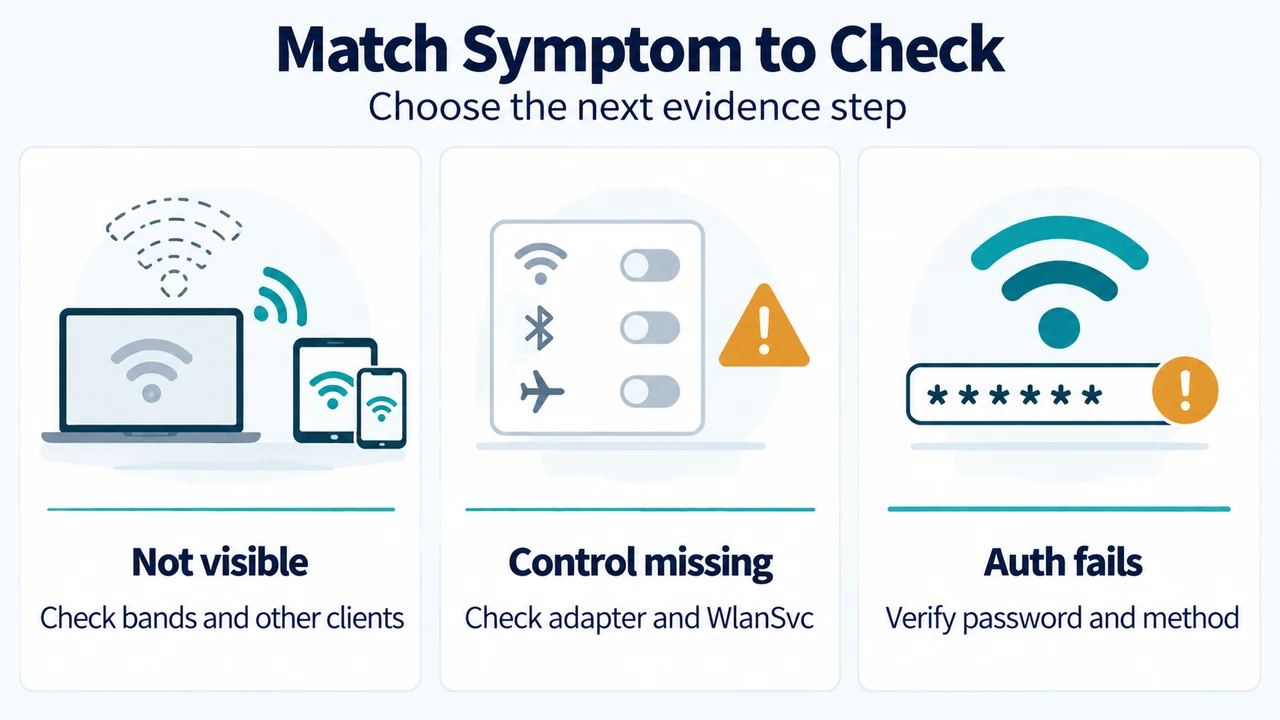
The network is not visible
Refresh the available-network list and confirm that Wi‑Fi is enabled. Microsoft also notes that an adapter may not support the frequency used by the network. For example, an adapter that supports 2.4 GHz may not support a network using 5 GHz. If two bands appear as separate networks, Microsoft suggests trying the other listed band.
The adapter or Wi‑Fi control is missing
This is a different problem from one saved network failing to connect. Microsoft’s troubleshooting guide says to check whether the adapter is present and enabled and whether the WLAN AutoConfig service is running. It also recommends recording recent operating-system, driver, firmware, BIOS, sleep, or resume changes.
The password appears correct but authentication fails
Microsoft identifies authentication failure as a separate scenario. Its guidance says to verify that the password matches the router configuration. Enterprise authentication has additional troubleshooting requirements, so this short profile check should not be presented as a complete fix for enterprise Wi‑Fi.
Another device can connect
Microsoft recommends trying the same network on another laptop or phone. If another device connects, the source of the problem is likely related to the Windows device. This comparison does not by itself identify whether the cause is the adapter, driver, profile, authentication, or another client-side component.
When to collect evidence before changing more
For a persistent failure, Microsoft’s advanced guide says to collect baseline information before resetting the network stack, deleting wireless profiles, removing the adapter or driver, or restarting the device, because those actions can remove evidence or temporarily change the behavior.
The documented baseline includes the exact time of each connection attempt or disconnect, the adapter model, driver version and date, Windows build, recent update history, network name, authentication method, and relevant WLAN-AutoConfig operational events. Microsoft also lists commands that collect wireless driver, interface, network, profile, and report information, but this article does not require running them for the initial forget-and-reconnect check.
Text version of the diagrams
- Profile Check vs Wider Failure: Saved profile — One network entry fails; Forget and reconnect — Fresh connection attempt; Broader causes — Adapter, access point, policy
- Match Symptom to Check: Not visible — Check bands and other clients; Control missing — Check adapter and WlanSvc; Auth fails — Verify password and method
Limits of this guide
This article was prepared from the supplied public Microsoft excerpts retrieved on 22 September 2026, plus a competitor excerpt used only to compare coverage. One Microsoft troubleshooting page was marked as truncated, and the Microsoft Learn page indicated that access to part of the page requires authorization. The article therefore uses only the visible statements. It makes no hands-on, lab, benchmark, or comprehensive-review claim.
Sources: Microsoft: Fix Wi‑Fi connection issues in Windows; Microsoft: Connect to a Wi‑Fi network in Windows; Microsoft Learn: Wireless network connectivity issues troubleshooting.