To recover an earlier version of a Microsoft Word document, the supported steps depend on where the document is stored and how Word handled drafts during your session. For files saved in OneDrive or SharePoint in Microsoft 365, you can view and restore earlier drafts using Version History. For files handled through AutoRecover, you can check for saved milestones or unsaved document drafts under the Manage Document menu in Word desktop.
Supported Versions and Scope Differences
The two recovery mechanisms have distinct documented version scopes in Microsoft’s primary support documentation:
- AutoRecover: Applies to Word for Microsoft 365, Word 2024, Word 2021, Word 2019, and Word 2016. It relies on the AutoRecover option being turned on while you work.
- Version History: Applies to files stored in OneDrive or SharePoint in Microsoft 365. Documented desktop and web applications include Word for Microsoft 365, Word for Microsoft 365 for Mac, Word 2024 for Mac, Word 2021, Word 2021 for Mac, Word 2019, Word 2016, and Word for the Web (note that perpetual Word 2024 on Windows is not listed in the supplied Version History excerpt).
Method 1: Cloud Files in OneDrive or SharePoint (Version History)
If your file is stored in OneDrive or SharePoint in Microsoft 365, you can go back to a previous version of the file. If you sign in with a personal Microsoft account, you can retrieve the last 25 versions. If you sign in with a work or school account, the number of versions depends on your library configuration.
- Open the file you want to view in Word.
- Access Version History based on your app version:
- Microsoft 365: Click the title of your file at the top and select Version history. (If you do not see this option, select File > Info to check for Version History).
- Office 2016 – 2021: Go to File > History. (If History is missing from the navigation pane, select File > Info and check for Version History).
- macOS: In Microsoft 365 for Mac, click the document name on the title bar and select Browse Version History. In older versions of Office for Mac, select File > Browse Version History.
- Web: In Word for the Web, select File > Version History.
- Select an earlier version to open it in a separate window.
- To restore the selected version, select Restore.
Method 2: AutoRecover for an Existing Saved File
If the AutoRecover option is turned on, Word can automatically save versions while you work. If you previously saved the document but closed without saving your latest edits:
- Open the file you were working on.
- Select File > Info.
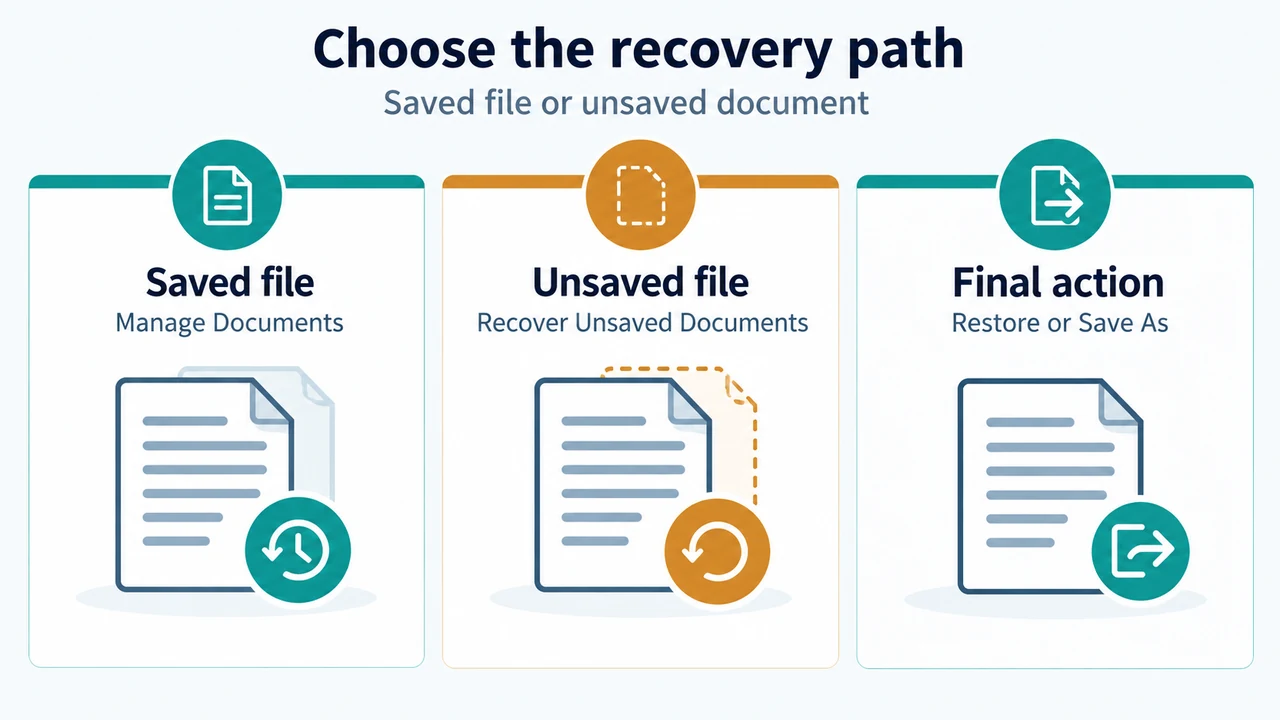
- Under Manage Documents, select the file labeled (when I closed without saving).
- In the bar at the top of the file, select Restore to overwrite previously saved versions, or select Compare to compare versions instead.
Method 3: AutoRecover for an Unsaved File
If you have not saved the file at all before closing or losing your session:
- Open Word and go to File > Info.
- Select Manage Document, then select Recover Unsaved Documents.
- Select the unsaved file and click Open.
- In the bar at the top of the file, select Save As to save your file.
Summary of Recovery Routes
| Storage / Scenario | Documented Applications | Navigation Path | Available Actions |
|---|---|---|---|
| OneDrive or SharePoint in Microsoft 365 | Word for Microsoft 365, Word 2021, Word 2019, Word 2016, Word for Mac (M365, 2024, 2021), Word for the Web | Title bar > Version history, File > History, or File > Info | Open version in separate window, Restore (last 25 versions for personal accounts; library-configured for work/school) |
| Saved file closed without saving recent edits | Word for Microsoft 365, Word 2024, Word 2021, Word 2019, Word 2016 | File > Info > Manage Documents > ‘(when I closed without saving)’ | Restore or Compare |
| File was never saved | Word for Microsoft 365, Word 2024, Word 2021, Word 2019, Word 2016 | File > Info > Manage Document > Recover Unsaved Documents | Open, then Save As |
Research Method and Limitations
This article was prepared solely from two public Microsoft Support documentation excerpts: “Recover an earlier version of a Word file” and “View previous versions of Office files.” No independent software tests, hands-on recovery experiments, or benchmarks were conducted. Competing third-party documentation was unavailable in the source data. The evidence explicitly restricts cloud Version History to files stored in OneDrive or SharePoint in Microsoft 365 and lists Word 2024 for Mac rather than perpetual Word 2024 on Windows for that specific feature. Any unlisted platforms, unstated versioning limits, or truncated external links in the source excerpts remain unverified.
Text version of the diagrams
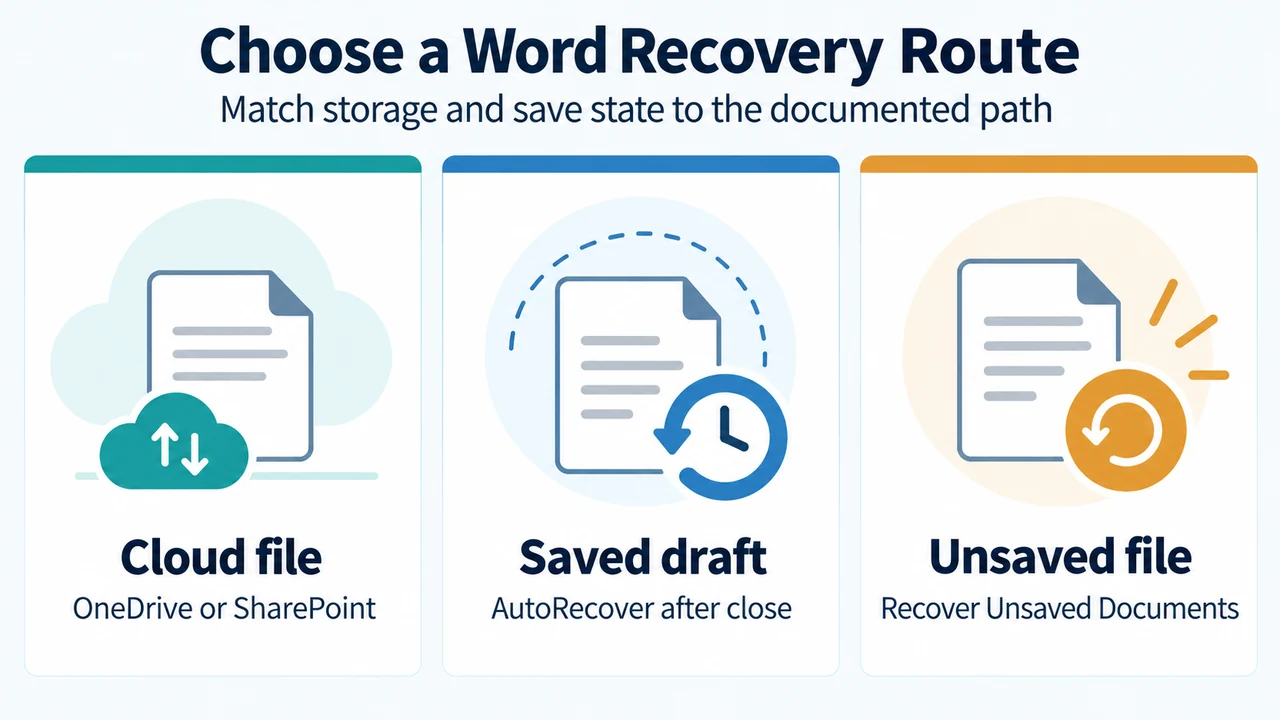
- Choose a Word Recovery Route: Cloud file — OneDrive or SharePoint; Saved draft — AutoRecover after close; Unsaved file — Recover Unsaved Documents
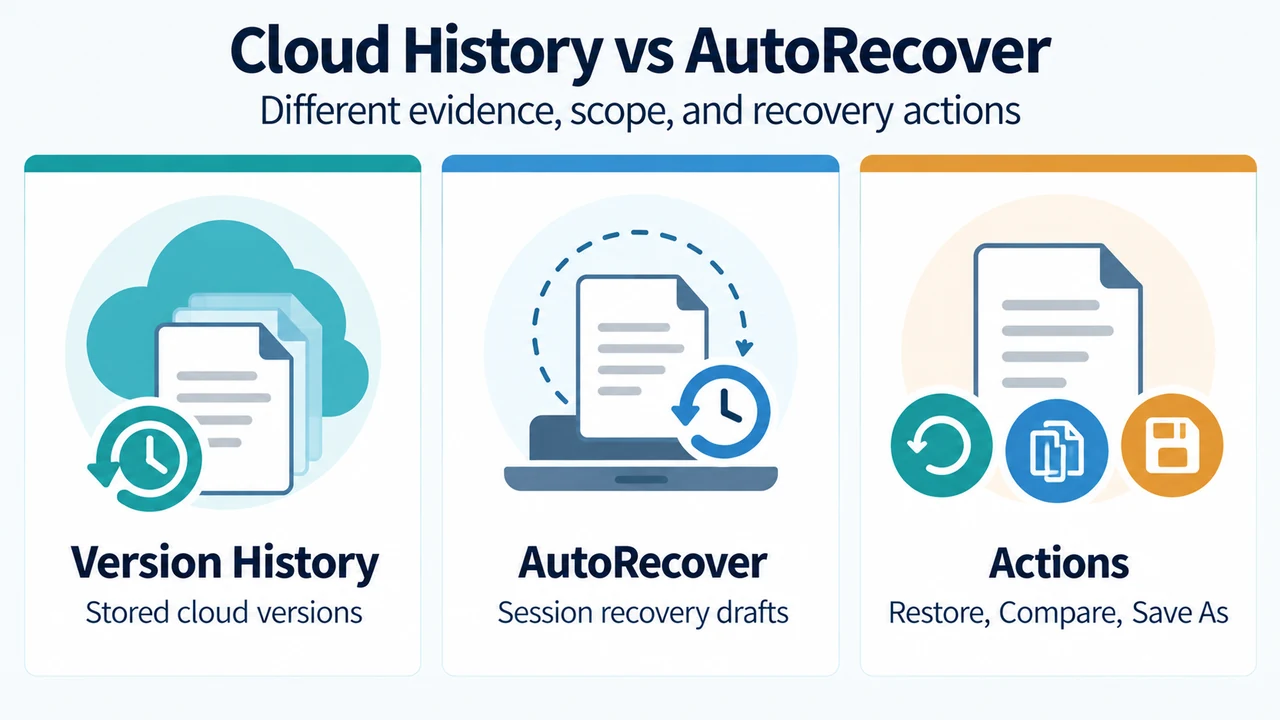
- Cloud History vs AutoRecover: Version History — Stored cloud versions; AutoRecover — Session recovery drafts; Actions — Restore, Compare, Save As