If you need to recover an earlier version of a Word file, Microsoft Word provides built-in recovery options across Word for Microsoft 365, Word 2024, Word 2021, Word 2019, and Word 2016. How you recover a file depends on whether you have saved it.
Research Method and Limitations
This troubleshooting guide was prepared directly from public documentation published by Microsoft Support (Recover an earlier version of a Word file). No hands-on testing, simulated failure benchmarks, or external evaluations were performed. No competing coverage was available. The primary excerpt does not specify an operating-system boundary, and the excerpt was not truncated.
Supported Word Versions
According to Microsoft documentation, these recovery steps apply to:
- Word for Microsoft 365
- Word 2024
- Word 2021
- Word 2019
- Word 2016
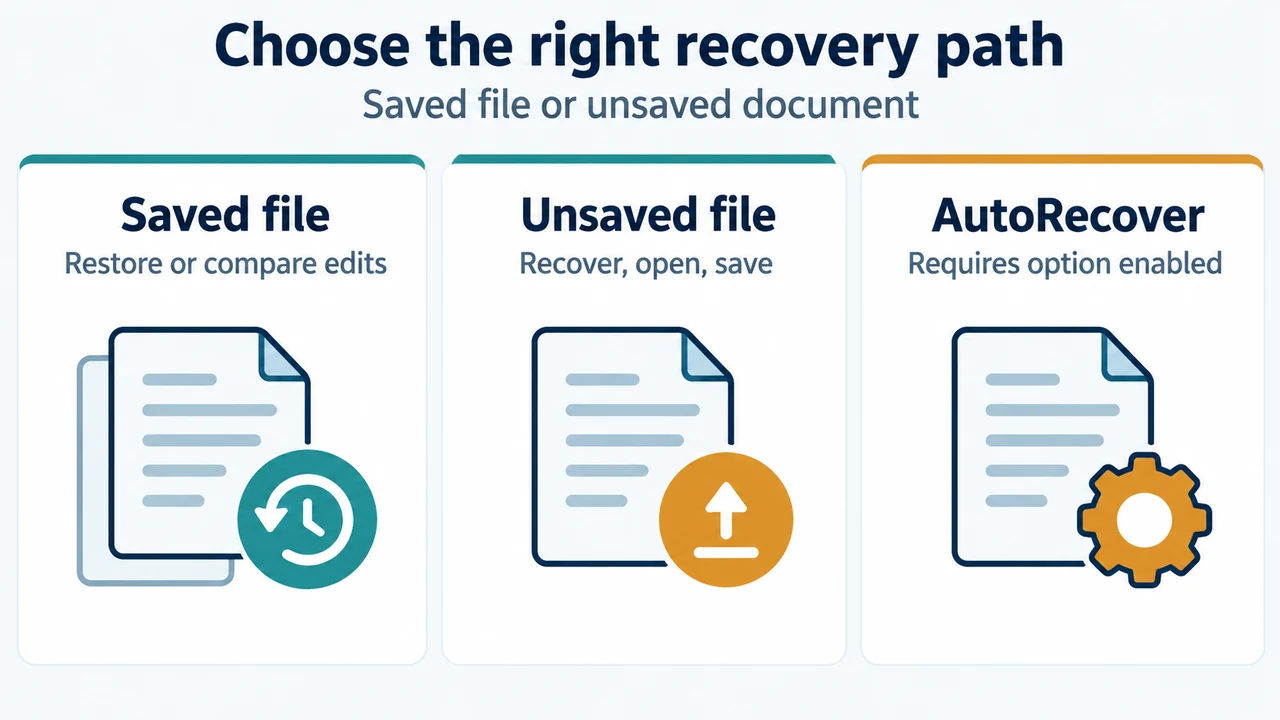
If the AutoRecover option is turned on, you can automatically save versions of your file while you are working on it. How you recover something depends on when you saved it.
Scenario 1: If You Have Saved the File
If you have saved the file:
- Open the file you were working on.
- Select File > Info.
- Under Manage Documents, select the file labeled (when I closed without saving).
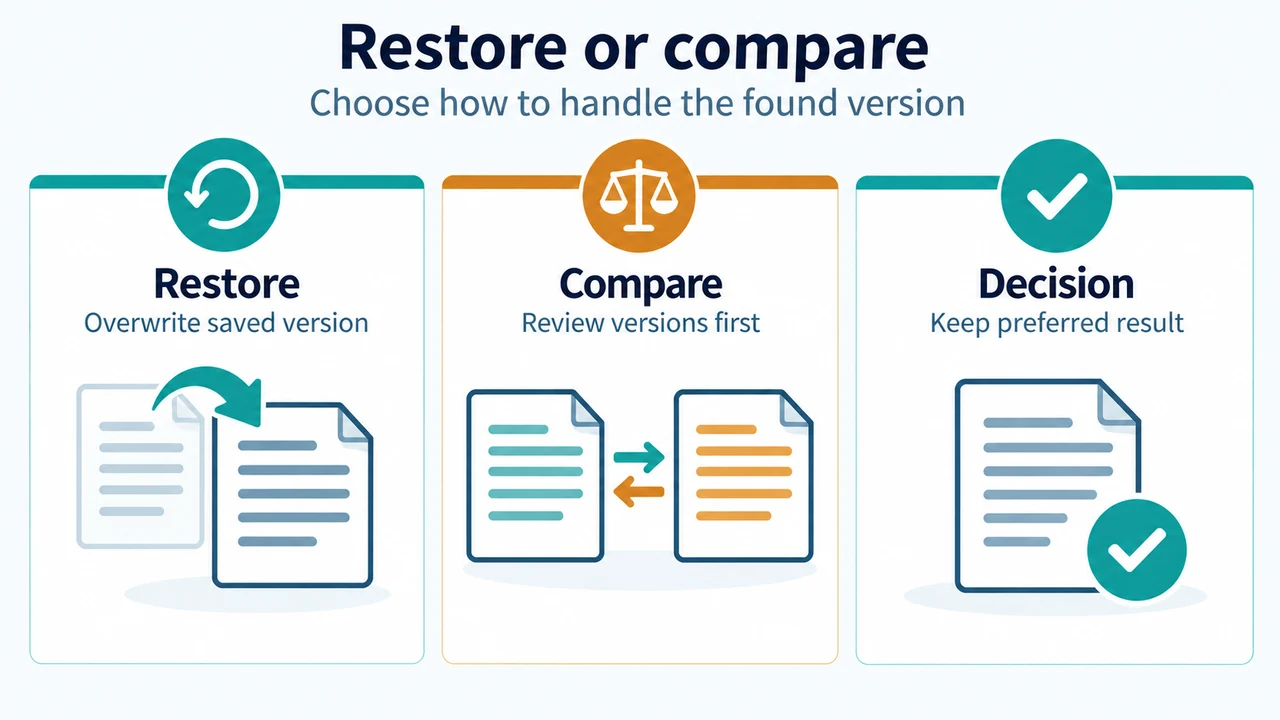
- In the bar at the top of the file, select Restore to overwrite any previously saved versions.
You can also compare versions by selecting Compare instead of Restore.
Scenario 2: If You Haven’t Saved the File
If you haven’t saved the file:
- Go to File > Info > Manage Document > Recover Unsaved Documents.
- Select the file, and then select Open.
- In the bar at the top of the file, select Save As to save the file.
Text version of the diagrams
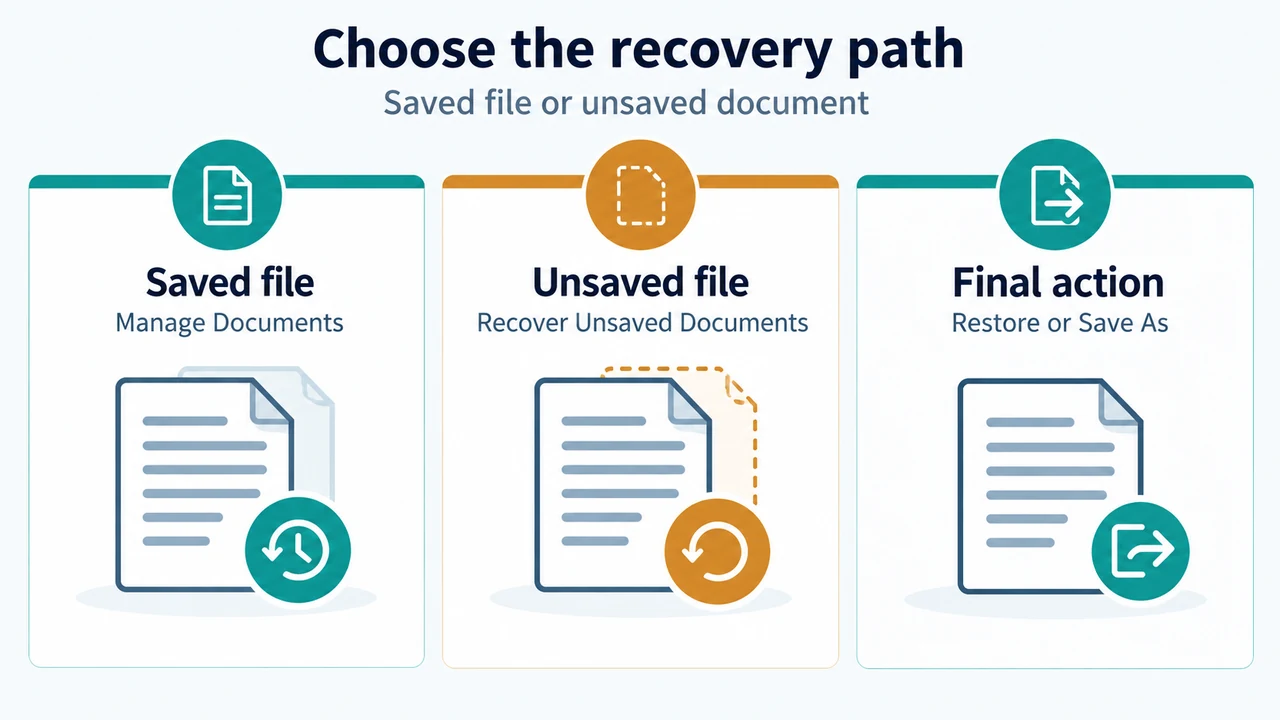
- Choose the recovery path: Saved file — Manage Documents; Unsaved file — Recover Unsaved Documents; Final action — Restore or Save As
- Restore or compare: Restore — Overwrite saved version; Compare — Review versions first; Decision — Keep preferred result
Summary of Recovery Workflows
| Saved Status | Navigation Path | Action |
|---|---|---|
| If you have saved the file | File > Info > Manage Documents | Select the file labeled “(when I closed without saving)”, then select Restore (or Compare to compare versions) |
| If you haven’t saved the file | File > Info > Manage Document > Recover Unsaved Documents | Select the file, select Open, then select Save As in the top bar |